Connect Arduino to MATLAB over Wi-Fi
Check if the Arduino® board is connected to MATLAB® and configured. If the board needs configuration, click Hardware Setup and follow the onscreen instructions to upload the Arduino server and set up the Arduino to communicate with MATLAB.
Board — Select the Arduino Board
IP Address — Select the Wi-Fi® IP address.
TCP/IP Port — Select the TCP/IP port to connect to the Arduino.
Custom Name — You may select a custom name for your Arduino.
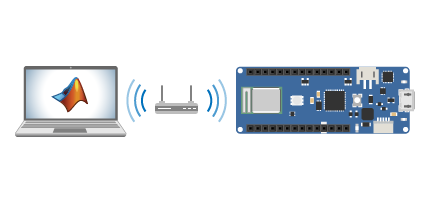
After you have specified values for these parameters, click Confirm Parameters. If the connection is successful, your Arduino board appears in the Device List. Go back to the Devices tab at any time by clicking Cancel.
If the connection fails:
Ensure that the Arduino board is connected to host system by pinging its IP Address.
Ensure that the Wi-Fi server has been successfully uploaded into the Arduino board.
Ensure that the Board, IP Address and TCP/IP port fields are correct.
For further information, see Arduino USB, Bluetooth, and Wi-Fi Connection Failure.

