R2026b

New Features

Install MATLAB Copilot as add-on

MATLAB® Copilot now has MATLAB as a dependency and is an add-on product on the same license as MATLAB. To access MATLAB Copilot, you must now install the MATLAB Copilot add-on. Previously, if MATLAB Copilot was included with your license, you had access to MATLAB Copilot automatically when you signed in to your MathWorks® Account.

To install MATLAB Copilot, select it from the product selection list while installing MATLAB. If you already have MATLAB installed, install MATLAB Copilot from the Add-Ons panel. See Get and Manage Add-Ons.

 Improved Explain Error responses

The Explain Error action now includes additional files within an error's stack trace as context in the Copilot Chat panel. Previously, Explain Error included only the file that initially triggered the error as context. The additional context improves explanations and recommendations for error recovery. The Copilot Chat panel includes as much of the stack trace as possible until it reaches its token limit.

For details on explaining errors, see Explain Code Using MATLAB Copilot.

 View differences between modified and existing code without opening separate window

The Ask Copilot box in the MATLAB Editor now displays the differences between modified code and existing code. Previously, you had to open a separate window to view these differences. The Ask Copilot box also displays the name of the file, the line numbers selected for modification, and the number of lines of code added or removed. From this box, you can accept or discard the modified code, navigate between updated lines of code using the and buttons, toggle between viewing the differences or just the generated code using the button, and show the differences in a separate Comparison Tool window using the button.
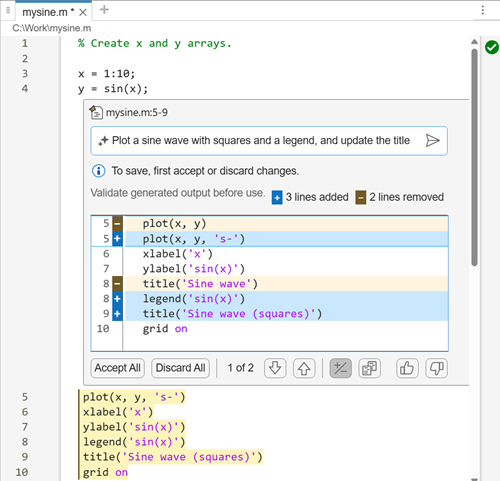
Code file in the Editor, showing code that calls the sin function and an Ask Copilot box below it. The prompt "Plot a sine wave with squares and a legend, and update the title" is visible in the text box and the line differences between the modified code and existing code appear below the text box. Buttons to interact with the modified code appear below the line differences.

For more details, see Modify Generated Code with MATLAB Copilot.

Perform Copilot actions inline in MATLAB Editor

In the MATLAB Editor, you can now perform context-specific actions by clicking the icon that appears to the left of the code. For example, if you select a block of code and click the icon, the context menu provides options to explain the code or generate comments for it.
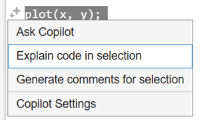
Code selected in the Editor, with the sparkle icon next to it and a context menu below it that includes the options "Explain code in selection" and "Generate comments for selection"

If you put your cursor on the function definition line of a function file and click the icon, the context menu provides an option to generate help text for that file.
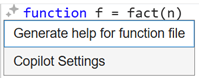
Function definition line in a file, with the sparkle icon next to it and a context menu below it that includes the option "Generate help for function file"

For additional ways to generate comments and explain code, see Generate and Modify Code Using MATLAB Copilot and Explain Code Using MATLAB Copilot.

Generate comments and explain code for entire MATLAB code file (.m) or live code file (.mlx)

You can now use the Generate Comments and Explain Code actions on all contents of a MATLAB code file (.m) or live code file (.mlx). Previously, you had to select some code first. To perform these actions, place your cursor anywhere in the file and then select Copilot > Generate Comments or Copilot > Explain Code on the Editor tab of the MATLAB Toolstrip.

For additional ways to generate comments and explain code, see Generate and Modify Code Using MATLAB Copilot and Explain Code Using MATLAB Copilot.

Disable automatic Copilot Chat context

If you have files open in the Editor or Live Editor, MATLAB Copilot automatically adds the current file as context in its Copilot Chat responses. You can now disable this automatic chat context.

For details, see Disable Automatic Copilot Chat Context.

LLM updated to GPT 5.4 (September 2026)

These MATLAB Copilot features use the GPT-5.4 mini or nano models as the underlying LLM:

  • Copilot Chat responses

  • Explain Code action

  • Explain Error action

  • Generate Comments action

  • Generate Help action

  • Generate Test action (MATLAB Test™)

  • Get Insights Using Copilot action

This update applies to all supported releases, starting with R2025a.

These features continue to use the GPT-5 mini model as the underlying LLM:

  • Explain Parfor action (Parallel Computing Toolbox™)

  • Training Advisor (Reinforcement Learning Designer)

Connect MATLAB Copilot to your LLM provider (September 2026)

You can connect MATLAB Copilot to private large language model (LLM) endpoints that are approved by your organization. For more information, see Connect MathWorks Copilot Products to Your LLM.

R2026a

New Features

Get insights for tabular data (July 2026)

With MATLAB Copilot, you can get insights and start analyzing data in a table or timetable in your workspace. MATLAB Copilot uses the summary function, the corrcoef function, and a sample of your data to find meaningful insights.

To get insights:

  • Workspace panel — Right-click a table or timetable, and select Get Insights Using Copilot.

  • Command Window — Display a table or timetable. Then, below the displayed data, click Get insights using Copilot.

The Copilot Chat panel displays the insights along with validation code that you can run to verify the results. After getting these insights, you can continue your analysis by clicking a suggested follow-up prompt or typing your own questions about your data.

For more information, see Get Insights for Tabular Data Using MATLAB Copilot.
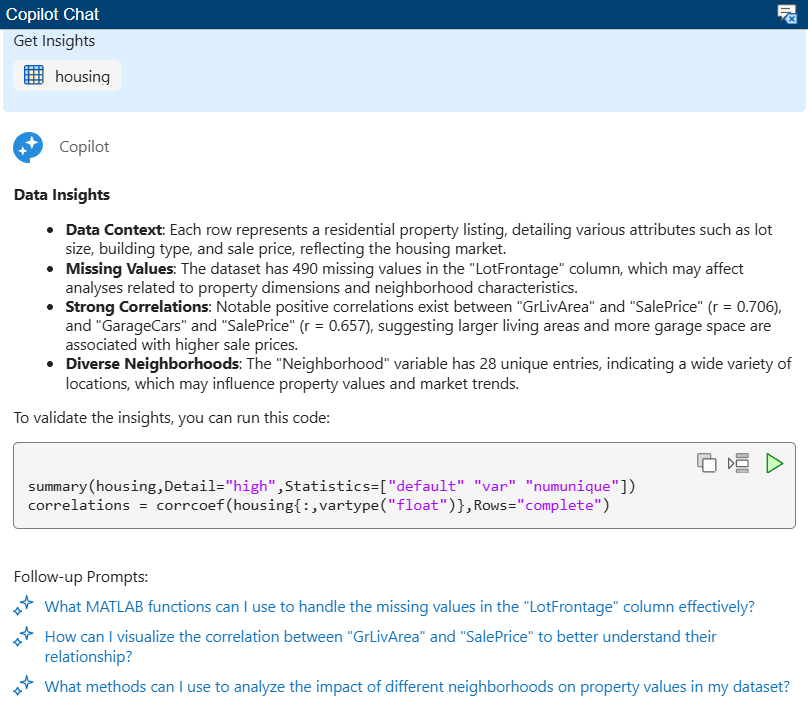
Copilot Chat panel showing data insights for a housing data table

 Add MATLAB code files (.m) and live code files (.mlx) as chat context (May 2026)

You can improve Copilot Chat responses by adding MATLAB code files (.m) and live code files (.mlx) as added context for your queries. To add files, in the Copilot Chat panel, click the Add File button, and then browse for the files or select them from your current folder.
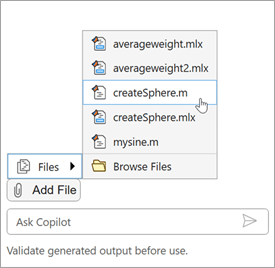
Copilot Chat panel, showing the Add File button pressed and a file from the current folder selected

If you have a file open in the Editor or Live Editor, MATLAB Copilot adds the current file to the chat as context automatically.

For more information, see Start and Chat with Copilot.

Generate help for MATLAB functions (May 2026)

You can ask MATLAB Copilot to generate help text for a MATLAB function file (.m). To generate help text, select Copilot > Generate Help on the Editor tab of the MATLAB Toolstrip. Or, right-click anywhere in the file and select Copilot > Generate Help from the context menu. MATLAB Copilot provides the option to accept or discard the generated help text.
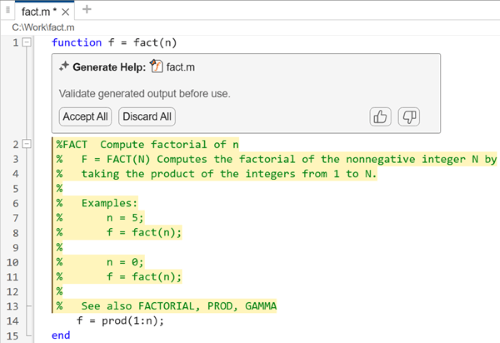
Function file in the Editor, showing a function with generated help text and a box labeled "Generate Help" that contains Accept and Discard buttons

MATLAB Copilot generates help text only for the first function in the file, not local or nested functions.

For more information, see Generate and Modify Code Using MATLAB Copilot.

Get recommendations for fixing errors (May 2026)

When you click Explain Error after an error occurs in the Command Window or Live Editor, Copilot Chat now provides a recommendation for fixing the error. Previously, Copilot Chat provided only troubleshooting steps.

If the error occurs in a function or script file on your MATLAB search path, MATLAB Copilot also adds the file to the Copilot Chat panel as context and might suggest changes to that file to resolve the error.
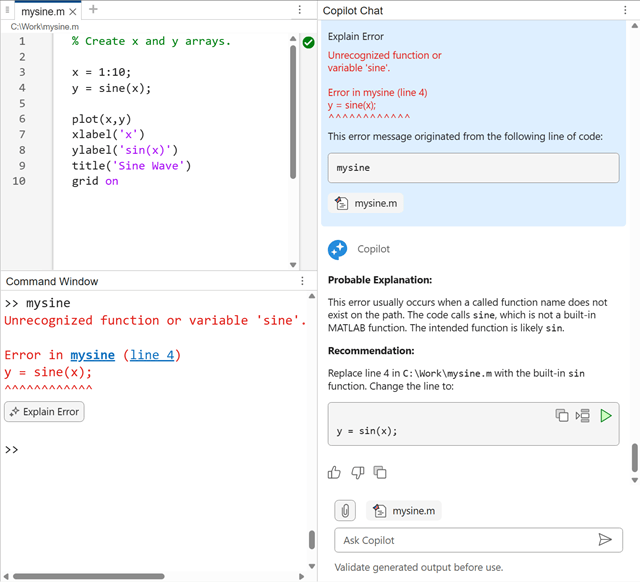
MATLAB desktop, showing an error in the Command Window along with an Explain Error button. The Copilot Chat panel shows an explanation of the error and a recommendation for how to fix it.

For more information, see Explain Code Using MATLAB Copilot.

Localization improvements (May 2026)

Actions such as Generate Comments, Explain Code, and Explain Error now generate text and provide responses in the language of your current locale instead of English. Previously, only the Copilot Chat panel responded in the language of your current locale.

Enable or disable MATLAB Copilot from status indicator

You can quickly enable or disable MATLAB Copilot from the Copilot status indicator, without going to the Settings window. The status indicator provides either Enable Copilot or Disable Copilot as an option, depending on the current status of MATLAB Copilot.

For example, if MATLAB Copilot is enabled, then you can disable it from the status indicator. At the lower-left corner of the MATLAB desktop, click the Copilot status indicator and select Disable Copilot.
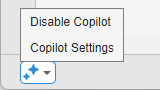
Copilot status indicator in the lower-left corner of the desktop showing the Disable Copilot and Copilot Settings options

For more information, see Disable MATLAB Copilot.

Disable hint for Ask Copilot keyboard shortcut

You can disable the hint for the Ask Copilot keyboard shortcut. By default, the Command Window, Editor, and Live Editor frequently display a shortcut hint reminding you that you can press Ctrl+Shift+P (or Command+Shift+P on macOS) to generate code with MATLAB Copilot.

To disable the display of this shortcut hint, see Disable Ask Copilot Keyboard Shortcut Hint.

Customize Ask Copilot keyboard shortcut

You can customize the keyboard shortcut that opens an Ask Copilot text box. By default, the keyboard shortcut is Ctrl+Shift+P (or Command+Shift+P on macOS).

To change the shortcut to a different combination of keys, see Customize Ask Copilot Keyboard Shortcut.

R2025b

New Features, Bug Fixes

Quality and stability improvements

R2025b delivers quality and stability improvements, building on the new features introduced in R2025a.

LLM updated to GPT-5 mini (November 2025)

These MATLAB Copilot features use the GPT-5 mini model as the underlying LLM:

  • Copilot Chat responses

  • Explain Code action

  • Generate Comments action

  • Explain Error action

Also, Copilot Chat now supports a larger context window to enable longer conversations.

This update applies to all supported releases, starting with R2025a.

R2025a

New Features

Create, explain, and verify MATLAB code with generative AI

MATLAB Copilot provides generative AI–powered capabilities specifically for the MATLAB desktop environment. With MATLAB Copilot, you can ask questions in the Copilot Chat and get responses based on relevant MathWorks documentation and code examples.

You can use MATLAB Copilot to:

  • Generate code by describing the code you want.

  • Provide code predictions as you type in the MATLAB Editor.

  • Explain your code and error messages, and add comments to your code.

  • Generate test cases to verify expected code behavior (with MATLAB Test).

For more information, see Set Up MATLAB Copilot.