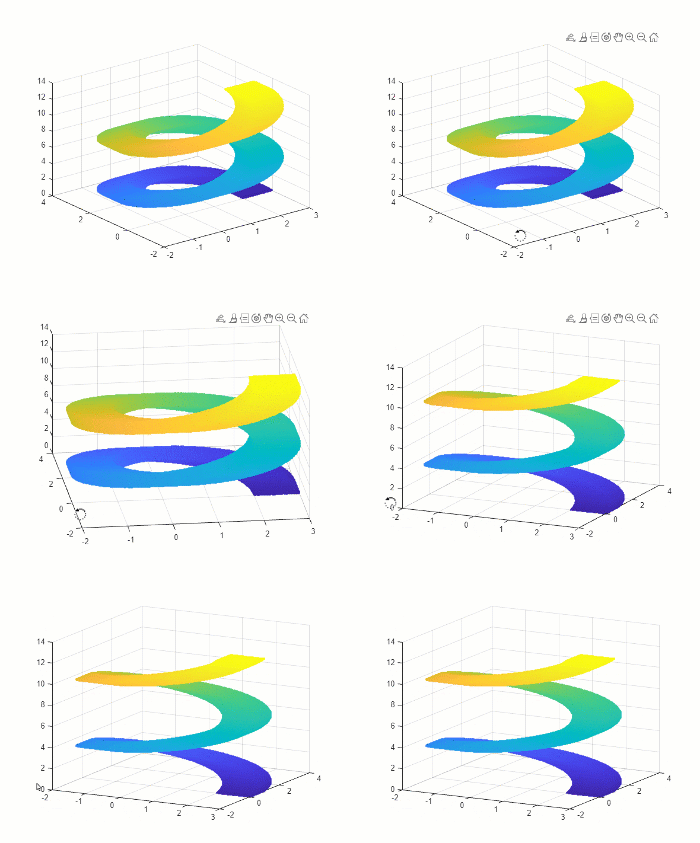
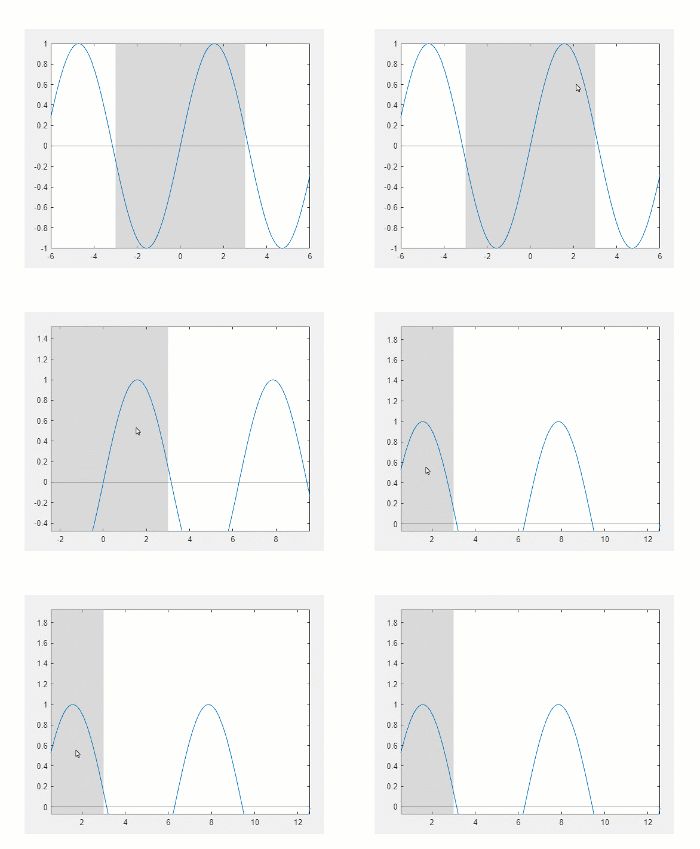
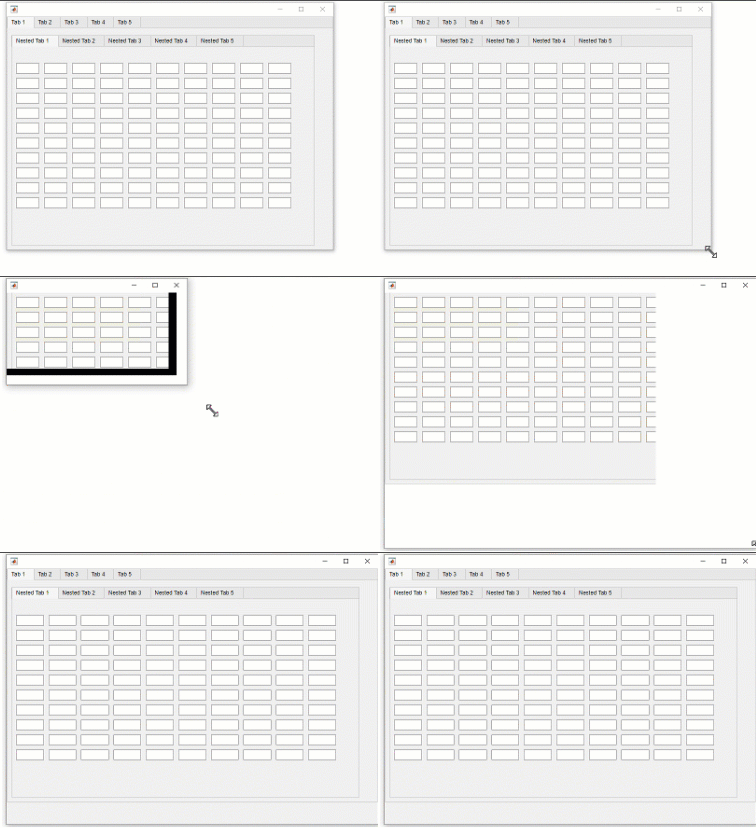
Live Editor Tasks: Create Live Editor task from selected code with interactive controls
You can convert a selection in the Live Editor that contains code, text, and interactive controls into your own Live Editor task. Supported controls include numeric sliders, numeric spinners, drop-down lists, check boxes, edit fields, buttons, and file browsers.
To create your own Live Editor task from a selection, after making the selection, go to the Live Editor tab, and in the Code section, select Task > Convert to Task. When prompted, enter a name for the task, the name of the task class definition file to create, an optional description of the task, and some optional keywords. MATLAB® creates your Live Editor task from the selection and adds the task to the Live Editor task gallery.
To add your task to a live script, on the Live Editor tab, click Task and select your task from the list.
For more information, see Create Live Editor Task from Selection.
Live Editor Tables: Add tables containing text and images to live scripts and functions
You can add tables to your live scripts and functions to format text and images. To
insert a table, go to the Insert tab and select
Table
. Move the cursor over the grid to highlight the numbers
of rows and columns you want and then click to add the table. To create a larger table,
select the Insert a table button and specify the numbers of rows and columns in the dialog
box.
After inserting the table, to modify its rows and columns, right-click the table, select Table, and select from the available options. For more information, see Format Text in the Live Editor.
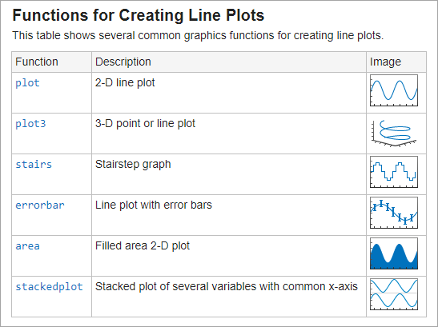
Live Editor Controls: Add color pickers and state buttons to live scripts
You can add a color picker to your live script to select a color interactively. You also can add a state button to indicate and interactively set the value of a logical variable.
To add a color picker, go to the Live Editor tab, and in the Code section, select Control > Color Picker. To add a state button, select State Button.
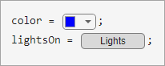
For more information, see Add Interactive Controls to a Live Script.
Live Editor Controls: Select folders interactively in live scripts using file browser
You can use a file browser in a live script to select a folder interactively. To add a file browser, go to the Live Editor tab, and in the Code section, select Control > File Browser. To configure the control to select a folder rather than a file, right-click the control and select Configure Control. Then, in the Type section, select Folder.
For more information, see Add Interactive Controls to a Live Script.
Live Editor Accessibility: Interact with inline output using the keyboard
You can now use keyboard shortcuts to interact with inline output in live scripts. To move focus from the code to the output, use the down arrow and up arrow keys. To activate an output, press Enter. Once an output is activated, you can scroll text using the arrow keys, navigate through hyperlinks and buttons using the Tab key, and open the context menu by pressing Shift+F10. To deactivate an output, press Esc.
To disable using the keyboard to move focus to the output when output is inline, on the
Home tab, in the Environment section, click
Preferences. Select MATLAB > Editor/Debugger > Display, and clear the Focus outputs using keyboard when output is
inline option.
Live Editor Export: Interactively customize export options, such as document paper size, orientation, margins, and figure format
When exporting to PDF, Microsoft® Word documents, HTML, and LaTeX, you can use the Export dialog box to customize export options interactively. To open the Export dialog box, on the Live Editor tab, click Export and then select an export format. In MATLAB Online™, click Save instead of Export.
You can change the paper size, orientation, and margins when exporting to PDF, Microsoft Word documents, and LaTeX. You also can change the resolution and format of figures when exporting to PDF, HTML, and LaTeX (requires the files to be run before exporting).
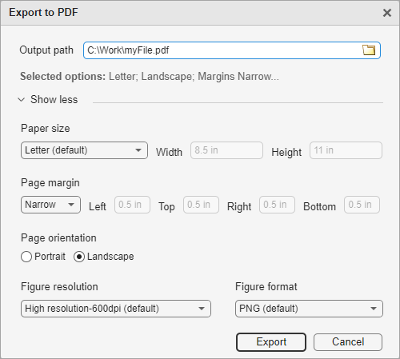
For more information, see Ways to Share and Export Live Scripts and Functions.
export Function: Convert live scripts and functions to Markdown
files and Jupyter notebooks
You can convert live scripts and functions to Markdown files and Jupyter® notebooks by using the export
function. To convert a live script or function to a Markdown file or Jupyter notebook, specify an output filename with a .md or
.ipynb extension. Alternatively, you can set the
Format name-value argument to "Markdown" or
"ipynb".
For example, convert the live script "penny.mlx" to a Markdown file
and a Jupyter
notebook.
export("penny.mlx","penny.md") export("penny.mlx","penny.ipynb")
Editor Execution: Run sections even if other sections contain syntax errors
In the Editor and Live Editor, you can now run a code section even if another section in the file contains a syntax error. Previously, you could run a section only if the entire file contained no syntax errors.
For more information about creating sections, see Create and Run Sections in Code.
Editor Variable Renaming: Automatically rename next references to variables or functions in file
In the Editor and Live Editor, when you rename a variable or function in a file, you can choose whether to rename all instances or only the instances from the current cursor location to the end of the file. To rename all instances of a variable or function, press Shift+Enter. To rename only the instances from the current cursor location to the end of the file, press Alt+Shift+Enter. On macOS, use Option+Shift+Enter instead.
For more information, see Find and Replace Text in Files and Go to Location.
Find and Replace Dialog Box: Use capture groups in regular expressions to search for and replace groups of characters
Search for and replace groups of characters in a file using capture groups in regular
expressions. To begin searching using regular expressions, on the Editor or Live Editor tab, in the Navigate section, click
Find. Then, select the Regular expression option
.
To create a capture group, surround the characters that you want to group with
parentheses. Then, to access the capture group within the regular expression, use the
format \, where
number refers to the capture group
number. To access the capture group within a replacement pattern, use the format
number$. For example, to find duplicate
words in a file, use the expression number(\w+)\s\1. To replace the two words
with just one word, use the expression $1.

You also can create a named capture group using the format
?<, where
name> is the name of the capture group.
Then, to access the named capture group, use the format
name\k< within the regular
expression, or name>$< within a
replacement pattern. For example, to find duplicate words using a named capture group, use
the expression name>(?<myword>\w+)\s\k<myword>. To replace the two
words with just one word, use the expression $<myword>.

For more information about searching using the find and replace dialog box, see Find and Replace Text in Files and Go to Location.
Debugging in MATLAB Online: Manage breakpoints and navigate the function call stack using Debugger panel
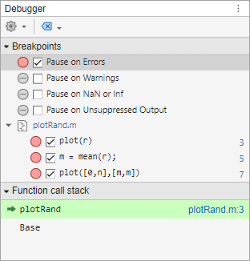
Use the Debugger panel to manage breakpoints and navigate the function call stack while
debugging in MATLAB
Online. To open the Debugger panel, go to the Editor or
Live Editor tab, and in the Analyze section,
click
Debugger. You also can open the panel using the Open more panels
button (
) in the sidebar.

For more information, see Debug MATLAB Code Files.
Desktop Layout in MATLAB Online: Open additional panels directly from sidebars
In MATLAB
Online, you can open additional panels (also referred to as tools) directly from the
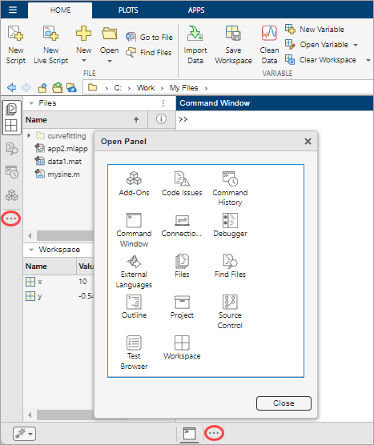
sidebars. To open additional panels, in a sidebar, click the Open more panels button (
). Then, in the Open Panel dialog box, select from the
available panels. You also can right-click in a sidebar and select Open more
panels.
For example, to open the Code Issues panel, click the Open more panels button (
), and select the Code Issues panel.

For more information, see Change Desktop Layout.
Themes in MATLAB Online: Save color customizations for individual themes
MATLAB Online now saves your color customizations for each available theme. If you customize the colors of the MATLAB Online desktop and then the MATLAB theme changes to a new theme or to match a change to the operating system color scheme, your customizations are saved.
With this change, in MATLAB
Online, programmatically customizing syntax highlighting colors using the
matlab.colors settings is no longer supported. To customize syntax
highlighting colors, use the preferences in the MATLAB Appearance Colors
Preferences page of the Preferences window instead. For
more information, see Change Desktop Colors.
In an installed version of MATLAB, programmatically customizing syntax highlighting colors using the
matlab.colors settings is still supported.
Window Management in MATLAB Online: Automatically collapse windows
In MATLAB Online, when you click the MATLAB background, open windows in the foreground collapse. Collapsing a window reduces the size of the window by displaying only its title bar.

![]()
To restore the collapsed windows, click the title bar of one of the previously open windows.
To prevent a window from being collapsed or minimized, click
on its title bar.
For more information, see Manage Windows in MATLAB Online.
MATLAB on Macs: Better performance and improved battery life on MacBooks with MATLAB and Simulink running natively on Apple silicon
You can run MATLAB and Simulink® natively on MacBook computers with Apple silicon.
MATLAB on Macs: Java Runtime Environment required for MATLAB and MATLAB Runtime on Apple silicon
On Mac computers with Apple silicon, if MATLAB or MATLAB Runtime does not find a supported Java Runtime Environment (JRE™), the program displays a dialog box with a link to information about the
Java® requirement and the recommended solution. For information about the
recommended solution, see https://www.mathworks.com/support/requirements/apple-silicon.html. For more information, see Start MATLAB on macOS Platforms.
MATLAB Drive: New URL for MATLAB Drive Online (January 2024)
You can now access MATLAB
Drive™ Online at https://drive.mathworks.com. Previously, MATLAB
Drive Online was located at https://drive.matlab.com.
Functionality being removed or changed
MATLAB Online keyboard shortcuts Ctrl+0, Ctrl+1, Ctrl+2, and Ctrl+3 have been removed
The Ctrl+0, Ctrl+1, Ctrl+2, and Ctrl+3 keyboard shortcuts have been removed in MATLAB Online to avoid a conflict with the shortcuts to switch tabs in certain browsers. These shortcuts were previously used to make the Command Window, Command History, Files panel, or Workspace panel active. On macOS, the corresponding keyboard shortcuts (Command+0, Command+1, Command+2, and Command+3) have also been removed.
To make one of these tools active, use Ctrl+F6 and Ctrl+Shift+F6 to move forward or backward through the different areas of the MATLAB Online desktop until your intended tool is selected. Then, to navigate into the tool, press the Tab key. On macOS, use the Command key instead of the Ctrl key.
XML comparison type for visdiff function will be
removed
Warns
The XML comparison type for the visdiff function will be removed in a future release. Overriding the
default comparison type by specifying "xml" will not be supported in
a future release. In R2023b, scripts that use
visdiff(filename1,filename2,"xml") issue a warning.
configureDictionary Function: Create dictionaries with configured
keys and values
Use the configureDictionary function to create an empty dictionary with specified
types for keys and values.
For example, create a dictionary that
is configured to accept strings as keys and doubles as values.
d = configureDictionary("string","double")
d = dictionary (string ⟼ double) with no entries.
lookup, insert, and remove
Functions: Find, add, and remove dictionary entries
You can perform basic dictionary operations using these three new
functions:
• lookup — Find the value that corresponds to a key. You can
optionally specify a fallback value for the function to return if it cannot find the
entry.
• insert — Add new dictionary entries. You can optionally specify
whether to overwrite existing entries.
• remove — Remove dictionary entries.
codeIssues Object: Export issues identified in code
Use the export object
function of the codeIssues
object to write its issues to a file. Exported files are in SARIF format by default, but
you can specify to export issues in SonarQube or MATLAB encoded JSON formats.
Code Compatibility Analyzer App: Group and filter code issues with improved interface
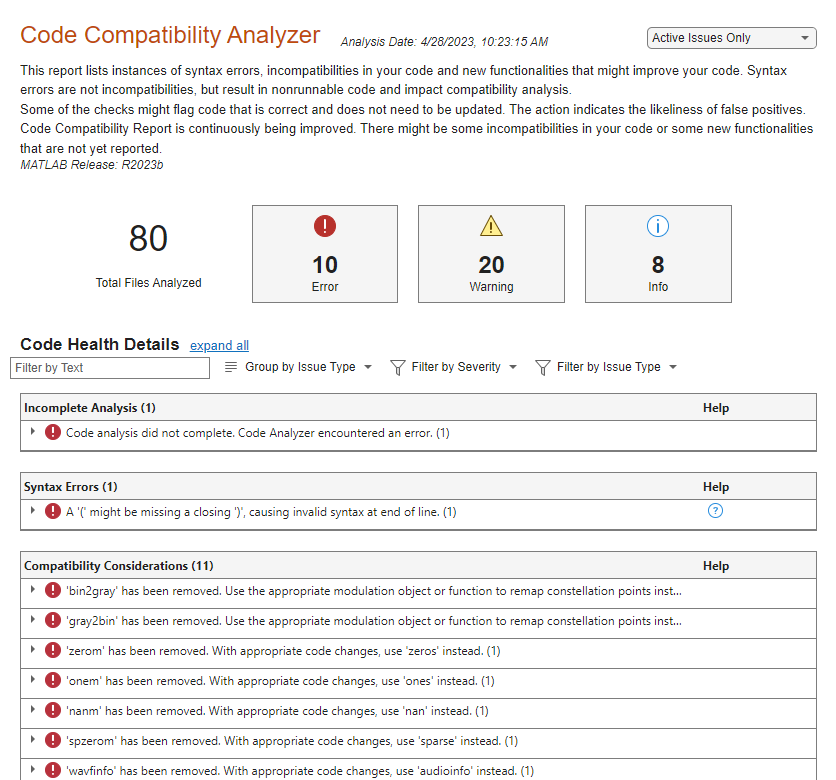
The Code Compatibility Analyzer app has a new interface that makes it easier to navigate issues found in code. You can now adjust how identified issues are grouped and filter results by text, severity, and issue type.
Class Diagram Viewer: Add known subclasses to diagrams
You can now automatically add one or more layers of known subclasses of a class in a diagram. Right-click the class in a diagram to see the options for adding subclasses. See Class Diagram Viewer for more information.
mustBeSparse Function: Validate sparsity of arguments
Use the mustBeSparse
validation function to check whether an argument is sparse. This function is designed for
use in function argument validation and property validation.
MATLAB
backgroundPool Function: load function supported
in background threads
Use the load function in thread-based environments,
including the MATLAB
backgroundPool. Saving Version 7.3 MAT-files is not supported.
Functionality being removed or changed
Arrays contained in structure fields, cells, and class properties are displayed with partial contents as well as size and data type
Behavior change
Between R2021b and R2023b, MATLAB displayed the entire contents of an array in a structure field, cell, or class property if the contents fit in the display. If the array did not fit, MATLAB showed as much of the array as the display allowed.
Starting in R2023b, if the entire contents of an array in a structure field, cell, or class property do not fit in the display, MATLAB shows as much of the array as the display allows, as well as the size and data type of the array. For example, as of R2023b, MATLAB displays partial contents as well as size and data type for a cell that contains an array of 100 double values.
D = {3.14,[1:100]};
D(2)
ans =
1×1 cell array
{[1 2 3 4 5 6 7 8 9 10 11 12 13 14 15 16 17 18 … ] (1×100 double)}The disp function follows the same behavior for structures,
cells, and class properties.
For more information, see the Version History notes in cell and struct.
Using the AbortSet attribute and a get method that sets the
property value can cause infinite recursion
Behavior change
Generally, MATLAB calls a property set method, if one exists, when a property is set outside
of the set method. When a property has a set method and uses the
AbortSet attribute, MATLAB acquires the old value and compares it with the new value for any
assignment to that property outside of its set method. If the property has a get method,
the get method is called to acquire the old value.
For R2023b, the get method is no longer bypassed when it indirectly results in
another call to the get method because of the AbortSet check. This
removes overhead from many property access operations. As a result, MATLAB calls the get method again to acquire the old property value when a
property fits all three of these conditions:
The property uses the AbortSet attribute.
The property has a set method.
The property has a get method that assigns a value to the property.
This call to get could lead to infinite recursion if the property assignment in the get method is unconditional.
Malformed and reserved import arguments issue warning
Behavior change
Previously, the import function accepted malformed
arguments, such as #.b or a.*.*, and MATLAB still
executed the command even though nothing was imported. It also allowed importing of
reserved names, such as a.for or a.if that do not
satisfy MATLAB naming rules. Starting in R2023b, MATLAB issues a warning if you include
invalid imports. Such imports will not be supported in a future release.
ver and verlessthan are not
recommended
Still runs
Using ver to return the current MATLAB release information is not recommended. Use matlabRelease instead.
Using verlessthan to determine if the current MATLAB release is older than a specified release is not recommended. Use
isMATLABReleaseOlderThan instead.
Change to precedence for constructors in class folders
Behavior change in future release
When a class and a function on the path have the same name, MATLAB currently gives precedence to the class constructor if the class is defined inside a class folder (@-folder). The constructor takes precedence even if the function appears before the class on the path.
In a future release, this precedence rule will be removed. In other words, if a function appears before a class of the same name on the path, the function will have precedence regardless of whether the class is defined in a class folder. Change the order of these items on your path to maintain your preferred precedence.
Defining classes and packages: Using schema.m will not be
supported in a future release
Still runs
Support for classes and packages defined using schema.m files will
be removed in a future release. Replace existing schema-based classes with classes
defined using the classdef keyword.
Experiment Manager App: Design experiments to run MATLAB code, and visualize, filter, and compare results
Create an experiment to run your MATLAB code using a range of parameter values and compare the results by using the Experiment Manager app. For example, you can use an experiment to explore how the solution to a system of differential equations responds to different coefficient values or how it evolves from different initial conditions. When you run the experiment, Experiment Manager runs your code in multiple trials, each one using a different combination of parameter values.
Experiment Manager provides visualizations, filters, and annotations to help you manage your experiment results and record your observations. To improve reproducibility, Experiment Manager stores a copy of the experiment definition every time that you run an experiment. You can access past experiment definitions to keep track of the parameter values and MATLAB code that produce each of your results.
By default, Experiment Manager runs one trial at a time. If you have Parallel Computing Toolbox™, you can run multiple trials at the same time or run a single trial at a time on multiple GPUs, on a cluster, or in the cloud. If you have MATLAB Parallel Server™, you can also offload experiments as batch jobs in a remote cluster so that you can continue working or close your MATLAB session while your experiment is running.
If you have Deep Learning Toolbox™ or Statistics and Machine Learning Toolbox™, you can use Experiment Manager for your AI workflows. For more information, see Experiment Manager (Deep Learning Toolbox) or Experiment Manager (Statistics and Machine Learning Toolbox).
Pivot Table Live Editor Task: Interactively summarize tabular data in pivoted table
Use the Pivot Table task in the Live Editor to interactively perform a pivoting operation on data in a table or timetable. You can filter the input table, specify grouping variables to designate pivoted table rows and columns, customize the format and contents of the pivoted table, and visualize the pivoted table in a chart. To add the task to a live script in the Live Editor, click Task on the Live Editor tab and select the Pivot Table icon.
resize, paddata, and
trimdata Functions: Change the size of data by adding or removing
elements
Change the size of array or tabular data by using the resize,
paddata, and trimdata functions. You can
specify the dimensions to operate along, the fill value or pattern for padding, and the
side of the input data for resizing.
resize adds or removes elements depending on if the length of the
input data is less than or greater than the target length. The resized data
matches the target length.
paddata only adds elements. If the length of the input data is
greater than or equal to the target length, the output data is the same as the
input data.
trimdata only removes elements. If the length of the input data is
less than or equal to the target length, the output data is the same as the input
data.
smoothdata2 Function: Smooth noisy data in two dimensions
Smooth noisy entries in two-dimensional data sets with a moving window method by using
the smoothdata2
function. You can customize the smoothing method and moving window size, specify how
missing values are handled, adjust the level of smoothing, and specify the sample points
used by the smoothing method.
kde Function: Estimate a probability function by using kernel
density estimation for univariate data
Estimate a probability function with kernel density estimation for univariate data by
using the kde function.
Optionally define parameters such as the probability function to estimate, points at which
to evaluate the estimated probability function, and type of kernel smoothing
function.
Join Tables Live Editor Task: Sort output timetable by row times when row times are not key values
When the left input of the Join Tables task in the Live Editor is a timetable, you can sort the output timetable by row times even when you do not specify row times as key values. To sort by row times in this case, select the Sort result by row times check box. In previous releases, Join Tables does not provide this sorting option.
This sorting option is available only when all three of these conditions are true:
The left input is a timetable that is sorted by row times.
You specify an outer join or an inner join.
You do not specify row times as key values.
In all releases, the output timetable is automatically sorted by row times when you specify that row times are key values.
Data Cleaning: Interactively fill missing data with values from nearest neighbor rows
Fill missing entries with the mean of nearby points by using the K-nearest
neighbors fill method in the Clean Missing
Data task in the Live Editor or the Clean Missing
Data cleaning method in the Data Cleaner app.
Specify the number of neighbors, and define the distance between rows using the Euclidean
distance, the scaled Euclidean distance, or in the Clean Missing
Data task, a custom function.
Live Editor: Display the contents of nested tables as variables
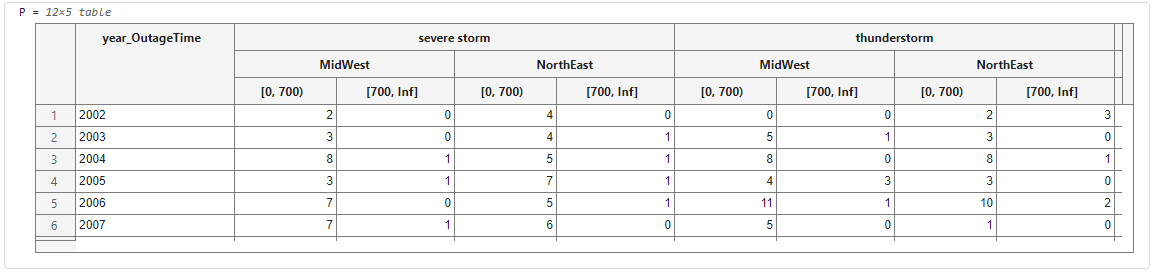
Starting in R2023b, the output of the Live Editor displays the contents of tables or timetables that contain nested tables or timetables as variables inline. You can interactively manipulate a nested table, for example, by selecting or sorting a variable or copying a variable with its headers. Previously, the output of the Live Editor displayed the dimensions of nested tables, but not the nested table contents.
For example, use the Pivot Table task to create nested tables. The Live Editor output displays the complete pivoted table contents.
Live Editor: Copy output data as tab-delimited text
You can copy data from the output of the Live Editor as tab-delimited text. Select some data in the output, and copy the data by pressing Ctrl+C or by right-clicking the data and selecting Copy Selection. Then, paste the tab-delimited text. The pasted text respects the rows and columns from the Live Editor output. For example, select and copy the elements in a row vector, and paste the selection into a Microsoft Excel® worksheet. The first element of each worksheet column contains an element from the copied vector.
pivot Function: Display empty groups in pivoted table
Include, rather than omit, empty groups in the pivoted table returned by the pivot
function by setting the IncludeEmptyGroups name-value argument to
true. An empty group occurs when a possible value of a variable
specified by Columns or Rows is not represented in
the input table, such as in a categorical, logical, or binned numeric variable.
pivot Function: Specify row names for pivoted table as row group
names
In a pivoted table returned by the pivot
function, you can now place row labels to the left of the leftmost table variable by
setting the RowLabelPlacement name-value argument to
"rownames". This option sets the RowNames
property of the pivoted table to the row group names. If Rows specifies
multiple variables, the row labels are the group names concatenated with an underscore.
Previously, the pivoted table always placed row labels in the leftmost table
variables.
stackedplot Function: Plot events associated with
timetables
The stackedplot
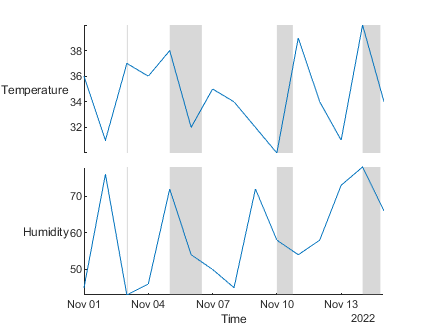
function can plot events as lines or shaded regions on stacked plots created from
timetables. To plot events associated with a timetable, you must attach an event table to
it before you call stackedplot. For more information on event tables,
see eventtable.
To support events, stackedplot has a new
EventsVisible name-value argument:
If EventsVisible is "on", then
stackedplot plots events as lines or shaded regions.
If EventsVisible is "off", then
stackedplot hides events.

Timetable Events: Perform calculations directly on event tables without extracting their data
You can now perform calculations directly on event tables without extracting their data. In R2023a, you cannot perform direct calculations on event tables, though you can perform direct calculations on tables and timetables.
For more information, see Direct Calculations on Tables and Timetables and Rules for Table and Timetable Mathematics.
containsrange, overlapsrange, and
withinrange Functions: Specify time ranges by using event
filters
You can specify a time range by using event filters when you use the
containsrange, overlapsrange, or
withinrange function. To use event filters, you must first attach
an event table to the input timetable. For more information on using these functions with
event filters, see eventfilter.
Variables Editor in MATLAB
Online: Interactively change display format for datetime or
duration data
In the Variables editor in MATLAB
Online, you can interactively modify the display format for datetime or
duration variables. Right-click the variable or column header, select
Modify Date/Time Format, and choose from the list of display formats or
specify a custom display format. The Command Window displays the corresponding code. Previously,
interactively changing the display format for datetime data was supported only in
the installed version of MATLAB. Interactively changing the display format for duration data was not
supported.
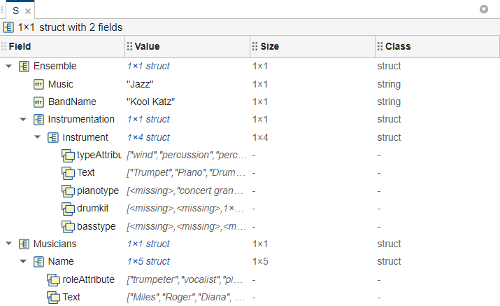
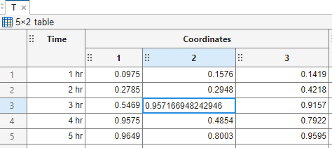
Variables Editor in MATLAB Online: View and interactively edit scalar structures, object arrays, and tables with grouped variables
The Variables editor in MATLAB Online has improved functionality for these data types:
Scalar structure — You can now view, expand, and interactively edit the fields and nested fields in a scalar structure. Previously, you had to open each field in another tab in the Variables editor to view and edit its contents.
Object array — You can now view and interactively edit the values of common properties of objects in an object array. Previously, you had to open each object in a separate tab in the Variables editor to view and edit its property values.
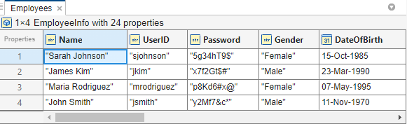
Table with grouped variables — You can now select and interactively edit the contents of a subcolumn in a group of table variables. Previously, interactively editing a subcolumn in a group of table variables was not supported.
Accessibility in MATLAB Online: Use a screen reader to interact with the Workspace browser, Variables editor, Property Inspector, and Import Tool
In MATLAB Online, when using a screen reader, you hear additional information about these interactions:
When you add variables to or remove variables from the MATLAB workspace, you hear the number of variables added or removed.
When you open a variable in the Variables editor, you hear the summary of the variable.
When you edit a graphics object property using a drop-down list in the Property Inspector, you hear the value. Previously, all Property Inspector components had screen reader support except for drop-down list items.
When you successfully import a variable using the Import Tool, you hear the success message after the import is complete.
Histogram Distribution Charts: Calculate values and create histograms using percentages
You can create histograms with percentages on the vertical axis by using the histogram and histogram2 functions. You can normalize
histogram values as percentages by using the histcounts and histcounts2 functions. For each function, set
the Normalization name-value argument to
"percentage".
tallrng Function: Specify random number algorithm without
specifying seed
When using the tallrng
function, you can specify just the algorithm for the random number generator to use. The
tallrng(generator) syntax allows you to set the random number
algorithm without specifying the seed, where tallrng uses a seed of 0.
This syntax is equivalent to tallrng(0,generator). For example,
tallrng("philox") initializes the Philox 4x32 generator with a seed
of 0.
Functionality being removed or changed
min and max functions will no longer
support specifying second input array as character array
Warns
For the min and max functions, specifying a second input array as a character array
issues a warning and will not be supported in a future release. This change minimizes
confusion with options that can be specified as character vectors, such as the missing
value condition. To maintain the previous functionality, you can convert the second
input array to double, for example,
max(A,double(B),'includenan').
readstruct Function: Read data from JSON files
Read data from JSON files into MATLAB structure arrays using the readstruct
function. For example, S = readstruct("myFile.json") creates a structure
S from myFile.json.
writestruct Function: Write structure arrays to JSON files
Write MATLAB structure arrays to JSON files using the writestruct
function. For example, writestruct(S,"myFile.json") writes the data in
structure S to myFile.json.
Parquet: Create ParquetDatastore objects more efficiently with
partition control in parallel environments
In parallel environments, you can create a ParquetDatastore object more efficiently by specifying the unit of partition
and the size of partition blocks. Specify the new PartitionMethod and
Blocksize name-value arguments during creation of the
datastore.
cmdsep Function: Return command separator for current
platform
Return the platform-specific command separator character using the cmdsep
function. You can create a chain of commands by using cmdsep with
system. For example, system("cd myfolder/" + cmdsep +
"matlab") opens a second instance of MATLAB in myfolder.
NetCDF Interface: Import netCDF data using Import Tool in MATLAB Online and Import Data Live Editor Task
You can import netCDF data by using the Import Tool app in MATLAB Online or by using the Import Data Live Editor task in live scripts. Using these options, you can:
Visualize the structure and contents of netCDF data interactively.
Search for specific variables and attributes.
Graphically select and deselect variables and attributes to import.
Generate reusable MATLAB code to import netCDF data.
NetCDF Interface in MATLAB Online: Import netCDF data by double-clicking netCDF files
You can launch the Import Tool app to import netCDF data by double-clicking a netCDF file in MATLAB Online.
Image File Format Libraries: LibTIFF library upgraded to version 4.5.0
The LibTIFF library is upgraded to version 4.5.0.
Scientific File Format Libraries: HDF4 library upgraded to version 4.2.16
The HDF4 library is upgraded to version 4.2.16.
Scientific File Format Libraries: HDF5 library upgraded to version 1.10.10
The HDF5 library is upgraded to version 1.10.10.
Scientific File Format Libraries: NetCDF library upgraded to version 4.9.1
The netCDF library is upgraded to version 4.9.1.
serialbreak Function: Send break to device connected to serial
port
Use the serialbreak
function with a serialport object to send a serial break of a specified
duration to your serial port device. For some devices, you can use the break signal as a
way to clear the hardware buffer.
Functionality being removed or changed
fileparts function output has same data type as input for all
data types
Behavior change
Starting in R2023b, when you use the fileparts function to get the parts of a filename,
fileparts returns values of the same data type as the input,
including scalar cell array inputs. Previously, a scalar cell array input produced
character array outputs.
In the netCDF interface, use compression and shuffle filter only with fixed-length data types
Behavior change
Compression and the shuffle filter can be used only with fixed-length data types and
generate an error if applied to variables of type NC_STRING or
NC_VLEN. Previously, if you specified compression or the shuffle
filter for NC_STRING or NC_VLEN variables, the
specification had no effect.
In the netCDF interface, compression level of zero disables deflate filter
Behavior change
Setting the compression level to zero disables the deflate filter. Previously, the deflate filter could be enabled with a compression level of zero.
This table shows two examples of this behavior change.
| Example | Result in R2023a and Earlier | Result Starting in R2023b |
|---|---|---|
Set the compression level to zero using ncid = netcdf.create("myFile.nc","NETCDF4"); latdimid = netcdf.defDim(ncid,"lat",1800); varid = netcdf.defVar(ncid,"earthgrid","double",latdimid); netcdf.defVarDeflate(ncid,varid,true,true,0) [~,deflate,deflateLevel] = netcdf.inqVarDeflate(ncid,varid); netcdf.close(ncid) [deflate deflateLevel] | The deflate filter is enabled. ans =
1 0 | The deflate filter is disabled. ans =
0 0 |
Set the compression level to zero using nccreate("myFile.nc","earthgrid",Dimensions={"lat" 1800 "col" 3600}, ... Datatype="double",Format="netcdf4",ChunkSize=[180 360], ... DeflateLevel=0) info = ncinfo("myFile.nc"); info.Variables.DeflateLevel | The deflate filter is enabled and the compression level is zero. ans =
0
| The deflate filter is disabled and the compression level is empty. ans =
[]
|
cdfepoch function is not recommended
Still runs
There are no plans to remove cdfepoch. However, the
cdfepoch function is not recommended. Use the cdflib low-level functions instead.
cdfepoch uses datenum and
datestr, which are not recommended, and is also intended for use
with cdfwrite, which is also not recommended.
todatenum function is not recommended
Still runs
There are no plans to remove todatenum. However, the
todatenum function is not recommended. Use the cdfread function instead.
The todatenum function converts cdfepoch
objects to serial date numbers, which are not recommended. Update your code to convert
this type of data to datetime or double values
instead. For example, use
cdfread(.
filename,"DatetimeType","datetime")
ConvertEpochToDatenum name-value argument of the
cdfread function is not recommended
Still runs
There are no plans to remove ConvertEpochToDatenum. However, the
ConvertEpochToDatenum name-value argument of the cdfread function is not recommended. Use the
DatetimeType name-value argument instead.
The ConvertEpochToDatenum argument converts
CDF_EPOCH data to serial date numbers, which are not recommended.
Update your code to convert this type of data to datetime or
double values instead. For example, use
cdfread(.filename,"DatetimeType","datetime")
Ordinary Differential Equations: Use object-oriented solution framework for ODEs
Solve ODE problems by using several new objects and methods:
Use ode
objects to define aspects of the ODE problem (such as initial time, initial value,
equations, parameters, and so on) and set basic options (such as error tolerances).
Use a specific solver by setting the value of ode.Solver
explicitly, or allow the ode object to automatically select a solver
based on properties of the problem by setting the value to "auto",
"stiff", or "nonstiff".
Common options are conveniently specified as properties of the
ode object.
Less common options can be set in the ode.SolverOptions
property. Separate objects of the form matlab.ode.options.*
capture options specific to the selected solver, which simplifies the process
of finding and setting relevant options.
Use the solve method to return the solution of the ODE problem at a
discrete set of points, either points of your choosing or points based on
solver steps.
Use the solutionFcn method to return the solution as a function that you
can evaluate anywhere on a specified interval.
For problems involving a mass matrix, use odeMassMatrix objects to store information about the mass matrix (such
as state dependence or sparsity pattern).
Use odeJacobian objects to store information about the Jacobian matrix for
the problem (such as matrix elements or sparsity pattern).
Use odeEvent
objects to define and track events that occur during the solution of the ODE problem.
The odeEvent object provides a new callback capability that
simplifies solving systems with discontinuities occurring with events.
The new objects and methods simplify many aspects of solving ODEs, and all functionality
that is available in existing ODE functions (ode45,
ode23, ode15s, and so on) is also available in
the objects. There are no plans to remove the existing ODE functions.
rng Function: Change default algorithm and seed for random number
generator, and specify random number algorithm without specifying seed
You can change the default algorithm and seed for the rng function from the MATLAB Preferences window. On the Home tab, in the
Environment section, click
Preferences. Select MATLAB > General, and then select a different option for Default
algorithm and select a different value for Default
seed in the Random Number Generation
preference.
To access and modify
settings for the random number generator programmatically, you can access the
matlab.general.randomnumbers settings using the root
SettingsGroup object returned by the settings
function. For example, show the default algorithm and seed that you have set for the random
number generator.
s = settings; s.matlab.general.randomnumbers.DefaultAlgorithm s.matlab.general.randomnumbers.DefaultSeed
When you first start a MATLAB session or call rng("default"), MATLAB initializes the random number generator using the default algorithm and seed
that you have set. If you do not change these settings, then rng uses
the factory value of "twister" for the Mersenne Twister generator with
seed 0, as in previous releases.
When you perform parallel processing (requires Parallel Computing Toolbox), by default, the MATLAB client uses the Mersenne Twister random number generator with seed 0 and the
MATLAB workers use the Threefry 4x64 generator with 20 rounds with seed 0. Changing
the default generator settings in the MATLAB Preferences window or using the
matlab.general.randomnumbers settings affects only the default
behavior of the client and does not affect the default behavior of the parallel
workers.
When using the rng function, you can specify just the algorithm for
the random number generator to use. The rng(generator) syntax allows you
to set the random number algorithm without specifying the seed, where
rng uses a seed of 0. This syntax is equivalent to
rng(0,generator). For example, rng("philox")
initializes the Philox 4x32 generator with a seed of 0.
MATLAB Support Package for Quantum Computing: Solve Quadratic Unconstrained Binary Optimization (QUBO) problems
The MATLAB Support Package for Quantum Computing enables you to create and solve QUBO problems. QUBO problems include a wide variety of combinatorial optimization problems, such as the Traveling Salesperson Problem with QUBO, the Capacitated Vehicle Routing Problem, and many others.
Create a QUBO problem using the qubo function.
Solve the problem using the solve
function. For more information, see Workflow for QUBO Problems. For a complete guide
to the QUBO functionality, see Quadratic Unconstrained Binary Optimization (QUBO).
To install the MATLAB Support Package for Quantum Computing, locate the support package in Add-On Explorer using the instructions in Get and Manage Add-Ons.
MATLAB Support Package for Quantum Computing: Control circuit plot appearance and behavior with
QuantumCircuitChart objects
When you plot a circuit or composite gate with the plot method,
you can now specify an output argument to return a QuantumCircuitChart
object. Set properties of the object to control the appearance and behavior of the circuit
plot. See QuantumCircuitChart
Properties for more information.
MATLAB Support Package for Quantum Computing: Connect to quantum hardware through IBM (October 2023, Version 23.2.1)
Run gate-based quantum algorithms by connecting to quantum hardware provided by the IBM® Qiskit® Runtime Services.
Represent an IBM quantum device by using a quantum.backend.QuantumDeviceIBM object.
Represent a task on an IBM quantum device by using a quantum.backend.QuantumTaskIBM object.
Use the run
function to run a quantum circuit on a QuantumDeviceIBM
object.
To set up access using your IBM account, see Run Quantum Circuit on Hardware Using IBM Qiskit Runtime Services.
deconv Function: Perform least-squares deconvolution with
different convolved subsections
You can now perform least-squares deconvolution by specifying the
Method name-value argument as "least-squares" when
using deconv. You can also specify different
convolved subsections and the Tikhonov regularization factor with least-squares
deconvolution.
In previous releases, deconv can perform deconvolution using only a
polynomial long-division method. The new arguments allow you to perform least-squares
deconvolution (Method="least-squares"), which returns more stable
solutions compared to the default long-division deconvolution
(Method="long-division").
When you use the least-squares method to deconvolve a signal y with
respect to an impulse response h, deconv returns the
signal x that minimizes the norm of the residual signal (or remainder)
r = y - conv(x,h). That is, x is the solution that
minimizes norm(r). You can also specify the Tikhonov regularization
factor alpha to return a solution x that minimizes
norm(r)^2 + norm(alpha*x)^2 for ill-conditioned problems.
svdappend Function: Calculate revised singular value
decompositions
Starting with an existing singular value decomposition (SVD) of some data, you can use
svdappend to
revise the existing SVD after new rows or columns of data are added.
expmv Function: Calculate matrix exponential multiplied by
vector
Calculate the product of a matrix exponential and a vector without explicitly forming
the matrix exponential by using the expmv
function.
The expmv function is faster and more efficient than
expm when computing the product of a matrix exponential of a sparse
matrix and a vector. The expmv function also uses an efficient algorithm
to compute the exponential integrators of ordinary differential equations, such as , where t is a time vector with a fixed time step, is a square matrix, and is a column vector.
expm Function: Improved algorithm for single-precision
matrices
The expm function has an improved algorithm for
input matrices that are single precision. The new algorithm can use fewer terms in the
Padé approximation of some matrix exponentials.
scatteredInterpolant Object: Use multivalued interpolation to
interpolate multiple data sets simultaneously
The scatteredInterpolant object can now interpolate
multiple data sets at the same query points. Specify the Values
property as a matrix, where the number of rows is the same as the number is sample points
and each column in Values represents the values of a different
function at the sample points. For example, if the sample points are column vectors with 10
elements, you can specify Values as a 10-by-4 matrix to interpolate
using four different sets of values.
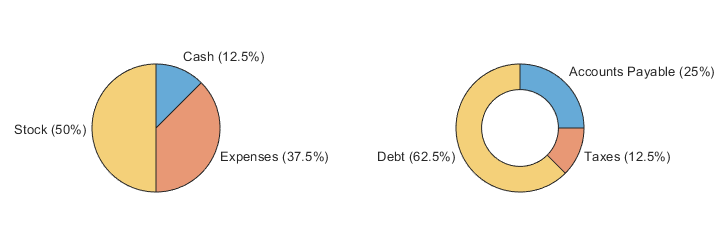
piechart and donutchart Functions: Create
configurable, interactive pie and donut charts
Use the piechart and
donutchart
functions to create charts with more configuration options and interactivity than pie
charts had in previous releases.
Some of the improvements include:
More options for formatting slice labels, slice placement, and colors
Data tips that appear when you move the cursor over the slices
Plot Colors: Choose from nine color palettes
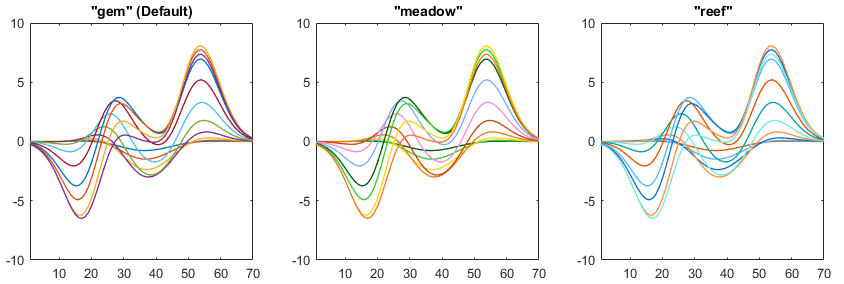
Plot multiple data series together using one of nine different color palettes to
differentiate the individual data series. You can change the palette by passing the
palette's name to the colororder
function. The available names are "gem", "gem12",
"glow", "glow12", "sail",
"reef", "meadow", "dye", and
"earth". The "gem" palette is the default for most
plots.
You can also use the orderedcolors
function to get the RGB triplets for any of the palettes.
abyss Function: Apply blue-to-black colormap to charts and
images
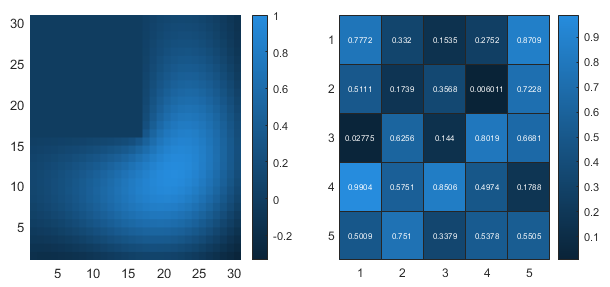
Use the abyss
function to get a blue-to-black colormap for coloring your charts. Like for all predefined
colormaps, you can optionally specify the number of colors for the abyss colormap.
Legend: Control the order of legend entries
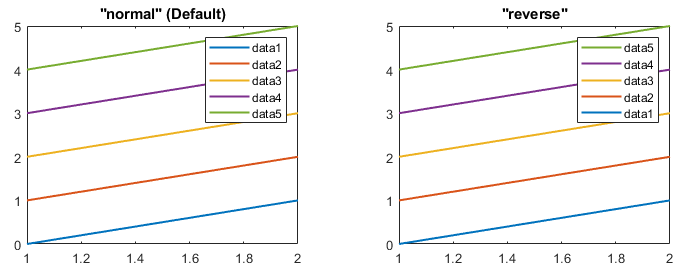
Control the order of legend entries by setting the Direction
property of the legend to "normal" or "reverse". In
most cases, the default direction is "normal".
Legends for stacked bar charts and area charts have a reverse order by default so the legend entries match the stacking order of the chart. For more information, see Legend order is reversed for stacked bar charts and area charts.
xscale, yscale, and zscale
Functions: Quickly change between logarithmic and linear axes scales after plotting
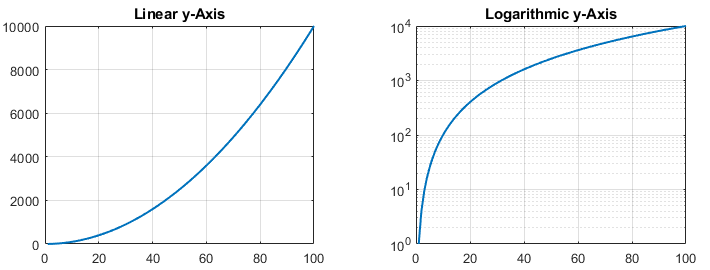
View any dimension of a plot on a logarithmic or linear scale by calling the xscale,
yscale, or
zscale
function after plotting. To switch between the different scales, call any of these
functions with "linear" or "log" as an input
argument. For example, yscale("log") changes the scale of the
y-axis to be logarithmic.
xsecondarylabel, ysecondarylabel, and
zsecondarylabel Functions: Create, delete, or modify secondary axis
labels
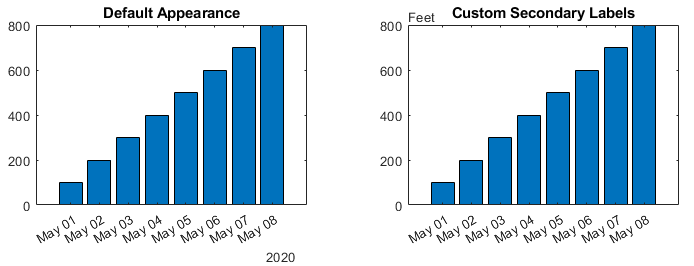
Create, delete, or modify secondary axis labels by calling the xsecondarylabel, ysecondarylabel, and zsecondarylabel functions. Secondary labels are text labels that appear at
the edge of the axes and provide additional information about the data. Often, they provide
information about the units or scale of the data.
For example, create a bar chart with datetime values along the x-axis
and feet along the y-axis. By default, the chart has a secondary
x-axis label of "2020". Call the
xsecondarylabel function with an empty string to delete the
"2020" label. Then add a secondary label of "Feet"
to the y-axis.
x = datetime(2020,5,1:8); y = 100:100:800; bar(x,y) xsecondarylabel(""); ysecondarylabel("Feet")
xregion and yregion Functions: Create unbounded
regions and specify multiple regions as matrix
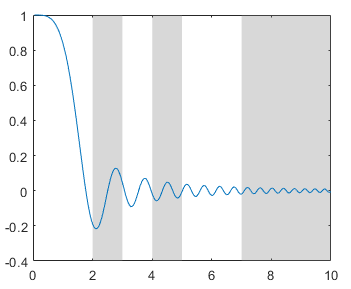
Create unbounded filled regions by passing Inf or
-Inf to the xregion and
yregion
functions. You can also create multiple regions by specifying one matrix input argument as
an alternative to specifying two vectors of coordinates. For n regions,
the matrix must be 2-by-n or n-by-2 and contain the
lower and upper bounds for all the regions.
Text Objects: Control whether text labels are included in axes limits
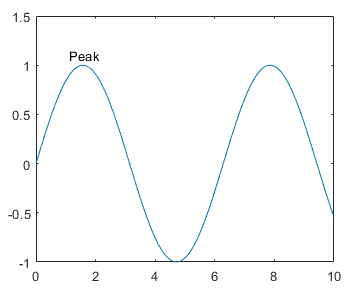
Create text objects with the anchor point positions included in the axes limits
calculation. To include an anchor point in the calculation, set the AffectAutoLimits property of the text object to
"on".
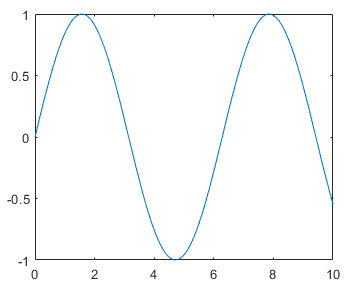
For example, create a line plot.
x = 0:0.1:10; y = sin(x); plot(x,y)
Create a text object outside of the current y-axis limits. Set the
AffectAutoLimits property to "on" so that the
axes limits adjust to include the anchor point of the text.
text(1.1,1.1,"Peak",AffectAutoLimits="on")
Contour Plots: Customize colors of contour labels
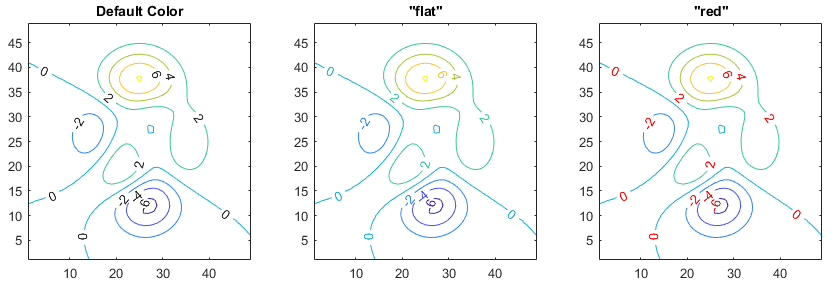
Set the LabelColor
property of a Contour object to display labels that match the colors of
the contour lines, or specify one color for all the labels.
Colors and Line Styles: Control automatic color and line style selection for additional chart objects
Now you can match the colors and line styles of more objects in the axes by setting the
SeriesIndex property of the objects to the same value. The
SeriesIndex property is available for Text,
ConstantLine, ConstantRegion,
Rectangle, Patch, and
AnimatedLine objects, and lines created by the line, streamline, and streamslice functions.
Also, the SeriesIndex property has a new option,
"none", which enables you to opt out of automatic selection for
certain objects, such as reference lines.
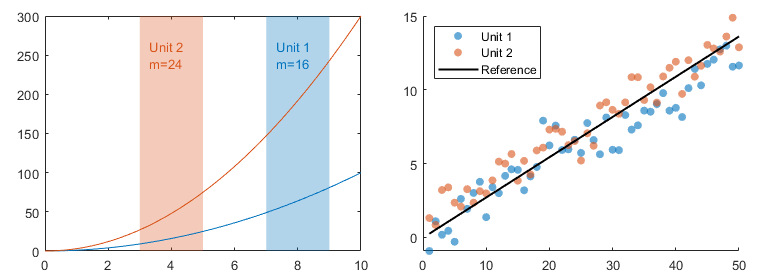
With the new SeriesIndex property support, lines created with the
line, streamline, and
streamslice functions have a different default color. For more
information, see Default color is different for lines created with the line
function and Default color is different for plots created with the streamslice
and streamline functions.
Heatmap Charts: Control text interpreter for text labels in heatmap charts
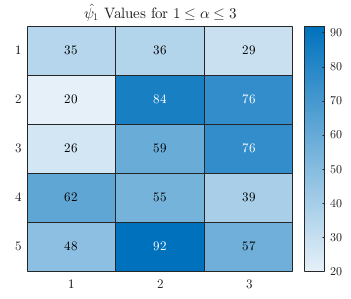
Create text, such as titles and axis labels, for heatmap charts with TeX markup, LaTeX markup, or no markup by setting the
Interpreter
property of the chart.
Images: Display images with datetime, duration, or categorical pixel coordinates
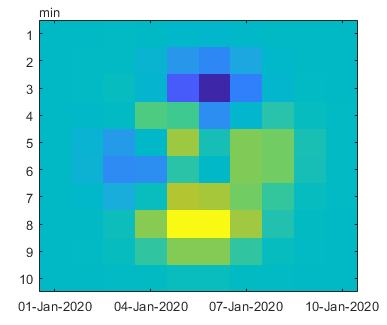
You can now display images using datetime, duration, or categorical coordinate values
with the image and imagesc functions. Previously, only numeric and logical coordinate values
were supported.
For example, display an image with datetime values along the x-axis and duration values along the y-axis.
x = datetime(2020,1,[1 10]); y = minutes([1 10]); C = peaks(10); imagesc(x,y,C)
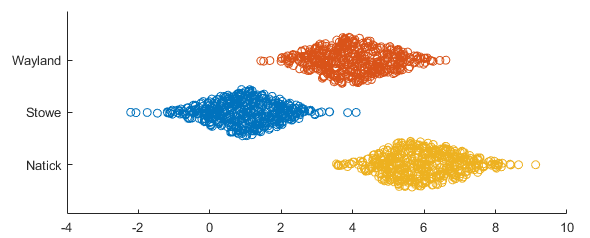
swarmchart Function: Create horizontal swarm charts
Create a horizontal swarm chart by setting the YJitter property
when you call the swarmchart
function. When you specify the YJitter property without specifying the
XJitter property, MATLAB sets the XJitter property to "none",
and the resulting distributions in the chart are horizontal.
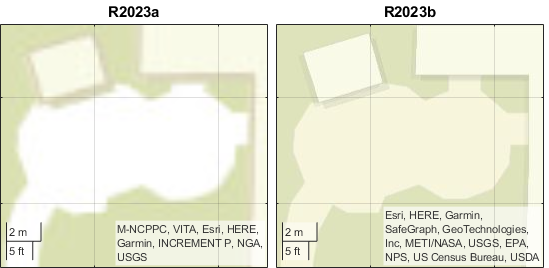
Geographic Plots: Some basemaps have improved appearance at high zoom levels
The "streets-light", "streets-dark",
"streets", and "topographic" basemaps hosted by
Esri®, which are used by geographic axes objects and other objects with a
Basemap property, have an improved visual appearance at high zoom
levels. For example, this image compares a basemap at zoom level 21 in R2023a with the same
basemap and zoom level in R2023b.
The basemaps can also have different appearances at other zoom levels. For example, this image compares a basemap at zoom level 15 in R2023a with the same basemap and zoom level in R2023b.
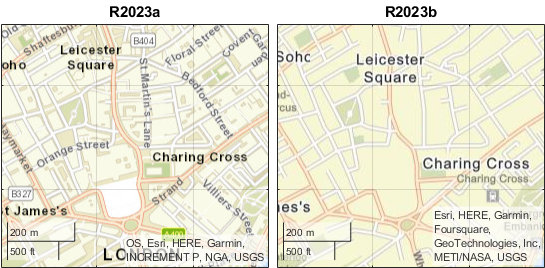
For more information about changing the basemap of geographic axes, see geobasemap.
The basemaps hosted by Esri update periodically. As a result, you might see differences in your visualizations over time.
Figure Code in MATLAB Online: Generate code from Camera tab
For a 3-D figure in MATLAB Online, when you change the camera view using the Camera tab, MATLAB generates code for the camera motion. On the Tools tab of the figure window, click Camera Tools to open the Camera tab. Use the controls in the Camera tab to interactively change the camera view. Then, to view or copy the generated code, select Show Code in the File section of the Figure tab.
Previously, MATLAB did not generate code when changing the camera view using the Camera tab.
Figure Code in MATLAB Online: Generate code from Property Inspector
For a figure in MATLAB Online, when you change the value of a graphics object property using the Property Inspector, MATLAB generates code to set the property value. On the Format tab of the figure window, click Inspect to open the Property Inspector. Use the controls in the inspector to set the value of a property. Then, to view or copy the generated code, select Show Code in the File section of the Figure tab.
MATLAB generates code only for properties that are specified as a 1-D array. Previously, MATLAB did not generate code when setting a property value using the Property Inspector.
Functionality being removed or changed
GraphicsSmoothing and FontSmoothing properties
will be removed
Still runs
The GraphicsSmoothing
property of figures and the FontSmoothing
property of axes, rulers, geographic scales, and text objects will be removed in a
future release. All graphics will be smooth and all text will use antialiasing when
these properties are removed.
spinmap function will be removed
Still runs
The spinmap function will be removed in a
future release. There is no replacement for this function.
Some printing and exporting workflows will no longer support UI components
Warns
These functions and menu items will no longer support printing or exporting UI components in a future release:
To export a figure containing UI components, call the exportapp
function. For example, create a simple app containing two buttons and a slider. Export
the contents of the figure as a PDF file by calling the exportapp
function.
% Create figure with three UI components f = uifigure; button1 = uibutton(f,"Position",[150 300 100 50]); button2 = uibutton(f,"Position",[300 300 100 50]); slider1 = uislider(f,"Position",[150 250 250 3]); % Export the contents of the figure exportapp(f,"myapp.pdf")
Alternatively, call the getframe function to capture the
contents of the figure. Then call the imwrite function to save the content. This time, save the content as a
JPEG file.
F = getframe(f);
imwrite(F.cdata,"myapp.jpg");Exporting workflows will no longer support BMP, HDF, PBM, PCX, PGM, and PPM files
Warns
These functions and menu items will no longer support BMP, HDF, PBM, PCX, PGM, and PPM files in a future release:
To export graphics using one of these formats, use the imwrite function instead. For example, create a line plot, and capture
the contents of the current figure using the getframe function. Then save the content as a BMP file.
plot([0 3 2 4 1]);
F = getframe(gcf);
imwrite(F.cdata,"myplot.bmp");Some exporting workflows will no longer support PostScript (.ps) files
Warns
These functions and menu items will no longer support creating full-page PostScript® (.ps) files in a future release:
To export graphics files, call the exportgraphics function. Specify an .eps,
.pdf, or .emf file extension, and set the
ContentType name-value argument to "vector".
This function captures content that is tightly cropped around plots, and it does not
create full-page output. For example, create a plot and save the contents of the current
figure as a PDF file containing vector graphics.
plot([0 3 2 4 1]); exportgraphics(gcf,"myplot.pdf",ContentType="vector")
Alternatively, call the print function and specify an
.eps, .emf, or .svg file
extension. For example, create a plot and save the contents of the current figure as an
EPS file.
plot([0 3 2 4 1]); print("myplot.eps","-depsc")
The getframe function will no longer capture the figure toolbar,
menu bar, or borders
Warns
In a future release, the getframe function will no longer support
capturing the figure toolbar, menu bar, or the border around the figure using the
rect argument. You will still be able to define a subsection of
the figure to capture, but the toolbar, menu bar, and borders will not be
included.
As an alternative, you can use the exportapp
function to capture the toolbar and menu bar, but not the borders.
printopt will be removed
Warns
The printopt function will be removed in a
future release. To configure printer defaults, use the options provided by your
operating system.
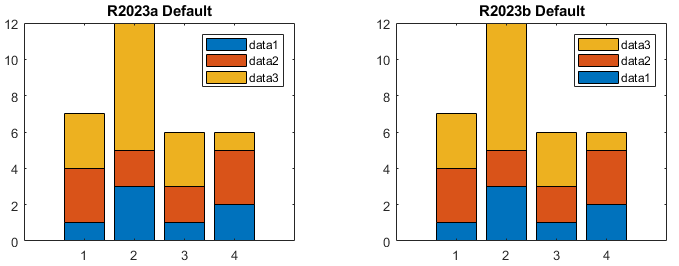
Legend order is reversed for stacked bar charts and area charts
Behavior change
The default order of legend entries for stacked (vertical) bar charts and area charts is now reversed to match the stacking order of the chart. Previously, the legend entries were listed in the opposite order of stacked bars and area charts.
To preserve the order of previous releases, set the Direction
property of the legend to "normal".
lgd = legend;
lgd.Direction = "normal";
Default color is different for lines created with the line
function
Behavior change
Now that the SeriesIndex property is available for lines created
with the line function, the lines cycle through the
same colors (and optional line styles) that most other plots do.
The default color change applies only to the lines you create when you specify the
x, y, and optional z
arguments. If you create lines with a syntax that uses name-value arguments only, the
plots look the same as in previous releases.
For example, create two lines with x and y input arguments. In R2023b, the first line is blue and the second line is red-orange. Before R2023b, both lines were blue.
line1 = line([0 1],[0 1]); line2 = line([0 1],[1 2]);
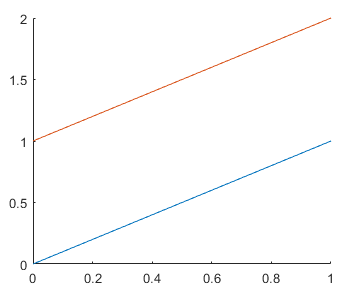
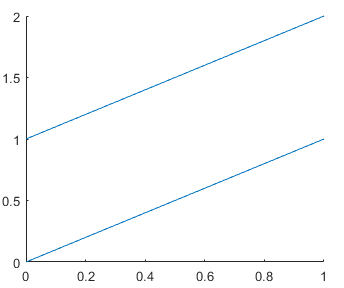
To preserve the behavior of previous releases, set the
SeriesIndex property of the lines to 1. You
can set the property using a name-value argument when you call the
line function, or you can set the property of the
Line object using dot notation later.
% Use a name-value argument line1 = line([0 1],[0 1],SeriesIndex=1); % Use dot notation line2 = line([0 1],[1 2]); line2.SeriesIndex = 1;
Default color is different for plots created with the streamslice
and streamline functions
Behavior change
When you create a streamslice or streamline plot, MATLAB automatically assigns colors and line styles the same way as for most
other plots. For example, the first set of lines created with
streamslice are now a soft blue color.
[x,y] = meshgrid(-10:10);
u = 2.*x.*y;
v = y.^2 - x.^2;
slicelines = streamslice(x,y,u,v);
axis tight
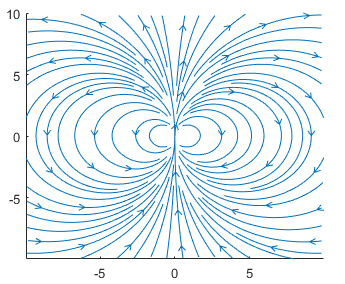
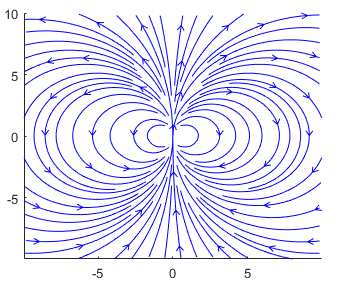
If you call either of the functions repeatedly, subsequent plots cycle through the same set of colors as other plots do. In previous releases, the lines were bright blue.
To preserve the appearance from previous releases, use the set
function to set the Color property to [0 0
1].
set(slicelines,Color=[0 0 1])
RotateStyle property of a rotate3d object will have no
effect
Behavior change in future release
The RotateStyle property of a rotate3d
object will have no effect in a future release. Plot-box outline rotation will no longer be supported, and
rotation will be about the entire axes regardless of the value of the property.
uislider Function: Create slider to specify range of values in
apps and on App Designer canvas
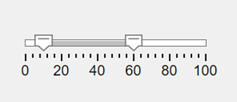
You can create a range slider using the uislider function by specifying the style as "range".
Alternatively, in App Designer, you can drag a Slider (Range)
component from the Component Library onto the canvas. The range slider
has two thumbs that app users can use to adjust the range of values. For example, this code
creates a range slider that specifies values from 10 to 60.
fig = uifigure;
sld = uislider(fig,"range",Value=[10 60]);
uicontextmenu and uimenu Functions: Access
information about action used to open context menu
You can now more easily customize and share context menus in an app by using callback
event data. The ContextMenuOpeningFcn and
MenuSelectedFcn callbacks have additional event data when the
callback is associated with a context menu on a UI component.
| Event Data Property | Description |
|---|---|
ContextObject | Object that the app user right-clicked to open the context menu |
InteractionInformation | Information about where in the component the app user right-clicked to open the context menu, such as the cell of a table |
For more information, see ContextMenu Properties and Menu Properties.
uispinner and uieditfield Functions: Create
spinners and numeric edit fields with placeholder text
Create a spinner or numeric edit field that has an empty value by setting the
AllowEmpty property to "on" and the
Value property to []. The component appears with
no default value. You can specify placeholder text to give app users a hint about the type
of content the field accepts by using the Placeholder property.
For more information, see Spinner Properties and NumericEditField Properties.
uilistbox and uidropdown Functions: Access
index of component value in list of items
Access the index of the value in a list box or drop-down component by using the
ValueIndex property. This property is useful when the component has
information stored in both the Items and
ItemsData properties and you need to:
Query both the current item and its associated data.
Specify a new value using the index of the value in the list of items.
For example, use the ValueIndex property to display both the
current item and its associated
data.
fig = uifigure; dd = uidropdown(fig, ... Items=["Apple","Banana","Cherry"], ... ItemsData=[0.5 0.2 1.3]); idx = dd.ValueIndex; disp(dd.Items(idx) + ": " + dd.Value)
Apple: 0.5
For more information, see ListBox Properties and DropDown Properties.
uitable Function: Query selected table data in current table
display
When you create a table, use the DisplaySelection property of the
table to query the cells that are selected in the current table display. This property is
useful when an app user has sorted or rearranged columns in the table and you want to know
which cells are selected based on the app user's view of the data.
For more information, see Table Properties.
uicontextmenu Function: Context menus on trees appear when you
right-click anywhere in the tree
When you create a context menu and assign it to a Tree object, the
context menu appears when you right-click anywhere in the tree, including the area with
tree nodes. You can share a single context menu across all nodes in a tree by setting the
context menu on the tree instead of each individual tree node.
If you set a context menu on an individual TreeNode object, the tree
node context menu still appears when you right-click the node, even if the
Tree object has an assigned context menu.
Previously, context menus on trees appeared only when you right-clicked on the
portion of the tree below the tree nodes. To retain this behavior, create a
ContextMenuOpeningFcn callback that shows the context menu only
when the right-click occurs on a region without a tree
node.
fig = uifigure; cm = uicontextmenu(fig,ContextMenuOpeningFcn=@hideMenu); m1 = uimenu(cm,Text="Menu Item"); t = uitree(fig,ContextMenu=cm); n1 = uitreenode(t); function hideMenu(src,event) if isprop(event.InteractionInformation,"Node") src.Visible = "off"; end end
appmigration.migrateGUIDEApp Function: Migrating multiple apps
from GUIDE to App Designer updates app references
When you use the appmigration.migrateGUIDEApp function to migrate multiple apps at once from
GUIDE to App Designer, the function updates app references. For example, to migrate a main
app that opens a secondary app from GUIDE to App Designer, first download the GUIDE to App Designer Migration Tool for MATLAB. Then, use the
appmigration.migrateGUIDEApp function to migrate the main and
secondary apps using a single command. The function replaces all references to the apps
that you migrate together. Therefore, your migrated main app opens the migrated secondary
app without any manual changes to your app code.
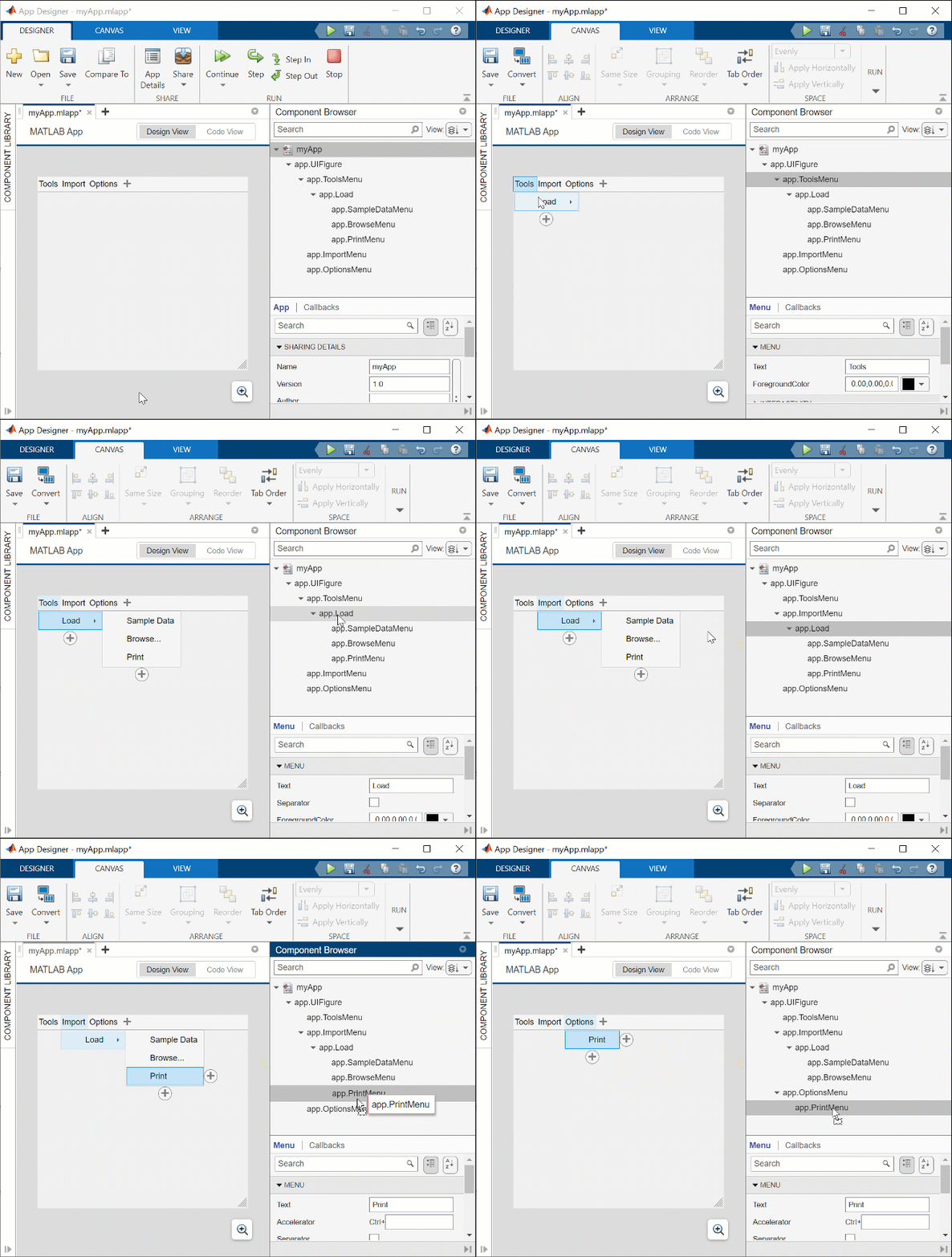
App Designer: Interactively rearrange tabs, menus, tree nodes, and toolbar tools
Interactively rearrange tabs, menus, tree nodes, and toolbar tools between parents by dragging the component in the Component Browser. For example, interactively move and change the parents of menus and menu items.
App Designer: Write unit tests for custom UI components
You can write unit tests for custom UI components created in App Designer by using the app testing framework. To enable the unit tests to access the underlying UI components in your custom component, with the custom component open in App Designer, select the component node in the Component Browser and select Give Test Cases Access in the Testing section. Then, reference the underlying UI components in your unit tests to test the component behavior.
Running tests for custom UI components interactively using
matlab.unittest.TestCase.forInteractiveUse is not supported.
For more information, see Write Tests for Custom UI Component.
App Designer: View changes to HTML UI component source while working in Design View
While designing an app that contains an HTML UI component, you can now more easily see
updates made to the HTML source. To show the most up-to-date content in Design View when
the HTMLSource property of the component is a path to an HTML source
file, click Refresh Source while pointing to the HTML UI component in
the canvas.
For more information about using HTML UI components, see Create HTML Content in Apps.
Comparison Tool: Save app comparison results as PDF or DOCX reports programmatically and interactively
You can now use the Comparison Tool to programmatically and interactively publish App
Designer app comparison results as PDF or DOCX reports. For more information, see visdiff.
Axes Interactions: Interpolate data tip location
For axes in apps created in App Designer or using the uifigure
function, control the method for placing data tips by using the
InteractionOptions property of the axes. Create data tips at the
closest interpolated location on the plot to the cursor location by setting the DatatipsPlacementMethod property of the InteractionOptions
object to "interpolate". By default, data tips are created at the
closest data point to the cursor location.
Axes Interactions: Indicate azimuth and elevation angles
For axes in apps created in App Designer or using the uifigure
function, indicate the azimuth and elevation angles during interactive rotation by using
the InteractionOptions property of the axes. The azimuth and elevation
angles define the camera line of sight and are displayed when the RotateIndicator
property of the InteractionOptions object is set to
"azimuthelevation". By default, the axes do not display the azimuth
and elevation angles.
Axes Interactions: Zoom into rectangular region of 2-D view of 3-D chart
For a 2-D view of a 3-D chart in apps created in App Designer or using the
uifigure function, you can zoom into a rectangular region. To
enable region-zooming, click the Zoom In or Zoom Out button in the axes toolbar, or set the
Interactions property of the axes to the
regionZoomInteraction object.
For example, create a 3-D surface plot and set the view to the x- and z-axes. Click the Zoom In button and then drag to select the region of interest.
f = uifigure; a = axes(f); surf(a,peaks); view(a,[0 0]);
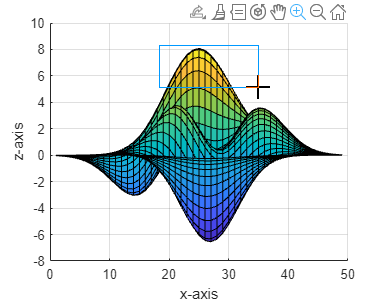
Previously, for 3-D charts, the region-zoom interaction was supported only for the xy view.
App Testing Framework: Automatically scroll to components outside viewable area
If you programmatically perform a gesture on a UI component that is not in the viewable
area of an app, the app testing framework automatically scrolls to the specified component
before performing the gesture. For the framework to bring the component into view, the
component must be supported by the scroll function and all its ancestors must have their
Scrollable property set to "on" or
true. For example, create a scrollable figure with a state button
that is outside the viewable area of the figure, and then press the button.
fig = uifigure(Scrollable="on"); b = uibutton(fig,"state",Position=[fig.Position(3)+100 100 100 22]); testCase = matlab.uitest.TestCase.forInteractiveUse; testCase.press(b)
Web Apps and Standalone Applications: Data brushing supported in graphics
Graphics created in web apps and standalone applications support data brushing. Use data brushing in these applications just as you would in MATLAB figures.
Language and Programming: Improved performance for reading and writing class property values
Reading and writing class property values shows improved performance. The largest gains in performance are for accessing properties that do not use validation or get and set methods.
For example, the movingAverage method of StorageClass
reads several elements from the data property and writes to the
average property.
classdef StorageClass properties data average N end methods function obj = StorageClass(dataIn) obj.data = dataIn; obj.N = numel(dataIn); obj.average = zeros(1, obj.N-2); end function obj = movingAverage(obj) for ix = 1:(obj.N-2) obj.average(ix) = (obj.data(ix) +... obj.data(ix+1) + obj.data(ix+2))/3; end end end end
This code is about 17.5x faster than in the previous release.
s = StorageClass(1:1e6); timeit(@()s.movingAverage)
The approximate execution times are:
R2023a: 0.497 s
R2023b: 0.0284 s
The code was timed on a Windows® 10, Intel® Xeon® CPU E5-1650 v3 @ 3.50 GHz test system.
dde23 Function: Improved performance integrating high-dimensional
systems
The dde23 function shows improved performance
solving high-dimensional systems of DDEs over long integration intervals. The improvement
gets better as the number of coupled DDEs in the system increases.
For example, this code solves a system of 500 coupled DDEs over the time interval [0 100]. The code is about 24x faster than in the previous release.
function timingdde23 rng default N = 500; C = rand(N); lag = 1; dderhs = @(t,y,ylag) -y-C*ylag; sol = dde23(dderhs,lag,10+rand(1,N),[0 100]); end
The approximate execution times are:
R2023a: 5.6 s
R2023b: 0.23 s
The code was timed on a Windows 10, Intel
Xeon CPU W-2133 @ 3.60 GHz test system using the timeit
function.
timeit(@timingdde23)
nufftn Function: Improved performance with nonuniform sample points
or query points
The nufftn function shows improved performance when operating on
either nonuniformly spaced sample points or nonuniformly spaced query points.
For example, this code constructs a 262,144-by-3 matrix of nonuniform sample points
t and calculates the nonuniform discrete Fourier transform along each
dimension of a 64-by-64-by-64 array. The code is about 3.3x faster than in the previous
release.
function timingSamplePoints rng default t = rand(64^3,3); X = rand(64,64,64); tic Y = nufftn(X,t); toc end
The approximate execution times are:
R2023a: 0.40 s
R2023b: 0.12 s
The code was timed on a Windows 10, Intel
Xeon CPU E5-1650 v4 @ 3.60 GHz test system by calling the
timingSamplePoints function.
As another example, this code constructs a 262,144-by-3 matrix of nonuniform query
points f and calculates the nonuniform discrete Fourier transform along
each dimension of a 64-by-64-by-64 array. The code is about 1.6x faster than in the
previous release.
function timingQueryPoints rng default f = rand(64^3,3); X = rand(64,64,64); tic Y = nufftn(X,[],f); toc end
The approximate execution times are:
R2023a: 0.40 s
R2023b: 0.25 s
The code was timed on a Windows 10, Intel
Xeon CPU E5-1650 v4 @ 3.60 GHz test system by calling the
timingQueryPoints function.
fillmissing Function: Improved performance when filling entries with
previous or next numeric value
The fillmissing function shows improved
performance when you specify the fill method as "previous" or
"next" for numeric data.
For example, this code fills the NaN values in a 1000-element numeric
vector with the previous nonmissing value. The code is about 6.9x faster than in the
previous release.
function timingFillmissing A = rand(1000,1); idx = randperm(1000,50); A(idx) = NaN; for i = 1:2e4 F = fillmissing(A,"previous"); end end
The approximate execution times are:
R2023a: 1.59 s
R2023b: 0.23 s
The code was timed on a Windows 10, Intel
Xeon CPU E5-1650 v4 @ 3.60 GHz test system using the timeit
function.
timeit(@timingFillmissing)
ismember Function: Improved performance with small unsorted set
array
The ismember function and other set operations
that call ismember show improved performance when the set array is
unsorted and the product of the numbers of elements in the query array and the set array is
less than 256.
For example, this code returns an array containing logical
1
(true) where the data in a 6-element query array is
found in a 25-element set array. The code is about 2.9x faster than in
the previous release.
function timingIsmember a = [1 2 3 4 5 6]; b = magic(5); for i = 1:1e5 Lia = ismember(a,b); end end
The approximate execution times are:
R2023a: 0.70 s
R2023b: 0.24 s
The code was timed on a Windows 10, Intel
Xeon CPU E5-1650 v4 @ 3.60 GHz test system using the timeit
function.
timeit(@timingIsmember)
islocalmax and islocalmin Functions: Improved
performance when finding local minima and maxima
The islocalmax
and islocalmin
functions show improved performance. The improvement is most significant for data with
large flat regions at the local maxima or minima, respectively.
For example, this code finds the local maxima of data that contains consecutive maxima values. The code is about 2.8x faster than in the previous release.
function timingIslocalmax x = repelem([0.5 0 1 0 1 0 1 0 0.5],10000); for i = 1:3e2 TF = islocalmax(x); end end
The approximate execution times are:
R2023a: 0.91 s
R2023b: 0.32 s
The code was timed on a Windows 10, Intel
Xeon CPU E5-1650 v4 @ 3.60 GHz test system using the timeit
function.
timeit(@timingIslocalmax)
Data Cleaner App: Improved rendering performance of Cleaning Parameters panel
In the Data Cleaner app, the Cleaning Parameters panel renders more quickly after selecting a cleaning method in R2023b than in R2023a. The delay before you can interact with the panel is reduced.
For example, if one table variable is selected in the Data Cleaner app and you select the Clean Outlier Data cleaning method, the Cleaning Parameters panel is ready about 1.14x faster in R2023b than in the previous release.
The approximate panel rendering times are:
R2023a: 2.4 s
R2023b: 2.1 s
The panel rendering was timed on a Windows 10, Intel Xeon CPU E5-1650 v4 @ 3.60 GHz test system by selecting the cleaning method in the Data Cleaner toolstrip and measuring the time it takes for the Cleaning Parameters panel to be ready.
Tiled Chart Layouts: Improved performance for flow layouts with spanned axes
Tiled chart layouts that have the "flow" tile arrangement and axes
that span many tiles are more responsive when the tile arrangement changes. The tile
arrangements change under these conditions:
Adding new axes
Resizing the figure
Customizing the appearance of the axes by setting axes properties
For example, this code is about 1.4x faster than in the previous release.
function mylayout tiledlayout("flow") for i = 1:6 nexttile([1000,1000]); end end
The approximate execution times are:
R2023a: 0.0380 s
R2023b: 0.0276 s
The code was timed on a Windows 10, Intel
Xeon CPU W-2133 @ 3.60 GHz test system using the timeit
function.
timeit(@mylayout)
Plots in Apps: Improved performance when scrolling to zoom
Zooming using a multi-touch trackpad or mouse shows improved performance in plots within
apps and within figures created using the uifigure function. The
two-finger scroll gesture and the zooming action are more synchronized in R2023b than in
R2023a. The improvement results in a smoother experience when zooming.
For example, this code creates a figure with a plot of random data. On a Windows 10, Intel Xeon CPU E5-1650 v4 @ 3.60 GHz test system, when you zoom into the plot using the two-finger scroll gesture on a trackpad, the plot rendering is smoother and the zooming speed is more precise, especially at slower speeds, in R2023b than in the previous release.
f = uifigure; ax = uiaxes(f); plot(ax,magic(10))
Plots in Apps: Improved responsiveness for scatter plot interactions in apps
Interactions with scatter plots show improved responsiveness. To observe the
improvement, the plot must be created in an app or in a figure created with the
uifigure function, and the markers must either be points
(".") or have a size less than 35. The improvement is most noticeable
for plots with 1 million or more points.
For example, on a Windows 10, Intel Xeon CPU W-2133 @ 3.60 GHz test system, create a 3-D scatter plot with 7 million points in an app window, and then drag to rotate the axes. The rotation is smoother and responds more quickly to the drag gesture in R2023b than in the previous release.
function myscatter f = uifigure; ax = axes(f); z = linspace(0,4*pi,7e6); x = 2*cos(z) + rand(1,7e6); y = 2*sin(z) + rand(1,7e6); scatter3(ax,x,y,z,[],1:7e6,".") end
These animations start with the corner of the xy-plane at (–2, –2) in the center of the frame.
R2023a | R2023b |
|---|---|
The rotation of the axes lags behind the movement of the cursor.
| The rotation of the axes is smoother and follows the movement of the cursor more closely.
|
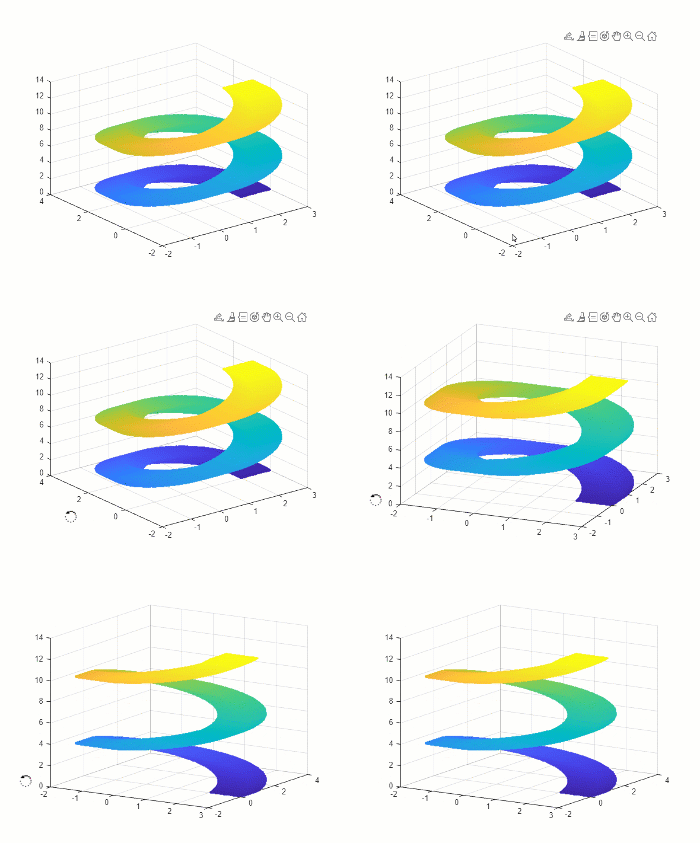
Plots in Apps: Constant lines and constant regions update continuously as you pan
In apps, panning a plot containing ConstantLine or
ConstantRegion objects is smoother and the contents of the axes
update immediately as you pan. Previously, panning showed blank areas when you panned
outside of the original axes limits.
For example, on a Windows 10, Intel Xeon CPU W-2133 @ 3.60 GHz test system, if you run this code and then pan within the axes, the horizontal line and the gray vertical region update immediately as you pan.
function myapp fig = uifigure; ax = axes(fig); x = -10:0.1:10; y = sin(x); plot(ax,x,y); xlim(ax,[-6 6]) yline(ax,0) xregion(ax,-3,3) end
R2023a | R2023b |
|---|---|
The plot shows blank areas during the panning interaction.
| The plot updates immediately during the panning interaction.
|
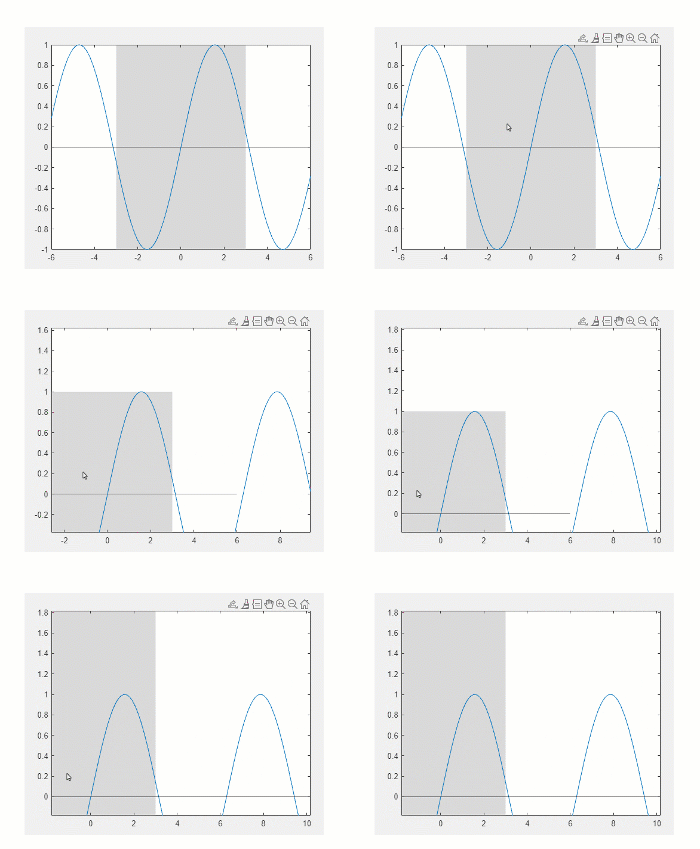
App Building: Improved performance when resizing apps with nested containers
When a user resizes an app figure window for the first time, many apps reposition their
content significantly faster in R2023b than in R2023a. The improvement occurs when resizing
an app with one or more containers that have the AutoResizeChildren
property set to "on", which is the default value. The improvement is
more noticeable for apps with nested containers, such as apps with many tabs or tab
groups.
For example, this code creates an app that contains five top-level tabs, each of which contains five nested tabs. Each of the nested tabs contains 100 edit fields. When you run this app and resize it, the resize operation is about 30x faster in R2023b than in the previous release.
function myApp f = uifigure; f.Position = [100 100 700 500]; % Create five tabs in a tab group tg = uitabgroup(f,"Position",[1 1 700 500]); nTabs = 5; for kTab = 1:nTabs tab = uitab(tg,"Title","Tab " + kTab); createTabContent(tab); end function createTabContent(tab) % Create a nested tab group containing five tabs nestedTg = uitabgroup(tab,"Position",[10 10 650 450]); nNestedTabs = 5; for kNTab = 1:nNestedTabs nestedTab = uitab(nestedTg,"Title","Nested Tab "+ kNTab); % Add 100 edit fields to the tab createNestedTabContent(nestedTab); end end function createNestedTabContent(tab) % Add 100 edit fields to a tab hParent = 400; n = 10; w = 50; h = 22; for kRow = 1:n for kCol = 1:n uieditfield(tab,"Position",[(kCol-1)*(w+10)+10,hParent-kRow*(h+10),w,h]); end end end end
R2023a | R2023b |
|---|---|
The app takes about 60 seconds to resize.
| The app takes about two seconds to resize.
|
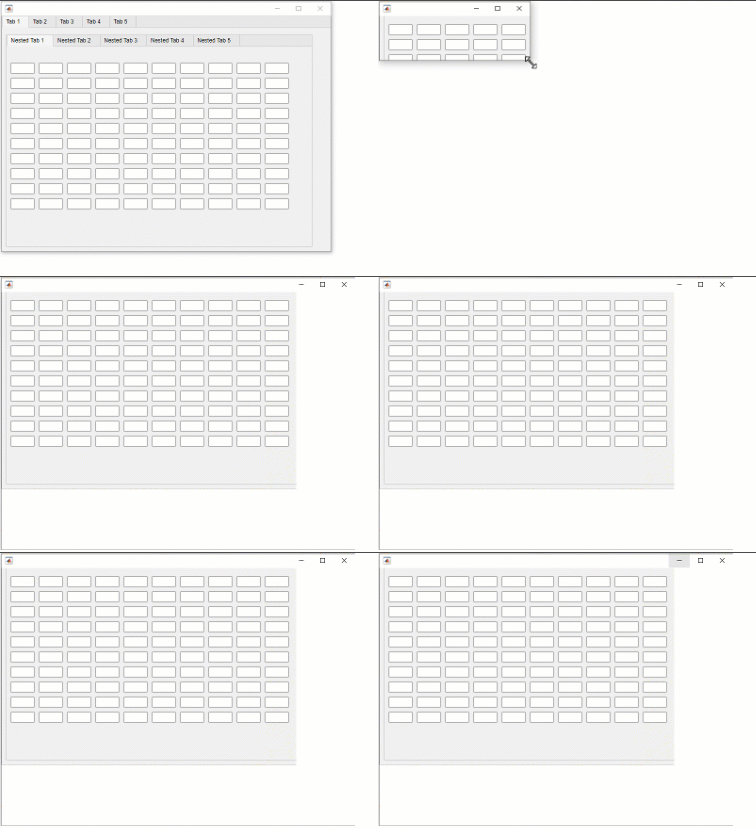
The resize interactions were times on a Windows 10, Intel
Xeon Gold 6246R CPU @ 3.40 GHz test system by running the myApp
function and measuring the time it takes for the figure window to resize.
App Building: Improved startup performance for apps with panels in multiple tabs
In addition to the overall app startup performance improvement in R2023b, some apps that contain panels in multiple tabs show an even greater startup performance improvement. The reason is that MATLAB prioritizes creating the panel content in the visible tab over non-visible content when the app first runs.
For example, this code creates a tab group with five tabs, each containing a panel with 200 label components. The code is about 1.2x faster than in the previous release.
function timingTabApp fig = uifigure; tg = uitabgroup(fig); for k1 = 1:5 t = uitab(tg); p = uipanel(t,Position=[1 1 t.Position(3) t.Position(4)], ... Scrollable="on"); for k2 = 1:200 y = k2*20; uilabel(p,Position=[20 y 60 20]); end end end
The approximate execution times are:
R2023a: 7.2 s
R2023b: 6.1 s
The code was timed on a Windows 10, Intel
Xeon CPU E5-1650 v4 @ 3.60 GHz test system by running the
timingTabApp function and measuring the time it takes for the
components to appear in the UI figure window.
If you have an app with many UI components, consider updating your app layout to take advantage of this improvement. For more information, see Improve App Startup Time.
App Designer: Improved app loading and running performance
Loading existing apps in App Designer is faster in R2023b than in R2023a. When you load an App Designer app, it takes less time for the app to appear in Design View.
For example, loading an app with about 400 UI components by selecting the app file on the App Designer Start Page is about 1.3x faster than in the previous release.
The approximate load times are:
R2023a: 17.1 s
R2023b: 13.6 s
In addition, running an app from App Designer is also faster in R2023b.
For example, for an app with about 400 UI components, running the app by clicking the Run button in App Designer results in the app appearing about 1.3x faster than in the previous release.
The approximate execution times are:
R2023a: 25.5 s
R2023b: 19.3 s
The actions were timed on a Windows 10, Intel Xeon CPU E5-1650 v4 @ 3.60 GHz test system by loading and running a saved app.
App Designer: Improved performance when adding custom UI components to an app
When you drag a custom UI component from the Component Library onto the App Designer canvas, the UI component appears sooner in R2023b than in R2023a. This improvement is more noticeable the first time you add a custom UI component to an app.
For example, on a Windows 10, Intel Xeon CPU E5-1650 v4 @ 3.60 GHz test system, the first time you add a custom UI component to an app in Design View, the component appears on the canvas within one second. In R2023a, the component takes several seconds to appear.
Property Inspector in MATLAB Online: Improved performance when opening for the first time
The Property Inspector shows improved performance when opening for the
first time in MATLAB
Online. The delay between clicking the Property Inspector icon
or calling inspect and the inspector being ready is reduced.
For example, open the Property Inspector for the first time in MATLAB Online. You can use the Property Inspector 1.8x sooner than in the previous release.
ax = axes; inspect(ax)
The approximate rendering times are:
R2023a: 7.5 s
R2023b: 4.1 s
The rendering of the Property Inspector was timed by running the code and measuring the time it takes for the edit fields to appear in the Property Inspector.
Graphics in MATLAB Online: Images and 3-D plots in apps have significant performance gains
Displaying images and 3-D plots in apps is significantly faster in MATLAB
Online. You might also experience similar improvements outside the context of an app
(by calling figure instead of uifigure).
For example, this code displays a scaled-up version of peppers.png
using the image command. The code is about 22x faster than in the
previous release.
function myapp f = uifigure; ax = axes(f); smallimg = imread("peppers.png"); bigimg = uint8(zeros(3065,4089,3)); bigimg(:,:,1) = uint8(interp2(double(smallimg(:,:,1)),3)); bigimg(:,:,2) = uint8(interp2(double(smallimg(:,:,2)),3)); bigimg(:,:,3) = uint8(interp2(double(smallimg(:,:,3)),3)); tic image(ax,bigimg) drawnow toc end
The approximate execution times are:
R2023a: 138.5 s
R2023b: 6.4 s
The code was timed by calling the myapp function. Because MATLAB
Online is hosted, performance is independent of the computer hardware used to access
it.
Source Control API: Interact with Git source control programmatically
You can now programmatically interact with source control.
Clone a Git™ repository using the gitclone function.
Create a Git repository object using the gitrepo function.
Initialize a Git repository using the gitinit function.
Create, delete, and switch branches using the createBranch, deleteBranch, and switchBranch functions, respectively.
Add files, remove files, and commit changes to a Git repository using the add,
rm,
and commit functions, respectively.
Inspect the commit history in a Git repository using the log
function.
Display the status of files in a local Git repository using the status function.
Fetch or pull new data from remote Git repositories using the fetch or pull functions, respectively.
Merge Git branches and revisions into the current branch using the merge function.
Publish your local changes to a remote Git repository using the push
function.
Project API: Determine whether file belongs to a project
You can now programmatically determine whether a file or a folder belongs to a project
by using the matlab.project.isFileInProject function.
Source Control in MATLAB Online: Perform source control operations using unified panel
In MATLAB Online, you can use the Source Control panel to see all active source control repositories, manage modified files, and perform source control operations.
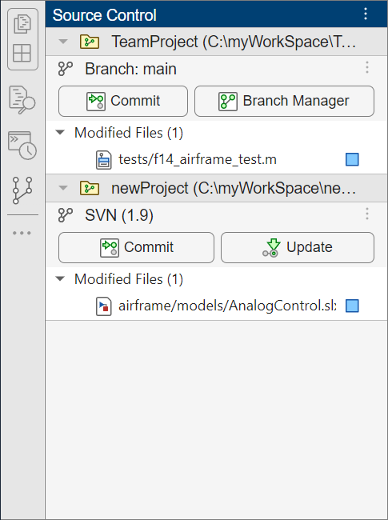
To open the Source Control panel, use the Open more panels button (
) in the sidebar.

Source Control in MATLAB Online: Expanded support for Git workflows
MATLAB Online now provides expanded support for Git workflows:
Adding and managing Git submodules
Sharing to GitHub®
Initializing Git repositories
Shallow cloning Git repositories
Projects in MATLAB Online: Added support for team collaboration workflows
Projects in MATLAB Online now provide support for the following team collaboration workflows:
Creating referenced projects from project folders
Adding source control to existing projects
Managing project labels and custom tasks using Project Settings
Displaying shadowed files on project startup
Upgrading projects using Project Upgrade
Project Examples: Identify and run tests in projects
This example shows how to use labels to identify tests in a project and how to create test suites from project test files interactively and programmatically. For large projects under source control, the example demonstrates how to run a subset of tests to reduce qualification runtime. For more information, see Identify and Run Tests in MATLAB Projects.
Build Automation: Use built-in tasks to define common build actions
When using the build tool, you can create common tasks more quickly and conveniently by
using the classes in the matlab.buildtool.tasks package. Instead of writing code to implement tasks,
instantiate the classes in this package. Each class provides the flexibility to create a
task tailored to your build requirements. For an example, see Create and Run Tasks Using Build Tool.
Build Automation: Automatically open MATLAB project when running builds
If your build file is in the root folder of a MATLAB project that is not already open, the build tool automatically opens the project before running the build and then closes the project after the build runs.
Build Automation: Invoke build tool from project subfolders
You can call the buildtool
command from the folder containing the build file or any of its subfolders. In previous
releases, you can call buildtool only when the build file is in your
current folder.
Build Automation: Operate on file collections
The matlab.buildtool.io.FileCollection class has four new methods that enable you
to create file collections and operate on them:
To create file collections from the paths to files and folders, use the matlab.buildtool.io.FileCollection.fromPaths method.
To replace substrings in the paths of a file collection, use the replace method.
To transform the paths of a file collection, use the transform method.
To filter a file collection, use the select
method.
For an example, see Replace Substring in File Collection Paths.
Build Automation: Name the inputs and outputs of tasks for incremental builds
You can use the matlab.buildtool.TaskInputs and matlab.buildtool.TaskOutputs classes to name and group the inputs and outputs
of your tasks. The TaskInputs and TaskOutputs objects behave
like structures, where field names are task input or output names and field values are task
input or output values. Input values can be of any data type, and output values must be
matlab.buildtool.io.FileCollection arrays. For an example, see Create Task with Named Inputs and Outputs.
Build Automation: Run tasks using build options
You can use build options to run tasks with the buildtool
command or the run method:
To run the subsequent tasks upon a build environment setup or task failure, use
the -continueOnFailure option of buildtool
or the ContinueOnFailure name-value argument of
run.
To specify a task to skip, use the -skip option of
buildtool or the Skip name-value
argument of run.
For example, run the default tasks in your build plan as well as the tasks on which they depend, and continue running the build if a failure occurs.
buildtool -continueOnFailureUnit Testing Framework: Programmatically access code coverage results using the
runtests function
You can use the runtests function to programmatically access
the results of code coverage analysis for your source code. To run tests and return
coverage results, specify the additional output argument of runtests
as well as the ReportCoverageFor name-value argument. When you invoke
runtests by specifying both these arguments, the function returns
the coverage results as a matlab.coverage.Result vector. For example, run your tests and return the
results of code coverage analysis for the source code in your current folder.
[testResults,coverageResults] = runtests("myTestFile.m", ... ReportCoverageFor=pwd)
Unit Testing Framework: Test for missing elements
The matlab.unittest.constraints.HasMissing class provides a constraint to test if
an array has any missing elements. The constraint is satisfied by an array that has at
least one missing element.
Unit Testing Framework: Modify test report title
You can modify the test report title when you generate a test report using a method of
the matlab.unittest.plugins.TestReportPlugin or matlab.unittest.TestResult class. To modify the title, specify the
Title name-value argument. For example, run your tests and generate
a PDF test report with a specified title.
results = runtests("myTestFile.m"); generatePDFReport(results,Title="My Test Report")
App Testing Framework: Automatically scroll to components outside viewable area
If you programmatically perform a gesture on a UI component that is not in the viewable
area of an app, the app testing framework automatically scrolls to the specified component
before performing the gesture. For the framework to bring the component into view, the
component must be supported by the scroll function and all its ancestors must have their
Scrollable property set to "on" or
true. For example, create a scrollable figure with a state button
that is outside the viewable area of the figure, and then press the button.
fig = uifigure(Scrollable="on"); b = uibutton(fig,"state",Position=[fig.Position(3)+100 100 100 22]); testCase = matlab.uitest.TestCase.forInteractiveUse; testCase.press(b)
matlab.test.behavior.Missing Class: Test against constructor arguments
that result in incompatible values
You can verify whether objects of your class created with certain constructor arguments
satisfy the missing value contract in MATLAB. To test your class with a constructor argument, specify the
ExtraConstructorArguments property of the matlab.test.behavior.Missing class as that argument. This property is useful
when different constructor arguments result in incompatible values, such as values that
cannot be concatenated or compared.
Functionality being removed or changed
Build tool restores the current folder after running each task
Behavior change
To prevent a task from affecting subsequent tasks by changing the current folder, the build tool restores the current folder after running each task. In previous releases, the build tool does not restore the current folder after running each task.
files converts relative paths to absolute paths
Behavior change
If you create file collections with the files
method, the paths of the file collections are absolute paths. Previously, the method did
not convert any relative paths that you specified to absolute paths. To create file
collections with relative paths, use the matlab.buildtool.io.FileCollection.fromPaths method, or use a string vector
to specify an argument or property that requires file collections.
Call MATLAB from C++: Generate output types for strongly typed methods and functions
The matlab.engine.typedinterface.generateCPP function generates output types for
functions and methods in the strongly typed C++ interface. For more information, see Output Argument Validation. For an example, see
Write MATLAB Code for Strongly Typed C++ Interface.
Publish C++ Interface: Support for pointer return of string and fundamental types
When publishing a MATLAB interface to a C++ library function, you can define pointer return arguments
for non-const string and fundamental types. You also can specify a
deleter function for both const and non-const string
and fundamental pointer return types. MATLAB uses the deleter function to manage the life cycle of the memory represented
by the argument.
For examples, see Define Output Pointer Argument.
Call MATLAB from .NET: Generate C# code interface for MATLAB packages, classes, and functions
The matlab.engine.typedinterface.generateCSharp function creates C#
.cs files from MATLAB packages, classes, and functions. For more information, see Strongly Typed Interface for C#.
Call .NET from MATLAB: Create explicit interface view of .NET object
You can create an explicit view of a .NET object as one of its implemented interfaces
using the NET.interfaceView function. Interfaces can define methods or properties that
are not accessible from the .NET object directly.
Python: Support for version 3.11
MATLAB now supports CPython version 3.11, in addition to existing support for versions 3.9 and 3.10. For supported version information, see Versions of Python Compatible with MATLAB Products by Release.
Python Interface: Use of environment variable PYTHONHOME to load
interpreter
MATLAB accesses these settings when loading the Python® interpreter:
User settings for the Python environment, configured using the pyenv function. If the version you specify conflicts with the
version specified by PYTHONHOME, then delete the environment
variable before calling pyenv. The value set by
pyenv is persistent across MATLAB sessions. For more information, see Set Python Version on Windows Platform or Set Python Version on Mac and Linux Platforms.
PYTHONHOME environment variable, specifies where to find the
standard Python libraries. To view the value of the variable in MATLAB, type getenv("PYTHONHOME"). For more information,
see Use PYTHONHOME Environment Variable.
System PATH environment variable. To view the system path in
MATLAB, type getenv("PATH").
Windows registry.
Python Interface: Convert list and tuple of Python
datetime or timedelta objects to MATLAB arrays
If a Python function returns multiple datetime objects as a list or a
tuple of Python
datetime objects, use the MATLAB
datetime function to convert the list or tuple to a MATLAB
datetime array. For more information, see Handle Multiple Python
datetime Objects Returned from Python Function.
If a Python function returns multiple timedelta objects as a list or a
tuple of Python
timedelta objects, use the MATLAB
duration function to convert the list or tuple to a MATLAB
duration array. For more information, see Handle Multiple Python
timedelta Objects Returned from Python Function.
Python Interface: Resolve Python configuration issues
Error messages provide additional help for you to resolve these Python configuration issues:
Unable to find a supported Python version. See Versions of Python Compatible with MATLAB Products by Release.
Python installed from the Microsoft Store is not supported. See Configure Your System to Use Python.
Python shared library not found on UNIX® platforms. See Set Python Version on Mac and Linux Platforms.
Compilers: Download MinGW-w64 8.1 from Add-On Explorer
As of R2023b, you can download MinGW®-w64 8.1 from the Add-On Explorer.
To download or configure other supported versions of MinGW, see MATLAB Support for MinGW-w64 C/C++ Compiler. For an up-to-date list of supported compilers, see Supported and Compatible Compilers.
Compilers: Support for NAG Fortran on Apple silicon
MATLAB supports the NAG® Fortran compiler on Apple silicon platforms. For an up-to-date list of supported compilers, see Supported and Compatible Compilers.
Compilers: Support for Microsoft Visual Studio Build Tools
MATLAB supports Build Tools for Visual Studio® 2022 and 2019 for building C and C++ interfaces, MEX files, and standalone MATLAB engine and MAT-file applications on Windows platforms. For an up-to-date list of supported compilers, see Supported and Compatible Compilers.
Functionality being removed or changed
Python: Version 3.8 is no longer supported
Errors
Support for Python version 3.8 is discontinued. For continued support for your applications, upgrade to a supported version of Python. For supported version information, see Versions of Python Compatible with MATLAB Products by Release.
Perl: MATLAB support for version 5.38.0 on Windows
Behavior change
As of R2023b, MATLAB on Windows ships with an updated version of Perl, version 5.38.0, and supports an updated version of HTML::Parser, version 3.81.
If you use the perl command on Windows platforms, see https://www.perl.org/ for information about using this version of the Perl programming
language. For a standard distribution of HTML::Parser, source code, and information
about using HTML::Parser, see https://metacpan.org/pod/HTML::Parser.
Support for ArduCam Multi Camera Adapter Module on Raspberry Pi Hardware
Starting in R2023b, you can use the new arducam object to set up a
connection between MATLAB and ArduCam Multi Camera Adapter Module V2.2. You can sequentially acquire
images from up to four cameras attached to the ArduCam Multi Camera Adapter Module V2.2.
Raspberry Pi® Blockset supports 5MP OV5647 cameras, which are compatible with ArduCam Multi Camera
Adapter Module V2.2.