R2026b

New Features, Bug Fixes

 imuSensor System Object: Load parameterized IMU hardware parts from datasheets

The loadimupart function returns a fully parameterized imuSensor System object™ matching a real IMU hardware part by specifying its manufacturer, part number, and operating mode. This eliminates the need to manually extract parameters from datasheets and perform unit conversions, enabling you to quickly set up digital twins or rapidly prototype sensor fusion algorithms with different IMU hardware.

Before loading parts, run the installimuparts function once to install the IMU hardware part datasets. For more information, see loadimupart and installimuparts.

poseplot Function: Plot multiple poses with improved performance, improve STL mesh visualization, improve multi-pose visibility, and name change for properties

The poseplot function has these changes:

Batch Input Support

You can now visualize multiple poses in a single function call by passing arrays of orientations and positions to the poseplot function. This approach makes your code more concise and delivers performance improvements for workflows involving trajectories or time-series pose estimates. For example, this code plots 1000 poses in R2026a, using a loop, and in R2026b, using an array. The R2026b code using an array is about 5x faster:

R2026a:

function timingTest
    numPoses = 1000;
    orientations = quaternion(randn(numPoses,4));
    positions = cumsum(randn(numPoses,3),1);
    
    for i = 1:numPoses
        poseplot(orientations(i),positions(i,:),"ENU",MeshFileName="multirotor.stl");
    end
end

R2026b:

function timingTest
    numPoses = 1000;
    orientations = quaternion(randn(numPoses,4));
    positions = cumsum(randn(numPoses,3),1);
    
    poseplot(orientations,positions,"ENU",MeshFileName="multirotor.stl");
end

The approximate execution times are:

  • R2026a: 45.34 s

  • R2026b: 9.87 s

The code was timed on a Windows® 11, AMD Epyc® 74F3 24-Core Processor CPU @ 3.19 GHz test system using the timeit function:

timeit(@timingTest)

Multi-Pose Visualization Improvements

You can now control the visibility of the orientation axis labels and the origin box using the new PoseAxisLabels and OriginBox properties, respectively, of the PosePatch object. You can use these properties to improve plot visibility when displaying many poses simultaneously.

Mesh Visualization Enhancements

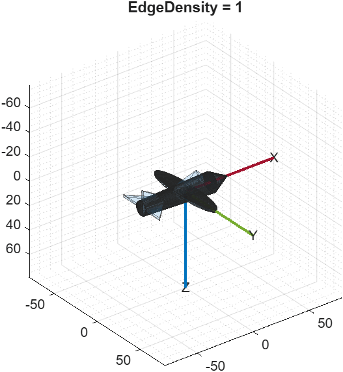
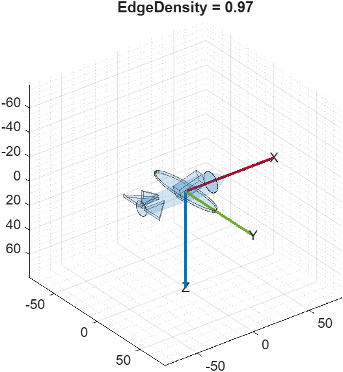
You can now tune the rendering of an STL mesh by adjusting the display of mesh edges using the new EdgeDensity property of the PosePatch object. You can now also control the color, transparency, and width of edges using the new EdgeColor, EdgeAlpha, and EdgeLineWidth properties, respectively, of the PosePatch object.

These figures compare the display of an STL mesh with the maximum EdgeDensity value of 1, which renders all mesh edges, on the left, and a lower EdgeDensity value of 0.97, which renders fewer mesh edges, on the right.

Fixed-wing aircraft STL mesh displayed by the poseplot function with the EdgeDensity property set to 1, rendering all mesh edges so the surface appears as a dense, solid mesh.

Fixed-wing aircraft STL mesh displayed by the poseplot function with the EdgeDensity property set to 0.97, rendering fewer mesh edges so the surface appears lighter with sparser edges.

PatchFaceColor and PatchFaceAlpha properties renamed

The PatchFaceColor and PatchFaceAlpha properties of the PosePatch object are now called FaceColor and FaceAlpha, respectively. The behavior of both properties remains the same. There are no plans to remove support for existing references to PatchFaceColor and PatchFaceAlpha.

 skyplot Enhancements: Visualize time-varying metrics along satellite trajectories and set the elevation range of the sky plot

You can now visualize time-varying metrics along satellite trajectories using color scaling with these new SkyPlotChart Properties:

  • TrajectoryColor

  • ColorData

  • Colormap

  • ColorScaling

  • ColorLimits

  • ColorLimitsMode

  • ColorbarLabel

  • ColorbarVisible

This enhancement enables you to represent time-varying satellite characteristics such as carrier-to-noise ratio directly on trajectories.

You can also now set the lower elevation limit of the sky plot using the new MinElevation property. Adjusting this limit enables you to focus the visualization on the satellites relevant to your analysis:

  • Specify a negative value, such as -10, to show satellites below the horizon, as seen from airborne or low Earth orbit (LEO) platforms.

  • Specify a value close to 90, such as 75, to zoom in on satellites near the zenith.

Sky plot showing satellite positions by azimuth and elevation, with each satellite trajectory colored according to signal strength using a colormap. A colorbar on the right maps colors to carrier-to-noise density ratio values in dB-Hz.

 RINEX: Read RINEX version 4.02 navigation and observation data

The rinexread and rinexinfo functions now support up to RINEX version 4.02. You can read RINEX v4 navigation data including new message types such as GPS CNAV and CNAV-2, GLONASS CDMA, BeiDou CNAV-1/2/3, QZSS CNAV and CNAV-2, and NavIC L1NV, as well as system time offset (STO), Earth orientation parameter (EOP), and ionosphere (ION) records. This enables you to work with modern multi-constellation, multi-frequency GNSS data in your positioning workflows.

For more information about the RINEX version 4 support, see RINEX V4.

plannerAStarGrid Object: Improved performance

The plannerAStarGrid object shows improved performance. For example, in this code, the call to the plan function using a plannerAStarGrid object, planner, is about 2.3x faster than in the previous release:

function t = timingTest
    map = load("exampleMaps.mat").complexMap;
    map = binaryOccupancyMap(map);
    planner = plannerAStarGrid(map);
    start = [6 3];
    goal = [39 25];

    f = @() plan(planner,start,goal);
    t = timeit(f);
end

The approximate execution times are:

  • R2026a: 1.3 milliseconds

  • R2026b: 0.56 milliseconds

The code was timed on a Windows 11, AMD Epyc® 74F3 24-Core Processor CPU @ 3.19 GHz test system by calling the function timingTest.

Enhancements in timescope Object

The timescope object includes the following enhancements in R2026b.

Display measurements using power of 3 in engineering notation

The timescope object now displays the cursor measurements, peaks, statistics, and bilevel measurements using the power of 3 in engineering notation.

Sinusoidal signal showing cursors and signal statistics. The scope displays the measurements data using the power of 3 in engineering notation.

Interactive cursors panel

In the timescope object display, you can now change the cursor channel and the cursor location directly from the Cursors panel.

Time scope display showing the cursor channel being updated directly in the Cursors panel.

New YLimitsMode property

You can control how the timescope object determines the Y-axis limits using the new YLimitsMode property.

  • "auto" — Automatically adjusts the Y-axis limits to fit the currently displayed data.

  • "manual" — Uses fixed Y-axis limits.

The YLimitsMode property is recommended over the AxesScaling property for controlling the Y-axis limits.

New fitToView object function

You can now use the new fitToView object function to automatically adjust the Y-axis limits of a timescope object to fit the currently displayed data. This function performs a one‑time autoscaling operation without changing the YLimitsMode property and is useful for resetting the view or updating Y-axis limits on demand.

New Restore View (Home) button in Axes Toolbar

The Restore View (Home) button in the time scope axes toolbar resets the X-axis to show only the most recent time span of data after zooming, panning, or fit-to-view operations. This button also resets the Y-axis limits based on value of the YLimitsMode property of the timescope object.

Support for automatic buffer length

The timescope object now uses an automatic buffer length by default with the BufferLength property set to "auto", ensuring that the scope retains sufficient data to display the full time span. In this mode, the buffer:

  • Always holds at least one full time span of data.

  • Typically holds approximately 100× the time span, with a minimum of 1e5 samples per channel and an upper limit of 1e7 samples per channel. If the time span exceeds 1e7 samples per channel, the buffer grows as needed to store at least one full time span of data.

New Examples

This release contains the following new example:

Updated Examples

R2026a

New Features, Bug Fixes, Compatibility Considerations

 insCF Object: Fuse inertial navigation sensor data with simplified tuning

You can now fuse inertial navigation sensor data with simplified tuning using the insCF object, a new complementary filter. You can customize the insCF object to estimate orientation, position, or velocity using the data from accelerometer, gyroscope, magnetometer, or GPS sensors. insCF works with these new, dedicated sensor and motion models.

You can use the estimateStates object function of the insCF object to perform state estimation. The insCF filter is easy to use because the sensor gain is the only tunable parameter of the filter. You can use the gainparts function to get and set the gain value of a sensor.

  plannerHybridAStar Object: Paths with only forward motion, limits on number of explored nodes and path states, and updated properties

The plannerHybridAStar object has these changes:

Paths with Only Forward Motion

You can now use the MotionDirection property to restrict the path planner so that it generates paths with only forward motion, such as in scenarios where reverse motion is not possible or desired.

The first figure shows the generated path with both forward and reverse motion. The second figure shows the generated path with only forward motion.

Specify Maximum Number of Explored Nodes and Path States

You can now specify the maximum number of nodes to explore and path states using the MaxNumNodes and MaxNumPathStates properties, respectively. You can use these properties to limit the number of explored nodes and path states when dynamic memory allocation is not enabled during code generation.

Cost Functions Are Tunable in MATLAB Simulation Mode

You can now tune the AnalyticalExpansionCostFcn and TransitionCostFcn properties after object creation in MATLAB simulation mode.

Default MinTurningRadius Value Has Changed

The plannerHybridAStar object now uses 2 meters as the default value of the MinTurningRadius property, independent of map cell size. In previous releases, the default value is max(2,2*ceil(sqrt(2)*map_CellSize)/pi) meters, where map_CellSize is the cell size of the map. To use the previous default value of MinTurningRadius when the map cell size is greater than 2.122 meters (resolution of map less than 0.471 cells/meter), set MinTurningRadius based on the value of the StateValidator property.

  • If StateValidator is a validatorOccupancyMap object, set MinTurningRadius to 2*ceil(sqrt(2)/planner.StateValidator.Resolution)/pi, where planner is your plannerHybridAStar object.

  • If StateValidator is a validatorVehicleCostmap object, set MinTurningRadius to 2*ceil(sqrt(2)*planner.StateValidator.CellSize)/pi, where planner is your plannerHybridAStar object.

Error About Constraint Between MotionPrimitiveLength and MinTurningRadius Is Now Warning

The error returned when MotionPrimitiveLength exceeds one-fourth the length of the circumference of a circle based on MinTurningRadius is now a warning.

For example, this code sets MotionPrimitiveLength to greater than one-fourth the length of the circumference of a circle based on MinTurningRadius.

load("exampleMaps.mat","simpleMap")
map = binaryOccupancyMap(simpleMap);
validator = validatorOccupancyMap(stateSpaceSE2,Map=map);
planner = plannerHybridAStar(validator);
planner.MotionPrimitiveLength = (pi)*planner.MinTurningRadius
This table compares the output of the code in previous releases to the output in R2026a.

Previous ReleasesR2026a

MATLAB® displays an error.

Error using plannerHybridAStar
Expected MotionPrimitiveLength to be an array with all of the values <= 3.14159.

MATLAB now displays a warning and sets MotionPrimitiveLength to the specified value.

Warning: Setting the "MotionPrimitiveLength" has resulted in "MotionPrimitiveLength" value (6.2832 meters)
being greater than (pi/2) times "MinTurningRadius" (3.1416 meters), which can cause motion primitives to 
curve back on themselves and result in a less optimal path. To prevent this, set "MotionPrimitiveLength" 
to a value less than 3.1416 meters.

planner = 
  plannerHybridAStar with properties:

               StateValidator: [1×1 validatorOccupancyMap]
             MinTurningRadius: 2
        MotionPrimitiveLength: 6.2832
          NumMotionPrimitives: 5
                  ForwardCost: 1
                  ReverseCost: 3
       DirectionSwitchingCost: 0
    AnalyticExpansionInterval: 5
        InterpolationDistance: 1
              MotionDirection: "forward-reverse"

Similarly, this code sets MinTurningRadius such that MotionPrimitiveLength is greater than one-fourth the length of the circumference of a circle based on MinTurningRadius.

load("exampleMaps.mat","simpleMap")
map = binaryOccupancyMap(simpleMap);
validator = validatorOccupancyMap(stateSpaceSE2,Map=map);
planner = plannerHybridAStar(validator);
planner.MinTurningRadius = (1/pi)*planner.MotionPrimitiveLength
This table compares the output of the code in previous releases to the output in R2026a.

Previous ReleasesR2026a

MATLAB displays an error.

Error using plannerHybridAStar
Expected MinTurningRadius to be an array with all of the values >= 1.27324.

MATLAB now displays a warning and sets MinTurningRadius to the specified value.

Warning: Setting the "MinTurningRadius" has resulted in "MotionPrimitiveLength" value (2 meters) 
being greater than (pi/2) times "MinTurningRadius" (1 meters), which can cause motion primitives 
to curve back on themselves and result in a less optimal path. To prevent this, 
set "MotionPrimitiveLength" to a value less than 1 meters.

planner = 
  plannerHybridAStar with properties:

               StateValidator: [1×1 validatorOccupancyMap]
             MinTurningRadius: 0.6366
        MotionPrimitiveLength: 2
          NumMotionPrimitives: 5
                  ForwardCost: 1
                  ReverseCost: 3
       DirectionSwitchingCost: 0
    AnalyticExpansionInterval: 5
        InterpolationDistance: 1
              MotionDirection: "forward-reverse"
Visualization of Hybrid A Star motion direction modes. Path using both forward and reverse motions is on the left. Path restricted to forward motion only is on the right.

 GNSS Positioning: Calculate receiver position from raw GNSS readings with atmospheric delays

Use the gnssmeasurements function to compute GNSS measurements, from observation and navigation data, for the receiverposition function.

You can use the gnssoptions object to specify ionospheric and tropospheric delay models, and code bias, to the receiverposition function. For more information about ionospheric and tropospheric delay models, see the new gnssIonosphere and gnssTroposphere objects, respectively.
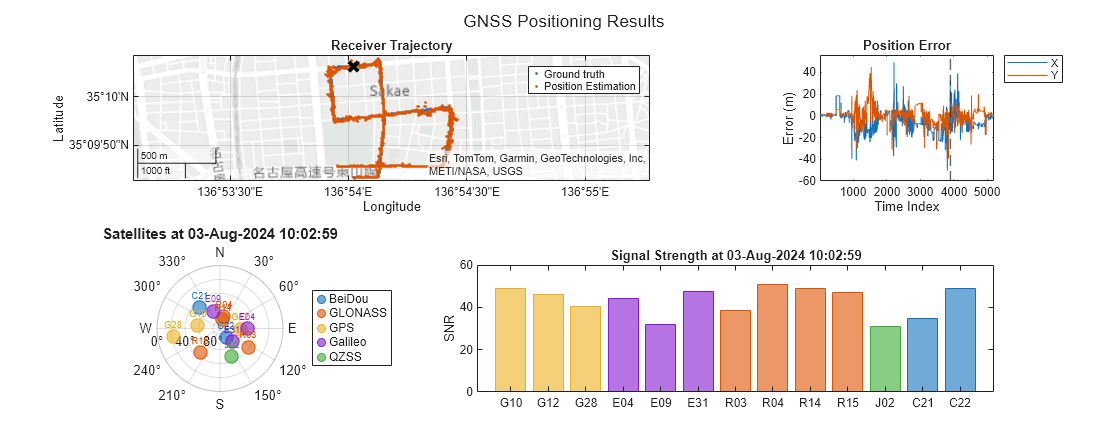
Multi-panel visualization of multi-constellation GNSS positioning results. Map showing ground truth trajectory and estimated position is on the top left. Position error fluctuating over time index is on the top right. Sky plot of satellites is on the bottom left. Bar chart of signal strengths for satellites, colored by constellation is on the bottom right.

Factor Graph Enhancements: Multi-sensor extrinsic calibration enhancements and other improvements

Perform Multi-Sensor Extrinsic Calibration Between New Sensor Pair Combinations

You can now perform multi-sensor calibration by estimating and refining sensor transforms between new combinations of base and target sensors using factor graph optimization. This process uses enhancements to the factorIMU, factorTwoPoseSE3, and factorPoseSE3AndPointXYZ objects, which can now connect to an optimizable sensor transform node ("TRANSFORM_SE3").

For more details about sensor transform estimation and refinement processes, see Multi-Sensor Extrinsic Calibration using Factor Graph.

Set Prior to Sensor Transform

You can now incorporate into a factor graph, prior information for the extrinsic calibration of a sensor, such as data available from physical measurements or documentation. To add this information, specify the initial guess for the sensor transform using the new factorTransformSE3Prior object and link it to the sensor transform node ("TRANSFORM_SE3"). The factor object constrains optimization, preventing it from updating the sensor transform node state from the initial prior, specified as the measurement to factorTransformSE3Prior. These constraints help avoid local minima during optimization when you have limited calibration data.

New Node for Gravity Rotation

You can now represent gravity rotation as a quaternion by using the new "GRAVITY_ROTATION" node. You can connect the new "GRAVITY_ROTATION" node with a factorIMU object to estimate and refine gravity rotation during factor graph optimization. For more information about gravity rotation, see Gravity Rotation.

Copy, Save, and Load Factor Graphs

Use the new copy, save, and load object functions of the factorGraph object to copy a factor graph prior to optimization, save a factor graph prior to optimization, and load a saved factor graph to reoptimize it with different solver options, respectively.

Check existence and get types of multiple nodes

You can now use the hasNode and nodeType functions to check the existence or retrieve the types of multiple nodes in a factor graph by specifying a vector of node IDs as input.

Coverage Planning: Find optimal sweep path for regions

Use the polygonMonotonicity and plotMonotonicity functions to find and visualize the sweep angles over which you can sweep a region in a single pass.

Use the polygonSweep function to generate a monotone sweep path, and use the polysweepoptsbous object to specify sweep options such as the sweep angle, sweep tool, and boundary behavior.

Coordinate Transformation Conversion Block Enhancements: Convert multiple coordinate transformations

You can now convert multiple coordinate transformations simultaneously to the specified output representation by using the Coordinate Transformation Conversion block. Given N coordinate transformations, where each transformation is a d-element column vector, you can specify a d-by-N matrix to the Input transformation port. If each transformation is an M-by-M matrix, specify an M-by-M-by-N array, instead.

 Timed Elastic Band Block: Path following mode, reorganized parameters, and block callback for initializing extra information output bus

The Timed Elastic Band block has these changes:

  • You can now use the block for path following in an obstacle free environment by specifying the new parameter Select Controller Mode as Path Following. This mode does not require map input.

  • The parameters for specifying robot information (Shape, Dimension, and Fixed transform) and the parameters for specifying map information (Specify obstacle safety margin using input port and Obstacle safety margin) have moved from the Main tab to the new Obstacle Avoidance tab. The behavior of these parameters remains the same.

  • The extra information returned as SolnInfo output bus is now defined using this function in the InitFcn block callback parameter of the Callbacks section. On the Modeling tab, under Design, open the Properties tab in the Property Inspector to access the Callbacks section.

    extraInfo_bus = nav.slalgs.internal.utils.extraInfo();
    extraInfo_bus.Elements(2).Dimensions = [1000 1];
    extraInfo_bus.Elements(2).DimensionsMode = "Variable";
    This enables you to use the block in a model without defining the extra information output bus. The Avoid Obstacles Using TEB Local Planner in Simulink example has been updated to reflect this change.

optimizePath Function: Improved performance

The optimizePath function shows improved performance. The performance improvement increases with the size of the input path and the number of iterations. For example, the code being timed below, the call to optimizePath, is about 23x faster than in the previous release:

function t = timingTest
    map = load("exampleMaps.mat").complexMap;
    map = binaryOccupancyMap(map);
    stateSpace = stateSpaceSE2([map.XWorldLimits; map.YWorldLimits; -pi, pi]);
    stateValidator = validatorOccupancyMap(stateSpace);
    stateValidator.Map = map;
    stateValidator.ValidationDistance = 0.01;
    planner = plannerHybridAStar(stateValidator,MinTurningRadius=2);
    start = [6 3 pi/2];
    goal = [39 25 0];
    path = plan(planner,start,goal);
    inpath = path.States;
    options = optimizePathOptions;
    options.MinTurningRadius = 2;
    options.MaxPathStates = size(inpath,1) * 3;
    options.ObstacleSafetyMargin = 0.75;

    f = @() optimizePath(inpath,map,options);
    t = timeit(f);
end

The approximate execution times are:

  • R2025b: 7.34 s

  • R2026a: 0.32 s

The code was timed on a Windows 11, AMD Epyc® 74F3 24-Core Processor CPU @ 3.19 GHz test system by calling the function timingTest.

controllerTEB Object: Improved performance

The controllerTEB object shows improved performance. The performance improvement increases with the size of the input path, the lookahead time, and the number of iterations. For example, the code being timed below, the call to TEB controller object, teb, is about 4.7x faster than in the previous release:

function t = timingTest
    data = load("parkingMap.mat");
    map = occupancyMap(data.map, 3);
    stateSpace = stateSpaceSE2([map.XWorldLimits; map.YWorldLimits; -pi, pi]);
    stateValidator = validatorOccupancyMap(stateSpace, Map=map);
    planner = plannerHybridAStar(stateValidator);
    planner.MinTurningRadius = 3;
    refPath = plan(planner, [2 9 0], [27 18 pi/2]);
    teb = controllerTEB(refPath.States, map);
    teb.MinTurningRadius = 3;
    teb.MaxVelocity = [5, 0.1];
    teb.ReferenceDeltaTime = 0.1; 

    f = @() teb(refPath.States(1,:), [0 0]);
    t = timeit(f);
end

The approximate execution times are:

  • R2025b: 0.38

  • R2026a: 0.08

The code was timed on a Windows 11, AMD Epyc® 74F3 24-Core Processor CPU @ 3.19 GHz test system by calling the function timingTest.

nmeaParser Object: Improved performance

The nmeaParser System object shows improved performance. For example, the code being timed below, the call to nmeaParser System object, pnmeaGGA, is about 12.8x faster than in the previous release:

function t = timingTest
    rawGGAData = repmat("['$GPGGA,111357.771,5231.364,N,01324.240,E,1,12,1.0,0.0,M,0.0,M,,*69']",10000,1);    
    pnmeaGGA = nmeaParser(MessageIDs="GGA");
    
    f =  @() pnmeaGGA(rawGGAData);
    t = timeit(f);
end

The approximate execution times are:

  • R2025b: 4.21

  • R2026a: 0.33

The code was timed on a Windows 11, AMD Epyc® 74F3 24-Core Processor CPU @ 3.19 GHz test system by calling the function timingTest.

 controllerPurePursuit Object and Pure Pursuit Block: Name changes for property, parameter, and outputs

The controllerPurePursuit System object has these name changes:

  • The MaxAngularVelocity property is now called MaxCurvature.

  • The angvel output argument is now called curvature.

Their behaviors remain the same.

The Pure Pursuit block has these name changes:

  • The Maximum angular velocity parameter is now called Maximum curvature.

  • The Angular Velocity output port is now called Curvature.

Their behaviors remain the same. These examples have been updated to reflect the changes in the Pure Pursuit block.

timescope Object: Support for multiple data cursors

You can now specify multiple data cursors in the timescope object using the XLocation field in the CursorMeasurements property. Data cursors include both screen cursors and waveform cursors.
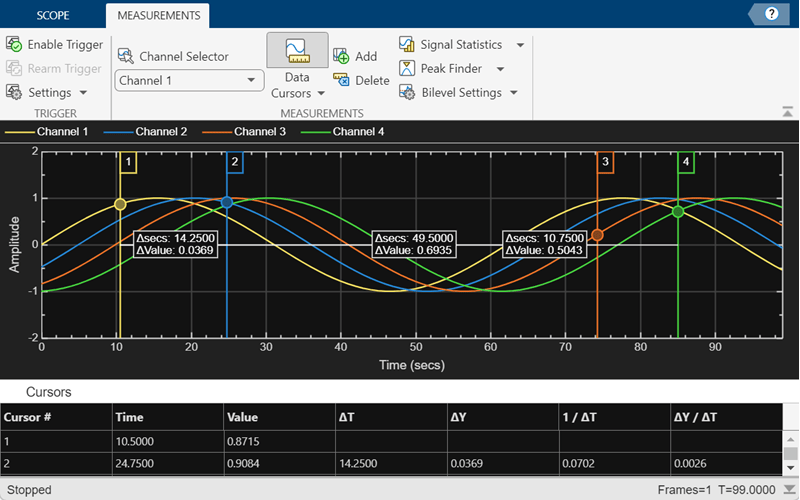
Time scope object displaying 4 channels. Each channel has a waveform cursor enabled.

timescope Object: Support for timetable inputs

The timescope object now supports regular timetable inputs.

State Spaces: Sample states from Gaussian distribution with default state and standard deviation

You can now use sample states from a Gaussian distribution with default state and standard deviation with these objects:

Occupancy Map Improvements

Map conversion support

You can now convert between occupancyMap, binaryOccupancyMap, and signedDistanceMap objects,

For example, this code shows the creation of an binaryOccupancyMap object and the conversion to occupancyMap and signedDistanceMap objects.

binOccMap = binaryOccupancyMap(10,10);
occMap = occupancyMap(binOccMap);
sdMap = signedDistanceMap(binOccMap);

Note that converting from a probabilistic map representation such as an occupancyMap to a binary map representation such as a binaryOccupancyMap or a signedDistanceMap may cause some loss of information, since continuous probabilistic values in the range [0, 1] are reduced to logical values of only 0 or 1.

Move and sync between different map representations

You can now move and sync between the occupancyMap, binaryOccupancyMap, and signedDistanceMap objects using the move and syncWith object functions.

For example, this code shows how to move and sync with different map representations.

% Create map representations
worldOccMap = occupancyMap(100,100);
localBinOccMap = binaryOccupancyMap(10,20,Resolution=2);
localSDMap = signedDistanceMap(10,20,Resolution=2.5);

% Sync the local binary occupancy map to the world occupancy map
syncWith(localBinOccMap,worldOccMap)

% Move and sync the local signed distance map to the world occupancy map at
% desired location
gridLoc = [15 30];
move(localSDMap,gridLoc,SyncWith=worldOccMap);

R2025b

Bug Fixes

Quality and stability improvements

R2025b delivers quality and stability improvements, building on the new features introduced in R2025a.

R2025a

New Features, Bug Fixes

 Polygon Decomposition: Decompose polygons into nonoverlapping regions

Use the polygonDecomposition function to decompose a complex polygon into a set of nonoverlapping polygons using the boustrophedon decomposition algorithm. This is particularly useful for coverage planning in agricultural fields, restricted areas, and complex land excavation.

You can also use the boustrophedonOptions object to specify custom options for generating a graph that captures the connectivity between the decomposed polygons.

These figures show a complex polyshape being decomposed into a set of convex polyshape objects, and a connection graph overlay.
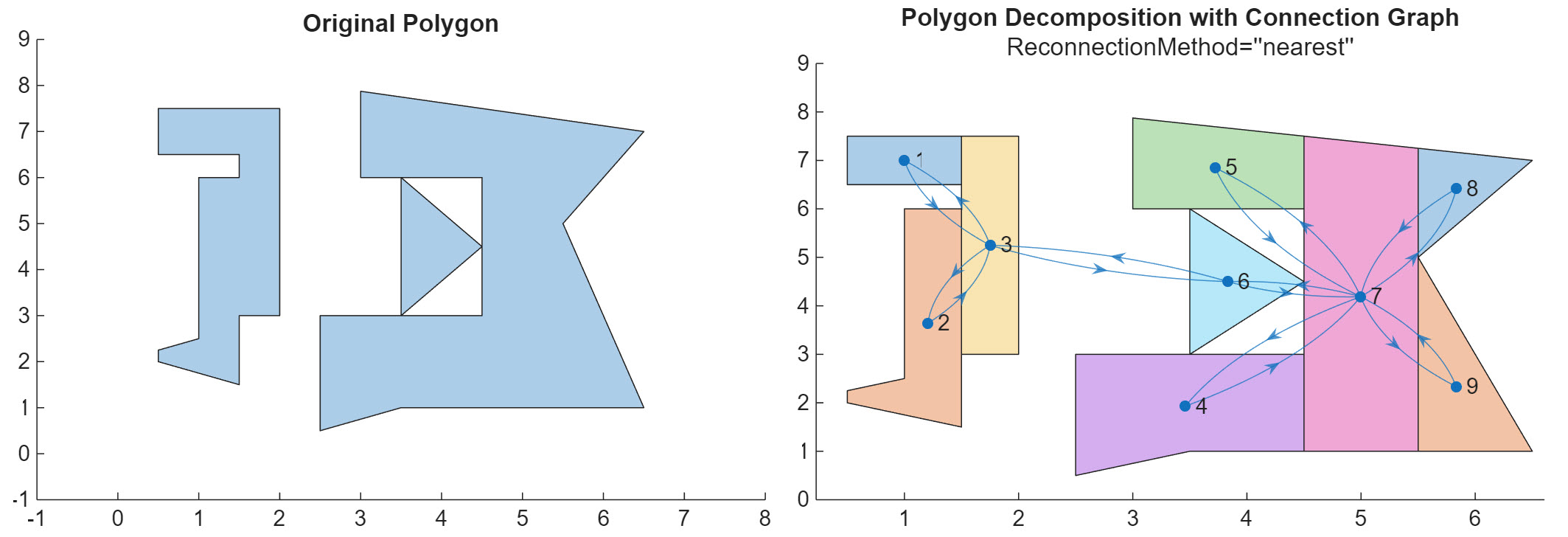
Complex polyshape on left being decomposed into a set of convex polyshapes, with connection graph overlaid, on the right.

 Factor Graph Enhancements for Real-Time SLAM Applications: Marginalize, set initial trust region radius, implement SIM(3) factor, and estimate sensor transform

Marginalize Nodes and Factors

The marginalizeNode and marginalizeFactor functions enable you to simplify your factor graph by removing specific nodes and factors while preserving their influence on the remaining graph by combining them into one prior factor with the Schur complement.

These functions are particularly beneficial for applications requiring real-time processing or dealing with large factor graphs under limited computational resources. By marginalizing nodes and factors, you reduce the complexity of the graph, leading to faster optimization cycles and more efficient resource use. This approach supports real-time updates for fast-moving platforms while maintaining the precision needed for reliable SLAM solutions, offering a strategic way to manage computational demands without compromising the robustness and reliability of the graph.

Specify Initial Trust Region Radius

You can now specify the initial trust region radius using the InitialTrustRegionRadius property of the factorGraphSolverOptions object to find the optimal node states. A smaller radius means the solver will initially explore solutions closer to the initial node states, while a larger radius allows for a broader search.

Implement SIM(3) Factor

Use the 3-D similarity transformation (SIM(3)) factor object factorTwoPoseSIM3 to relate two SIM(3) pose nodes. A SIM(3) pose node is a combination of SE(3) pose node (POSE_SE3) and SE(3) pose scale node (POSE_SE3_SCALE). You can use the SIM(3) factor object for similarity graph optimization in factor graph.

Estimate Sensor Transform

You can now estimate the SensorTransform property of camera factor object factorCameraSE3AndPointXYZ using factor graph optimization. You can use the estimated transform for transforming poses captured by a sensor to initial camera reference frame.

estimateGravityRotationAndPoseScale and estimateGravityRotation Enhancements: Improve and validate gravity rotation and pose scale estimates

You can now specify these name-value arguments to improve the estimates returned by estimateGravityRotationAndPoseScale and estimateGravityRotation functions.

  • FixPoses — Improve estimation accuracy by specifying whether the input poses are fixed or non-fixed during estimation.

  • InitialVelocity — Compute bias accurately by specifying the initial velocity of the IMU.

  • PredictionThreshold — Identify unreliable estimates by specifying a IMU pose prediction threshold value.

The estimateGravityRotationAndPoseScale function also now accepts ScaleThreshold argument which enables you to filter scale estimates below a specified scale value.

The info output structure of the estimateGravityRotationAndPoseScale and estimateGravityRotation functions now includes these additional fields:

  • Status — Indicates the validity, or reason for failure, of the estimation.

  • TranslationErrors and RotationErrors — Indicate the difference in estimated translation and rotation, respectively, between the visual odometry estimate and the IMU measurement-based estimate.

  • PoseToIMUTransform — Transformation from the input pose reference frame to the IMU navigation reference frame.

  • PosesInIMUReference — Optimized poses in the IMU navigation reference frame.

  • VelocityInIMUReference and Bias — Velocity estimates in the IMU navigation reference frame and bias estimates, respectively.

Quaternion Object: Use interp1 to interpolate quaternions

Use the interp1 object function of the quaternion object to interpolate quaternions using interpolation methods such as SQUAD and SLERP.

This figure visualizes interpolated quaternions on a unit sphere by using the sample and interpolated quaternions to rotate a 3-D point. The annotated numbers on the points are the sample points and query points that correspond to v and vq, respectively.

Interpolated quaternions visualized using rotated points on a unit sphere.

Quaternion Object: slerp function supports natural interpolation

The slerp object function of the quaternion object now supports spherical interpolation using the "natural" path option, which avoids the shortest path optimization, resulting in a longer path around the unit sphere that respects the orientation of the start and end quaternions.

This figure visualizes the difference between the "short" and "natural" interpolation methods by rotating a point using the interpolated quaternions on a unit sphere.

Visualization of the difference between the "short" and "natural" interpolation methods by rotating a point using the interpolated quaternions on a unit sphere.

Control plot type for each line individually in timescope object

You can now individually control the type of plot for each line in the timescope object. Specify the PlotType property as a cell array of character vectors or an array of strings.

For more information, see the PlotType property description.

 Timed Elastic Band Block: Perform local path planning in Simulink using Timed Elastic Band (TEB) algorithm

You can now perform local path planning in Simulink® by using the Timed Elastic Band Simulink block.

The Avoid Obstacles Using TEB Local Planner in Simulink example shows how to perform local path planning to avoid obstacles and generate a feasible path using the Timed Elastic Band block. This example also shows how to address challenges such as violations of obstacle safety margin and minimum turning radius constraints to achieve an optimized path to the goal pose. The simulation highlights path following and obstacle avoidance, where the robot adheres to the planned trajectory as it navigates through the environment.
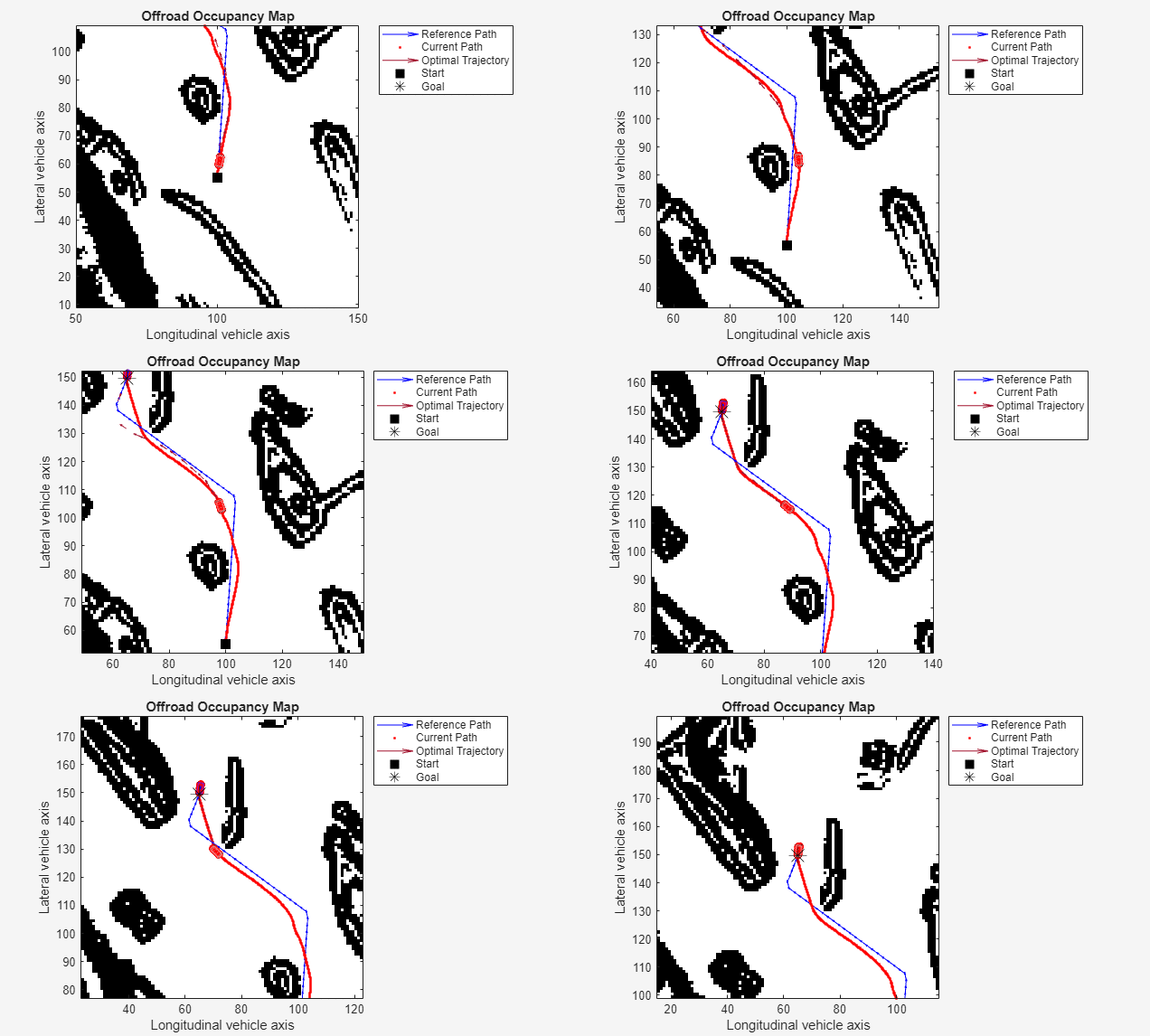
Visualization of local path planning results. The visualization shows the reference path, the optimal trajectory, and the current path of the vehicle determined using TEB local planner.

Path Following Example: Simulate path following using Speedgoat real-time target machines

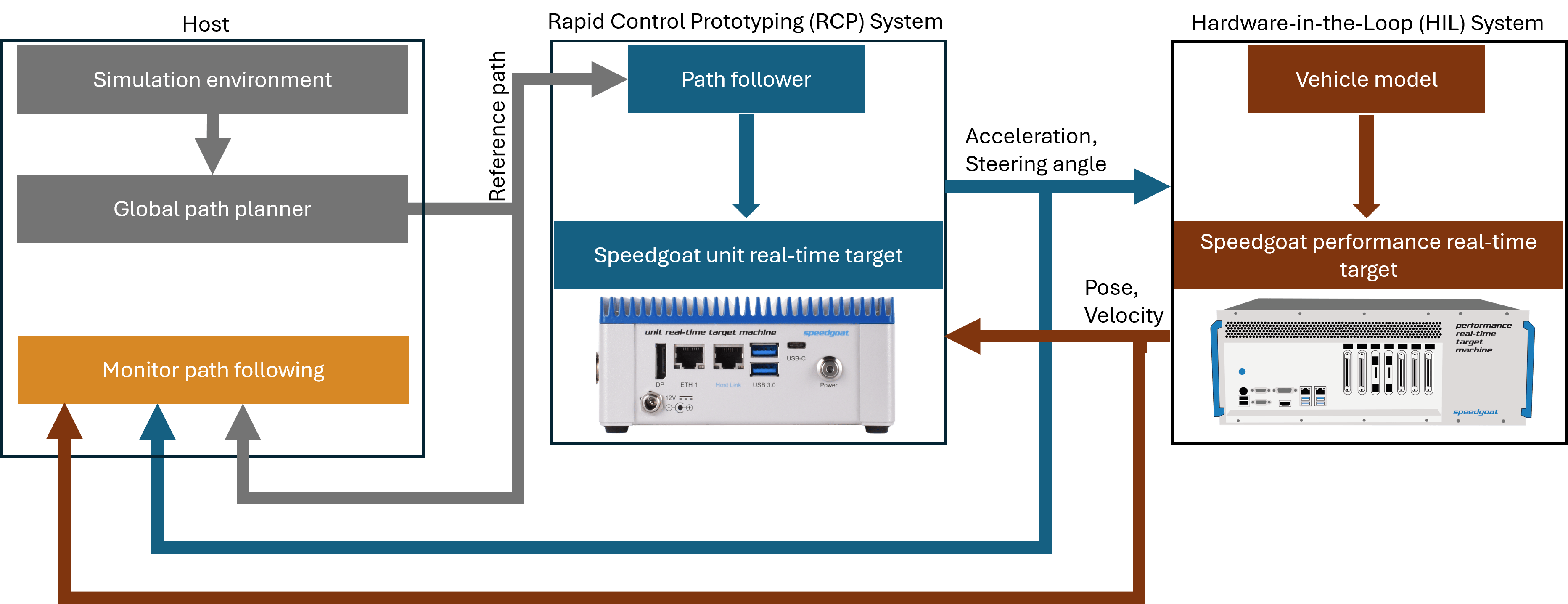
The Simulate Path Following on Speedgoat Real-Time Target Machine example shows how to perform real-time simulations for path following in a complex environment using Speedgoat real-time target machines. In this example, you will use different Speedgoat target machines for Rapid Control Prototyping (RCP) and Hardware-in-the-Loop (HIL) simulations. You can use this example to test and validate vehicle's ability to accurately follow paths in a complex environment.
navGraph Object Enhancements

  • You can now create an empty navGraph object using the syntax:

    graph = navGraph;

    You can then add states and links to the graph by using the addstate and addlink object functions, respectively.

  • The addstate and addlink object functions now return an additional output argument, status, which indicates whether the newly specified states and links are successfully added to the graph.

R2024b

New Features, Compatibility Considerations

 3-D Truncated Signed Distance Map: Create truncated signed distance maps over voxelized 3-D space

Use the signedDistanceMap3D object to create and store truncated signed distance fields (TSDF) over voxelized 3-D space. You can use the insertPointCloud function to quickly construct your environments in the signed distance map using sensor readings. Using signedDistanceMap3D enables optimization-based motion planners to understand and navigate the environment more effectively, making it easier to avoid obstacles and plan more efficiently.

The first figure shows a reference STL that was used to create point cloud data. The second figure shows a 3-D TSDF generated from the point cloud data. The third figure shows the mesh generated from that 3-D TSDF.
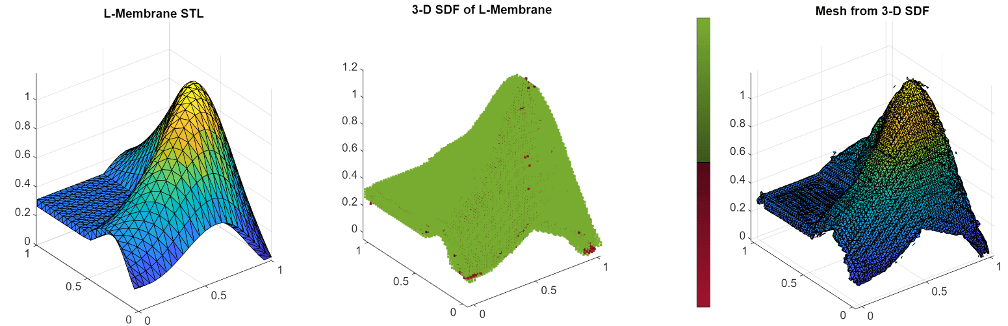
L-membrane STL, a 3-D TSDF generated from L-membrane point cloud data, and a generated mesh from the TSDF

 Factor Graph: Retrieve state covariance from nodes in factor graph

Use the nodeCovariance function to retrieve stored state covariance from a factor graph after optimization. Specify a factorGraphSolverOptions and set the StateCovarianceType property to specify one or more node types for which to estimate and store the state covariance.

The covariance represents the uncertainty associated with the estimated states, which can help you understand the reliability of the state estimates and make informed decisions based on the level of confidence in each estimated state. Incorporating the covariance matrix in state estimation also helps you filter out measurement noise and outliers, thereby improving the overall accuracy and robustness of the estimates.

This figure shows the node state covariances for SE(2) nodes using a helper function. The plotted covariance increases due to drift accumulation with each consecutive node and lowers near loop closures due to the additional state information provided by the loop closure.
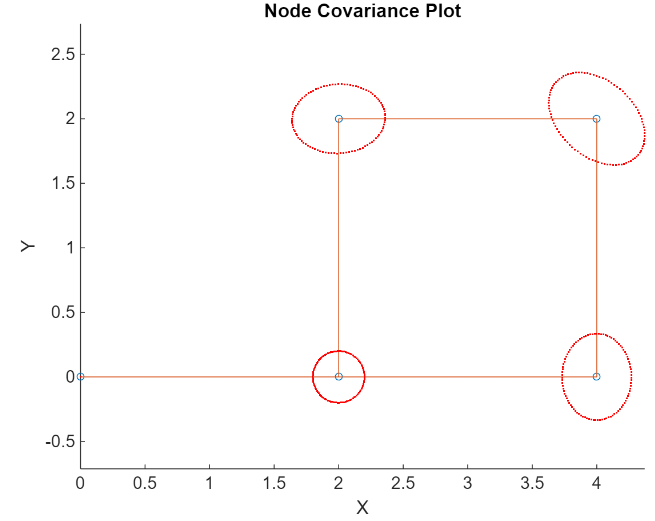
Node state covariance plotted on a simple factor graph.

Path Planning: Shorten paths by removing redundant nodes

Use the shortenpath function to remove redundant nodes along a path between a start point and goal point.

skyplot Function: Specify the status of multiple satellites

The status argument of the skyplot function now accepts structure arrays, enabling you to specify the status of more than one satellite.

 Controller VFH: show now plots on PolarAxes instead of Axes

The show object function of the controllerVFH System object now plots on a PolarAxes object instead of an Axes object. The value types of the parent and h arguments reflect this change. See PolarAxes Properties for more information about PolarAxes objects.

timescope Object Enhancements

New color and styling properties for timescope object

You can now customize the plot line, axes, and background color and style settings of the timescope object through the MATLAB command line.

Higher display precision in timescope UI

You can now increase the display precision to 15 digits using the Display Precision parameter in the Time Scope settings under Display and Labels. This precision affects all the measurement data and the data the scope displays on its status bar.

To open the Time Scope settings, create a timescope object, open its UI, and click Settings in the Scope tab of the toolstrip.

Preserve Colors is now available in Time Scope toolstrip

The Preserve colors for copy to clipboard parameter has been renamed to Preserve Colors, and is now available in the Time Scope toolstrip under Copy Display.

plannerHybridAStar Object: Improved performance

The plan object function of the plannerHybridAStar object shows improved performance. The performance improvement increases as the complexity of the problem increases such as more obstacles. For example, this code is about 3x faster than in the previous release:

function timingTest
    load parkingMap.mat
    map = binaryOccupancyMap(map,3); % Set resolution to 3 cells/metre
    ss = stateSpaceSE2([map.XWorldLimits; map.YWorldLimits; [-pi pi]]);
    sv = validatorOccupancyMap(ss,Map=map);
    planner = plannerHybridAStar(sv,MinTurningRadius=4,MotionPrimitiveLength=6,NumMotionPrimitives=101);
    startPose = [2 9 0];
    goalPose = [27 18 -pi/2];
    path = plan(planner,startPose,goalPose);
end

The approximate execution times are:

  • R2024a: 0.12 s

  • R2024b: 0.04 s

The code was timed on a Windows 11, AMD Epyc® 74F3 24-Core Processor CPU @ 3.19 GHz test system using the timeit function.

timeit(@timingTest)

controllerTEB Object: Improved performance

The step object function of the controllerTEB object shows improved performance. The performance improvement increases as the complexity of the problem increases such as more obstacles or a higher lookahead time. For example, this code is about 1.5x faster than in the previous release:

function timingTest
    map = load("exampleMaps.mat").complexMap;
    map = binaryOccupancyMap(map); % Default resolution 1 cell/metre
    map = binaryOccupancyMap(map,10); % Increase resolution to 10 cells/metre
    refpath = [6,3,1.57; 8.9,7,0.7; 13.8,10.4,1.07;14.2,11.3,1.57;
              14.2,12.3,2.07;5.08,19.7,1.82; 4.8,20.7,1.3; 9.2,28,0.57;
              29.6,30.8,0.32; 30.5,31.1,0.66; 32,32,-3.1];
    teb = controllerTEB(refpath,map,LookAheadTime=10);
    currentState = refpath(1,:);
    currentVel = [0,0];
    [velcmds,timestamps,optpath] = step(teb,currentState,currentVel);
end

The approximate execution times are:

  • R2024a: 0.37 s

  • R2024b: 0.25 s

The code was timed on a Windows 11, AMD Epyc® 74F3 24-Core Processor CPU @ 3.19 GHz test system using the timeit function.

timeit(@timingTest)

Euler Angle Conversions: Convert to and from other rotations using additional Euler angle sequences

The Coordinate Transformation Conversion block and quat2eul function now support additional Euler sequences. These are all of the supported Euler sequences:

  • "ZYX"

  • "ZYZ"

  • "ZXY"

  • "ZXZ"

  • "YXY"

  • "YZX"

  • "YXZ"

  • "YZY"

  • "XYX"

  • "XYZ"

  • "XZX"

  • "XZY"

R2024a

New Features, Compatibility Considerations

 Truncated Signed Distance Field (TSDF) for Meshes: Speed up collision checking for motion planning in mesh-based environments

Approximate complex mesh-based environments as 3-D TSDFs using the meshtsdf object. You can use TSDFs to speed up collision checking during motion planning. After creating the object, you can add, modify, or remove new meshes from the meshtsdf object to incorporate changes in the environment. For more information, see the meshtsdf object.

You can also use meshtsdf to represent an environment when using manipulatorCHOMP (Robotics System Toolbox) to plan collision-free paths for manipulators.

Collision Geometry Support: Convert collision geometries to structures for creating meshtsdf objects

Use the geom2struct function to convert one or more collision geometries into structures containing the data, such as vertices and face data, of the collision geometries. You can use these structures or structure arrays to create truncated signed distance fields as meshtsdf objects.

factorGraph Object: Remove nodes and factors from factor graphs

Use the removeNode and removeFactor functions to remove nodes and factors from a factor graph. You can use these functions to manage the size of larger factor graphs for applications where memory management is crucial. You can also use these functions to remove inaccurate measurements from a factor graph.

factorGraph Object: Visualize robot poses and landmark positions in factor graph

Use the show function to visualize pose and landmark nodes in a factor graph. This function is useful for visualizing the robot poses, the connections between robot poses, and the landmark positions after optimizing the factor graph.

 Camera-to-IMU Extrinsic Calibration: Estimate transformation between camera and IMU sensors

Use the estimateCameraIMUTransform function to estimate the SE(3) transformation from a camera to an IMU sensor. You can use the transformation as the value for the SensorTransform property of the factorIMU object.

The estimateCameraIMUTransform function also outputs the additional calibration estimates, useful for validation, as a cameraIMUParameters object. You can use the validate function to check if the pattern point reprojection errors and IMU prediction errors are below the specified thresholds that would indicate calibration success.

occupancyMap3D Object: Specify the obstacle-free and occupied probabilities for inserted point clouds

You can now specify the inverse sensor model values for the corresponding obstacle-free and occupied probabilities when using the insertPointCloud function to insert point clouds into 3-D occupancy maps. For more information about specifying the inverse sensor model values, see the invModel argument.

Monte Carlo Localization: Modify and set poses of particles

The monteCarloLocalization object now supports setting particle poses and weights using the setParticles object function. This is useful for customizing the behavior of particles between steps.

Motion Planning Networks: Create Motion Planning Networks (MPNet)

Use the mpnetLayers function to create an MPNet. You can then train the network on a custom data set and use the trained network for state-space sampling or motion planning.

 Deep-Learning-Based Path Planner: Perform motion planning using Motion Planning Networks (MPNet)

Use the plannerMPNET object and its plan object function to compute near optimal paths between two states in an input map environment, for robot navigation. The MPNet path planner utilizes a priori knowledge from a pretrained MPNet to efficiently predict collision-free trajectories and hence converges rapidly towards an optimal solution.

Basis Point Set Encoder: Encode environments for motion planning

You can now derive a compact representation of an environment by using the basis point set (BPS) encoding approach. Use the bpsEncoder object and its encode object function to encode the input environment for motion planning.

You can then use the encoded environment as an input to perform motion planning using deep learning based techniques such as the Motion Planning Networks (MPNet) and deep-learning-based Covariant Hamiltonian Optimization for Motion Planning (CHOMP). For information about how basis point set encoding is used with MPNet and deep-learning-based CHOMP, see Get Started with Motion Planning Networks and dlCHOMP (Robotics System Toolbox), respectively.

Start and Goal State Selector: Find random valid start and goal state pairs

Use the sampleStartGoal function to find random valid start and goal state pairs in an input map environment. You can validate motion-planning approaches by computing feasible paths for different start and goal state pairs.

gnssconstellation Function: Compute satellite locations and velocities from additional GNSS satellites

You can now use the gnssconstellation function to compute satellite locations and velocities for these additional GNSS satellites

  • GPS

  • Galileo

  • GLONASS

  • BeiDou

  • NavIC

  • QZSS

  • SBAS

See the navData argument for examples of how to read data from these satellites from RINEX files.

navGraph Object Enhancements: Modify states and links in search graph

You can now add or remove states and links in a graph, created using a navGraph object, for search-based planning.

Add or Remove States

  • Use the addstate object function of the navGraph object to add states to the graph.

  • Use the rmstate object function of the navGraph object to remove states from the graph.

Add or Remove Links

  • Use the addlink object function of the navGraph object to add links between two states in the graph.

  • Use the rmlink object function of the navGraph object to remove links between two states in the graph.

E-Compass Block: Estimate orientation using magnetometer and accelerometer readings

Use the ecompass Simulink block to estimate orientation based on magnetometer and accelerometer data.

ahrsfilter and imufilter Object Enhancements: Compute residual and residual covariance from sensor measurements

  • Use the residual object function of ahrsfilter object to compute residual and residual covariance from accelerometer, gyroscope, and magnetometer sensor measurements.

  • Use the residual object function of imufilter object to compute residual and residual covariance from accelerometer and gyroscope sensor measurements.

 Pure Pursuit Block Enhancements: Specify linear velocity and look-ahead distance at input ports, and renamed output ports

The Pure Pursuit block has these changes:

  1. You can now specify the desired linear velocity at the Desired Linear Velocity input port by selecting the Specify desired linear velocity from input port parameter.

  2. You can now specify the desired lookahead distance at the Lookahead Distance input port by selecting the Specify lookahead distance from input port parameter.

  3. The output ports and a parameter have new names. This table shows the names prior to R2024a, and the names for R2024a and after.

    Name Prior to R2024aName for R2024a and after
    LinVel output portLinear Velocity output port
    AngVel output portAngular Velocity output port
    TargetDir output portTarget Direction output port
    Show TargetDir output port parameterShow Target Direction output port parameter

R2023b

New Features, Bug Fixes

IMU Filter: Estimate orientation using IMU Filter block

Use the IMU Filter Simulink block to estimate orientation based on accelerometer and gyroscope sensor data.
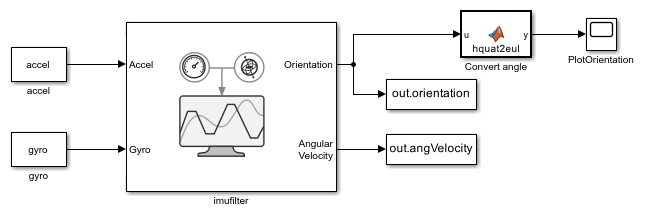
IMU filter simulink model to compute orientation and angular velocity

State Samplers: Conventional and deep-learning-based state samplers for motion planning

Specify different state space sampling methods for plannerRRT, plannerRRTStar, plannerBiRRT, and plannerPRM path planners.

To specify the type of the state space sampling method, use the StateSampler property. The value of the StateSampler property must be a stateSamplerUniform object, stateSamplerGaussian object, or stateSamplerMPNET object, or a custom object inherited from the nav.StateSampler class.

For example, this code shows how to set the StateSampler property to specify uniform state space sampling when creating a plannerRRT planner.

sampler = stateSamplerUniform(statespace)
planner = plannerRRT(statespace,statevalidator,StateSampler=sampler)

Conventional State Samplers

  • Use the stateSamplerUniform object to sample state space using a uniform distribution.

  • Use the stateSamplerGaussian object to sample states in a state space near obstacles using a combination of a Gaussian distribution and a uniform distribution.

Deep-Learning-Based State Sampler

Use the stateSamplerMPNET object to perform informed sampling using a Motion Planning Networks (MPNet). You can either use a pretrained MPNet or train the network on custom data.

  • Use the mpnetSE2 object to either load a pretrained MPNet or train the MPNet on an input data set.

  • Use the mpnetPrepareData function to preprocess the input data set before training the network.

You can use the mpnetSE2 objects with only SE(2) state spaces, such as stateSpaceSE2, stateSpaceDubins, and stateSpaceReedsShepp. For an overview on MPNet and how to use it for state space sampling, see Get Started with Motion Planning Networks.

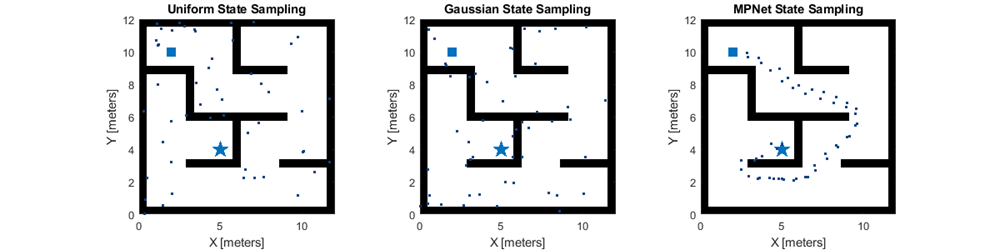
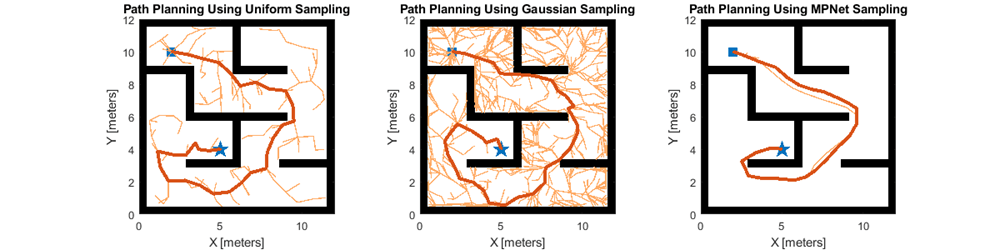
For an example, the figure displays state space samples generated by uniform, Gaussian, and MPNet state samplers. It also shows path planning results computed using RRT* path planner for each sampling approach.

Comparing samples generated using uniform, Gaussian, and MPNet sampling approaches

Comparing path planning results achieved using uniform, Gaussian, and MPNet sampling approaches

Custom State Sampler

Use the nav.StateSampler class interface to write your own custom state sampler. You can also use the createPlanningTemplate function to generate a template for implementing a subclass of the nav.StateSampler class.

Factor Graph Optimization Improvement: Incrementally optimize factor graph with specified pose nodes

The optimize object function of factorGraph now accepts node IDs, enabling you to incrementally optimize a factor graph. This is useful for applications such as visual SLAM, which can require a factor graph containing hundreds of factors to relate poses to feature points. By limiting the factor graph optimization to a subset of the most recent pose nodes within a sliding window in the factor graph, you can maintain efficient optimization.

This is an example using sliding window factor graph optimization for a UAV that localizes with a monocular camera. The highlighted section of the trajectory indicates the sliding window containing the most recent pose nodes in the estimated trajectory to optimize at the current time step.
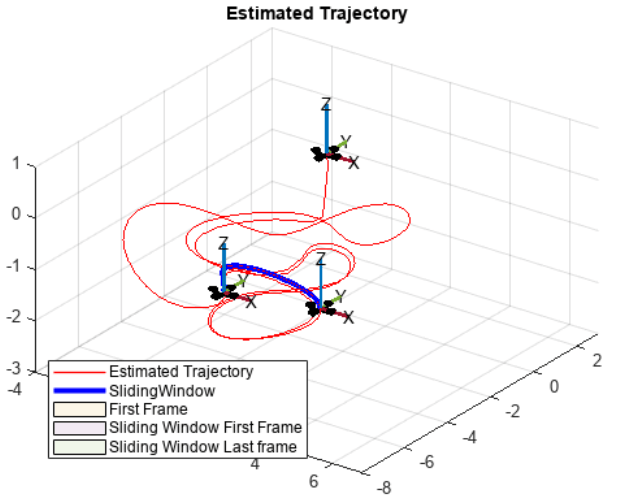
Sliding window optimization of a trajectory of a UAV using a camera-based localization algorithm

For more information, see the updated Monocular Visual-Inertial Odometry Using Factor Graph example.

controllerTEB Enhancements: Support for nonholonomic ground and car-like robots

Specify the maximum velocity for reverse motion, minimum turning radius, and goal tolerance values when creating a controllerTEB object.

These properties enable you to use the controllerTEB object for navigation of various ground robots, such as car-like robots.

  • To specify the maximum reverse velocity for the robot, use the MaxReverseVelocity property.

  • To specify the minimum turning radius for an optimized path, use the MinTurningRadius property.

  • To specify the goal tolerance value, use the GoalTolerance property.

GNSS File Reader: Read GNSS data from Galileo XML almanac file

Use the galalmanacread function to read the parameters of each Galileo satellite from a Galileo XML almanac file as a timetable.

You can specify the timetable as navigation data for the gnssconstellation function, which enables you to use the Galileo almanac parameters to get the Galileo satellite locations and velocities at your specified time.

Collision Mesh Decomposition: Create more accurate collision meshes for non-convex objects using voxelized hierarchical approximate convex decomposition (V-HACD)

Use the collisionVHACD function to decompose non-convex triangulations into a composite of convex collision meshes for collision checking. This is useful for creating more accurate collision-mesh approximations of non-convex items. For example, if you need to perform collision checking with non-convex object such as a bin, you must model it with convex meshes for efficient collision checking. If you approximate the bins as one convex collision object, then collision-checking algorithms report collisions between the bin and anything that is in the bin. Decomposing the non-convex mesh into a composite of convex meshes resolves this by providing a more accurate representation of the bin.

Here is a comparison of a bin as the original triangulation, as a single convex mesh, and as a composite of convex meshes after V-HACD decomposition:

Bin triangulation versus single convex mesh bin versus bin mesh composite from decomposition

Fractal Noise Generation: Generate filter coefficients for producing fractal noise

Use the fractalcoef function to generate the coefficients for producing fractal noise. You can also use the generated coefficients to specify the BiasInstabilityCoefficients property of the accelparams, gyroparams, or magparams object.

Specify temperature and magnetic field inputs for IMU block

You can use the new Temperature and Magnetic Field input ports of the IMU Simulink block to provide the temperature and magnetic inputs, respectively. To enable these ports, select the Specify temperature from input port and Specify magnetic field from input port parameters, respectively.

Accelerometer Calibration: Calibrate accelerometer using accelcal

Use the accelcal function to obtain coefficients for calibrating measurements from an accelerometer.

Accelerometer Readings: Obtain platform acceleration from accelerometer reading

Use the linaccel function to obtain platform acceleration values using accelerometer readings and the orientation of the platform.

Gravity Direction: Obtain gravity direction vector in platform body frame

Use the gravitydir function to obtain gravity direction vectors in the platform body frame.

Orientation and Heading: Obtain tilt angle and compass angle from platform orientation

Use the tilt function to obtain the tilt angle of a platform based on its orientation.

Use the compassAngle function to obtain the compass or heading angle of a platform based on its orientation.

Hybrid A* Planner Enhancements: Specify custom g-cost function for plannerHybridAStar object

Specify custom cost function for g-cost computation in plannerHybridAStar using the TransitionCostFcn and AnalyticalExpansionCostFcn properties. You can use custom cost functions to enable the planner to consider various aspects of environments such as road height and surface quality.

navPath Enhancements: Support for statically-allocated code generation

The navPath object now supports the deployment of statically allocated generated code by specifying DynamicMemoryAllocation="off" by specifying the maximum number of states allowed in the path using the MaxNumStates property.

Path Planner Line Specifications: Predefined line specifications for plotting outputs of global path planners

Use these functions to specify predefined line styles, colors, and marker appearances for plotting the outputs of plannerHybridAStar, plannerRRT, plannerRRTStar, plannerBiRRT, and plannerPRM path planners.

FunctionsDescriptionExample Plots with Default Specifications
plannerLineSpec.goalSpecifications for plotting goal state.

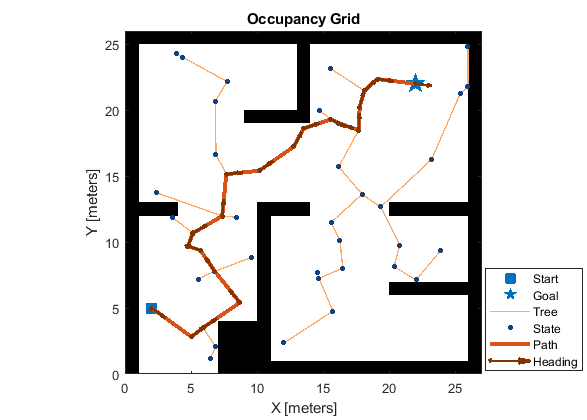
Plot with default specifications for start pose, goal pose, search tree, states, path, and heading angle

plannerLineSpec.startSpecifications for plotting start state.
plannerLineSpec.stateSpecifications for plotting generic state.
plannerLineSpec.pathSpecifications for plotting forward path.
plannerLineSpec.headingSpecifications for plotting heading angle.
plannerLineSpec.treeSpecifications for plotting forward search tree.

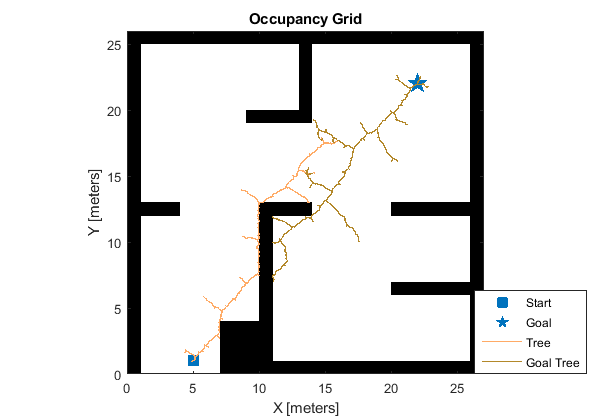
Plot with default specifications for start pose, goal pose, search tree, and goal tree

plannerLineSpec.goalTreeSpecifications for plotting search tree from goal to start.
plannerLineSpec.reversePathSpecifications for plotting reverse path.
plannerLineSpec.reverseTreeSpecifications for plotting reverse search tree.

Print timescope to Figure: New printToFigure function prints timescope window to MATLAB figure

Using the new printToFigure function, you can print the timescope object display window to a MATLAB figure.

R2023a

New Features, Bug Fixes

Local Path Planner: Plan path using the Timed Elastic Band (TEB) algorithm

Use the controllerTEB object to create a controller that uses the Timed Elastic Band (TEB) algorithm to compute velocity commands and an optimal trajectory for a differential-drive robot. The controller follows the reference path generated by a global planner, such as RRT or Hybrid A*.
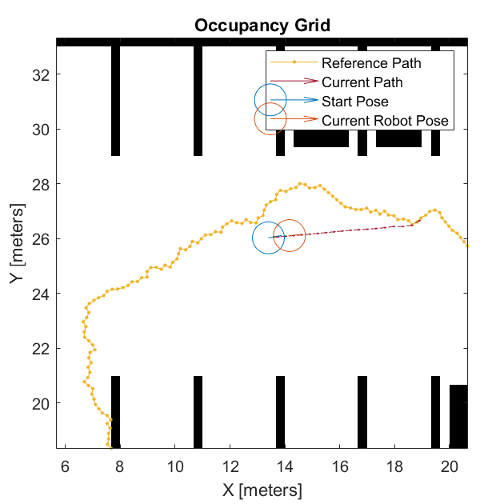
Plot showing the path planning using controllerTEB object on a occupancy map

Use the headingFromXY function to find the heading of the robot based on the XY-points of its path. Use the velocityCommand function to retrieve its velocity at a specified time from a time series of velocity commands.

Graph-Based A* Path Planner: Plan path using the A* algorithm

Use the plannerAStar object to plan the shortest path in a graph by exploring the nodes using the A* algorithm.
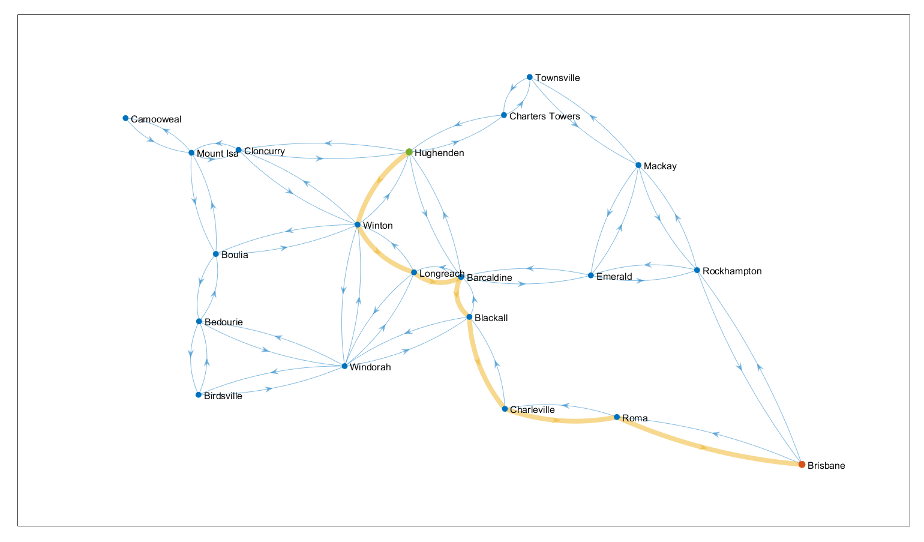
Plot showing the path planned on a navGraph representation

navGraph Object: Graph-based path planning environment representation

As of R2023a, Navigation Toolbox™ includes the navGraph object as a graph data structure, which aids search-based planners.
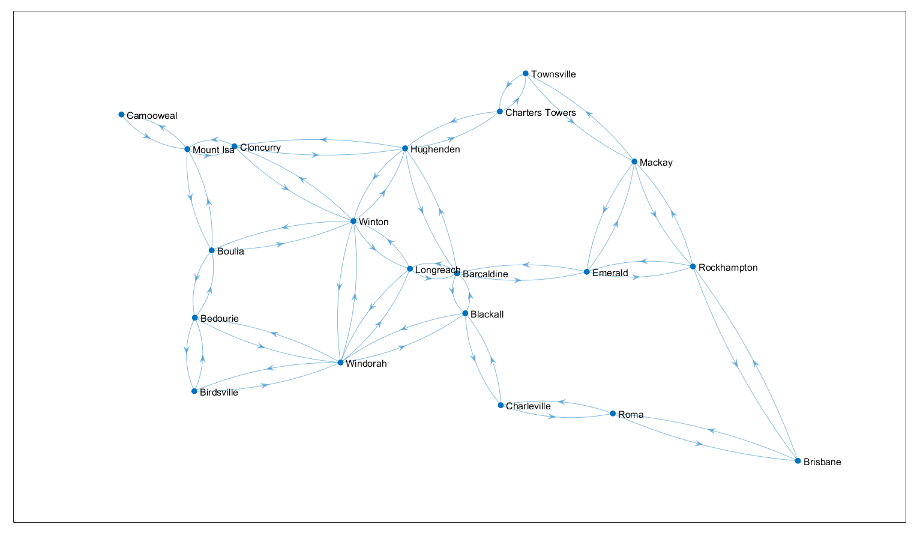
Plot showing navGraph representation

You can use the navGraph object as a planning environment for the plannerAStar path planner.

Complementary Filter: Estimate orientation using Complementary Filter block

Use the Complementary Filter Simulink block to estimate orientation based on accelerometer, gyroscope, and magnetometer sensor data.

Camera Projection Factor: Relate SE(3) camera poses to 3-D landmark points

Use the factorCameraSE3AndPointXYZ object to describe the visual projection factor relating the poses of the pinhole camera in the SE(3) state space and 3-D landmark points. You can add this object as a factor to a factorGraph object.

Factor IMU Enhancements: Simplify factor IMU construction and initial orientation computation

You can now create a factorIMU object using just gyroscope and accelerometer readings. You can also use the new factorIMUParameters object to specify IMU parameters for creating a factorIMU object. The new SensorTransform property of the factorIMU object converts the connecting pose node states to the initial IMU reference frame.

Use the estimateGravityRotation function to estimate the gravity rotation, enabling you to align the robot input pose reference frame to the local navigation reference frame of IMU fusing the sensor measurements using a factor graph.

Use the estimateGravityRotationAndPoseScale function to estimate the gravity rotation and the pose scale, enabling you to align the robot input pose reference frame to the local navigation reference frame of IMU fusing the sensor measurements using a factor graph.

Factor Construction Enhancements: Simplify factor graph construction with new functionality

Use the generateNodeID function to generate new sets of node IDs depending on your desired node ID format by giving set number and factor type.

These factor graph object functions also have additional functionality that enables you to more easily construct and modify factor graphs:

  • addFactor — You can now specify group IDs to organize newly created nodes.

  • nodeIDs — You can now get node IDs that have the same node type, group ID, or are associated with the same factor type.

  • nodeState — You can now get or set the states of multiple nodes at the same time.

These factor objects now support specifying multiple factors at a time by specifying more than one set of node IDs:

Signed Distance Map: Create signed distance maps

Use the signedDistanceMap object to create a signed distance map. You can use the distance and gradient information for path planning and optimization.
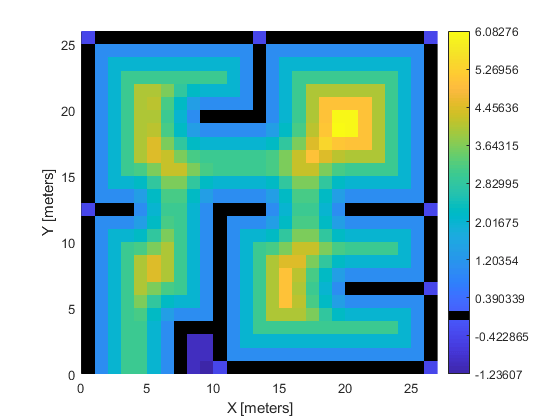
Signed distance map of simple map visualized with colorbar

GNSS File Reading: Read GNSS data from YUMA almanac file

Use the yumaread function to read the parameters of each GPS or QZSS satellite from a YUMA almanac file as a timetable.

You can specify the timetable as navigation data for the gnssconstellation function, which enables you to use the YUMA almanac parameters to get the GPS or QZSS satellite locations at your specified time.

GNSS Measurement Generator: Generate GNSS satellite measurements for scenario simulations

Use the gnssMeasurementGenerator object to generate GNSS satellite measurements for use in robot scenario simulations. You can use this object for multipath simulation where the buildings or obstacles in a scenario affect the line of sight of satellites.

Robot scenario with skyplot showing the satellites do or do not have line of sight

GNSS Clock Bias: Output receiver position clock bias, clock drift, and time dilution of precision information

The receiverposition function can now output an information structure, info, that details the estimated clock bias, estimated clock drift, and time dilution of precision (TDOP) of the receiver.

Transformation and Rotation Conversion Support: Use additional conversions for SE(2), SE(3) transformations and SO(2), and SO(3) rotations

The se2, se3, so2, and so3 objects now support these additional conversions to and from other rotation or transformation representations, such as Euler angles, quaternions, and axis-angle vectors using these objects and object functions:

In addition, these existing conversion functions now support 2-D inputs in addition to 3-D inputs:

navPath Enhancements: Specify maximum number of states allowed in path

The navPath object has a new property MaxNumStates to specify the maximum number of states allowed in the path.

waypointTrajectory Enhancements: Specify waypointTrajectory using ground speed or velocity input and new properties

When creating a waypointTrajectory object, if you specify the velocity or ground speed input, the object no longer requires the time-of-arrival input. When you do not specify the time-of-arrival input, you can use these new properties:

  • JerkLimit — Longitudinal limit of trajectory jerk. Jerk is the derivative of translational acceleration. If you specify a finite value for the jerk limit, waypointTrajectory produces a horizontal trapezoidal acceleration profile based on JerkLimit.

  • InitialTime — Time before the trajectory starts. If specified as nonzero, waypointTrajectory delays the start of the trajectory by the specified value, in seconds.

  • WaitTime — Wait time at each waypoint. If specified as nonzero for a waypoint, waypointTrajectory waits for the specified wait time, in seconds, at the specified waypoint.

insEKF Enhancements: Smooth state estimates using insEKF

You can now obtain smoothed state estimates as the second output from the estimateStates object function of the insEKF object. The function uses the Rauch-Tung-Striebel (RTS) smoothing algorithm to smooth state estimates.

Hybrid A* Planner Enhancements: Support for statically allocated code generation

The plannerHybridAStar object now supports the deployment of statically allocated generated code by specifying DynamicMemoryAllocation="off".

checkMapCollision Code Generation: Generate code for checkMapCollision

The checkMapCollision function now supports code generation, but does not support code generation using the packNGo (MATLAB Coder) function if you set the packType argument to "flat".

R2022b

New Features, Bug Fixes

Spatial Math: Use SE(2), SE(3), SO(2), and SO(3) transformations

Use the se3 and so3 objects to represent 3-D transformation matrices and 3-D rotation matrices, respectively. These objects make it easier to perform common operations, such as transforming 3-D points, normalizing the rotation, or interpolating between positions and orientations. To represent multiple transformations and rotations, you can arrange these objects into arbitrarily shaped arrays.

The se2 and so2 objects represent 2-D transformation matrices and 2-D rotation matrices, respectively.

Use plotTransforms to visualize the transformations and rotations in a figure. This can be helpful to see the underlying positions and orientations and to see interpolation results.

Landmark Factors: Relate SE(2) and SE(3) state space points to poses

Relate poses to points in the SE(2) and SE(3) state spaces using the factorPoseSE2AndPointXY and factorPoseSE3AndPointXYZ objects, respectively. These objects make it easier to localize using landmarks in factor graph SLAM workflows. For more information, see Landmark SLAM Using AprilTag Markers.

GNSS File Reading: Read GNSS data from SEM Almanac file

Use the semread function to read the parameters of each GPS satellite from the SEM almanac file, as a timetable.

You can specify the timetable as navigation data for the gnssconstellation function to use the SEM almanac parameters to get the GPS satellite locations at your specified time.

Check Collision: Check collisions between occupancy map and primitive geometries

Check collisions between occupancyMap3D map objects and collision geometries using the custom collision options object occupancyMap3DCollisionOptions and the checkMapCollision function.
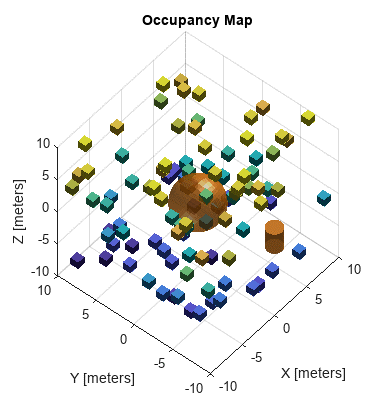
MATLAB 3-D Figure window showing collision check between occupancy map and primitive geometries

Planner Benchmark Improvements: Generate report to summarize benchmark results

Use the report function of the plannerBenchmark object to create and open a benchmark report as a live script in the MATLAB editor.

The benchmark results contain all the paths generated by each 2-D path planner for all the specified metrics across all runs in the environment. You can visualize the planned path from each planner on the map and the benchmark results for each metric as a summary table, detailed table, or plot.

Path Metrics Improvements: Support for SE(3) state space for path

The pathmetrics object now supports navPath objects with SE(3) state space. You can specify a validatorOccupancyMap3D object as the state validator input.

Sky Plot Enhancements: Set azimuth and elevation data to visualize satellite trajectories

The AzimuthData and ElevationData properties of the SkyPlotChart object, now accept matrices, allowing you to add azimuth and elevation data for each satellite at multiple time steps. Use this to visualize the trajectory of each satellite in the sky plot chart.
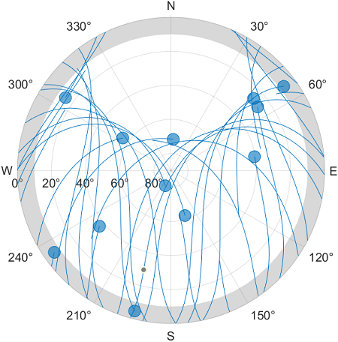
MATLAB 3-D Figure window showing the trajectory of each satellite in the sky plot chart

Sky Plot Chart Enhancements: Set mask elevations in sky plot charts

Use these new SkyPlotChart properties to add elevation and azimuth angle masks to a sky plot chart:

The elevation and azimuth angle masks make it easier to see when satellites are below and azimuth or elevation range.
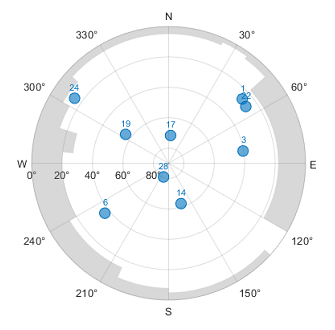
MATLAB 3-D Figure window showing the elevation and azimuth angle masks in the sky plot

See the SkyPlotChart Properties page for more details.

Hybrid A* Planner Enhancements: Set algorithm mode in Hybrid A* planner

Set the search algorithm mode when using plannerHybridAStar by specifying the mode argument of the plan object function.

The default “greedy” mode prioritizes finding a solution in a shorter time which may provide an unoptimized path in some scenarios due to cell locking issues. The “exhaustive” mode prioritizes finding an optimal solution. This enables you to find more optimal solutions for vehicle path planning.

MATLAB 3-D Figure window showing the paths found using greedy and exhaustive modes of Hybrid A star Planner

RRT Path Planners Enhancements: Specify properties as name-value arguments

You can now specify the properties of the plannerRRT, plannerRRTStar, and plannerBiRRT objects by using one or more name-value arguments in addition to the input arguments.

Code Generation for Factor Graph: Generate C/C++ code using MATLAB Coder

insEKF Object Enhancements: Copy, reset, and create motion and sensor models for insEKF object

You can use these functions to copy, reset, and create motion and sensor models for the insEKF object in inertial sensor fusion design:

  • Use the insCreateMotionModelTemplate function to create a motion model template based on the positioning.INSMotionModel abstract class.

  • Use the insCreateSensorModelTemplate function to create a sensor model template based on the positioning.INSSensorModel abstract class.

  • If you create a custom a motion model using the positioning.INSMotionModel abstract class, you can optionally implement a copy method for copying non-public properties.

  • If you create a custom a sensor model using the positioning.INSSensorModel abstract class, you can optionally implement a copy method for copying non-public properties.

  • Use the copy object function to create a copy of an insEKF object. The function copies all the properties of the insEKF object, including motion and sensor models used in the filter.

  • Use the reset object function to reset the State and StateCovariance properties of the insEKF object to their default values.

waypointTrajectory Reverse Motion: Specify wait and reverse motion for waypoint trajectory

You can now specify wait and reverse motion using the waypointTrajectory System object.

  • To let the trajectory wait at a specific waypoint, simply repeat the waypoint coordinate in two consecutive rows when specifying the Waypoints property.

  • To render reverse motion, separate positive (forward) and negative (backward) groundspeed values by a zero value in the GroundSpeed property.

R2022a

New Features, Bug Fixes, Compatibility Considerations

Factor Graph: Model SLAM and structure from motion with factor graphs

Use the factorGraph object to create a bipartite graph consisting of factors that represent unknown variables for SLAM and structure from motion applications. Add any of these factors to the factorGraph:

Path Planner Benchmark

The plannerBenchmark object benchmarks 2-D path planners by running them using a specified environment with specified start and goal poses.

The plannerBenchmark object calculates these metrics:

  • clearance — Minimum distance from obstacles in the environment

  • executionTime — Execution time of the planning function

  • initializationTime — Execution time of the initialization function

  • isPathValid — Whether the path exists and is collision free

  • pathLength — Length of the generated path

  • smoothness — Smoothness of the path for all poses

Fuse Inertial Sensor Data Using insEKF-Based Flexible Fusion Framework

Use an EKF-based flexible fusion framework to estimate the platform state, such as position and velocity, by fusing measurement data generated by sensors such as accelerometers, gyroscopes, magnetometer, GPS, and other sensors.

Using the insEKF object, you can build an inertial sensor estimate framework that integrates with various sensor models and motion models. To configure the parameters of the filter, use an insOptions object. The insEKF object provides object functions for various estimation purposes:

  • Use the predict and fuse (or correct) object functions to fuse sensor data for sequential state estimation.

  • Use the estimateStates object function to batch-estimate the platform state using cumulative sensor data.

  • Use the tune object function to tune the filter parameters for better estimation performance.

  • Use other object functions to access the filter state and other components in the filter.

The Navigation Toolbox toolbox provides these sensor models that you can integrate with the insEKF object to enable the processing of sensor measurements:

You can also define your own sensor model by inheriting from the positioning.insSensorModel interface class.

The Navigation Toolbox toolbox also provides two motion models that you can use in the insEKF object to propagate the filter state:

  • insMotionOrientation — Motion model for 3-D orientation estimation, assuming a constant angular velocity.

  • insMotionPose — Motion model for 3-D pose (position and orientation) estimation, assuming a constant angular velocity and a constant linear acceleration.

You can also define your own motion model by inheriting from the positioning.insMotionModel interface class.

Path Optimization

The optimizePath function optimizes the travel time and smoothness of the specified path for car-like robots while maintaining safe distance from the obstacles in the map.

The optimizePathOptions object creates a set of optimization options for the optimizePath function.

Probabilistic Roadmap (PRM) Path Planner

The plannerPRM object plans an obstacle-free path from a start state to a goal state using the PRM algorithm.

GNSS File Reading: Read and get GNSS data from RINEX files

Load GNSS data as a structure from a RINEX file using the rinexread function.

Use the rinexinfo function to get information about a RINEX file as a structure.

 referencePathFrenet Improvements

frenet2global and global2frenet now support converting states even if heading deviation is outside the range [–π/2, π/2].

The closestPoint function now accepts an optional input to specify a search window on the reference path. The function searches for the closest point within the specified window.

The new closestPointsToSequence function, given a set of points and a search window, determines the first point and order of the remaining points in the specified set of points.

The new closestProjections function returns multiple valid projections of a query point onto a path.

 Support for Statically-Allocated Code Generation

The referencePathFrenet and trajectoryGeneratorFrenet objects, as well as all 2-D map classes, now support the deployment of statically-allocated generated code (DynamicMemoryAllocation="off").

Additional lidarSLAM Properties

The lidarSLAM object has two new properties for tuning localization and mapping using lidar scans:

  • TranslationSearchRange — Incremental match translational search range

  • RotationSearchRange — Incremental match rotational search range

Additional plannerAStarGrid Property

The plannerAStarGrid object has a new property DiagonalSearch for toggling searches in diagonal direction.

Time Scope MATLAB object now Supports Additional Signal Statistics

As of R2022a, the timescope object supports these additional signal statistics:

  • Standard Deviation

  • Variance

  • Mean Square

For more details, see Configure Time Scope MATLAB Object.

Configure timescope Measurements Programmatically

You can now configure measurement data programmatically for the timescope object using these properties:

  • MeasurementChannel

  • BilevelMeasurements

  • CursorMeasurements

  • PeakFinder

  • SignalStatistics

  • Trigger

Use these properties to interact with the scope from the command line. Any changes that you make to the properties using the command line change the corresponding values in the UI. Any changes that you make in the UI change the corresponding property values in the workspace.