Spatial Math: Use SE(2), SE(3), SO(2), and SO(3) transformations
Use the se3 and so3 objects to represent 3-D transformation matrices and 3-D
rotation matrices, respectively. These objects make it easier to perform common operations,
such as transforming 3-D points, normalizing the rotation, or interpolating between
positions and orientations. To represent multiple transformations and rotations, you can
arrange these objects into arbitrarily shaped arrays.
The se2 and so2 objects represent 2-D transformation matrices and 2-D
rotation matrices, respectively.
Use plotTransforms to visualize the transformations and
rotations in a figure. This can be helpful to see the underlying positions and orientations
and to see interpolation results.
Custom Sensor Support in Robot Scenarios: Add custom sensor models to robots in simulated scenarios
Specify custom sensor models and define their behavior in simulation using the robotics.SensorAdaptor class. To generate a template for implementing the
class, use the createCustomRobotSensorTemplate function.
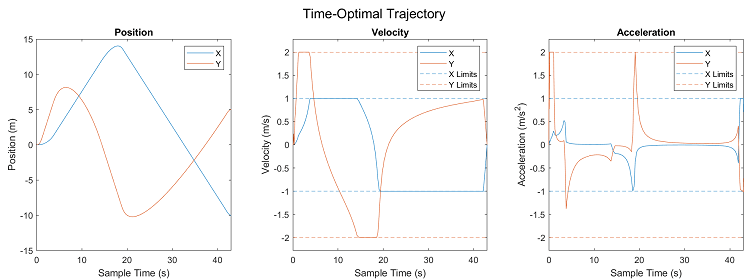
Time Optimal Trajectory: Create time optimal trajectory subject to kinematic constraints
Use the contopptraj function to generate a time optimal trajectory subject to
velocity and acceleration limits. This is also useful for retiming existing trajectories
such that they are also within acceleration and velocity limits. For more information,
see Generate Time-Optimal Trajectories with Constraints Using TOPP-RA Solver.
Capsule Collision Geometry: Use additional collision capsule geometry
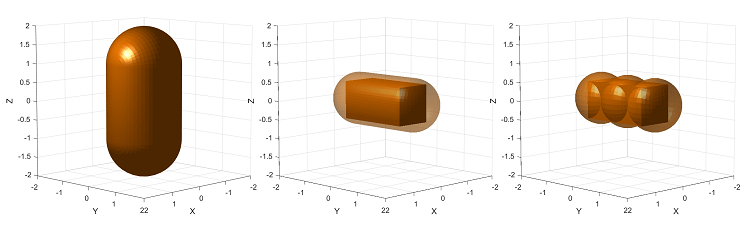
Create collision capsules as collisionCapsule objects and use the fitCollisionCapsule function to fit a collision capsule over a collisionBox, collisionCylinder, collisionSphere, or collisionMesh object. This is useful for reducing motion planning times by
approximating collision meshes with collision capsules. See Reduce Motion Planning Times Using Capsule Approximation for more
information.
Use the genspheres object function to decompose a collision capsule into spheres
for faster collision-checking performance.
Collision Checking: Check collisions using collision capsules
The checkCollision function now supports collision checking between collisionCapsule objects.
Capsule Approximation: Approximate rigid body trees using capsules
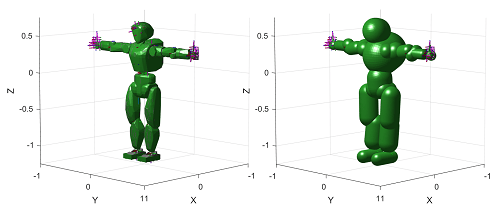
Use the capsuleApproximation object to create an approximation of a rigid body
tree robot by using collisionCapsule objects, for more efficient collision checking. By
creating approximations of collision meshes of the rigid body tree, you can reduce
motion planning times. See Reduce Motion Planning Times Using Capsule Approximation for more
information.
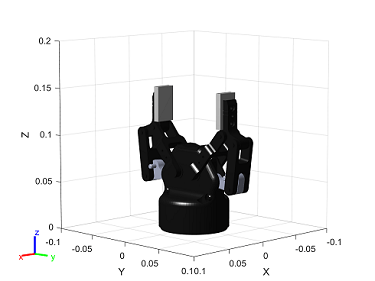
Robot Models: Use additional manipulator and gripper rigid body tree robot models introduced to robot model library
You can now retrieve these additional robots from the robot model library using the
loadrobot function:
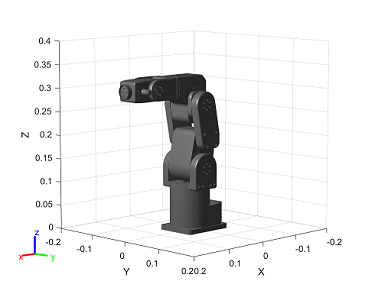
"meca500r3" — Mecademic Meca500 R3 six-axis robot
arm
"robotiq2F85" — Robotiq 2F-85 two-finger gripper

Self-Collision Checking: Alter rigid body tree self-collision checking behavior change, new default self-collision checking behavior
You can now specify self-collision checking behavior for a rigid body tree robot model
by using the SkippedSelfCollisions name-value argument of the
checkCollision and by setting the
SkippedSelfCollisions property of the manipulatorCollisionBodyValidator and manipulatorRRT objects. Specify the
SkippedSelfCollisions argument as "parent"
or "adjacent".
"parent" — Collision checking ignores self-collisions
between parent and child rigid bodies.
"adjacent" — Collision checking ignores self
-collisions between rigid bodies of adjacent indices.
As of R2022b, the default behavior of collision checking is to ignore self-collisions
between parent and child rigid bodies. In previous releases, the default behavior of
self-collision checking was to ignore self-collisions between rigid bodies at adjacent
indices. To instead ignore self-collisions between rigid bodies of adjacent indices,
specify the SkippedSelfCollisions argument as
"adjacent".
Gazebo Co-Simulation: Gazebo co-simulation enhancements
The Gazebo co-simulation features have been updated with these enhancements:
You can now connect to multiple Gazebo simulations from one or more machines. You can now specify a cell array of IP addresses and a cell array of port numbers in the MATLAB®, workspace and then specify their variable names to the Hostname/IP Address and Port boxes, respectively, of the Configure Gazebo Simulation dialog box.
To connect to a single Gazebo session from MATLAB, specify the port number and IP address of the computer running the Gazebo simulator.
portnum = 14580;
ipaddress = '172.18.250.125'; To connect to multiple Gazebo sessions from MATLAB, specify the port numbers and IP addresses of the computers running the Gazebo simulator.
portnum = {14580,14581};
ipaddress = {'172.18.250.125','172.18.250.125'}; 
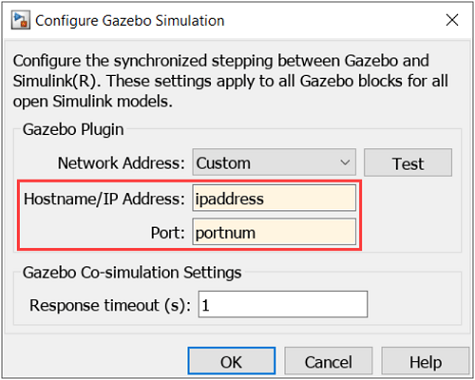
The Gazebo Read block now automatically suggests to change the dimension of the bus to match the signals from Gazebo. You can now toggle the joint-axis-related bus signal to variable or fixed dimension.
Gazebo Co-Simulation: Gazebo Read block sensor read performance improvements
The Gazebo
Read block now has improved sensor read performance. The performance is
measured on two different machine set ups while keeping the Real Time
Factor in the Gazebo simulator at 1 for all the
conditions. All the sensors are running at 30Hz.
The tables show the time taken to complete a 10 second simulation to read messages from each of the sensors. The sensors with read time that matches the simulation time of 10 seconds are considered to be at real time.
Gazebo and MATLAB running on the same machine
| Release Version | IMU | Lidar | Camera |
|---|---|---|---|
| R2022a | 769 sec | 12.82 sec | 66.66 sec |
| R2022b | 10 sec | 10 sec | 30.3 sec |
Gazebo and MATLAB running on different machines
| Release Version | IMU | Lidar | Camera |
|---|---|---|---|
| R2022a | 909 sec | 33.33 sec | 100 sec |
| R2022b | 25 sec | 25 sec | 50 sec |
These simulations were timed in MATLAB running on a Ubuntu® Bionic 20.04, Intel® Xeon® W-2133 CPU @ 3.60 GHz, with 12 threads and 64 GB of RAM.
The Gazebo simulator is running on a Ubuntu Bionic 20.04 virtual machine, Intel Xeon W-2133 CPU @ 3.60 GHz, with 8 threads and 8 GB of RAM.
waypointTrajectory Reverse Motion: Specify wait and reverse motion
for waypoint trajectory
You can now specify wait and reverse motion using the waypointTrajectory
System object™.
To let the trajectory wait at a specific waypoint, simply repeat the
waypoint coordinate in two consecutive rows when specifying the Waypoints property.
To render reverse motion, separate positive (forward) and negative
(backward) groundspeed values by a zero value in the GroundSpeed property.
Support Package Updates
The Robotics System Toolbox™ Support Package for Manipulators has been split into these support packages:
Robotics System Toolbox Support Package for Kinova® Gen3 Manipulators
Robotics System Toolbox Support Package for Universal Robots UR Series Manipulators