Simscape Language
Remove zero crossings from Simscape Language expressions
You can remove the zero crossings caused by functions, relational operators, and operators in
Simscape™ Language expressions by using the nozc
Use identity matrices in equations
You can now use the eye function to create and use identity
matrices in the equations section and in
simscape.Value objects.
For a complete list of functions supported in the
equations section, see Supported Functions.
Functionality being removed or changed
setup section will be removed
Warns
If your file contains a setup section, the
compiler issues a warning that it will be removed in a future release. Using
setup can cause issues with configuring run-time
parameters. It also has negative impact on compilation performance.
Other constructs available in the Simscape language let you achieve the same results without compromising compilation performance and run-time capabilities.
| Task | Recommended Technique |
|---|---|
Validate parameters | Use an |
Compute derived parameters | Use Simscape functions or declaration functions. For more information, see Simscape Functions and Declaration Functions. |
Set initial conditions | Assign variable priority and target value. For more information, see Variable Priority for Model Initialization. |
Designate source for domain parameters | Use direct assignment to a domain parameter in the component node declaration. For more information, see Source Components. |
Improved error checking for case-sensitivity and non-ASCII characters in file names and member declarations
Behavior change
Stricter error checking has been implemented with respect to case-sensitivity of class and member declarations. In previous releases, sometimes the case mismatch between a member declaration in a composite component and the actual domain or component name did not result in an error. Starting in R2026a, if there is a case mismatch, the compiler generates an error. To help you resolve the case mismatch, the error message contains the name of the file on the MATLAB® path.
Similarly, sometimes invalid text characters at the end of file or member names were treated as comments. Error checking for invalid characters has now been improved. If you get an error message about invalid text character, check your code for an unsupported symbol, invisible character, or unintentional copy-pasting of non-ASCII characters.
Thermal liquid domain parameter values have been adjusted
Behavior change
The parameter values of the thermal liquid domain definition have been updated to include the addition of entrained air. These changes match the changes to the default parameter values of the Thermal Liquid Settings (TL) block. For more information, see the Version History section of the Thermal Liquid Settings (TL) block.
Foundation Library
Part Data Sets: Author and install part collections
You can now build, share, and install collections of parts. Collections can hold multiple parts for multiple blocks in an MLDATX file. When you install a collection, the parts in that collection are available to parameterize blocks from the Block Parameterization Manager. Installing a collection does not expose the files used to create the collection.
To learn more, see Programmatically Manage Simscape Block Parameter Data.
Mechanical Angle-Based Rotational Domain and Block Library: Use angle-based modeling framework to model mechanical rotational systems
Use the new angle-based rotational domain and the Rotational block library to model mechanical rotational systems where it is important to know the component angular positions, such as mechanisms with camshafts, multiple springs, or rotational irregularities. The Rotational block library contains basic building blocks, such as inertia, spring, and damper blocks, as well as sources and sensors. The Utilities sublibrary contains the Interface (AB-Rotational) block, which allows connections between angle-based and non-angle-based mechanical rotational ports.
The new Mechanisms library contains blocks that combine angle-based rotational and position-based translational modeling principles to represent simple mechanisms, such as a cam and follower or a wheel and axle.
For more information, see Angle-Based Rotational Systems and the block reference pages. Also see Mechanical Angle-Based Rotational Domain for information about the new domain definition.
To maintain consistency between translational and rotational domains, the Translational Initial Spacer (PB) block has been renamed to Initial Length (PB). The block functionality is unchanged. Additionally, parameter and variable names of several other blocks in the Translational library have slight modifications, to match the new blocks in the Rotational library. For more information, see the block reference pages.
These changes have no compatibility impact when you use these Foundation library blocks in your models. When you open an existing model, the block and parameter names update automatically, and the parameter values and simulation results are unchanged. However, if you use these blocks in your custom composite components, you must update the composite component code.
Model position-based valves and linear actuators by using the Translational Mechanical Converter (IL-PB) block
The new Translational Mechanical Converter (IL-PB) block, in the Isothermal Liquid/Elements library, provides an interface between isothermal liquid and position-based mechanical translational networks. Use this block to model position-based valves and linear actuators.
Thermal liquid domain now models entrained air
The thermal liquid domain now models entrained air in the fluid flow, which is a small amount of nondissolved gas trapped in the fluid. Entrained air makes the fluid more compressible, which can reduce numerical stiffness. You can also optionally model air dissolution to allow entrained air to dissolve into the liquid.
To control the entrained air characteristics, use the Volumetric fraction of entrained air in mixture at atmospheric conditions and Specific gas constant parameters in the Thermal Liquid Properties (TL) (Simscape Fluids) or Thermal Liquid Settings (TL) blocks. To model air dissolution, select Model air dissolution.
This change has no compatibility impact to existing models that contain a Thermal Liquid Properties (TL) or Thermal Liquid Settings (TL) block. In existing models that do not include these blocks, simulation results may change because, in the absence of these blocks, the model uses the default domain parameters, which now account for entrained air effects.
Calculate fluid properties for thermal liquid models
Use the new fluidPropertiesThermalLiquid function to calculate thermal liquid property
values based on the fluid pressure and temperature.
Calculate refrigerant charge properties for two-phase fluid models
Calculate the fluid states for two-phase fluid models based on the refrigerant charge density
and temperature by using the new refrigerantChargeProperties function. Use this function to initialize
two-phase fluid models based on refrigerant charge density.
Transport properties sensors
Measure dynamic and kinematic viscosity, thermal conductivity, and Prandtl number by using these new blocks:
Additionally, the Liquid Properties Sensor (IL) block now has optional ports that measure dynamic and kinematic viscosity.
Reservoir blocks use consistent options across fluid domains
The reservoir blocks in the gas, thermal liquid, and two-phase fluid domains have been reconfigured to improve block usability and consistency across the domains:
The Controlled Reservoir (G) and Reservoir (G) blocks have been combined into the Reservoir (G) block. You specify the reservoir pressure and temperature by using block parameter values or physical signals.
The Controlled Reservoir (TL) and Reservoir (TL) blocks have been combined into the Reservoir (TL) block. You specify the reservoir pressure and temperature by using block parameter values or physical signals.
The Controlled Reservoir (2P) and Reservoir (2P) blocks have been combined into the Reservoir (2P) block. You specify the reservoir pressure and specific internal energy by using block parameter values or physical signals.
These changes are similar to the change implemented for the reservoirs in the moist air domain in R2024b.
In the isothermal liquid domain, the Reservoir (IL) block has always provided the ability to specify either constant or time-varying pressure inside the reservoir. To improve consistency with other domains, the Reservoir type parameter has been replaced with the Provide input signal for pressure check box and the block icon has changed. The block functionality is unchanged.
These changes have no compatibility impact when you use these Foundation library blocks in your models. When you open an existing model, the reservoir blocks update automatically. However, if you use controlled reservoir blocks in your custom composite components, you must update the composite component code.
Thermal Resistor block enhancements
For most applications, you define the thermal behavior of the block by specifying the dissipation factor and thermal time constant. The product of these two quantities is the thermal mass of the resistor. In certain applications, it is more convenient to define the thermal mass as a product of mass and specific heat capacity of the resistor. Use the new Thermal mass parameterization parameter to select between these two parameterization methods:
Specify time constant and dissipation factor— Use the product of thermal time constant and dissipation factor. This method is the same as in previous releases.Specify mass and specific heat capacity— Use the product of mass and specific heat capacity. This method is convenient when you intend to use the block as a resistive heating element.
Additionally, because some semiconductors and alloys have a negative value for the temperature coefficient of electrical resistance, you can now specify negative values for the Temperature coefficient parameter.
Dynamic block icons for blocks in Physical Signals library
Several blocks in the Physical Signals library now display the parameter values on the
block icon. For example, for this PS Gain block, the value
of the Gain parameter is 1. The block displays
this value on the block icon:

The updated blocks are:
PS Bias
PS Constant
PS Gain
PS Integrator
PS Math Function
PS Transfer Function
Additionally:
The PS Step block icon flips if the Initial value is greater than the Final value.

The PS Ramp block icon reflects whether the Slope value is positive or negative.

Name-Based Port Connections: Programmatically remove and reroute connection lines between Simscape block ports
You can now programmatically remove and reroute connection lines between physical modeling ports by using the port names. Supported block types include:
Simscape blocks in the Foundation, Utilities, and add-on product libraries
Simscape Multibody™ blocks
Subsystems that contain Simscape or Simscape Multibody blocks
For more information, see simscape.removeConnection and simscape.connectedPorts.
Additionally, when you load a model saved in R2026a or in a later release, connections between blocks are mapped based on port names, not on port positions on the left or right side of the block, as before. Models saved in earlier releases continue to use port positions for mapping connections.
This enhancement increases the model robustness by preserving the connections in existing models if a library block icon is modified or rotated. This change has no compatibility impact. However, if you use custom block libraries where the library author changes the port side in or after R2026a, connections in models saved before R2026a may be broken or incorrect.
If the port configuration of a custom library block has been changed in a way that results in broken connections when you load a model saved in a previous release, you get a warning with a link to the block that broke the connections. Clicking this link highlights the block in the model.
Context menu usability improvements
In R2026a, the context menus that appear when you right-click an object on the model canvas have changed. For example, this image shows the differences between the context menu that opens when you right-click a DC Voltage Source block in R2025b and in R2026a.
| R2025b | R2026a |
|---|---|
|
|
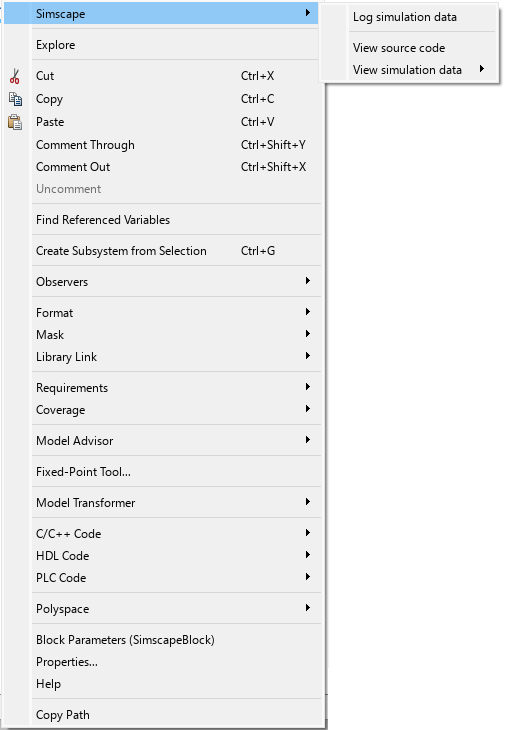
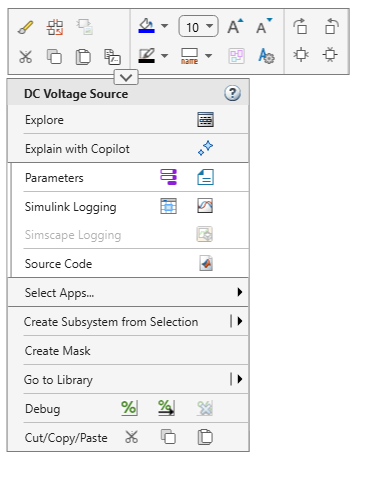
Context menu items specific to Simscape blocks include:
Simulink Logging, which contains buttons to open the Instrumentation Table and the Simulation Data Inspector.
Simscape Logging, which contains a button to open the Simscape Results Explorer. To enable this button, simulate the model with Simscape data logging turned on. You can configure Simscape data logging by using the Simscape Block tab of the model toolstrip or the Configuration Parameters dialog box. For more information, see Enable Simscape Data Logging for the Whole Model.
Source Code contains a push button to view the block source code. This option is available only for open-source blocks authored in Simscape language.
Create Mask lets you create mask-on-link for the block. Once you create the mask, Edit Mask and related options become available.
In general, these options and buttons are consistent with what appears on the Simscape Block tab of the model toolstrip. To improve this consistency, the Simscape Block tab of the model toolstrip now also has a Mask subsection, with the Create Mask and other related options. The options work the same as in the new context menu.
Additionally, data visualization options have moved from the context menu to the block dialog box. For example, to plot the fluid properties of an isothermal liquid, instead of right-clicking the Isothermal Liquid Properties (IL) block and selecting Foundation Library > Plot Fluid Properties from the context menu, you now open the block dialog box and, under Plots, click the Plot button next to Isothermal liquid properties.
When you right-click a physical connection line, the context menu contains the Trace Connections and Remove Trace options. These options are similar to the Trace Signal options for Simulink® signals.
For more information on context-sensitive menu redesign and the options and buttons common to all blocks, see New Simulink context menus prioritize frequently used functionality in the Simulink Release Notes.
Affine units limitation removed
In previous releases, physical signal unit propagation did not include special
handling for affine units. Therefore, if a block specified an affine unit for its
parameter that eventually defined the untyped unit of a physical signal, the model
compilation failed because input and output signals cannot use affine units. This
limitation effectively prevented you from using affine units, such as
degC, in Physical Signal library blocks.
Starting in R2026a, if a block parameter uses an affine unit, then physical signal
unit propagation converts this unit into its fundamental unit. The conversion type is
defined by the Conversion attribute specified in the component file.
Physical Signal library blocks use the default Conversion attribute,
which is absolute.
In other words, if a block parameter specifies the unit as degC or
degF, unit propagation converts it into K as an
absolute temperature. If the model uses degC or degF
to specify a relative temperature, unit propagation yields results that are numerically
incorrect. Use deltadegC or deltadegF to specify
relative temperatures.
Spectrum Analyzer Block: Autoscaling of yaxis limits
You can now automatically scale the y-axis limits of the spectrum analyzer display by selecting the Automatically Scale Axes Limits parameter. If you clear this parameter, use the Y-Limits parameter to manually scale the axes limits.
For more information, see Spectrum Analyzer.
Functionality being removed or changed
Using external signals to limit PS Integrator block output will be removed
Warns
Currently, the PS Integrator block has the Limit output source parameter, which controls whether to specify saturation bounds as block parameters or input signals.
The ability to define the saturation bounds by using the external physical signals
at ports U and L will be removed in a future
release. Instead, set Limit output source to
Internal and use the Upper limit and
Lower limit parameters to define the saturation bounds.
Simulation
Simscape Initialization Analyzer: Analyze solver initialization performance for debugging
You can use the Simscape Initialization Analyzer app to analyze solver performance during transient initialization. Use the app to debug initialization warnings and errors or improve initialization speed for a given Solver Configuration block in a Simscape model. The app displays each solver state and plots the state when you select it. The Suggestions pane shows suggestions to improve initialization.
To open the app, enter:
simscapeInitializationAnalyzer
Descriptor State Space: Linearize Simscape models in DSS format
When you use the linearize function on a Simscape model that
contains a Descriptor
State-Space block with the Linearize to sparse model
parameter selected, both the Simulink and Simscape networks linearize using DSS format.
To learn more, see Linearize Sparse Models (Simulink Control Design).
Scalable Compilation: Automatically designate reusable components
Use the new model configuration parameter, Automatically select reusable components, to automatically select reusable components for scalable and incremental compilation. To enable this parameter, select the Reuse components during compilation model configuration parameter.
You can also use the equivalent command-line interface:
set_param(bdroot,"SimscapeAutoSelectReusableComponents","on")
The new parameter simplifies the process of configuring a model for scalable and
incremental compilation. When Automatically select reusable components
is on, the software automatically identifies appropriate reusable components and subsystems
during compilation and marks them as reusable. This automatic selection process respects the
explicit designations made by setting the simscape.reuse.setConfig
parameter or the CompileReuse attribute. If you explicitly designate
components as reusable, they continue to be treated as reusable, in addition to the
automatically selected ones. When you enable automatic selection of reusable components, you
can use sscScalableAdvisor to see which components and subsystems have been selected
as reusable.
To avoid backward compatibility issues, for existing models where Reuse components during compilation is on, the default value of the Automatically select reusable components parameter is off. For new models, as well as for existing models not currently using scalable and incremental compilation, once you select Reuse components during compilation, the Automatically select reusable components is on by default.
Enhanced discrete state naming for working with Simulink initialization and operating points
Discrete states originating from Simscape blocks now contain the state name and its block origin. You can use this
initial state information to specify initial block state values for simulation or to provide
an initial condition for linearization. For more information, see Simulink.BlockDiagram.getInitialState.
Simscape-to-HDL Enhancements
When you use Simscape-to-HDL code generation, you can now:
Tune parameter values for dynamic switches.
Generate optimized state-space data for Linear Time-Invariant (LTI) models with the Simscape HDL Workflow Advisor.
Generate code for the PWM Generator (Three-phase, Two-level) (Simscape Electrical) block.
Reduce CPU overloads by automating CPU and FPGA rate transitions.
Use fixed-point data type precision for the optimized PMSM blocks in your HDL implementation models.
To learn more about R2026a Simscape-to-HDL features, see Release Notes for HDL Coder (HDL Coder).
Add-On License Management Enhancement: Modify any parameters when working in Restricted mode
You can now modify any block parameters when working in Restricted mode. In previous releases, you could change numerical parameter values, but were not able to change drop-down values, such as the block parameterization options. This restriction has now been removed.
New examples
Examples introduced in this version include:
Additionally, angle-based rotational examples, introduced in R2025a, have been restructured and expanded. These examples now use blocks from the new Rotational library, rather than custom blocks. For more information, see Angle-Based Rotational Systems
Functionality being removed or changed
Robust ordering of variables and equations during compilation
Behavior change
Starting in R2026a, new models use the robust variable and equation ordering algorithm during compilation. This method reduces the sensitivity of the model compilation process to block and variable naming, improving the consistency of simulation results.
If you open a model created prior to R2026a, by default it uses the same variable and equation ordering method as before, and the simulation results do not change.
To upgrade your existing models to use the new algorithm, run the Check Simscape use of robust variable and equation ordering check in the Upgrade Advisor.
Data streaming to Simulation Data Inspector will be removed
Warns
The Record data in Simulation Data Inspector configuration parameter, which enables streaming of logged Simscape simulation data directly to Simulation Data Inspector, will be removed in a future release. Use the Instrumentation table and selective data logging instead. For more information, see About Selective Logging.
Option name change for simscape.op.create function
argument
Behavior change
Prestart option for the simPhase argument
has been renamed to Target. The behavior remains the same. To
learn more, see simscape.op.create.