Simulation 3D Scene Configuration Block: Import RoadRunner scene as Unreal Engine scene
The Simulation 3D Scene Configuration block now provides the
option to simulate custom scenes built in RoadRunner. Use the Scene source parameter to specify the source of
scene as RoadRunner. Then, in the Project parameter,
specify the Filmbox (.fbx) file corresponding to the desired RoadRunner scene. You can obtain the Filmbox (.fbx) file by exporting
the scene from RoadRunner.
For an example on how to import a RoadRunner scene in to Unreal Engine® simulation environment, see Import RoadRunner Scene into Unreal Engine Using Simulink.
Simulation 3D Scene Configuration Block: Camera view improvements, including controls for visualizing the virtual world
The Simulation 3D Scene Configuration block now provides the option to view the
virtual world scene from a camera positioned at a custom viewpoint. To set the custom
viewpoint, set Scene view parameter to Custom and
specify the Initial viewer translation and Initial viewer
rotation to position the camera at the specified location. When the simulation
starts, you can view the virtual world in a free camera mode at the specified
viewpoint.
When the Scene view parameter is set to Scene Origin
or Custom, you can use keyboard shortcuts and mouse controls for camera
features, including to record camera viewpoints, attach camera to actors, and orbit around
the actor. You can also control the camera when the simulation is paused.
Simulation 3D Viewer: Interact with virtual world during simulation
The user interface in the Simulation 3D Viewer allows you to interact with the actors and the virtual world during simulation. To interact with an actor, right-click the actor to display a context menu for the actor and world. From the context menu for the actor, select Properties to display the Actor Editor. You can now view and modify the actor properties during run time.
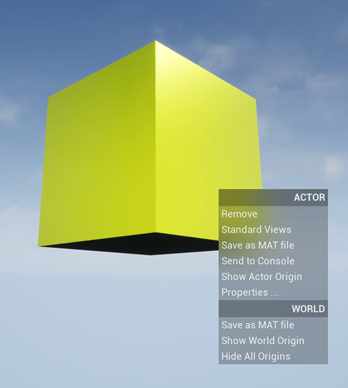
For more information about interacting with actors and how to navigate in virtual world, see Interact with Actors and Virtual World.
Actor Object: Orient actor using coordinate systems, including SAE and ISO 8855
You can represent actor orientation using the CoordinateSystemsim3d.Actor
object.
For an example on how an actor moves and rotates in a specific coordinate system, see View Actor Orientation in MATLAB Coordinate System.
Examples: Use physical properties to report events and animate actors in the virtual world
These examples show how to use sim3d.World
properties and sim3d.Actor physical
properties to animate actors, report events like collision between actors in a virtual
world, and access actor properties.
Examples: Use Simulink to create a virtual world with actors
These updated examples show how to use a Simulink® model with Simulation 3D Actor and Simulation 3D Scene Configuration blocks to create, build, and interact with actors in the virtual world.
Functionality being removed or changed
Functions and blocks that build, interact with, and link virtual reality worlds via VRML or X3D will be removed
Still runs
These functions and blocks that allow you to build virtual reality worlds, import models, and link virtual reality worlds to MATLAB® and Simulink will be removed in a future release.
Instead, use the sim3d classes and Simulation
3D blocks in Unreal Engine Scenario Applications to create,
interact with, and link virtual worlds with MATLAB and Simulink. The 3D simulation environment is visualized using the Unreal Engine from Epic Games®. To get started,
see Get Started Creating Virtual World with Actors.