Receive emergency messages from EtherCAT device
In R2023b, by adding an EtherCAT Get Emergency block to your model, the model can report emergency messages for EtherCAT systems where one of the devices is capable of detecting an emergency condition and sending an emergency message. For more information, see the EtherCAT Get Emergency block.
File log import workflow extensions
In R2023b, you can import a previously stored file log while recording file log data.
The change to the Simulink®
Real-Time™ Explorer is that the Import File Log button remains enabled while
recording is active. You also can use the file log import function while recording file log data.
In R2023b, the import(tg.FileLog,run_ids) function can import
completed file logs even while file logging is active for a new file log. The currently
active File Log cannot be imported until it is completed and inactive.
In R2023b, the import function reports progress of file log import in the Command
Window when importing multiple files from the target computer.
In R2023b, the openImportDialog function opens the Import File Log dialog box.
File log workflows in deployed app
In R2023b, the slrealtime.exportRun function allows you to export simulation data of a
single run ID or multiple run IDs to base workspace or a file. You can export the data to a
MAT file, MLDATX file, or Excel file. For more information, see slrealtime.exportRun.
Generate code with separate output and update functions
In R2023b, to help you resolve algebraic loops in your model that are only detected
during code generation, Simulink Real-Time supports disabling the Single output/update
function configuration parameter (CombineOutputUpdateFcns). When you
change the code generation target to slrealtime.tlc, this
configuration parameter is enabled (on) by default. To disable the
parameter, deselect (change to off) Configuration Parameters > Code Generation > Interface > Advanced parameters > Single output/update function.
Updates to Simulink Real-Time Support Package for ASAM XIL Standard
In R2023b, the .NET interface has replaced the com server in the Simulink Real-Time Support Package for ASAM® XIL Standard. For more information, see Install the Simulink Real-Time Support Package for ASAM XIL Standard.
In R2023b, support for additional methods have been added to the ASAM XIL API and Simulink Real-Time Support Package for ASAM XIL Standard package version 23.2. These methods are used for parameter stimulation support. For more information, see Classes and Methods of ASAM XIL API.
In R2023b, the ASAM XIL support package supports ASAM XIL - V2.1.0.
Apply target computer filter to getSupportInfo
In R2023b, you can filter the output of the slrealtime.getSupportInfo function by target computer. Also, if using a
Target object for the target computer selection, the function removes the timeout
limitation for the function. For more information, see the slrealtime.getSupportInfo function.
Protocol Encoder / Decoder blocks for SLRT
In R2023b, the Protocol Encoder block enables you to encode the data into a packet and Protocol Decoder block decodes the data from the packet. For more information, see:
Add signal tables, parameter tables, and axes in Simulink Real-Time Explorer
In R2023b, the Instrumentation button lets you add signal table, parameter tables, and axes to the tabs in Simulink Real-Time Explorer. You also can export and import your instrumentation configuration. For more information, see Customize Instrumentation Display.
In R2023b, when you select one or more signals in the table on the Signals tab, a right-click menu is available for the selection. This menu lets you select among actions for the selected signal.
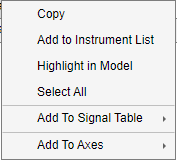
For more information, see Simulink Real-Time Explorer.
Compare parameter set objects
In R2023b, use the compare function to compare and resolve differences between ParameterSet objects. For more information, see the compare and resolve functions.
Apply added App Generator and App Designer Support
In R2023b, additional Simulink Real-Time App Generator features ease the App Designer workflow and provide more signal binding information. These additions include:
Detect whether an app is open in App Designer and close the app when Add to App or Generate App is selected in the App Generator.
Display data type and dimension information in the App Generator properties pane.
Create bindings for each selected bus element with App Generator when you create a binding for a bus signal and select multiple bus elements.
App Generator automatically adds labels to app components.
Add an
ImportFileLogButtoncontrol to an app in App Designer.
For more information, see Simulink Real-Time App Generator.
PTP for QNX Target
Starting from R2023b, the IEEE 1588 Read Parameter block throws a
warning when the parameter Parameter to read is set to the following options:
Offset from Client
Client to Server Delay
One Way Delay
These options for the block parameter will be removed in a future release.
View and edit Application properties in Explorer
In R023b, Simulink Real-Time Application Property Inspector tool lets you view information, view properties, and modify several properties of Simulink Real-Time application by using graphical interface method.
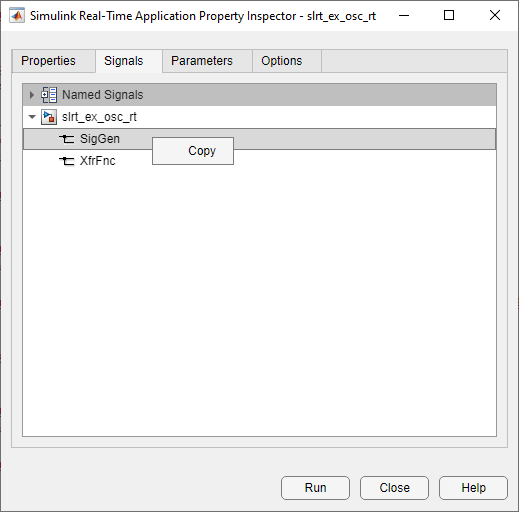
You can open the new tool from Simulink Real-Time Explorer or using slrtApplicationInspector function. For more information, see Simulink Real-Time Application Property Inspector.
Examples models attached to examples
In R2023b, Simulink Real-Time example models are attached to their related examples.
In addition to searching in Help Center, you can use the functions modelfinder and openExample to find models and
open examples. For example, to open the model slrt_ex_osc, in the
MATLAB® Command Window, type:
openExample('slrt_ex_osc');To find all Simulink Real-Time example models, use the command:
modelfinder("slrealtime")Functionality Being Removed or Changed
| Functionality | What Happens When You Use This Functionality? | Use This Functionality Instead | Compatibility Considerations |
|---|---|---|---|
In MATLAB R2023b, the Speedgoat I/O Blockset must be installed in order to connect to a Speedgoat real-time target machine. | N/A | N/A | N/A |
In R2023b, the Signals context menu is available when you select a signal in the Signals tab and right-click on the signal. From this menu, you can copy signal block paths, add to instrument list, highlight in model, add to signal table, or add to axes. For more information, see the Simulink Real-Time Explorer, Signals Tab, Signal Context Menu figure in Simulink Real-Time Explorer. | N/A | N/A | N/A |
In R2023b, the stimulation-related functions | N/A | N/A | N/A |