To Workspace
R2026bLog data to workspace from Simulink model
To Workspace block
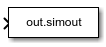
To add a block to a model, double-click the canvas and start typing the block name. Then, select the block from the list.
Libraries:
Simulink /
Sinks
DSP System Toolbox /
Sinks
HDL Coder /
Sinks
Description
The To Workspace block logs the data connected to its input port to a workspace from a Simulink® model. Typically, logged data is returned in the base workspace. When you simulate a model programmatically inside a function, logged data is returned in the workspace for the function. During simulation, logged data streams to the Simulation Data Inspector. Logged data is written to the workspace when the simulation pauses or stops.
You can use the To Workspace block to log data for a signal, a bus, or an array of buses. The To Workspace block supports logging scalar and multidimensional data, including data for variable-size signals.
You can configure the name of the variable that stores the data the To Workspace block logs, and you can specify the format for the logged data. You can also control which values the To Workspace block logs by specifying block or model parameters. For more information, see Specify Signal Values to Log.
Access Logged Data
How simulation results are returned to the workspace depends on how you simulate
and configure the model. Simulation results are returned in a single Simulink.SimulationOutput object in
any of these situations:
You enable the Single simulation output parameter.
By default, the Single simulation output parameter is enabled when you create a new model. You can enable the parameter using the Configuration Parameters dialog box. On the Modeling tab, under Settings, click Model Settings. Then, in the Configuration Parameters dialog box, select Data Import/Export and select Single simulation output.
You run a set of simulations using the Multiple Simulations pane.
You simulate the model programmatically using one or more
Simulink.SimulationInputobjects.You can configure simulations using
SimulationInputobjects when you run simulations using thesim,parsim, andbatchsimfunctions.You simulate the model using a
simfunction syntax that returns results as a single simulation output.For more information, see
sim.
When simulation results are returned in a single output, the
SimulationOutput object contains a variable for each To
Workspace block in the model. To access the data logged by a To
Workspace block:
Use a dot with the variable name specified using the Variable name parameter of the block. By default, models are configured to return a single simulation output using the variable name
out, and the To Workspace block saves data to a variable namedsimout.toWksData = out.simout;
Use the
getfunction with the name of the variable that contains the logged data.toWksData = get(out,"simout");
In the model, the To Workspace block indicates how to access the
data in the workspace. By default, the block shows out.simout.
The block appearance updates when you:
Specify a different value for the Variable name parameter on the block.
Specify a different variable name for the single simulation output.
Clear the Single simulation output configuration parameter.
Examples
The To Workspace block logs simulation data to the workspace.
For example, simulate the SineToWorkspace model.

mdl = "SineToWorkspace";
out = sim(mdl);
Simulation results from the model are returned in a single Simulink.SimulationOutput object named out. To access results saved by the To Workspace block, use dot notation.
toWksData = out.simout
  timeseries

  Common Properties:
            Name: 'Sine Wave'
            Time: [51x1 double]
        TimeInfo: [1x1 tsdata.timemetadata]
            Data: [51x1 double]
        DataInfo: [1x1 tsdata.datametadata]

  More properties, Methods
Extended Examples

Output Simulation Data with Blocks
How To Workspace and To File blocks write data to the workspace and to a file respectively.

Bounded Variable-Size Signal Basic Operations
Generate bounded variable-size signals and illustrates some of the operations using those signals. In this example, you generate variable-size signals using the Selector block and the Switch block. The signals are used in math operations, bus creation, bus selection, matrix concatenation and to implement a discrete filter equation.
Ports
Input
Parameters
Block Characteristics
Data Types |
|
Direct Feedthrough |
|
Multidimensional Signals |
|
Variable-Size Signals |
|
Zero-Crossing Detection |
|
Tips
You can convert data logged using the To Workspace block to
Datasetformat. Converting the data can make post-processing easier if you use other logging techniques, such as signal logging, that use theDatasetformat. For more information, see Convert timeseries Object to Dataset Object.When you call a function that simulates a model, data logged in simulation is returned to the function workspace. To return data logged from a simulation in a function to the base workspace, use the
assigninfunction. For example, this function calledmyfuncsimulates the modelmyModel, which includes a To Workspace block that logs data to the variablesimoutand sends the data logged by the To Workspace block to the base workspace.function myfunc out = sim("myModel"); toWksData = get(out,"simout"); assignin("base","toWksData",toWksData); end

