Help Button
Cosimulation Type
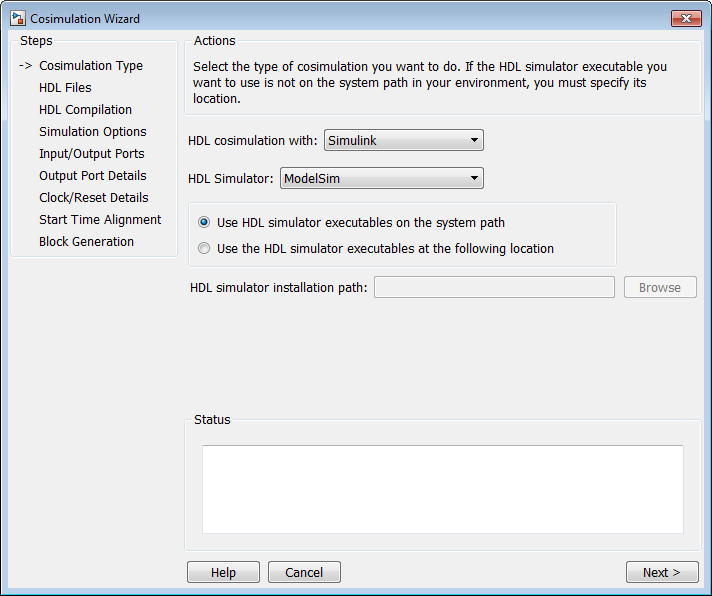
Select your HDL Cosimulation workflow in the field HDL cosimulation with:
Simulink,MATLAB, orMATLAB System Object. This setting instructs the wizard to create a block, function template, or System object™, respectively.Select the HDL simulator you want to use:
ModelSimorXcelium.Select Use HDL simulator executables on the system path if that is where the files are located. The Cosimulation Wizard assumes by default that they are on the system path.
If the HDL simulator executables are not on the system path, select Use the following HDL simulator executables at the following location and specify the folder location in the text box below.
If you click Next and the Cosimulation Wizard does not find the executables, the following occurs:
You are returned to this dialog and the Cosimulation Wizard displays an error in the status pane.
The Cosimulation Wizard switches the option to Use the following HDL simulator executables at the following location.
The Cosimulation Wizard makes the HDL simulation path field editable.
You must enter a valid path to the HDL simulator executables before you are allowed to continue.
Next Steps
For an HDL cosimulation block, start at Cosimulation Type—Simulink Block.
For an HDL cosimulation function, start at Cosimulation Type—MATLAB Function.
For an HDL cosimulation System object, start at Cosimulation Type—MATLAB System Object.
HDL Files
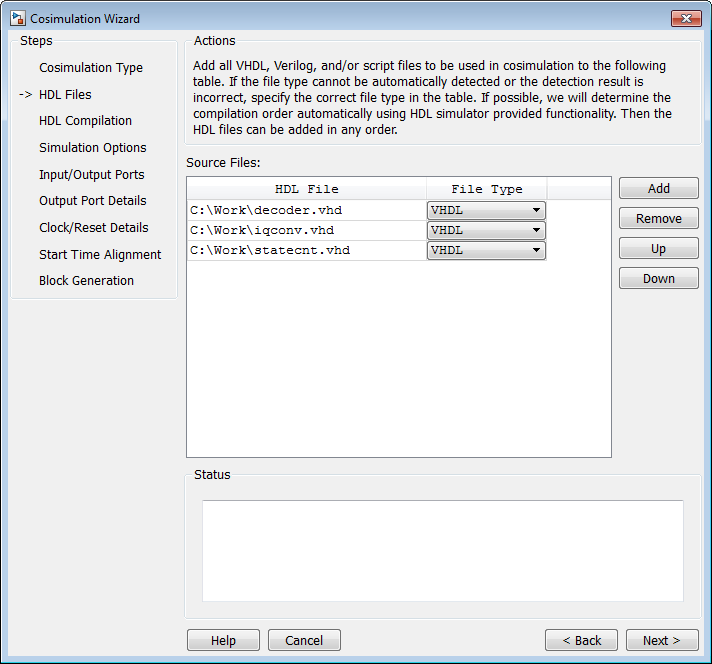
In the HDL Files pane, specify the files to be used in creating the function or block.
Click Add to select one or more file names.
The Cosimulation Wizard attempts to determine the file type of each file and display the type in the File List next to the file name. If the Cosimulation Wizard cannot determine the type or displays the wrong type, you can change the type directly in the File Type column.
If you are using ModelSim™, you will see compilation scripts listed as .do files (ModelSim macro file). If you are using Xcelium™, you will see compilation scripts listed as system scripts.
Remove files by first highlighting the file name in the File List, then clicking Remove Selected File.
Next Steps
For an HDL cosimulation block, start at HDL Files—Simulink Block.
For an HDL cosimulation function, start at HDL Files—MATLAB Function.
For an HDL cosimulation System object, start at HDL Files—MATLAB System Object.
HDL Compilation
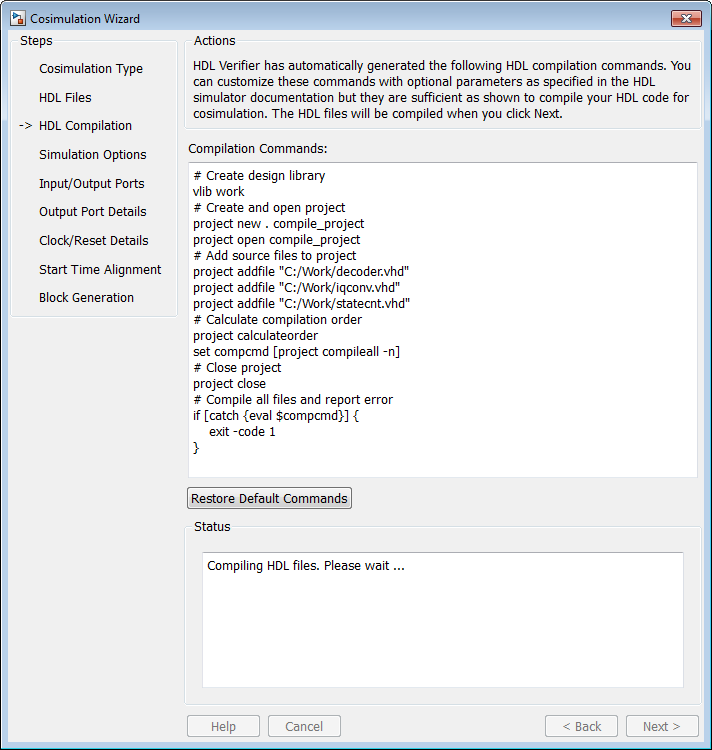
In the HDL Compilation pane, you can review the generated HDL compilation commands. You may override and/or customize those commands, if you wish. If you included compilation scripts instead of HDL files, this pane will show you the command to run those scripts.
Enter any changes to the commands in the Compilation Commands box.
Note
Do not include system shell commands; for example:
set file = a.vhd vcom $file
When control returns to the Cosimulation Wizard from executing the command, the variable no longer holds the value that was set. If you do try to include this type of command, you will see an error in the Status panel.
Click Restore default commands to go back to the generated HDL compilation commands. You are asked to confirm that you want to discard any changes.
Next Steps
For an HDL cosimulation block, start at HDL Compilation—Simulink Block.
For an HDL cosimulation function, start at HDL Compilation—MATLAB Function.
For an HDL cosimulation System object, start at HDL Compilation—MATLAB System Object.
HDL Modules
HDL Modules—Simulink® Block
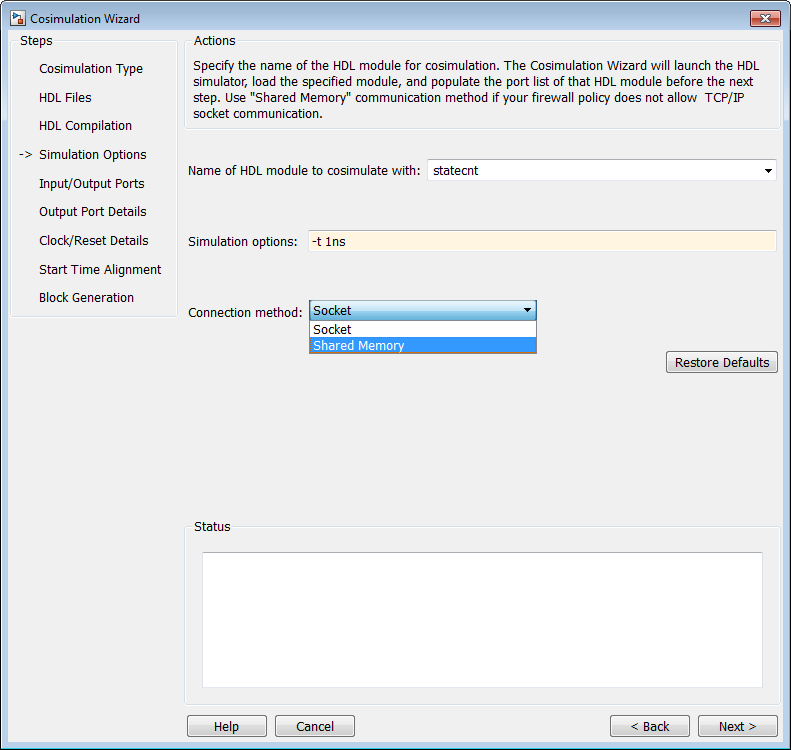
In the HDL Modules pane, provide the name of the HDL module to be used in cosimulation.
Enter the name of the module at Name of HDL module to cosimulate with.
Specify additional simulation options at Simulation options. For example, in the previous image, the options shown are:
HDL simulator resolution
Turn off optimizations that remove signals from the simulation view
Click Restore Defaults to change the options back to the default.
When you proceed to the next step, the application performs the following actions in a command window:
Starts the HDL simulator.
Loads the HDL module in the HDL simulator.
Starts the HDL server, and waits to receive notice that the server has started.
Connects with the HDL server to get the port information.
Disconnects and shuts down the HDL server.
Next Steps
For an HDL cosimulation block, start at Simulation Options—Simulink Block.
For an HDL cosimulation function, start at HDL Modules—MATLAB Function.
For an HDL cosimulation System object, start at Simulation Options—MATLAB System Object.

