About File Exchange
File Exchange lets you find and share custom applications, classes, code examples, drivers, functions, Simulink models, scripts, and videos. With File Exchange, you can:
- Submit files
- Linking to GitHub Repositories
- Share website containing your MATLAB code
- License information
- Provide instructions for others to cite your work
- Find files using content types, the search box, and search directives
- Annotate submissions by adding tags for future lookups, review and discuss based on your use
- Gain community recognition by submitting files that members use, tag, and rate
- Earn badges
- Build your reputation
- Questions and Feedback
Your use of File Exchange is subject to the MATLAB Central Terms of Use.
Submitting Files
You can submit files of up to 250 MB. To submit a file, log in to your Community Profile. If you don't have a profile, you'll need to create one. On your account page click on “Publish” to either upload a file from a computer or link to GitHub repository.
Connecting to GitHub Repositories
The connection between File Exchange and GitHub allows contributors to develop software projects in a single environment without having to upload files to both locations. Contributors get all the benefits of collaborative development in GitHub while community members get access to the latest version of your projects—whether they start from File Exchange or GitHub. Community members who download files connected to GitHub are responsible for validating the content and licensing of these files.
When connecting to a GitHub repository, File Exchange stores the repository contents on MathWorks servers to make the contents available in File Exchange and Add-On Explorer. The files stored on MathWorks servers are read-only and are updated automatically to reflect changes in GitHub. Storing repository contents enables MathWorks to provide convenient features, such as displaying previews of MATLAB code.
To connect your repository to GitHub, select one of the following options:
- GitHub Releases – GitHub Releases is the recommended way to connect. When your repository is ready for distribution, use GitHub Releases to package your code. By using GitHub Releases, your File Exchange submission automatically updates when you create a new release in GitHub
When you create a GitHub Release:
- - If you package your code as a toolbox, attach your toolbox (.mltbx file) to the release. File Exchange then provides the toolbox as the download. If you do not attach a .mltbx file to the release, File Exchange uses the zip release asset.
- - Follow these tips on labeling versions:
- - Enter a version in the format: major.minor.patch.extension (patch and extension are optional).
- - Version number segments must be less than six digits.
- - Alphanumeric labels are not recognized (for example, 2-beta).
- - When attaching a mltbx file to the release, set the version number in the package to the same version number as the GitHub Release.
- - See GitHub's documentation for more information on GitHub Releases.
- Default Branch – With this method, File Exchange uses the repository's default branch (usually "main" or "master") for displaying file previews and providing the package to download. The changes you commit to the default branch are available within 24 hours. Depending on your development process, making the default branch available in File Exchange could cause your users to get unstable code. We recommend using GitHub Releases for stable distribution of your code.
- If you are using Git LFS, package your code as a toolbox and attach the mltbx file to your repository's GitHub Release. Git LFS is not supported for default branch connections in File Exchange.
Making Files Easy to Find and Use
- Make sure your titles and descriptions are clear and concise yet descriptive.
- Proofread your submissions for readability and correct spelling.
- Use tags that help target searches; see creating tags.
- When adding images, make sure the image uses the same filename and resides in the same directory as your code.
- Acknowledge files that inspired your submission. Acknowledgements appear on your file page and the page of the acknowledged file.
Share website containing your MATLAB code
By using the “Link to an External Website” option when contributing to File Exchange, you can share your website containing your MATLAB-related project. With this option:
- The detail page for your submission contains the link to your website.
- The community can provide feedback for your project on the detail page.
- Code on your website cannot be downloaded directly from File Exchange.
License information
Licensing clarifies the rights you have as an author and as a user of the code available on File Exchange. Licensing details how the file can be used and addresses common questions around rights to modification, distribution, and commercial use.
A BSD license is the only supported license for code posted directly to File Exchange, and is added automatically to Community content you submit directly to File Exchange using Upload Files. Other license types are allowed for Community contributions that you contribute using Connect to GitHub or Link to an External Website. Some submissions by MathWorks staff, including hardware support packages, may be licensed under the MathWorks Limited License. File Exchange submissions which are licensed have a View License link. For more information about licensing on File Exchange, see the File Exchange Licensing FAQ.
Provide instructions for others to cite your work
Citation instructions help community members reference your work when they use it in their own research or derivative works. For example, you may want others to cite your File Exchange detail page, a research article you wrote, a group you are affiliated with, or some combination of artifacts.
New File Exchange entries are created with a default citation instruction, which you can delete. In addition, you can:
- Specify a citation instruction using custom text
- Specify a DOI, which you must generate elsewhere, as explained on DOI.org
- Create multiple citation instructions
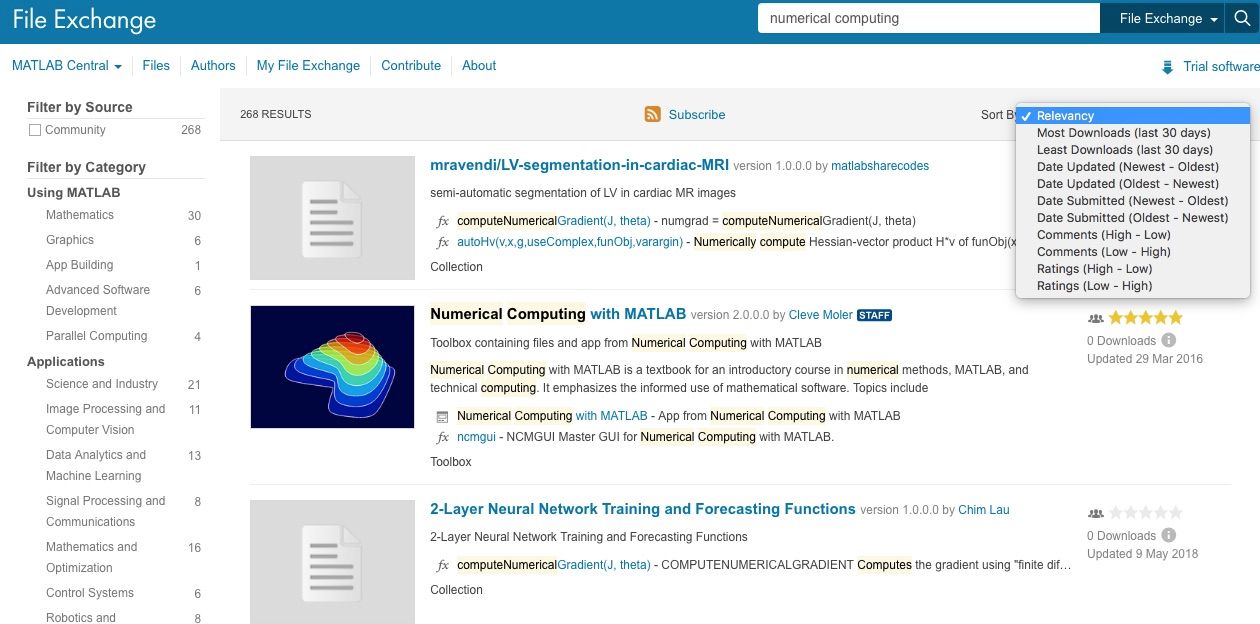
Searching for files related to numerical computing. Note the areas (left) for the different filters.
Browsing Content Types
File Exchange assigns content types to files based on information associated with your submission.
| Content Is Assigned This Type | When Files Have This Extension | And the Submission Contains these Criteria |
|---|---|---|
App |
.mlappinstall |
- |
Driver |
.mdd |
- |
Example |
.m |
/html subdirectory .html file with the same name as the MATLAB .m file |
Function |
.m |
|
Simulink Model |
.mdl |
- |
Video |
.avi, .mp4, .wmv, .mpg, .mov, .swf, .mpeg |
- |
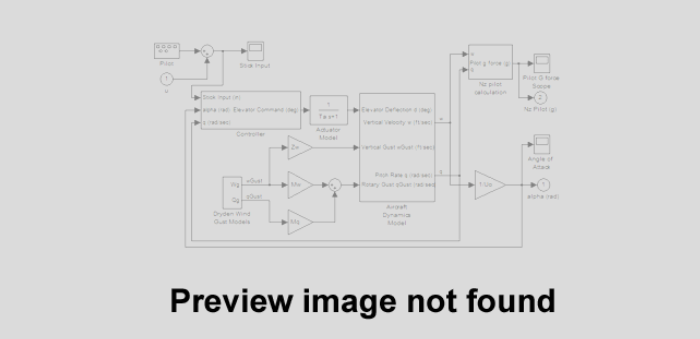
Tip: For file submitters, if a file in your submission is displayed but shows a message Preview image not found instead of a preview image, add an image with the same filename as your code in the same directory and File Exchange will display the image with your file. Example: If you have a file called "foo.mdl", adding a screenshot called foo.gif will display a screenshot of your Simulink model to users instead of this message.
Finding Files Using Directives
Search directives help you find files on File Exchange. You can specify search directives in the search box.
| Search Result | Directive | Examples |
|---|---|---|
Author with this name |
author: |
|
Author with an average file rating of 1 to 5 |
authoraverage: |
|
Community member with this company/organization name listed in their public profile |
organization: |
|
Content type |
type: |
|
File identification number, which appears at the top of the File Details page |
id: |
|
License that includes this string |
license: |
|
Average community rating with this number |
rating: |
|
Tags with this string applied to published submissions |
tag: |
|
Find files with DOI or custom citation |
citation_type: |
Using Directives
- To search for a multi-word phrase, enclose the phrase in quotation marks; for example,
author:"Helen Chen". - To narrow search results, use combinations of directives in the same search. Be sure to include a space between each directive. File Exchange finds all files matching all specified directives.
- To search for more than one value for the same directive, specify one directive for each value. For example, the syntax
tag:graphicstag:vectorfinds all files tagged with bothgraphicsandvector. - To exclude files from your search results, insert a minus sign (-) before the directive syntax. For example, the syntax
-tag:gameexcludes all files with the taggame.
Tagging Files
Tags provide bookmark information to help find or recall files of interest. With tags, you can browse submitted files using assigned keywords. Community members with profiles can tag any file. All tags are public; anyone can view them.
From your profile, you can see tags you've applied to files. Within a file, you can see tags applied by everyone in the community. By tagging, you give community members insight into your interests, making it easier to collaborate and exchange ideas.
You can add tags when submitting new files or viewing existing ones. Use commas to separate multiple tags and quotation marks to indicate multiword tags.
Creating Tags
- Make tags descriptive yet concise.
- Use consistent terminology, including terms that members are most likely to use; for example, videos, images, and graphics.
- Tag noteworthy elements, such as concepts, functions, and proper nouns.
- Choose nouns over verbs.
- Do not use abbreviations or acronyms unless they are well known.
- Check your spelling.
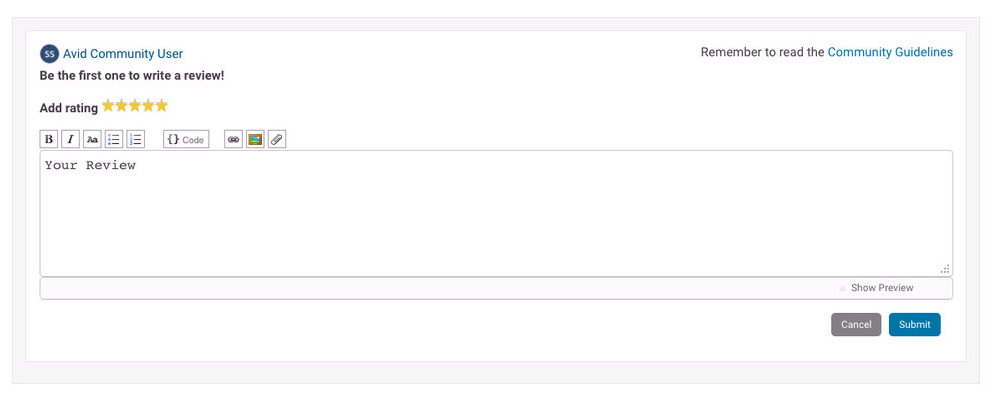
Adding Reviews to Files
- Be honest and considerate of the file's author and other community members.
- Provide specific information on what you like and dislike about the submission.
- Use examples to illustrate your point.
- Share your experiences with similar submissions.
- Be aware that comments containing profanity, vulgarity, or an offensive tone will be removed from the site.
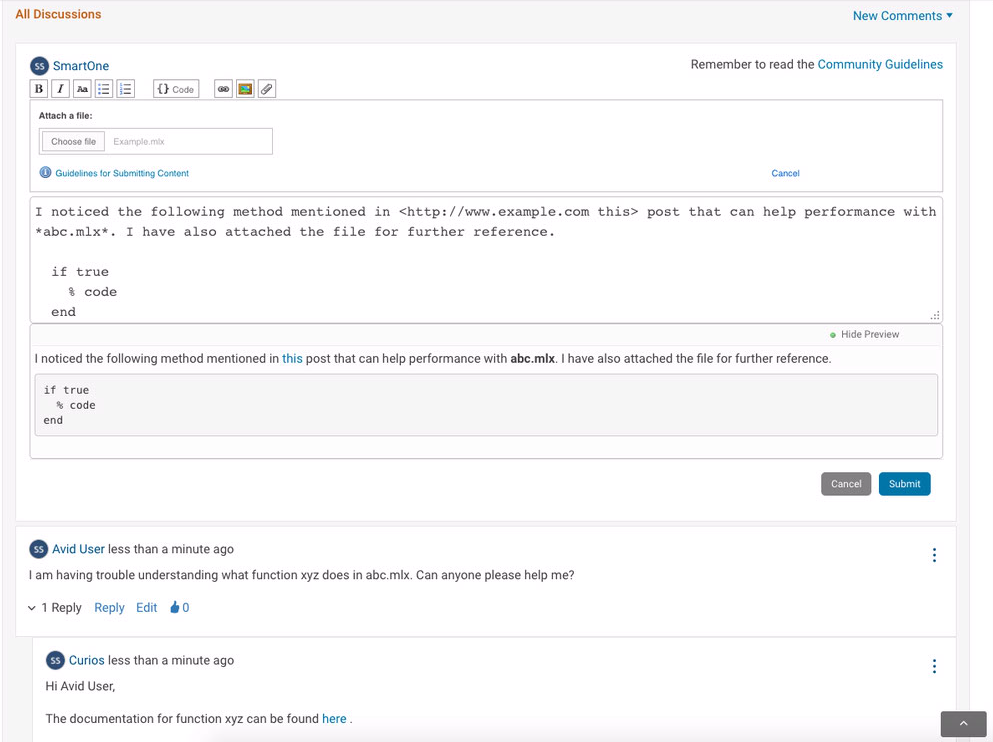
Tips for helpful Discussions
- Use discussions to request clarity on a question, answer, or comment.
- Write comments that are relevant and brief.
- Be honest and considerate with all responses to all contributors.
- Be aware that responses containing profanity, vulgarity, or an offensive tone will be removed.
Earn badges
You can earn badges by participating on File Exchange. Any badges you earn appear on your community profile page.
Some examples of badges you can earn are:
- First Submission
- First Review
- Editor’s Pick
- Personal Best Downloads
- ... and many more
Visit the community badges page to view the types of badges you can earn.
| When your.. | Additional points earned.. |
|---|---|
Submission is featured in the "Pick of the Week" Blog |
+50 points |
Submissions earn you an annual badge |
+50 points |
Submission receives a 5-Star rating |
+5 points |
Submission receives a 4-Star rating |
+4 points |
Submission is downloaded 10 times |
+1 point if submission has not been updated in the last 3 months +2 points if the submission was updated in the last 3 months |
View the leaderboard to see who scores the highest reputation!
Questions and Feedback
If you have questions or comments specifically related to File Exchange, use this Feedback Forum. For category, select "MATLAB Central". Questions and comments related to the functionality of a specific File Exchange submission can be addressed via comments or discussions within that submission.
Get answers to your MATLAB and Simulink questions from community experts in MATLAB Answers. If you need additional help with licensing, or with other MathWorks products or services, Contact Support.

You can also select a web site from the following list
Americas
- América Latina (Español)
- Canada (English)
- United States (English)
Europe
- Belgium (English)
- Denmark (English)
- Deutschland (Deutsch)
- España (Español)
- Finland (English)
- France (Français)
- Ireland (English)
- Italia (Italiano)
- Luxembourg (English)
- Netherlands (English)
- Norway (English)
- Österreich (Deutsch)
- Portugal (English)
- Sweden (English)
- Switzerland
- United Kingdom (English)
Asia Pacific
- Australia (English)
- India (English)
- New Zealand (English)
- 中国
- 日本Japanese (日本語)
- 한국Korean (한국어)