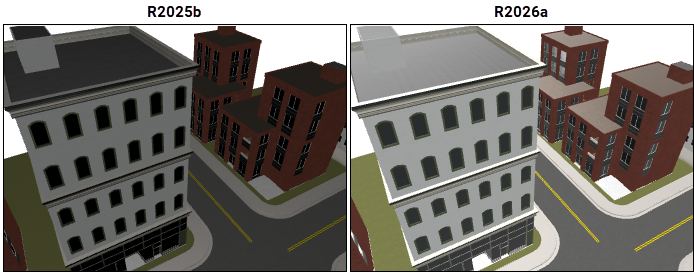
Quality and stability improvements
R2025b delivers quality and stability improvements, building on the new features introduced in R2025a.
New field analysis functions for AIAntenna object
This release adds two new analysis functions for the AIAntenna (R2025a) object.
Use the
beamwidth(R2025a) function to calculate the HPBW.Use the
peakRadiation(R2025a) function to calculate the maximum radiation point.
Calculate RCS at specified distance
Use the new Range name-value argument in the rcs (R2025a)
function to set the observation point distance. This allows you to calculate RCS at
any specified distance from the object of interest.
conformalArray object update: Added support for 2-D and 3-D
shapes
You can now add 2-D and 3-D shapes to the conformal array configuration. To add a
shape as an element to the conformal array, set the Element
property of the conformalArray (R2025a) object using at least
one antenna element and any of these shape objects:
2-D shapes:
shape.Circle(R2025a),shape.Ellipse(R2025a),shape.Polygon(R2025a), andshape.Rectangle(R2025a).3-D shapes:
shape.Box(R2025a),shape.OpenBox(R2025a),shape.Cylinder(R2025a),shape.OpenCylinder(R2025a),shape.Sphere(R2025a), andshape.Custom3D(R2025a)
SADEA and TR-SADEA optimizer API
You can now optimize custom antennas and arrays, antenna and array catalog elements for a custom objective using the new optimizer API on the command line. This API gives you a direct access to the SADEA and TR-SADEA optimizers. Use the new
OptimizerSADEA(R2025a) object to access the SADEA optimizer.OptimizerTRSADEA(R2025a) object to access the TR-SADEA optimizer.
You can define the optimization objective along with the geometric constraints and set the properties of these objects. You can then run their object functions to view and set other optimization parameters, run the optimization, and query for the optimization results.
Antenna Designer and Antenna Array Designer app update: Optimize antennas and arrays using TR-SADEA algorithm
Optimize large antennas and arrays using the TR-SADEA algorithm in the Antenna Designer (R2025a) and Antenna Array
Designer (R2025a) apps. To select the TR-SADEA as your optimizer, select
TR-SADEA option under the
Optimizer drop down menu in the
OPTIMIZER tab.

You can use the TR-SADEA algorithm to optimize antennas and arrays for various objective functions within the associated constraints. To use this feature, you need a Statistics and Machine Learning Toolbox™ license.
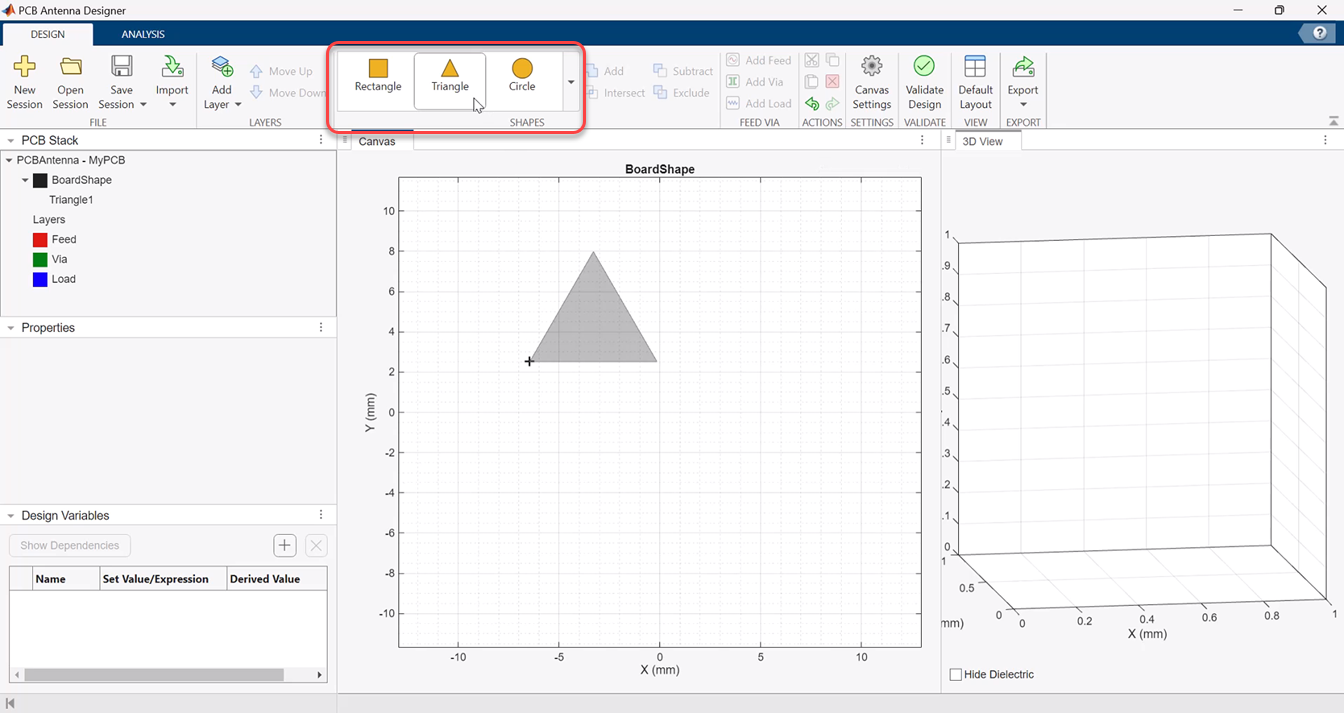
PCB Antenna Designer app update: Triangular shape is now added to shapes catalog
The shapes catalog in the PCB Antenna Designer app now has a triangular shape.
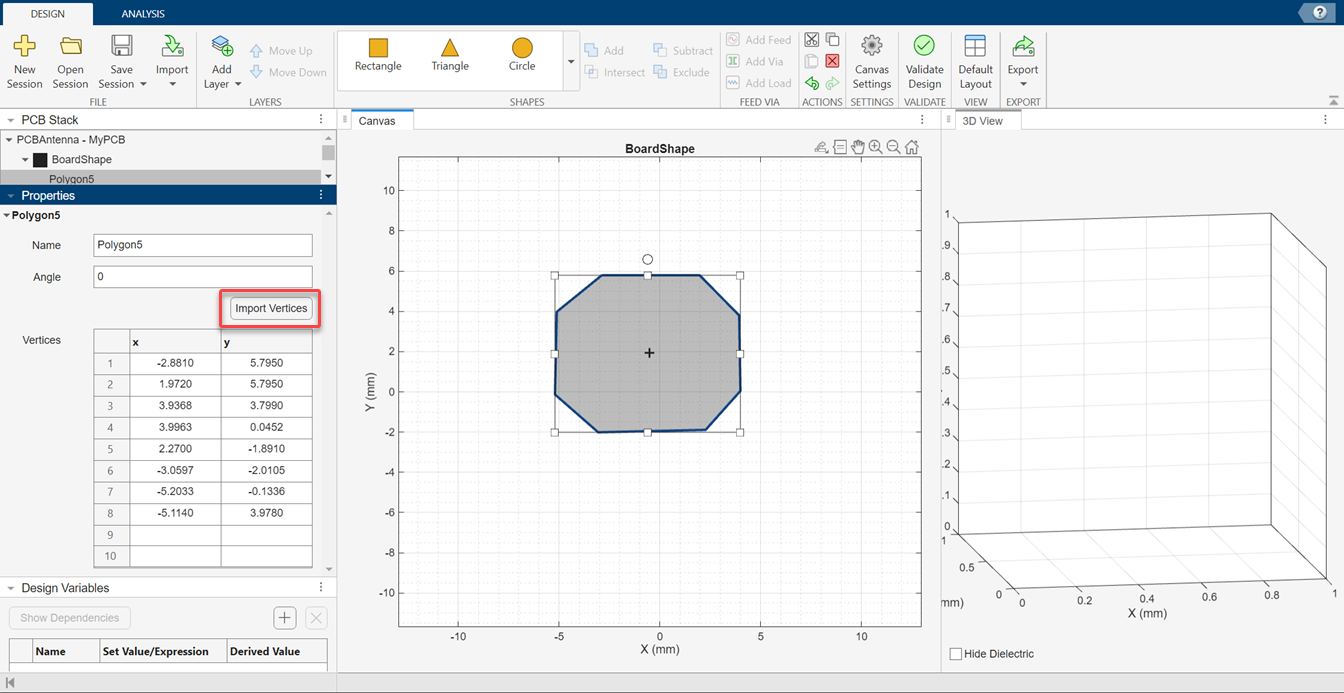
PCB Antenna Designer app update: Import polygon vertices data
The PCB Antenna Designer app now lets you import polygon vertices data from a workspace variable.
Support for frequency dependent dielectric
The dielectric (R2025a) object now lets you choose a dispersion model to include
the effect of frequency variation on the dielectric properties of the material. The
supported dispersion models are constant, Djordjevic-Sarkar, the mean of
Djordjevic-Sarkar, and table driven. To specify a frequency for the dielectric, use
the new Frequency property of the dielectric
object. To specify a dispersion model, use the new
FrequencyModel property with any of the following values:
Constant— Dielectric material properties remain constant throughout the frequency range.DjordjevicSarkar— Dielectric material properties follow Djordjevic-Sarkar model for the specified frequency.MeanDjordjevicSarkar— Calculates and uses the mean of Djordjevic-Sarker model over the frequency range for the dielectric material properties.TableDriven— Uses a rational fit on the data provided for dielectric material properties.
The following 3-D shape objects now allow you to specify a dispersion model using
their new FrequencyModel property:
shape.Box(R2025a)shape.OpenBox(R2025a)shape.Cylinder(R2025a)shape.OpenCylinder(R2025a)shape.Sphere(R2025a)shape.Custom3D(R2025a)
The dispersion models supported by these shapes are:
Constant— Dielectric material properties remain constant throughout the frequency range.DjordjevicSarkar— Dielectric material properties follow Djordjevic-Sarkar model for the specified frequency.MeanDjordjevicSarkar— Calculates and uses the mean of Djordjevic-Sarker model over the frequency range for the dielectric material properties.
Use frequency sweep interpolation to calculate S-parameters
The sparameters (R2025a) function now lets you interpolate frequency sweep to
calculate the S-parameters. To interpolate frequency sweep, use the new
SweepOption name-value argument in the
sparameters function. You can specify the
SweepOption argument as one of the following options:
direct— No interpolation. Calculates S-parameters at each frequency point.interp— Interpolation using rational fitting.interpWithGrad— Interpolation using rational fitting with gradient calculation.
Alternatively, you can also specify the SweepOption argument
using the frequencySweep (R2025a) object. This allows you to manually set the
interpolation parameters such as error tolerance, number of frequency points, and
number of iterations.
To use this feature, you need an RF Toolbox™ license in addition to the Antenna Toolbox™ license.
Gerber enhancements: Support edge connector, enable/disable signature and connector label
The PCBWriter (R2025a) object now allows you to enable or disable the watermark
signature and connector labels in the Gerber files. Use the new:
EnableSignatureproperty to enable or disable watermark signature.EnableConnectorLabelproperty to enable or disable connector labels.
Faster execution of PO solver computations involving GPU
The PO solver computations when GPU is enabled are much faster now as compared to the previous release.
Navigate Site Viewer using camera functions
Programmatically navigate Site Viewer by using object functions that control the camera position and camera rotation angles.
Use the
campos(R2025a) function to control the position of the camera.Use the
camheight(R2025a) function to control the height of the camera.Use the
camroll(R2025a),campitch(R2025a), andcamheading(R2025a) functions to rotate the camera around its x-, y-, and z-axes, respectively.
Accelerate ray tracing analysis using GPU
Perform accelerated ray tracing analysis by using a GPU. This capability requires Parallel Computing Toolbox™. For an example, see Accelerate Ray Tracing Analysis Using GPU (R2025a).
Perform ray tracing analysis using additional materials
The siteviewer (R2025a) object and the RayTracing (R2025a) propagation model object support 23 additional materials,
including acrylic, ice, and steel. For a siteviewer object, you can
view the scene materials imported from a glTF™ file, an OpenStreetMap® file, or a geospatial table by querying the Materials (R2025a) property. For a RayTracing object, you
can specify the building, terrain, or surface material to use for ray tracing
analysis by using the BuildingsMaterial (R2025a), TerrainMaterial (R2025a), or SurfaceMaterial (R2025a) property, respectively.
As a result of this change:
The
Materialsproperty ofsiteviewer(R2025a) objects can represent different scene materials in R2025a compared to previous releases.The
raytrace(R2025a) function can return different propagation rays in R2025a compared to previous releases.When used with a
RayTracing(R2025a) object as input, thesigstrength(R2025a),coverage(R2025a),sinr(R2025a),link(R2025a), andpathloss(R2025a) functions can return different values in R2025a compared to previous releases.
Perform ray tracing analysis using improved algorithms
Ray tracing functions use improved algorithms and constant values.
Ray tracing functions that use the shooting-and-bouncing rays (SBR) method use additional edges in the scene as candidates for diffraction. As a result, the SBR method can find more rays in R2025a compared to previous releases.
When you specify transmitters and receivers that have polarized antennas from Antenna Toolbox or Phased Array System Toolbox™, ray tracing functions calculate the phase shifts of rays using an improved algorithm that differently incorporates the far-field patterns of the antennas.
Ray tracing functions, the
buildingMaterialPermittivity(R2025a) function, and theearthSurfacePermittivity(R2025a) function use the absolute permittivity of free-space constant that is recommended by the 2022 Committee on Data of the International Science Council (CODATA) adjustment of fundamental constants. In previous releases, the functions use the constant from International Telecommunication Union Recommendations (ITU-R) P.2040 and P.527.
As a result of this change:
The
raypl(R2025a),buildingMaterialPermittivity(R2025a), andearthSurfacePermittivity(R2025a) functions can return different values in R2025a compared to previous releases.The
raytrace(R2025a) function can return different propagation rays in R2025a compared to previous releases.When used with a
RayTracingobject as input, thesigstrength(R2025a),coverage(R2025a),sinr(R2025a),link(R2025a), andpathloss(R2025a) functions can return different values in R2025a compared to previous releases.
Ray tracing analysis with sinr function shows improved
performance in scenes with buildings
The sinr (R2025a)
function shows improved performance in scenes with buildings when you specify a
RayTracing (R2025a) propagation model object as input.
For example, the following code creates a coverage map for two antenna sites in an
urban scene by using the sinr function and a
RayTracing propagation model object created using the propagationModel (R2025a) function. The code that creates the SINR map is
about 1.7x faster in R2025a than in R2024b.
function t = timingTest % Create Site Viewer and sites sv = siteviewer(Buildings="chicago.osm",Terrain="none"); tx = txsite(Latitude=[41.88 41.8807], ... Longitude=[-87.6295 -87.6308]); % Create RayTracing object pm = propagationModel("raytracing"); % Create SINR map t0 = tic; sinr(tx,pm) t = toc(t0); % Close Site Viewer close(sv) end
The approximate execution times are:
R2025a: 6.8 s
R2024b: 11.6 s
This code was timed on a Windows® 11, AMD EPYC™ 74F3 24-Core Processor @ 3.19 GHz test system by calling the function
timingTest.
You can download the OpenStreetMap file used in this example from https://www.openstreetmap.org, which provides access to crowd-sourced map data all over the world. The data is licensed under the Open Data Commons Open Database License (ODbL), https://opendatacommons.org/licenses/odbl/.
earthSurfacePermittivity and
buildingMaterialPermittivity support 0 Hz
The earthSurfacePermittivity (R2025a) and buildingMaterialPermittivity (R2025a) functions support carrier frequencies
of 0 Hz.
Functionality being removed or changed
earthSurfacePermittivity will not support
"dry-ice"
Still runs
The earthSurfacePermittivity (R2025a) function will not support the
"dry-ice" input in a future release. Use the
"pure-ice" input instead. The behavior of
"dry-ice" and "pure-ice" is the
same.
RayTracing will not support
"perfect-reflector"
Still runs
The BuildingsMaterial,
SurfaceMaterial, and
TerrainMaterial properties of RayTracing (R2025a) objects will not support
"perfect-reflector" in a future release. Use
"PEC" instead. The behavior of
"perfect-reflector" and "PEC" is the
same.
Application Examples
This release introduces new application examples in the below areas:
Feed Modeling
PCB Antennas
3-D Authoring
Antenna Optimization
Antenna Integration
Estimate Angle of Arrival Using Amplitude Comparison (R2025a) (RF Blockset)
Estimate Angle of Arrival using Phase Comparison Technique (R2025a) (RF Blockset)
Design and Implementation of Frequency Scanning Array (R2025a) (RF Blockset)
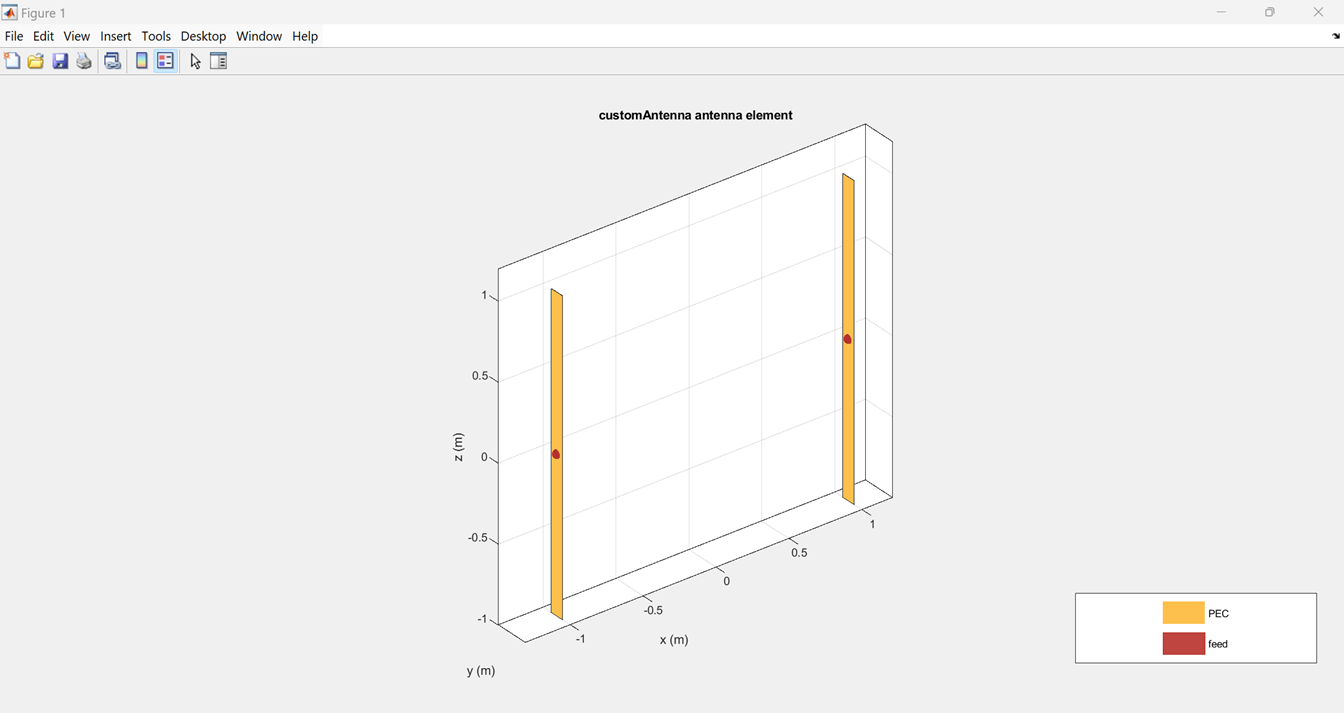
Interactively add multiple feed points to custom antenna arrays
The createFeed (R2024b) function of customAntenna (R2024b) now enables you to interactively add multiple
single-edge and multi-edge feed points to the custom antenna or array.
Provide customAntenna object as the only input argument to the
createFeed function to open an interactive window. Click
the feed edges to select them.
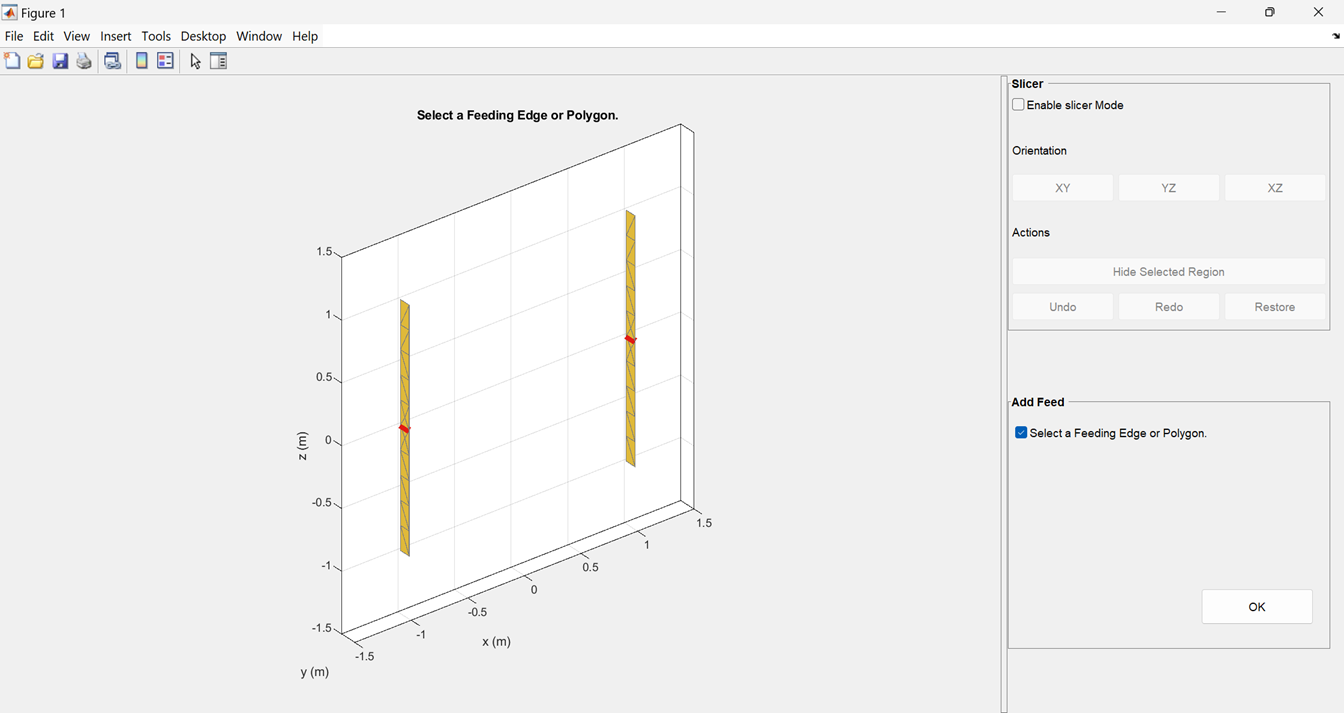
After selecting the edges, click OK to create feed points.
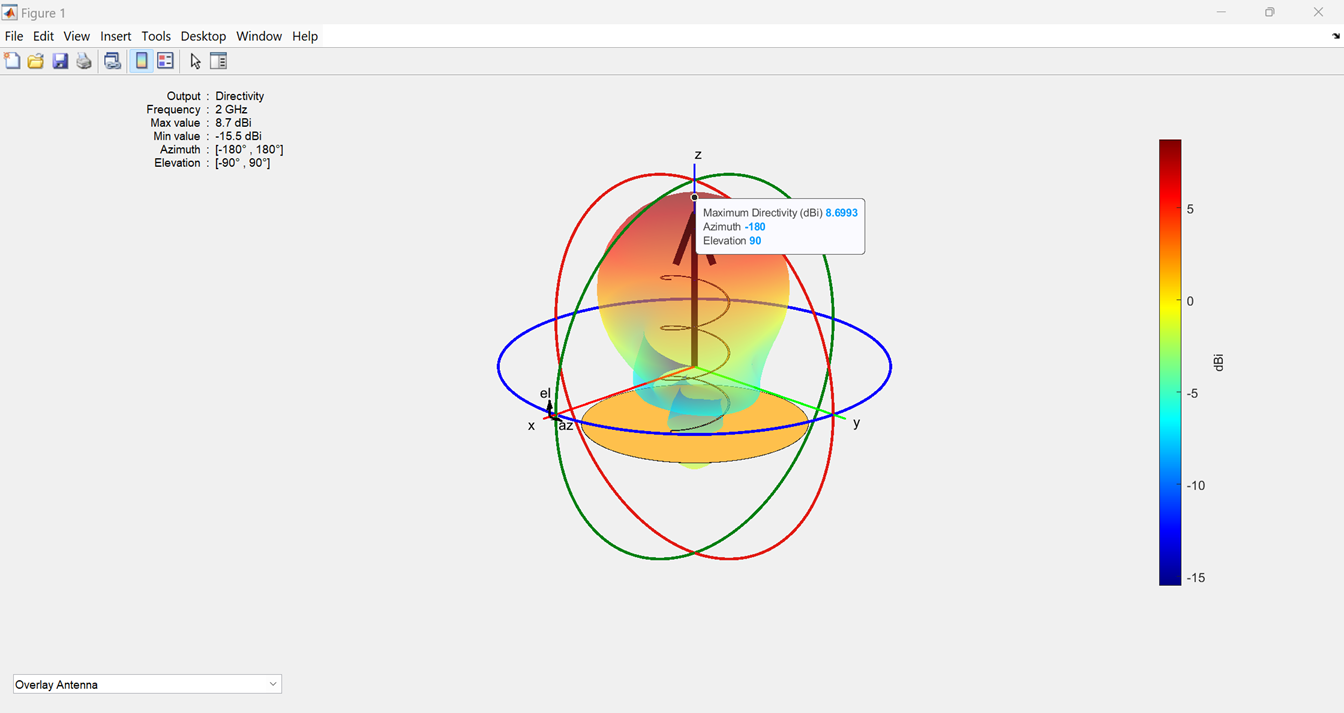
Calculate and plot maximum radiation of antenna or array
Use the new peakRadiation (R2024b) function to calculate and plot the maximum radiation
of an antenna or array. This function calculates and plots maximum gain:
For the antennas with a dielectric substrate other than air.
For the antennas with conductor metal other than PEC.
This function calculates and plots maximum directivity:
For the antennas without a dielectric substrate or with the air substrate.
For the antennas with PEC conductor.
Antenna Designer and Antenna Array Designer: Design antennas and arrays with dielectric substrate
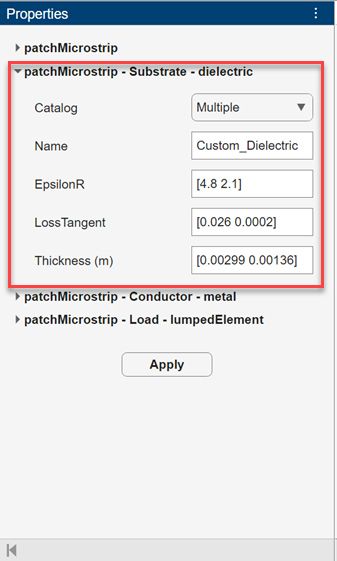
You can now use the Antenna Designer and Antenna Array Designer apps to design an antenna or array with a dielectric substrate. You can choose a predefined dielectric material from a drop-down list or you can specify your own material by changing the default dielectric properties. You can also specify multiple dielectric materials by providing vector inputs to the dielectric properties.
This image shows the Antenna Designer toolstrip with the option to select the dielectric substrate.

This image shows the Antenna Array Designer toolstrip with the option to select the dielectric substrate.

To create a custom dielectric, change the default substrate properties.

To specify multiple dielectrics, select Multiple in the
Catalog list and specify values as a vector.
Antenna Designer and Antenna Array Designer: Optimize antennas and arrays for geometric constraints
Use custom geometric constraints defined by linear equalities and inequalities and nonlinear inequalities for antenna or array optimization. You can define the custom geometric constraints in the Geometric Constraints panel of the Optimizer tab using the coefficients of linear inequalities (A, b), equalities (Aeq, beq), and nonlinear inequalities (nlcon, nrlv).
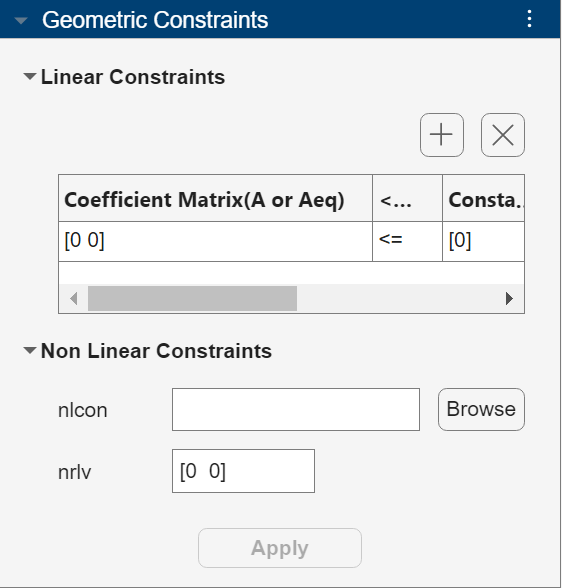
For additional information on linear and nonlinear equalities and nonlinear
inequalities, see the fmincon (R2024b) (Optimization Toolbox) function documentation.
optimize function update: Support for custom geometric
constraints defined using linear equalities and nonlinear inequalities
You can now use custom geometric constraints defined by linear equalities and
nonlinear inequalities for antenna or array optimization. In the previous release,
the optimize (R2024b) function supported custom geometric constraints defined by
linear inequalities only.
You can define the custom geometric constraints in the
GeometricConstraints property of the
optimize function using the opt
structure that contains the coefficients of linear inequalities (A, b) and
equalities (Aeq, beq) and nonlinear inequalities (nlcon, nrlv). For example, to
maximize the gain of a dipole antenna operating at 75 MHz with constraints on its
length and width, use this
code:
optAnt = optimize(dipole, 75e6, "maximizeGain", {"Length", "Width"},...
{opt.lb; opt.ub}, Iterations=150, GeomConstraints=opt);
opt =
struct with fields:
A: [100×2 double]
b: [100×1 double]
Aeq: [-1 5]
beq: 0
nlcon: @btw
nrlv: [1 1]fmincon (R2024b) (Optimization Toolbox) function documentation.Optimize antennas and arrays using Training Cost Reduced SADEA (TR-SADEA) algorithm
Optimize large antennas and arrays using the TR-SADEA algorithm in the optimize (R2024b) function. Set the new UseAlgorithm
argument in the optimize function to
"TR-SADEA" to use TR-SADEA algorithm for your optimization
task. You can use the TR-SADEA algorithm to optimize antennas and arrays for various
objective functions within the associated constraints. To use this feature, you need
a license for Statistics and Machine Learning Toolbox in
addition to Antenna Toolbox.
Support for anonymous function handle in optimization
You can now use an anonymous function handle to define antenna or array
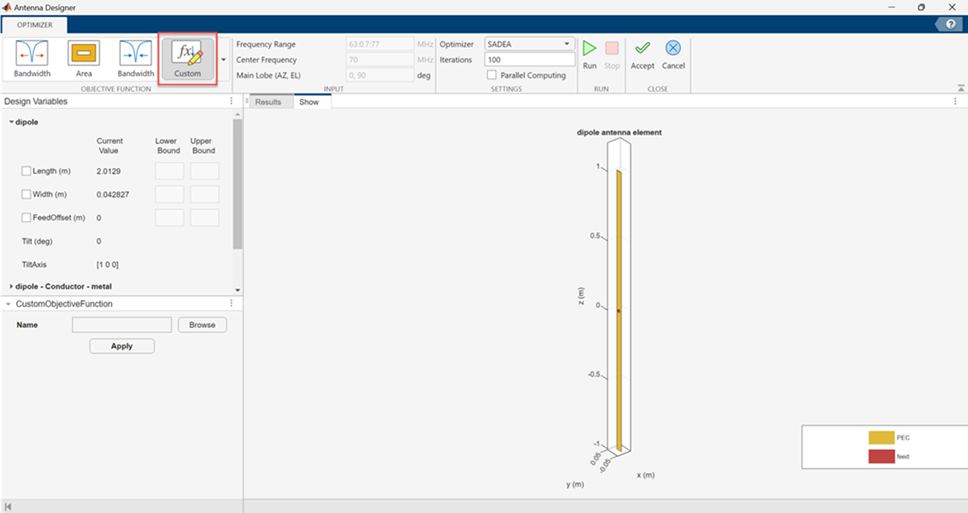
optimization objectives in the optimize (R2024b) function or the Antenna Designer (R2024b), Antenna Array
Designer (R2024b) and PCB Antenna
Designer (R2024b) apps.
AIAntenna object update: Support for AI-based model of horn
antenna
The AIAntenna (R2024b) object now supports the horn (R2024b) antenna type. Use the tunable
properties of the AIAntenna object to explore the design space
and quickly analyze the antenna design for the resonant frequency and bandwidth.
Using AI-based antenna models over conventional full-wave solvers significantly
reduces the simulation time required to fine-tune the antenna to meet your design
goals. To use this feature, you need a license for Statistics and Machine
Learning Toolbox in addition to Antenna
Toolbox.
Enhanced mesh quality
This release contains major upgrades to the mesh infrastructure. You can expect enhanced mesh quality in terms of degree of structural similarity of the mesh triangles to an equilateral triangle.
Ray tracing analysis with SBR method can find paths with more reflections
When you perform ray tracing analysis using the shooting and bouncing rays (SBR)
method, you can now find propagation paths with up to 100 reflections. In previous
releases, the limit is 10 reflections. To specify the maximum number of path
reflections, create a RayTracing (R2024b) object and set its MaxNumReflections
property.
Ray tracing analysis with coverage function shows improved
performance in scenes with buildings
The coverage (R2024b) function shows improved performance in scenes with
buildings when you specify a RayTracing (R2024b) propagation model object as input.
For example, the following code creates a coverage map for an antenna site in an
urban scene by using the coverage function and a
RayTracing propagation model object created using the propagationModel (R2024b) function. The code that creates the coverage map is
about 1.2x faster in R2024b than in R2024a.
function timingTest % Create Site Viewer and site sv = siteviewer(Buildings="chicago.osm"); tx = txsite(Latitude=41.88,Longitude=-87.6295, ... TransmitterFrequency=2.5e9); % Create RayTracing object pm = propagationModel("raytracing", ... MaxNumReflections=1,MaxNumDiffractions=1); % Create coverage map t1 = tic; coverage(tx,pm) toc(t1) close(sv) end
The approximate execution times are:
R2024b: 112 s
R2024a: 133 s
This code was timed on a Windows 11, AMD EPYC 74F3 24-Core Processor @ 3.19 GHz test system by calling the function
timingTest.
You can download the OpenStreetMap file used in this example from https://www.openstreetmap.org, which provides access to crowd-sourced map data all over the world. The data is licensed under the Open Data Commons Open Database License (ODbL), https://opendatacommons.org/licenses/odbl/.
Application Examples
This release introduces one new example on designing custom antenna and an update to one existing example on antenna design optimization.
New Example
Design and Analyze Perforated Horn Antenna for RF Applications (R2024b): This example shows the design and analysis of a perforated horn antenna suited for RF applications using custom geometry features of the Antenna Toolbox™.
Updates to Existing Example
SADEA Optimization of Six-Element Yagi-Uda Antenna using Custom Objective Function (R2024b): This example now also shows how to use anonymous function handle for custom objectives in the antenna or array optimization.
Visualize 3-D radiation patterns of multiple antennas mounted on platform
Use the new patternSystem (R2024a) function to simultaneously visualize the 3-D radiation
patterns of multiple antennas mounted on a platform.

Reconstruct 3-D radiation pattern from 2-D pattern data using deep learning
Use the new AI-based patternFromAI (R2024a) function to reconstruct the 3-D radiation pattern from
two orthogonal pattern slices. To use this feature, you need a license to
Deep Learning Toolbox™ in addition to Antenna
Toolbox.
Antenna Designer and Antenna Array Designer: Generate mesh manually by setting mesh parameter values
You can now generate a mesh manually by setting the mesh parameters such as maximum edge length, minimum edge length, and growth rate in the Antenna Designer (R2024a) and Antenna Array Designer (R2024a). You can set these parameters by clicking the Analysis Settings button in the Settings section and changing the mesh mode to manual.

Antenna Designer and Antenna Array Designer: View and modify memory requirement to solve mesh
You can now view the memory required by the Antenna Designer (R2024a) and Antenna Array Designer (R2024a) apps to solve an antenna or array mesh. You can view the estimated memory by clicking the Memory Estimate button in the Mesh section of the app toolstrip. You can reduce the memory requirement by clicking the Analysis Settings button in the Settings section, changing the mesh mode from automatic to manual and adjusting the mesh parameter values.

Antenna and Array Optimization: Use custom objective function
You can now specify a custom objective function to define antenna or array
optimization objectives in the optimize (R2024a) function or the Antenna Designer (R2024a), Antenna Array
Designer (R2024a) and PCB Antenna
Designer (R2024a) apps.

Antenna and Array Optimization: Use custom geometric constraints
Use custom geometric constraints defined by linear inequalities for antenna or
array optimization. You can define the custom geometric constraints in the new
GeometricConstraints property of the optimize (R2024a) function using the opt structure that
contains the coefficients of the linear inequalities. For example, to maximize the
gain of a dipole antenna operating at 75 MHz with constraints on its length and
width, use this
code:
optAnt = optimize(dipole, 75e6, "maximizeGain", {"Length", "Width"},...
{opt.lb; opt.ub}, Iterations=150, GeomConstraints=opt);fmincon
function documentation.AIAntenna object: AI-based models of additional catalog
elements
The AIAntenna (R2023b) object now supports dipoleHelix (R2024a) and waveguide (R2024a) as its
AntennaType. Use the tunable properties of the
AIAntenna object to explore the design space and quickly
analyze the antenna design for the resonant frequency. Using AI-based antenna models
over conventional full-wave solvers significantly reduces the simulation time
required to fine-tune the antenna to meet your design goals. To use this feature,
you need a license to Statistics and Machine Learning Toolbox
in addition to Antenna Toolbox.
AIAntenna object: Calculate bandwidth at resonant
frequency
Use the new bandwidth (R2024a) function to calculate the bandwidth of the AIAntenna (R2023b) at the resonant frequency for these antenna types:
dipole(R2024a)patchMicrostrip(R2024a)patchMicrostripCircular(R2024a)patchMicrostripElliptical(R2024a)patchMicrostripInsetfed(R2024a)
New port analysis functions for antennas
This release introduces two new port analysis functions: bandwidth (R2024a) and resonantFrequency (R2024a). Use bandwidth to calculate
absolute bandwidth around each resonant frequency and its lower and upper bounds,
and S-parameters for the entire frequency sweep.
Use resonantFrequency to calculate the resonant frequency of
the antenna, the impedance or S-parameters corresponding to each resonance and
entire frequency sweep, and conditionally, the type of resonance (series or
parallel).
Expedite port analysis computations using parallel computing
You can now use parallel computing to expedite the computation for these port analysis functions:
bandwidth(R2024a)efficiency(R2024a)impedance(R2024a)resonantFrequency(R2024a)returnLoss(R2024a)sparameters(R2024a)vswr(R2024a)
Set the UseParallel property to true to start
the parallel pool during the computation. To use this feature, you need a license to
Parallel Computing Toolbox in addition to
Antenna Toolbox.
New dielectric lens catalog element
This release introduces dielectricLens (R2024a), a new catalog element for a hemispherical dielectric
lens. To analyze this lens, use it as an element in the planeWaveExcitation (R2024a) object and set
the SolverType property of the object to
"FMM".
Analyze 2-D and 3-D structures in plane wave excitation environment
Starting R2024a, custom 2-D and 3-D Shapes with Material Properties (R2024a) can be
analyzed in a plane wave excitation environment created using the planeWaveExcitation (R2024a) object. Use
these shapes in the Element property of the object for the
analysis.
measuredAntenna object: Calculate total electric field using
embedded electric field data
The measuredAntenna (R2024a) object now has three additional properties:
AmplitudeTaper, PhaseShift, and
CalculateTotalField.
Use AmplitudeTaper to specify the excitation voltage for each
element in the antenna array. Use PhaseShift to specify the
phase shift for each element in the array. Set
CalculateTotalField to true to calculate
the total electric field using the embedded electric field data. The EHfields (R2024a) and pattern (R2024a) functions use the calculated
total electric field values for their output.
Antenna Toolbox is now available in MATLAB Online environment
Antenna Toolbox is now available in the MATLAB® Online™ environment. For more information, see MATLAB Online (R2024a) (MATLAB Online Server).
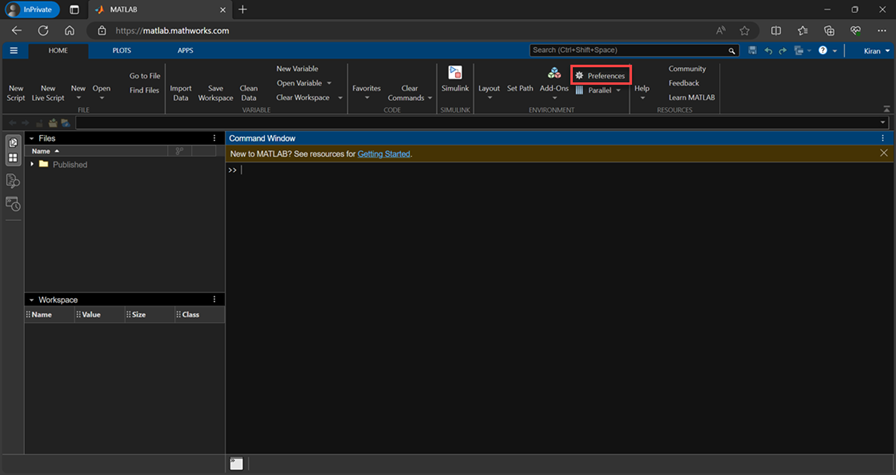
Antenna Toolbox in MATLAB Online supports dark theme visualization. To select the
dark theme, on the Home tab, in the
Environment section, click
Preferences. Select MATLAB > Appearance and set the Theme to
Dark.
RF propagation functions and objects model materials using updated ITU recommendations
RF propagation objects and functions model most materials using the methods and equations in International Telecommunication Union Recommendations (ITU-R) P.2040-3 and ITU-R P.527-5 through ITU-R P.527-6. In previous releases, the functions and objects used ITU-R P.2040-1. In addition:
The
siteviewer(R2024a) object, theRayTracing(R2024a) propagation model object, theraypl(R2024a) function, and thebuildingMaterialPermittivity(R2024a) function support plywood and marble.The
earthSurfacePermittivity(R2024a) function now refers to pure ice as"pure-ice"instead of"dry-ice". To update your code, replace instances of"dry-ice"with"pure-ice".The
earthSurfacePermittivityfunction supports multiyear ice, dry snow, and wet snow. The pure water, sea water, and pure ice inputs have updated temperature limits. The sea water input has updated salinity limits.
As a result of these changes:
The
raypl,buildingMaterialPermittivity, andearthSurfacePermittivityfunctions can return different values in R2024a compared to previous releases.The
raytrace(R2024a) function can return differentcomm.Ray(R2024a) objects in R2024a compared to previous releases.When used with a
RayTracingobject as input, thesigstrength(R2024a),coverage(R2024a),sinr(R2024a), andpathloss(R2024a) functions can return different values in R2024a compared to previous releases.
pathloss function returns number of diffractions along
propagation paths
The pathloss (R2024a) function returns the number of diffractions along ray
tracing propagation paths.
Application Examples
This release introduces new application examples in the areas such as antenna optimization, custom antenna, electromagnetic interference (EMI) calculation, and 3-D radiation pattern reconstruction using deep learning. This release also contains updates to two examples which now use the new features from this release.
New Examples
Miniaturize Rectangular Microstrip Patch Antenna Using Genetic Algorithm Optimization (R2024a)
SADEA Optimization of Six-Element Yagi-Uda Antenna using Custom Objective Function (R2024a)
Analyze Electromagnetic Interference from Shielding Enclosures (R2024a)
Reconstruct 3-D Antenna Pattern From 2-D Slices Using Deep Learning (R2024a)
Updated Examples
Artificial Intelligence (AI) for Rapid Analysis and Design of Patch Antenna (R2024a): This example now also shows how to calculate the bandwidth of the prototype antenna using AI-based analysis by calling the new
bandwidthfunction on theAIAntennaobject.Parallelization of Antenna and Array Analyses (R2024a): This example now also shows how to speed up antenna and array analysis using Parallel Computing Toolbox™.
Site Viewer and ray tracing enhancements
Import glTF files
Read a scene model from a GL Transmission Format (glTF) file with the
.gltf or .glb extension into Site Viewer
by using the siteviewer (R2023b) function. Specify the name of the model by using the
SceneModel name-value argument. Site Viewer displays the
model using the colors and textures stored in the file.
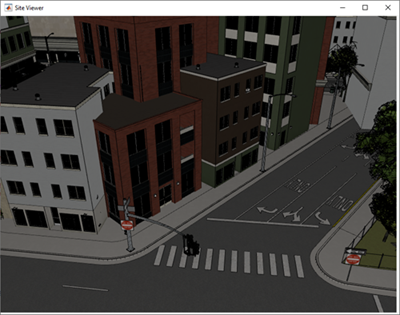
This figure shows a Site Viewer window with a scene model read from a glTF file. The file was created using RoadRunner.
Display buildings using colors from OpenStreetMap files
When you read buildings data from an OpenStreetMap file into Site Viewer, Site Viewer displays the buildings using the colors stored in the file.
Import customized buildings data
Import customized buildings data into Site Viewer by using geospatial tables that contain buildings data. This capability requires Mapping Toolbox™.
Read buildings from an OpenStreetMap file with the
.osmextension into a geospatial table by using thereadgeotable(R2023b) (Mapping Toolbox) function. Specify theLayername-value argument as"buildings"or"buildingparts".Customize the buildings by editing the geospatial table. For example, you can change the footprints, heights, colors, and materials of the buildings.
Import the geospatial table into Site Viewer by using the
siteviewer(R2023b) function. Specify the geospatial table using theBuildingsname-value argument. Site Viewer displays the buildings using the colors stored in the table.
For an example that shows how to import customized buildings data into Site Viewer, see Customize Buildings for Ray Tracing Analysis (R2023b).
Perform ray tracing analysis using multiple materials in the same scene
When you perform ray tracing analysis on a scene created from a glTF file, an OpenStreetMap file, or a geospatial table, the ray tracing
analysis uses the materials specified by the file or table. Functions that can
perform ray tracing analysis include raytrace (R2023b), coverage (R2023b), sigstrength (R2023b), link (R2023b), and sinr (R2023b).
When you create a scene from a glTF file, an OpenStreetMap file, or a geospatial table, Site Viewer assigns materials to the
surfaces in the scene by matching the material names stored in the file or table
with the material names supported by the RayTracing (R2023b) propagation model object. Then, Site Viewer stores the
material names in the Materials property. When you perform ray
tracing analysis by using a function such as raytrace or
coverage, the function uses the material names stored in
the Materials property. The Materials
property is read-only.
Scale the size of scene models
You can now change the scale of scene models created from glTF files, STL files, and triangulation objects by specifying the
SceneModelScale name-value argument of the siteviewer (R2023b) function. By default, Site Viewer interprets scene models
using units of meters with a 1:1 scale.
Create custom antennas using predefined 2-D and 3-D geometric shapes with material properties
You can now create custom antennas from 2-D and 3-D shapes with material properties. The existing Custom 2-D and 3-D Antenna (R2023b) geometric shapes catalog now contains these shapes:
2-D shapes —
shape.Rectangle(R2023b),shape.Circle(R2023b),shape.Ellipse(R2023b), andshape.Polygon(R2023b).3-D shapes —
shape.Box(R2023b),shape.OpenBox(R2023b),shape.Cylinder(R2023b),shape.OpenCylinder(R2023b),shape.Sphere(R2023b), andshape.Custom3D(R2023b).
Use these shapes with shape operators, manipulation functions, and
visualization functions to create a custom shape with material properties. You can
also use these shapes to create an STL file using stlwrite (R2023b) function and use this file as a platform (R2023b) in the installedAntenna (R2023b) analysis.
The existing Custom 2-D and 3-D Antenna (R2023b) objects
catalog now contains the customAntenna (R2023b) object. To create a custom antenna, set the
Shape property of the customAntenna object
to a 2-D or 3-D shape object and use the createFeed (R2023b) function to define the feed. You can also perform port,
surface, and field analysis on this custom antenna.
Use measured antenna array pattern and S-parameters data for field analysis
Import the measured total pattern, embedded field pattern, and S-parameters data
of an antenna array to a measuredAntenna (R2023b) object and perform field analysis with the pattern (R2023b), EHfields (R2023b), and sparameters (R2023b) functions.
Design, tune, and analyze antennas using AI-based models
Design, tune, and analyze these antennas using AI-based models:
dipole(R2023b)patchMicrostrip(R2023b)patchMicrostripCircular(R2023b)patchMicrostripElliptical(R2023b)patchMicrostripInsetfed(R2023b)patchMicrostripEnotch(R2023b)patchMicrostripHnotch(R2023b)patchMicrostripTriangular(R2023b)pifa(R2023b)
To create an AIAntenna (R2023b) object, enable the ForAI flag in the
design (R2023b) function. Use the tunable
properties of the AIAntenna object to explore the design space
and quickly analyze the design for the resonant frequency. Using AI-based antenna
models over conventional full-wave solvers significantly reduces the simulation time
required to fine-tune the antenna to meet your design goals. To use this feature,
you need license to the Statistics and Machine Learning
Toolbox in addition to the Antenna
Toolbox.
Get structural, dimensional and quality details of mesh
Read the structural, dimensional, and quality information about the mesh of an
antenna from Antenna Catalog (R2023b), array from Array Catalog (R2023b), or
custom 2-D and 3-D antenna or array from Custom 2-D and 3-D Antenna (R2023b) catalog
using the new MeshReader (R2023b) object. For instance,
m = mesh(dipole,MaxEdgeLength=0.1)
MeshReader object with read-only properties containing
information about the number of points, triangles, and tetrahedra, maximum and
minimum edge lengths, and quality of the dipole antenna mesh.Create custom antennas and platforms from STEP and IGES files
Create a custom antenna from geometry defined in Standard for the Exchange of Product Model Data (STEP) and Initial Graphics Exchange Specification (IGES) files using the
customAntennaStl(R2023b) object.Using STEP file:
c = customAntennaStl(FileName="SampleGeometry.stp", Units="mm") createFeed(c);
Using IGES file:
c = customAntennaStl(FileName="SampleGeometry.igs", Units="mm") createFeed(c);
Create a platform for installed antenna analysis from geometry defined in STEP and IGES files using the
platform(R2023b) object.Using STEP file:
p = platform(FileName="SampleGeometry.stp", Units="mm"); i = installedAntenna(Platform=p, Element=cloverleaf)
Using IGES file:
p = platform(FileName="SampleGeometry.igs", Units="mm"); i = installedAntenna(Platform=p, Element=cloverleaf)
Read Gerber file with any extension
You can now use the gerberRead (R2023b) function to import and read a Gerber file containing
information about PCB layers with any file extension.
Ray tracing analysis with SBR method shows improved performance in complex scenes
The raytrace (R2023b), coverage (R2023b), sigstrength (R2023b), sinr (R2023b), and link (R2023b)
functions show improved performance with complex scenes when you specify a RayTracing (R2023b) propagation model object that uses the shooting and
bouncing rays (SBR) method as input.
For example, this code finds ray tracing propagation paths between two antenna
sites in an urban scene by using the raytrace function and a
RayTracing object. Create the RayTracing
object by using the propagationModel function. The code that
finds the propagation paths is about 2x faster in R2023b than in R2023a.
function timingTest % Create Site Viewer and sites sv = siteviewer(Buildings="chicago.osm"); tx = txsite(Latitude=41.88,Longitude=-87.6295,... TransmitterFrequency=2.5e9); rx = rxsite(Latitude=41.881,Longitude=-87.62951); % Create RayTracing object pm = propagationModel("raytracing",BuildingsMaterial="concrete",... MaxNumReflections=2,MaxNumDiffractions=2); % Find propagation paths t1 = tic; raytrace(tx,rx,pm) toc(t1) close(sv) end
The approximate execution times are:
R2023b: 252.47 s
R2023a: 502.76 s
This code was timed on a Windows 10 Intel®
Xeon® CPU W-2133 @ 3.6 GHz test system, by calling the function
timingTest.
The time that MATLAB requires to perform ray tracing analysis depends on the scene and on
the properties of the RayTracing object, such as the
AngularSeparation, MaxNumDiffractions,
MaxNumReflections,
MaxAbsolutePathLoss, and
MaxRelativePathLoss properties. In some cases, with
moderate values of the MaxAbsolutePathLoss and
MaxRelativePathLoss properties, the ray tracing analysis
can be more than 2x faster in R2023b than in R2023a.
You can download the OpenStreetMap file used in this example from https://www.openstreetmap.org, which provides access to crowd-sourced map data all over the world. The data is licensed under the Open Data Commons Open Database License (ODbL), https://opendatacommons.org/licenses/odbl/.
Functionality being removed or changed
RayTracing objects have new defaults for
BuildingsMaterial,
SurfaceMaterial,
SurfaceMaterialPermittivity, and
SurfaceMaterialConductivity properties
Behavior change
The default value of the BuildingsMaterial and
SurfaceMaterial properties of the RayTracing (R2023b) propagation model object is now
'auto'.
When
BuildingsMaterialis'auto'and you perform ray tracing analysis on a scene created from an OpenStreetMap file, the ray tracing analysis uses the materials specified by the file. If the file does not specify materials, or if the ray tracing analysis does not support a material specified by the file, then the ray tracing analysis uses concrete materials.When
SurfaceMaterialis'auto'and you perform ray tracing analysis on a scene created from an STL file or a triangulation object, the ray tracing analysis uses concrete materials.
Previously, the default value of the
BuildingsMaterial property was
'concrete' and the default value of the
SurfaceMaterial property was
'plasterboard'.
In addition, the default values of the
SurfaceMaterialPermittivity and
SurfaceMaterialConductivity properties of the
RayTracing propagation model object are now
5.31 and 0.0548, respectively. These
values correspond to the real relative permittivity and conductivity of concrete
at 1.9 GHz. In previous releases, the default values were
2.94 and 0.0183, respectively.
Application Examples
This release contains new antenna and array application examples in the below areas:
Design and Analysis of Custom Antennas
Monte-Carlo Simulation, AI-based Analysis, Machine Learning Model
RF System and RF PCB Applications
Model RF Systems with Antenna Arrays Using RF Blockset Antenna Block (R2023b) (RF Blockset)
Design and Simulate Monopulse Tracking System (R2023b) (RF Blockset)
Dual-Fed Square Microstrip Patch Antenna for BLE Applications (R2023b) (RF PCB Toolbox)
Corporate Feed Divider Network for a Linear Patch Antenna array (R2023b) (RF PCB Toolbox)
Construct and analyze backing structures without exciter
Construct the backing structures for Cavity Antennas (R2023a) and
Reflector Antennas (R2023a) by
assigning empty value to the 'Exciter' property. Use these
structures as Element in the conformalArray (R2023a) and planeWaveExcitation (R2023a) environments to perform fundamental
analysis on them.
Create multifilar dipole helix antenna wound around dielectric core
You can now use the Substrate property to include a dielectric (R2022b) core in the dipoleHelixMultifilar (R2023a) object. This configuration creates a multifilar
(bi or quad) dipole helix antenna wound around a dielectric core.
PO solver support for reflector antenna analysis
The below mentioned curved Reflector Antennas (R2023a) now support Physical Optics (PO) solver for the pattern (R2023a) and current (R2023a) analysis:
cassegrain (R2023a)
cassegrainOffset (R2023a)
gregorian (R2023a)
gregorianOffset (R2023a)
reflectorParabolic (R2023a)
reflectorSpherical (R2023a)
Use custom incident pattern data to excite curved reflector antennas
Import the measured pattern data of an antenna to the MATLAB workspace using the
new measuredAntenna (R2023a) object. Use this object as an exciter for the select
curved Reflector Antennas (R2023a) from
the Antenna Catalog (R2023a) as listed below:
cassegrain (R2023a)
cassegrainOffset (R2023a)
gregorian (R2023a)
gregorianOffset (R2023a)
reflectorParabolic (R2023a)
reflectorSpherical (R2023a)
Use eggCrate array as an exciter for cavity and reflector type
antennas
You can now use the eggCrate (R2023a) array of vivaldi (R2023a) and vivaldiOffsetCavity (R2023a) antennas as the exciter for all the backing structures in the Cavity Antennas (R2023a) and Reflector Antennas (R2023a) catalog.
Create triangular shape for the metal layer in the PCB Antennas
Use the new antenna.Triangle (R2023a) object to create a triangular shape for the metal
layer of the PCB antenna created using the pcbStack (R2023a) object.
Calculate RCS of pure dielectric structures using the Fast Multipole Method (FMM) solver
The rcs function now can calculate the cross section of pure
dielectric structures using the FMM Solver.
gerberRead update: Support for Aperture Macro (AM), Aperture
Block (AB), and Step Repeat (SR)
The gerberRead (R2023a) function now supports the AM, AB, and SR commands from the imported gerber files. AM combines multiple basic shapes into a template. AB combines standard flashes and strokes to form a block. SR copies graphic objects along x and y axes.
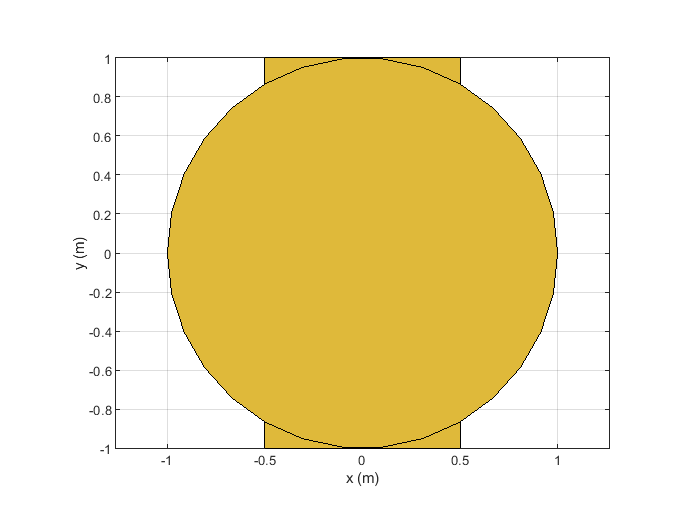
Display multiple shapes in the same figure
Use the hold on functionality to display multiple shapes from
the shape catalog on the same figure.
show(antenna.Rectangle) hold on show(antenna.Circle)
View the position and magnitude data on plots using data tip
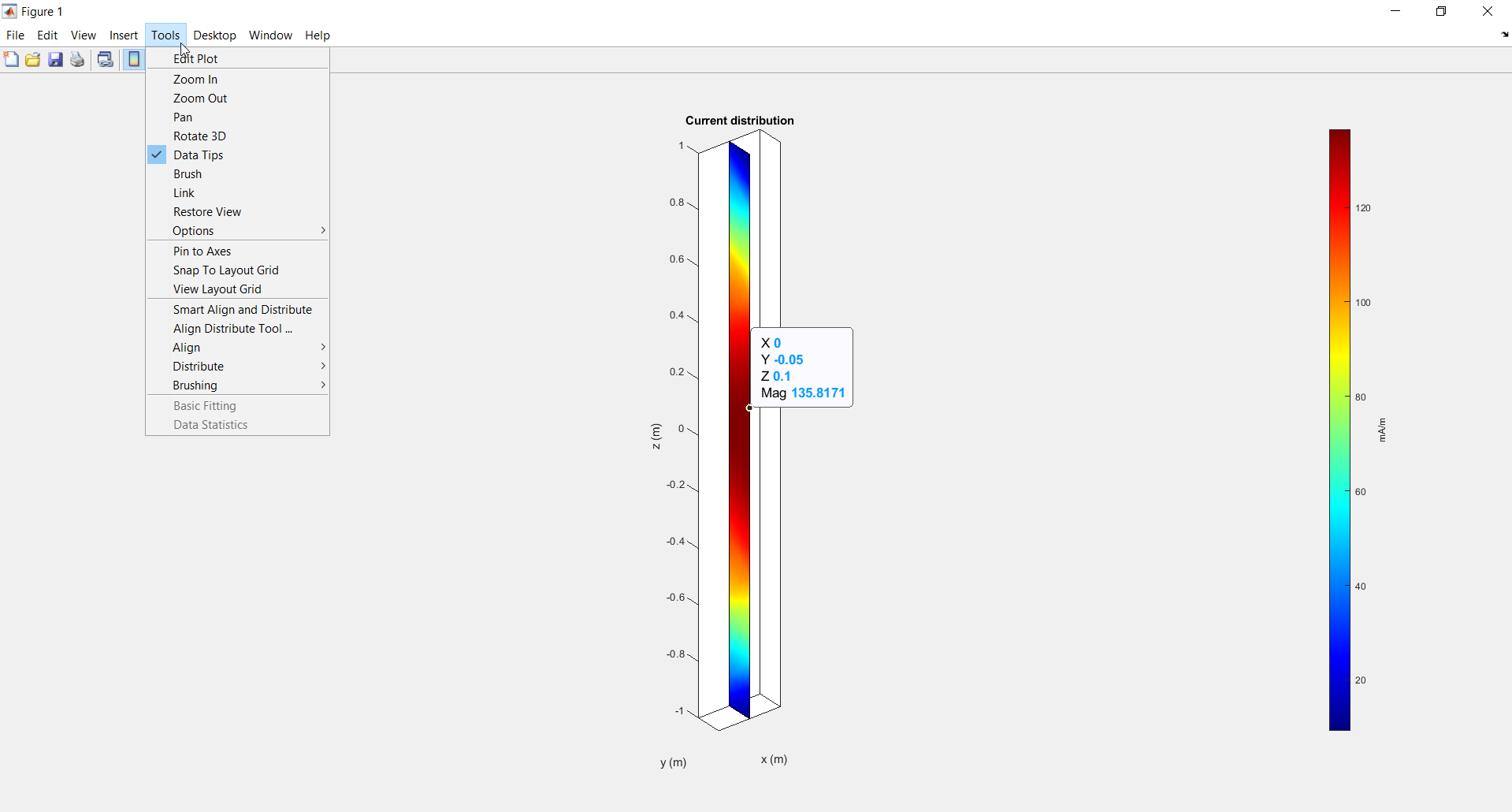
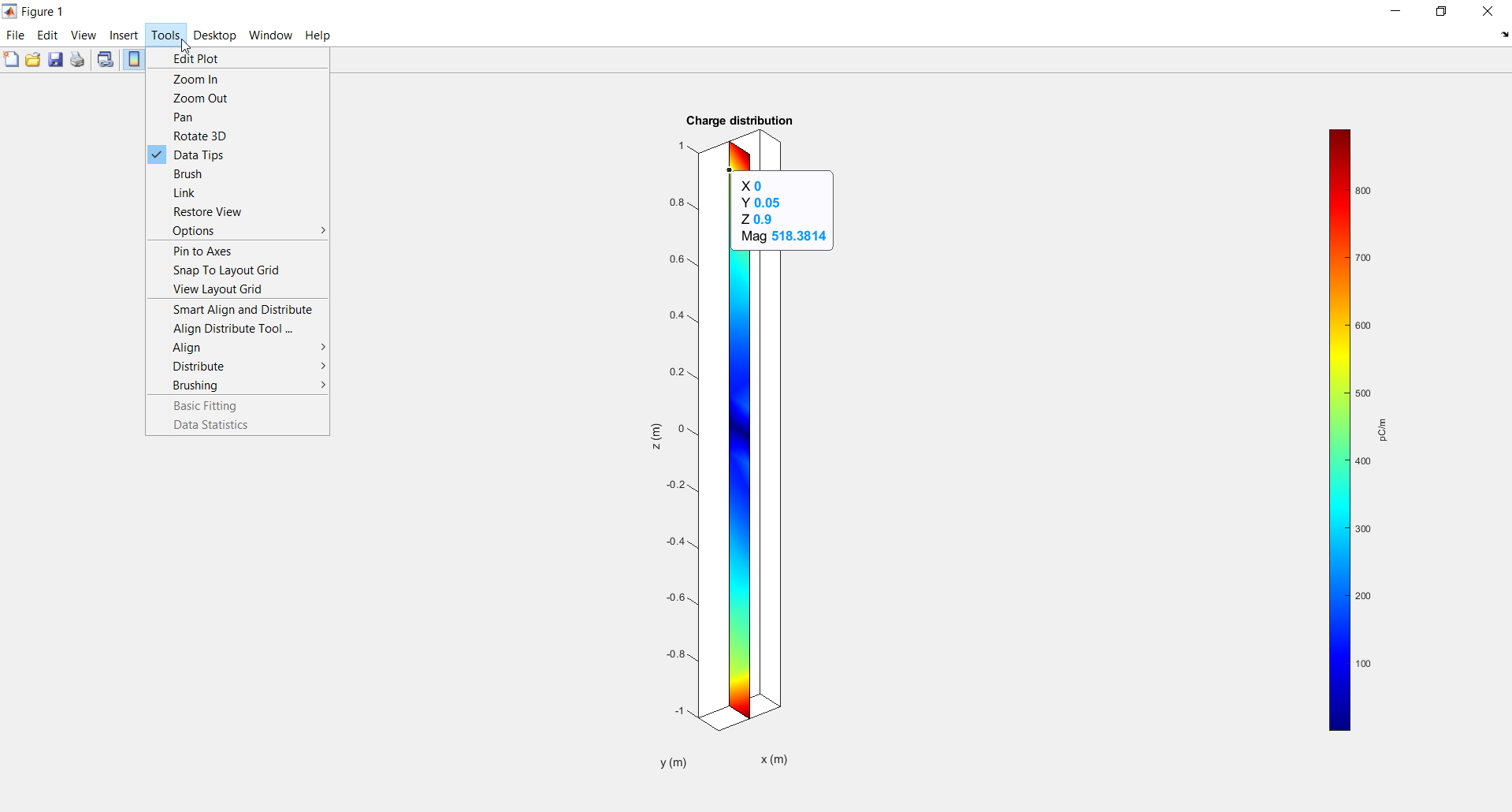
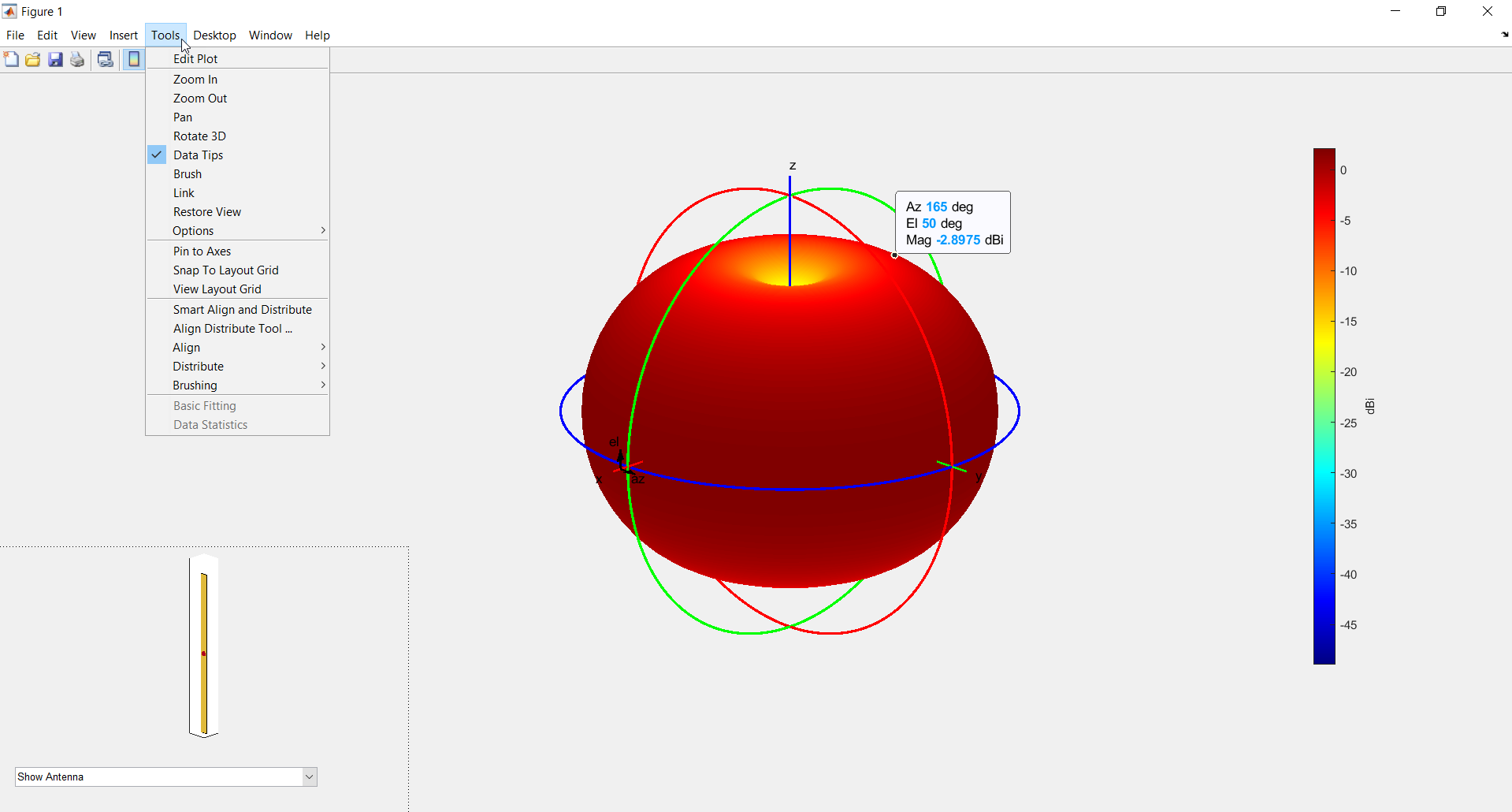
Use the Data Tip option under Tools menu
in the figure window to view the values of position and magnitude at that position
for pattern, current, and
charge plots. Data Tip on a:
Ray tracing with SBR method supports edge diffractions
Ray tracing models that use the shooting and bouncing rays (SBR) method support
the diffraction of rays at surface edges. To specify the maximum number of edge
diffractions, create a RayTracing (R2023a) object and set its MaxNumDiffractions
property. For an example that illustrates edge diffractions, see the Visualize Indoor Propagation Paths (R2023a)
example.
Most analysis functions, such as raytrace (R2023a) and sigstrength (R2023a), support up to two edge diffractions. The coverage (R2023a) and sinr (R2023a)
functions support up to one edge diffraction.
Discard ray tracing paths based on path loss threshold
Ray tracing models enable you to discard propagation paths based on path loss
thresholds. To specify the thresholds, create a RayTracing (R2023a) object and set its MaxAbsolutePathLoss
and MaxRelativePathLoss properties.
Specify an absolute threshold by using the
MaxAbsolutePathLossproperty. For example, you can discard paths with more than 100 decibels of path loss by specifyingMaxAbsolutePathLossas100. The default value isInf, which does not discard paths based on absolute path loss.Specify a threshold relative to the strongest propagation path by using the
MaxRelativePathLossproperty. The default value is40, which discards paths that are more than 40 decibels weaker than the strongest path.
This capability can simplify visualizations in Site Viewer. For
example, these two images visualize propagation paths for the same transmitter and
receiver. The image on the left uses a model where
MaxRelativePathLoss is Inf, and the
image on the right uses a model where MaxRelativePathLoss is
40 (the default).

The default value of the MaxRelativePathLoss property is
40. As a result, code from previous releases that does
not specify a MaxRelativePathLoss value can be affected in
these ways:
The
raytrace(R2023a) function can return fewercomm.Ray(R2023a) objects in R2023a compared to previous releases.The
sigstrength(R2023a),coverage(R2023a),sinr(R2023a), andlink(R2023a) functions can return different values in R2023a compared to previous releases.The
pathloss(R2023a) function can return different path loss values in R2023a compared to previous releases.
To avoid discarding propagation paths, set the
MaxRelativePathLoss property of the ray tracing object
to Inf.
Ray tracing with SBR method calculates paths using increased precision
When you find propagation paths by using the raytrace (R2023a) function with a ray tracing model that uses the shooting
and bouncing rays (SBR) method, MATLAB calculates the results by using double-precision floating-point
computations. In previous releases, the function used single-precision
floating-point computations.
The raytrace function can return different comm.Ray (R2023a) objects in R2023a compared to previous releases.
Functionality being removed or changed
propagationModel("raytracing-image-method") syntax has
been removed
Errors
The propagationModel("raytracing-image-method") syntax has
been removed from the propagationModel (R2023a) function.
Use the propagationModel("raytracing") syntax instead,
which uses the shooting and bouncing rays (SBR) method by default. To use the
image method, specify the Method name-value argument as
"image", for example
propagationModel("raytracing",Method="image").
NumReflections name-value argument of the
raytrace function has been removed
Errors
The NumReflections name-value argument of the raytrace (R2023a) function has been removed.
Instead, create a propagation model by using the propagationModel (R2023a) function and specify the
MaxNumReflections name-value argument. Then, use the
raytrace function with the propagation model as an
input. This code shows the recommended workflow.
pm = propagationModel("raytracing",MaxNumReflections=3);
rays = raytrace(tx,rx,pm);Application Examples
This release presents eight new featured examples and one updated example. These examples cover the design, analysis, and fabrication of PCB antennas, the effect of material properties of the conductor on the performance of the antenna, Metasurface antenna, Intelligent Reflecting Surfaces(IRS), wideband Eggcrate array backed by parabolic reflector, performance analysis of the antenna installed on a large platform, Surface Integrated Waveguide(SIW) based Filtenna design, and patch array for S-band monopulse RADAR.
New Examples
Modified Sierpinski Monopole Fractal Antenna for Dual-Band Application (R2023a)
Design, Analyze, and Prototype 2x2 Patch Array Antenna (R2023a)
Electromagnetic Analysis of Intelligent Reflecting Surface (R2023a)
Design and Analyze Parabolic-Reflector-Backed Wideband Eggcrate Array (R2023a)
Antennas on A Glider as Platform (R2023a)
Updated Example
Metasurface Antenna Modeling (R2023a) - Added dielectric substrate and updated analysis plots
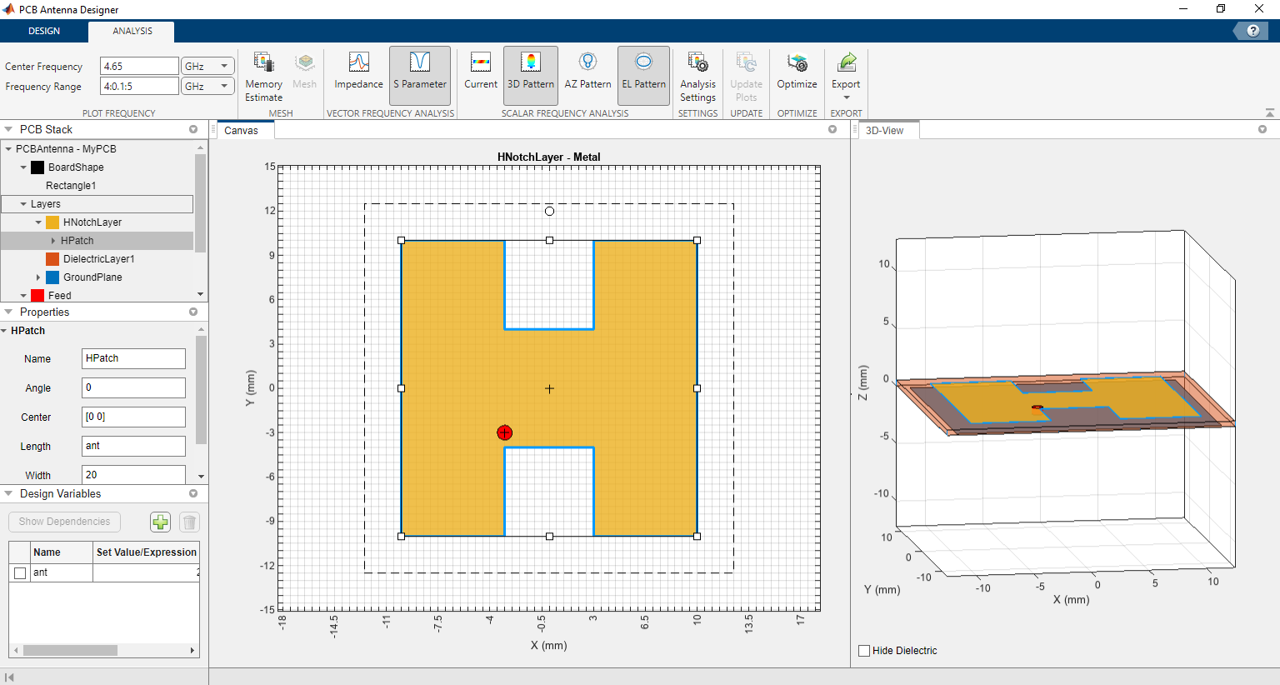
PCB Antenna Designer App Update: Optimize PCB antenna designs
You can now optimize PCB antenna designs using the SADEA and surrogate optimization methods in the PCB Antenna Designer app. Create design variables to enable the optimization process. Optimize your designs for bandwidth, gain, front-to-back-lobe ratio, and area.
Create dipole helix antenna wound around dielectric core
You can now use the Substrate property to include a dielectric (R2022b) core in the dipoleHelix object. This
configuration creates a dipole helix antenna wound around a dielectric core.
Add Via to infinite array using pcbStack element
The infiniteArray object now supports pcbStack
as an element. Use the pcbStack object to add Via to the infinite
array design. Use this functionality to include the vertical component of the
surface current in your analysis.
mesh Update: Additional mesh parameters support for all
antenna and array elements
The mesh function now takes these new name-value arguments
MinEdgeLength-- Generate a mesh using the smallest edge length of your feature.GrowthRate-- Control the growth rate of the mesh. This input defines the gradation in the triangle sizes of the mesh.
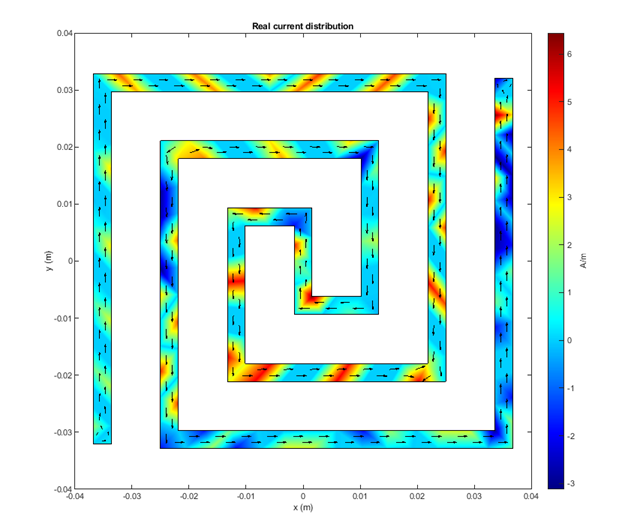
current Update: Visualize direction of current flow and complex
current on metal surface
The current function now takes these new name-value arguments
Type-- Choose between the absolute, real, or imaginary values of the current vector to plot the current distribution.Direction-- Plot the direction of the current flow overlaid on the distribution plot.
Determine antenna orientation and polarization to capture maximum power from plane-wave
Use the design function of
planeWaveExcitation object to determine the required
orientation and polarization for a receiver antenna to capture the maximum power
from an incident plane-wave at a given frequency.
Choose solver for analysis of planeWaveExcitation
objects
The planeWaveExcitation object now supports multiple solvers
for your analysis. Use the SolverType property to specify the
solver.
gerberRead update: Support for new shapes
The gerberRead function now supports three new shapes:
clockwise & anticlockwise circular arc, curved regions, and obround
aperture.
RF Propagation: Ray tracing with SBR method finds paths with exact geometric accuracy
When you find propagation paths by using the raytrace (R2022b) function and the shooting and bouncing rays (SBR) method,
MATLAB corrects the results so that the geometric accuracy of each path is
exact, using single-precision floating-point computations. In previous releases, the
paths have approximate geometric accuracy.
For example, this code finds propagation paths between a transmitter and receiver
by using the default SBR method and returns the paths as comm.Ray
objects. In R2022b, the raytrace function finds seven
propagation paths. In earlier releases, the function approximates eight propagation
paths, one of which is a duplicate path.
viewer = siteviewer(Buildings="hongkong.osm"); tx = txsite(Latitude=22.2789,Longitude=114.1625,AntennaHeight=10, ... TransmitterPower=5,TransmitterFrequency=28e9); rx = rxsite(Latitude=22.2799,Longitude=114.1617,AntennaHeight=1); rSBR = raytrace(tx,rx) raytrace(tx,rx)
| R2022b | R2022a |
|---|---|
rSBR =
1×1 cell array
{1×7 comm.Ray}
|
rSBR =
1×1 cell array
{1×8 comm.Ray}
|
Paths calculated using the SBR method in R2022b more closely align with paths calculated using the image method. The image method finds all possible paths with exact geometric accuracy. For example, this code uses the image method to find propagation paths between the same transmitter and receiver.
viewer = siteviewer(Buildings="hongkong.osm"); tx = txsite(Latitude=22.2789,Longitude=114.1625, ... AntennaHeight=10,TransmitterPower=5, ... TransmitterFrequency=28e9); rx = rxsite(Latitude=22.2799,Longitude=114.1617, ... AntennaHeight=1); pm = propagationModel("raytracing",Method="image",MaxNumReflections=2); rImage = raytrace(tx,rx,pm)
rImage =
1×1 cell array
{1×7 comm.Ray}In this case, the SBR method finds the same number of propagation paths as the image method. In general, the SBR method finds a subset of the paths found by the image method. When both the image and SBR methods find the same path, the points along the path are the same within a tolerance of machine precision for single-precision floating-point values.
This code compares the path losses, within a tolerance of
0.0001, calculated by the SBR and image methods.
abs([rSBR{1}.PathLoss]-[rImage{1}.PathLoss]) < 0.0001ans = 1×7 logical array 1 1 1 1 1 1 1
The path losses are the same within the specified tolerance.
The raytrace function can return different results in
R2022b compared to previous releases.
The function can return a different number of
comm.Rayobjects because it discards invalid or duplicate paths.The function can return different
comm.Rayobjects because it calculates exact paths rather than approximate paths.
These differences can also affect the path losses calculated by
the raypl (R2022b) and pathloss (R2022b) functions.
RF Propagation: Ray tracing functions consider multipath interference
When calculating received power using ray tracing models, the sigstrength (R2022b), coverage (R2022b), sinr (R2022b), and link (R2022b)
functions now incorporate multipath interference by using a phasor sum. In previous
releases, the functions used a power sum. As a result, the calculations in R2022b
are more accurate than in previous releases.
The sigstrength, coverage,
sinr, and link functions can
return different results in R2022b compared to previous releases.
RF Propagation: Customize spacing of launched rays for ray tracing with SBR method
When performing ray tracing using the shooting and bouncing rays (SBR) method, you
can customize the spacing of launched rays by specifying the
AngularSeparation property of the RayTracing (R2022b) object as a numeric value in degrees. In previous releases,
the AngularSeparation property supported only the options
"high", "medium", and
"low".
To improve the accuracy of the number of paths found by the SBR method, decrease
the value of AngularSeparation. Decreasing the value of
AngularSeparation can increase the amount of time
MATLAB requires to perform the analysis.
Application Example: Custom geometry pcbStack antenna
This release contains a new featured example showcasing the design and analysis of
a custom geometry pcbStack antenna for ultra-wideband applications:
The Design and Analysis of a Diamond-Shaped Antenna for Ultra-Wideband Applications (R2022b) example shows the design and analysis of a planar diamond shaped monopole antenna with ultra-wide bandwidth, suitable for compact devices.
PCB Antenna Designer App Update: Define variables in PCB antenna designer app
You can now define variables in the PCB Antenna
Designer (R2022a) app and use them to set the properties of the shape and
dielectric objects within a layer of a pcbStack object. The antenna
design along with variables created can be exported for further analysis to a script
or a workspace.
infiniteArray Object Update: Faster solution for infinite arrays
without ground planes
The method of moments (MoM) solver in the infiniteArray object is
now about 30 percent faster when solving infinite arrays without the ground
plane.
Direction of Arrival Determination: Determine direction of transmission source using mutual coupling effects
You can use the new doa function on the conformalArray (R2022a) and planeWaveExcitation (R2022a) objects to
determine the direction of arrival of an incoming signal transmitted from a
far-field source, with respect to the center of the receiver array. The
doa function uses s-parameters to calculate the angles of
arrival in the spherical coordinate system. If the transmission source in your model
/ analysis / use case is:
An antenna object, then use the
doa(R2022a) function on theconformalArray(R2022a) object.A plane wave signal, then use the
doa(R2022a) function on theplaneWaveExcitation(R2022a) object.
Both the objects use a uniform homogenous linear or rectangular array in the horizontal plane and centered at the origin, as a receiver.
Slicer Interactivity in Mesh, Charge, and Current Plots: View interior or inaccessible parts of meshed antenna geometry
patternPlotOptions Update: Use pattern plot options on all 3-D
pattern visualizations
You can now use the PatternPlotOptions (R2022a) on all 3-D pattern plots created using the
patternMultiply (R2022a), arrayFactor (R2022a), patternFromSlices (R2022a), and patternCustom (R2022a) functions.
Custom Dual-Reflector Antenna: Design, visualize, and analyze dual-reflector antenna using customized properties
The new customDualReflectors (R2022a) antenna object creates a dual-reflector antenna
with conical horn antenna as the exciter and empty geometries for the reflectors.
Use its properties to:
Assign custom geometry to the main and sub reflector.
Change the exciter element
Change the position and orientation of the reflectors and the exciter.
Dual-Reflector antenna has a very high gain and a low spillover and is used as a ground station antenna in satellite communications.
Helix and Multifilar Helix Antenna Update: Create helix and multifilar helix antennas wound around dielectric core
You can now use the Substrate property to include a dielectric (R2022a) core in the helix (R2022a) and the helixMultifilar (R2022a) objects. This creates helix and multifilar helix
antennas wound around a dielectric core.
Monopole Top-Hat Antenna Update: Create monopole top-hat antenna with dielectric substrate
You can now use the Substrate property to include a dielectric (R2022a) substrate in the
monopoleTopHat (R2022a) object. This creates
a monopole top-hat antenna with a dielectric substrate placed between the ground
plane and the top hat. The monopoleTopHat (R2022a) object lets you
specify multiple dielectric layers also.
RF Propagation Update: Improved performance for SBR ray tracing point-to-area coverage and point-to-point analysis cases
The shooting and bouncing rays (SBR) ray tracing method shows improved performance for point-to-area coverage and point-to-point analysis cases with low angular separation.
As the angular separation decreases (and the number of launched rays increases), performance improvements are greater for the point-to-area coverage cases. For example, this code runs up to five times faster than the previous release for the point-to-area coverage case with low angular separation:
viewer = siteviewer("Buildings","chicago.osm"); tx = txsite("Latitude",41.8800,"Longitude",-87.6295); pm = propagationModel("raytracing", ... "Method","sbr", ... "AngularSeparation","low", ... "MaxNumReflections",3); timeit(@() coverage(tx,pm,"MaxRange",250))
The approximate execution times are:
R2021b: 182 s
R2022a: 29 s
On the same test platform, this code runs two times faster than the previous release for the point-to-point analysis case with low angular separation:
sv = siteviewer("SceneModel","conferenceroom.stl"); tx = txsite("cartesian", ... "AntennaPosition",[-1.45; -1.4; 1.5]); rx = rxsite("cartesian", ... "AntennaPosition",[.3; .2; .5]); pm = propagationModel("raytracing", ... "CoordinateSystem","cartesian", ... "Method","sbr", ... "AngularSeparation","low", ... "MaxNumReflections",10); timeit(@() raytrace(tx,rx,pm))
The approximate execution times are:
R2021b: 6.3 s
R2022a: 3.0 s
These code segments were timed on a Windows 10, Intel Xeon CPU E5-1650 v4 @ 3.60 GHz test system.
Application Examples: Custom geometry pcbStack antenna,
Direction of arrival
This release contains three new featured examples showing the design and analysis
of custom geometry pcbStack antenna for various applications:
The Design Series-Fed Patch Antenna for 5G Base Station Antenna (R2022a) example shows the design and analysis of a series fed patch antenna array at 28 GHz which is used as mm-wave band 5G mobile base station antenna.
The Design PCB Antenna for USB Dongle and BLE Applications at 2.4 GHz (R2022a) example shows the design and analysis of a PCB antenna at 2.4 GHz, used in USB dongles and BLE applications.
The Miniaturize Patch Antennas Using Metamaterial-Inspired Technique (R2022a) example shows the design of a miniaturized patch antenna with a complementary split-ring resonator (CSRR) loading plane and evaluates the performance of the patch shrunk 16 times the resonant dimension.
The Design and Analysis of Compact Ultra-Wideband MIMO Antenna Array (R2022a) example shows the design of a compact ultra-wideband (UWB) MIMO antenna array built using two orthogonally placed planar monopole antennas in the horizontal plane.
The Direction of Arrival Determination Using Full-Wave Electromagnetic Analysis (R2022a) example shows two methods for estimating the direction of arrival of an incoming signal using the
doafunction. This example uses theconformalArray(R2022a) object as a receive array when the transmission source is an antenna object and uses theplaneWaveExcitation(R2022a) object as a receive array when the transmission source is a plane wave.
PCB Antenna Designer App: Design, analyze, and fabricate PCB antennas
Use the PCB Antenna Designer (R2021b) app to:
Create various shapes for the metal layer of a PCB antenna by using Boolean operations on basic shapes.
Create a custom PCB stack antenna with multiple metal and dielectric layers.
Add vias and feeds to metal layers.
Design a PCB antenna using Gerber files
Analyze the design at the desired frequency.
Export a design to the workspace or a MATLAB script.
Modify the mesh of an antenna using mesh parameters.

STL Files: Detect bad features in STL file
Use the stlFileChecker object to detect and enlist bad features
in an STL file, such as nonmanifold edges and vertices, slivers, and duplicate
vertices.
Fast Multipole Method (FMM): Support for electrically large antennas and installed antennas
The FMM solver allows you to capture higher order effects such as diffraction, creeping wave, and traveling wave effects when you analyze installed antenna and radar cross-sections (RCS). In addition, the solver now has a reduced memory requirement for large meshes. You can also analyze antennas mounted on platforms using the FMM.
Method of Moments (MoM) Physical Optics (PO): Faster performance for analysis of electrically large structures
The MoM-PO solver now yields faster performance when you solve and analyze electrically large structures.
Infinite Arrays: Support for metal-dielectric structures and metal antennas without ground plane
You can now design infinite arrays of metal-dielectric structures. Also, starting in R2021b, you can design infinite arrays of metal antennas without an infinite ground plane.
Realized Gain: Calculate and visualize realized gain of antennas and arrays
You can now calculate and visualize the realized gain of antennas and arrays with
a single or multiple ports using the pattern function.

EHfields enhancements: Support for polarization and
calculating fields for spherical coordinate system
EHFields now enables you to calculate the electric and magnetic
fields of antennas using a spherical coordinate system. EHFields
also now supports horizontal and vertical polarization options.
Backing Structures Update: Support for metal-dielectric exciters
You can now use metal-dielectric antennas and array structures as exciters for backing structures.

RF Propagation: Perform ray tracing analysis using SBR method
The default ray tracing method is now
'sbr'with up to two reflections (instead of'image'with up to one reflection).Minor improvements to ray precision and the number of rays computed.
For more information, see Choose a Propagation Model (R2021b) and propagationModel (R2021b).
RF Propagation: Import and view propagation paths within indoor scenes
In Site Viewer, you can now import and view standard tessellation language (STL)
models or triangulation representations that have Cartesian coordinates by using the
siteviewer (R2021b) object. The object has these added properties to support
Cartesian coordinates.
| Property | Description |
|---|---|
SceneModel | STL model file or triangulation (R2021b)
object |
Transparency | Transparency of model |
ShowOrigin | Option to show origin |
ShowEdges | Option to show edges of model |
These functions now support txsite (R2021b) and rxsite (R2021b) objects that have Cartesian coordinates.
Display RF propagation rays by using the
raytrace(R2021b) function.Display the line-of-sight (LOS) visibility status between sites by using the
los(R2021b) function.Display the communication link status between sites by using the
link(R2021b) function.Display the radiation patterns for a site by using the
pattern(R2021b) function.Control the visibility of sites by using the
show(R2021b) andhide(R2021b) functions.
When you import a scene using Site Viewer, analysis functions such as
raytrace and los use the scene as the
3-D environment.
Functionality being removed or changed
Meshing infrastructure
Behavior change
Starting in R2021b, you might see a slight variation in antenna analysis results due to an update to the meshing infrastructure.
Default value of Method name-value argument for
propagationModel function is now shooting and bouncing
rays method
Behavior change
Starting in R2021b, when you create a propagation model using the syntax
propagationModel('raytracing'), MATLAB returns a RayTracing model with the
Method name-value argument value set to
'sbr' and two reflections (instead of
'image' and one reflection as in previous releases). To
create ray tracing propagation models that use the image method, use the syntax
propagationModel('raytracing','Method','image'). For
more information, see Choose a Propagation Model (R2021b) and
propagationModel (R2021b).
raytrace, coverage,
link, sigstrength, and
sinr use shooting and bouncing rays method
Behavior change
Starting in R2021b, when you use the raytrace (R2021b), coverage (R2021b), link (R2021b), sigstrength (R2021b), or sinr (R2021b) function and specify the propmodel
argument or PropagationModel name-value argument as
'raytracing', the function uses the shooting and bouncing
rays (SBR) method and calculates up to two reflections. In previous releases,
the functions use the image method and calculate up to one reflection.
If you prefer to use the image method instead of the SBR method, create a
propagation model by using the propagationModel (R2021b) function. Then, use the
raytrace, coverage,
link, sigstrength, or
sinr function with the propagation model as input. This
example shows how to update your
code.
pm = propagationModel('raytracing','Method','image'); coverage(txs,pm)
For information about the SBR and image methods, see Choose a Propagation Model (R2021b).
ReflectionLocations and NumReflections
properties of the comm.Ray object have been removed
Errors
The ReflectionLocations and
NumReflections properties have been removed from the
comm.Ray (R2021b) object. To accommodate reflections, use the
Interactions property to replace the
ReflectionLocations property and use the
NumInteractions property to replace the
NumReflections property.
NumReflections property of the
raytrace function will be removed
Still runs
The NumReflections property of the raytrace (R2021b) function will be removed in a future release. The
NumReflections property now applies to only the image ray
tracing method. Instead, create a propagation model by using the propagationModel (R2021b) function with its
MaxNumReflections name-value argument. Then, use the
raytrace function with the propagation model as an
input. This example shows the recommended workflow given transmitter site
tx and receiver site rx.
pm = propagationModel('raytracing','Method',... 'image','MaxNumReflections',2); rays = raytrace(tx,rx,pm);