Review Polyspace Results on AUTOSAR Code
R2026bThis topic describes a component-based approach to verifying AUTOSAR code with Polyspace®. For an integration analysis approach, see Choose Between Component-Based and Integration Analysis of AUTOSAR Code with Polyspace.
This tutorial describes how to open Polyspace Code Prover™ results for AUTOSAR-specific code and interpret results that highlight violation of data constraints in the ARXML.
Code Prover checks the code implementation of AUTOSAR software component-s for mismatch with specifications in the ARXML. For instance, if an RTE function argument has a value outside the constrained range defined in the ARXML, the analysis flags a possible issue.
Example Files
To follow the steps in this tutorial, run Polyspace on the demo files in
polyspaceroot\polyspace\examples\doc_cxx\polyspace_autosar
Open Results
If you run the analysis in the Polyspace user interface, you can open each result directly. In the Results pane, Double-click the result that you want to open.
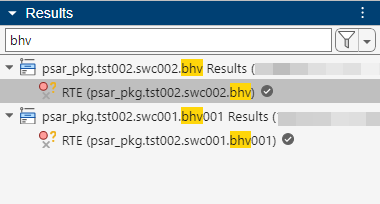
If you run the analysis by using scripts, after analysis, you can open the results in several ways.
Open the file
psar_workspace.pswksfrom your workspace folder in the Polyspace Platform user interface. Open each result on the Results pane.Navigate to the folders containing the individual results files. Open a result file (with extension
.pscp) in the Polyspace Platform user interface.The results files are stored in the path
workspace/<psar_project>Results/RTE/run<timestamp>. Thepsar_projectis the fully qualified name of the internal behavior of the software component followed by an identifier for the. For instance, for a fully qualified namepkg.component.bhv, thepsar_projectcan bepsar_pkg.tst002.swc001.bhv001.
Interpret AUTOSAR Specific Run-time Checks for Software Component
On the Results List pane, select the result Invalid result of AUTOSAR runnable implementation or Invalid use of AUTOSAR runtime environment function.
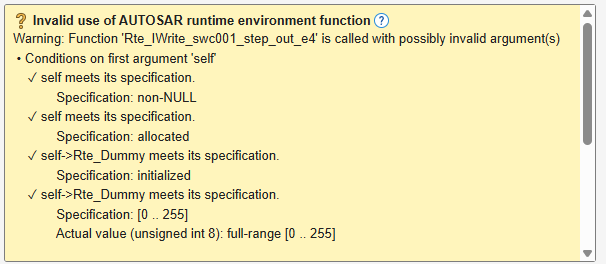
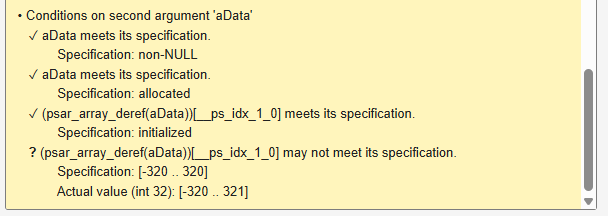
Investigate the result further by using the information on various panes. For example, on the Source pane, the function call causing this violation is highlighted.
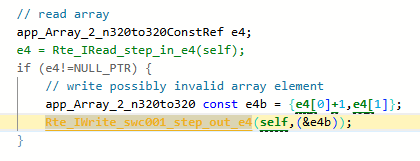
Check Return Value and Arguments
Using the information on the Result Details pane, determine whether the return value or an argument violates data constraints in the ARXML or can be NULL-valued. Look for the ! icon that indicates a definite error or the ? icon that indicates a possible error.
For the return value and each argument, you see the actual possible values at run time and the values allowed by the data type in the ARXML specification. Compare them and find the value that is not allowed.
The result Invalid result of AUTOSAR runnable implementation
determines if the return value of the function implementing the runnable or the output
arguments can violate the data constraints. The result Invalid use of AUTOSAR
runtime environment function determines if the input arguments to an
Rte_ function violates data constraints.
Find Root Cause of Result
Investigate how the variable acquires the values that violate the data constraints. To trace back in your code, on the Source pane, right-click a variable and search for all its instances or navigate to its definition. For more tips, see Interpret Polyspace Code Prover Results in Polyspace Platform User Interface or Interpret Code Prover Results in Polyspace Access Web Interface (Polyspace Access).
Decide whether to fix your code or ARXML, or justify the result through comments. See Address Polyspace Results Through Bug Fixes or Justifications or Address Results in Polyspace Access Through Bug Fixes or Justifications (Polyspace Access).
See Also
Invalid result of
          AUTOSAR runnable implementation
| Invalid use of AUTOSAR
runtime environment function

