Pattern Recognition Using the Neural Net Pattern Recognition App
This example shows how to train a shallow neural network to classify patterns using the Neural Net Pattern Recognition app.
Open the Neural Net Pattern Recognition app using nprtool.
nprtool
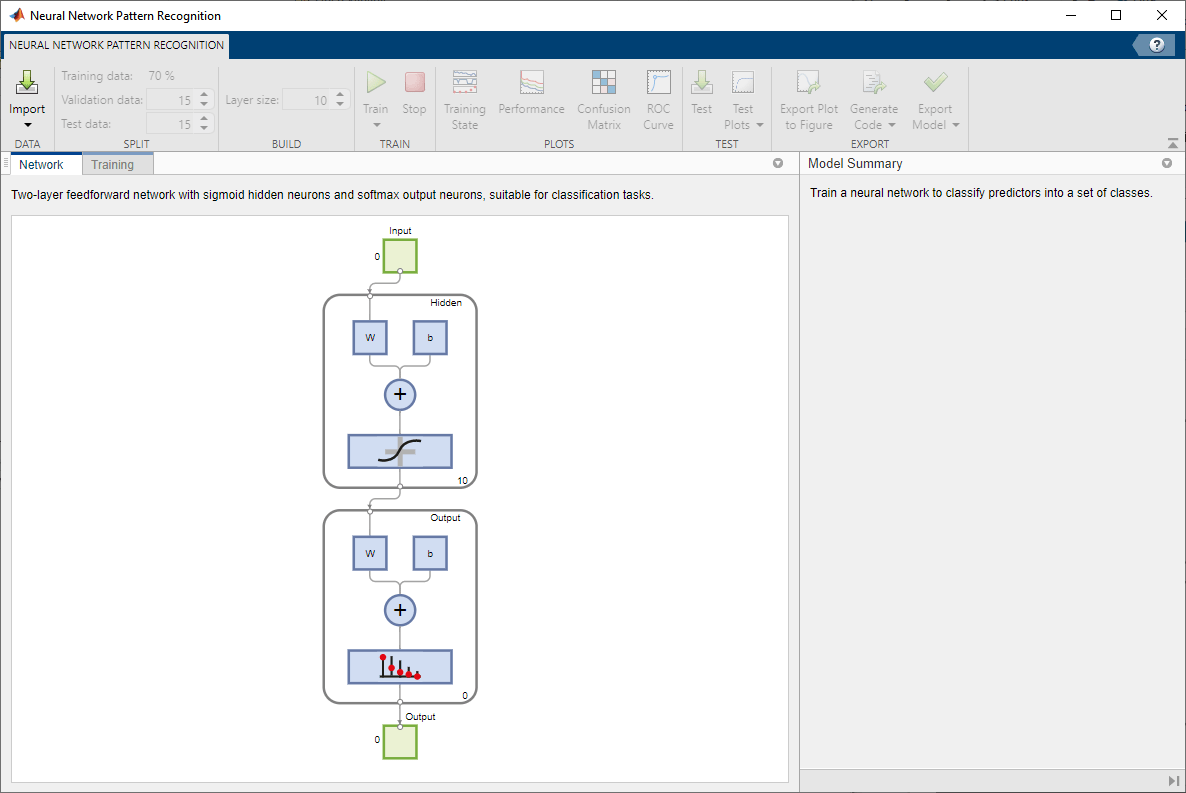
Select Data
The Neural Net Pattern Recognition app has example data to help you get started training a neural network.
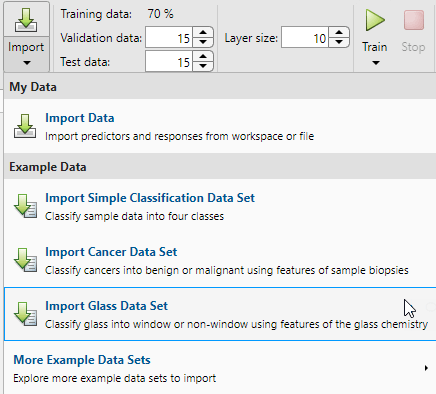
To import example glass classification data, select Import > Import Glass Data Set. You can use this data set to train a neural network to classify glass as window or non-window, using properties of the glass chemistry. If you import your own data from file or the workspace, you must specify the predictors and responses, and whether the observations are in rows or columns.
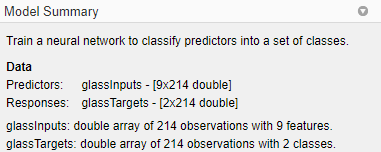
Information about the imported data appears in the Model Summary. This data set contains 214 observations, each with 9 features. Each observation is classified into one of two classes: window or non-window.
Split the data into training, validation, and test sets. Keep the default settings. The data is split into:
70% for training.
15% to validate that the network is generalizing and to stop training before overfitting.
15% to independently test network generalization.
For more information on data division, see Divide Data for Optimal Neural Network Training.
Create Network
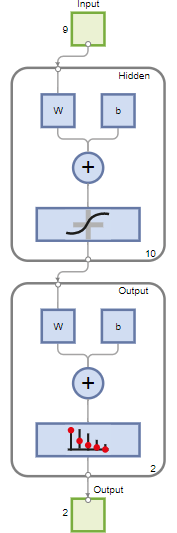
The network is a two-layer feedforward network with a sigmoid transfer function in the hidden layer and a softmax transfer function in the output layer. The size of the hidden layer corresponds to the number of hidden neurons. The default layer size is 10. You can see the network architecture in the Network pane. The number of output neurons is set to 2, which is equal to the number of classes specified by the response data.
Train Network
To train the network, click Train.
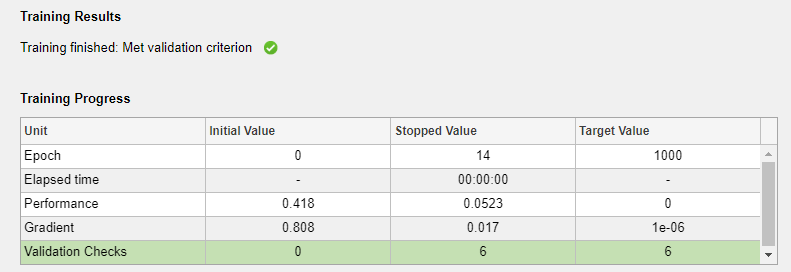
In the Training pane, you can see the training progress. Training continues until one of the stopping criteria is met. In this example, training continues until the validation error is larger than or equal to the previously smallest validation error for six consecutive validation iterations ("Met validation criterion").
Analyze Results
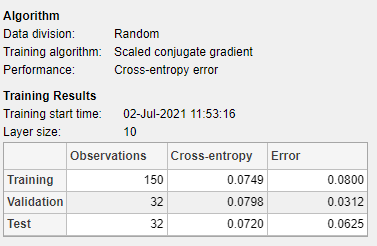
The Model Summary contains information about the training algorithm and the training results for each data set.
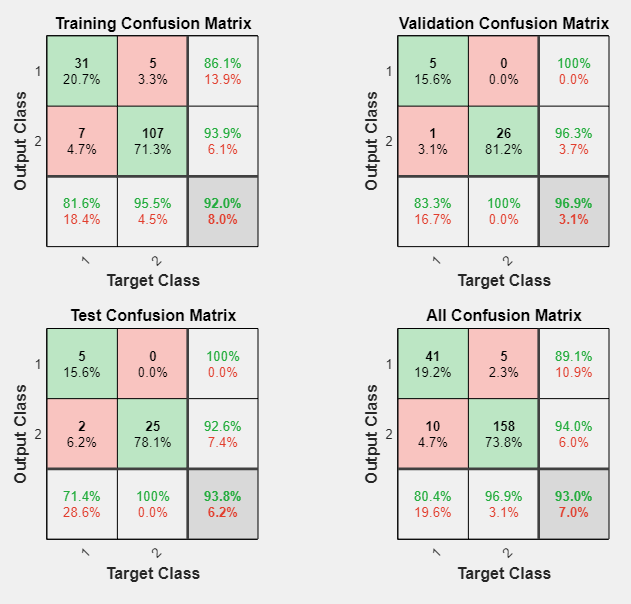
You can further analyze the results by generating plots. To plot the confusion matrices, in the Plots section, click Confusion Matrix. The network outputs are very accurate, as you can see by the high numbers of correct classifications in the green squares (diagonal) and the low numbers of incorrect classifications in the red squares (off-diagonal).
View the ROC curve to obtain additional verification of network performance. In the Plots section, click ROC Curve.
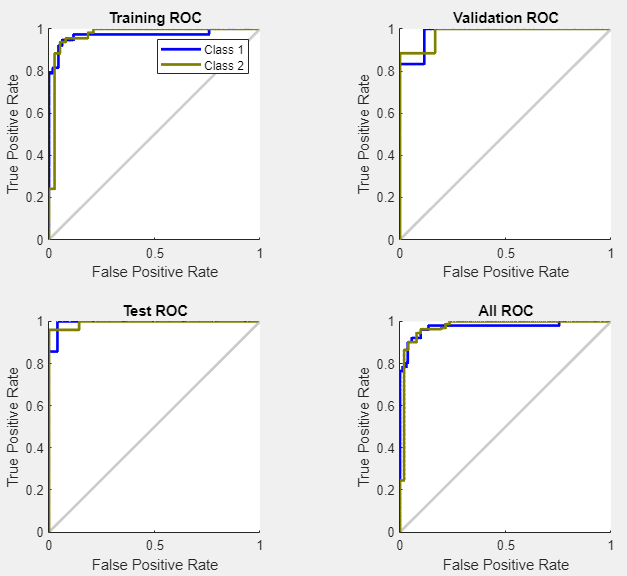
The colored lines in each axis represent the ROC curves. The ROC curve is a plot of the true positive rate (sensitivity) versus the false positive rate (1 - specificity) as the threshold is varied. A perfect test would show points in the upper-left corner, with 100% sensitivity and 100% specificity. For this problem, the network performs very well.
If you are unhappy with the network performance, you can do one of the following:
Train the network again.
Increase the number of hidden neurons.
Use a larger training data set.
If performance on the training set is good but the test set performance is poor, this could indicate the model is overfitting. Reducing the number of neurons can reduce the overfitting.
You can also evaluate the network performance on an additional test set. To load additional test data to evaluate the network with, in the Test section, click Test. The Model Summary displays the additional test results. You can also generate plots to analyze the additional test results.
Generate Code
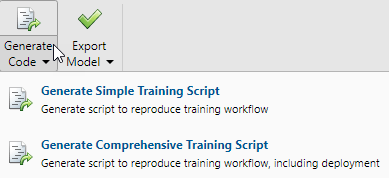
Select Generate Code > Generate Simple Training Script to create MATLAB code to reproduce the previous steps from the command line. Creating MATLAB code can be helpful if you want to learn how to use the command line functionality of the toolbox to customize the training process. In Pattern Recognition Using Command-Line Functions, you will investigate the generated scripts in more detail.
Export Network
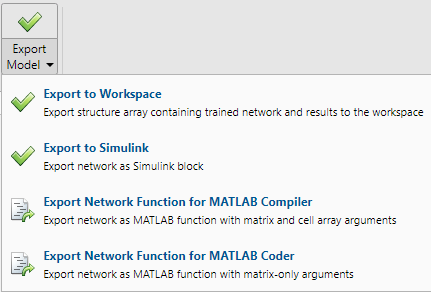
You can export your trained network to the workspace or Simulink®. You can also deploy the network with MATLAB Compiler™ and other MATLAB code generation tools. To export your trained network and results, select Export Model > Export to Workspace.
See Also
Neural Net Fitting | Neural Net Time Series | Neural Net Pattern Recognition | Neural Net Clustering | trainscg

