Generate RoadRunner Scene from Recorded Lidar Data
R2026bThis example shows how to extract road information and generate a high-definition (HD) RoadRunner scene from raw lidar data.
You can create a virtual scene from recorded sensor data that represents real-world roads, and use these scenes to perform safety assessments for automated driving applications. You can also use them to localize vehicles on a map.
In this example, you:
Detect road boundaries from recorded lidar point clouds using a pretrained deep learning model.
Register the detected road boundaries from each point cloud to create a continuous road.
Generate a RoadRunner HD Map from the registered road boundaries.
Import the generated RoadRunner HD Map file into RoadRunner Scene Builder.
Load Lidar Sensor Data
This example requires the Scenario Builder for Automated Driving Toolbox™ support package. Check if the support package is installed and, if it is not installed, install it using the Get and Manage Add-Ons.
checkIfScenarioBuilderIsInstalled
Download a ZIP file containing a subset of sensor data from the PandaSet data set, and then unzip the file. This file contains data for a continuous sequence of 400 point clouds. The size of the downloaded data set is 394 MB.
dataFolder = tempdir;
dataFilename = "PandasetLidarData.zip";
url = "https://ssd.mathworks.com/supportfiles/driving/data/" + dataFilename;
filePath = fullfile(dataFolder,dataFilename);
if ~isfile(filePath)
    websave(filePath,url)
end
unzip(filePath,dataFolder)
dataset = fullfile(dataFolder,"PandasetLidarData");
data = load(fullfile(dataset,"LidarSensorData.mat"));
Create a LidarData object by using the recordedSensorData function to store the lidar data.
lidarTimestamps = data.LidarData.timeStamp;
lidarPath = strcat(dataset,filesep,"Lidar",filesep,data.LidarData.fileName);
lidarData = recordedSensorData("lidar",lidarTimestamps,lidarPath)
lidarData =
  LidarData with properties:

                Name: ''

          NumSamples: 400
            Duration: 39.8997
          SampleRate: 10.0251
          SampleTime: 0.1000
          Timestamps: [400×1 double]

         PointClouds: [400×1 string]
    SensorParameters: []

          Attributes: []
Read the first raw point cloud data from lidar data object. Display the point cloud data by using the pcshow (Point Cloud Toolbox) function.
ptCldData = read(lidarData,RowIndices=1);
ax = pcshow(ptCldData.PointClouds{1});
zoom(ax,4)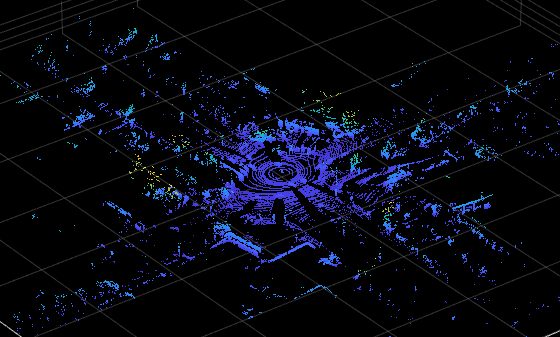
Detect Road Boundaries
In this example, you use a pretrained deep neural network model to detect road boundary points. Download the pretrained model as a ZIP file, and then unzip the file. The size of the downloaded model is 21 MB.
modelFilename = "LidarRoadBoundaryDetectorSalsaNext.zip";
modelUrl = "https://ssd.mathworks.com/supportfiles/driving/data/" + modelFilename;
filePath = fullfile(dataFolder,modelFilename);
if ~isfile(filePath)
    websave(filePath,modelUrl)
end
modelFolder = fullfile(dataFolder,"LidarRoadBoundaryDetectorSalsaNext");
unzip(filePath,modelFolder)
model = load(fullfile(modelFolder,"trainedRoadBoundaryModel.mat"));
roadBoundaryDetector = model.net;
Detect road boundaries by using the helperDetectRoadBoundaries helper function. Note that, depending on your hardware configuration, this function can take a significant amount of time to run. To reduce the execution time, limit the number of point clouds numPtClouds to 80.
numPtClouds = 80;
detectedRoadBoundaries = helperDetectRoadBoundaries(roadBoundaryDetector,lidarData,numPtClouds);
detectedRoadBoundaries is a LidarData object containing detected road boundary points in the lidarData point clouds.
Note: In this example, the pretrained deep neural network model detects only the road boundary points. It does not detect or classify the lane boundaries.
Display the road boundaries on the point cloud by using the pcshow (Point Cloud Toolbox) function.
ptCldData = read(detectedRoadBoundaries,RowIndices=1);
ax = pcshow(ptCldData.PointClouds{1});
zoom(ax,4)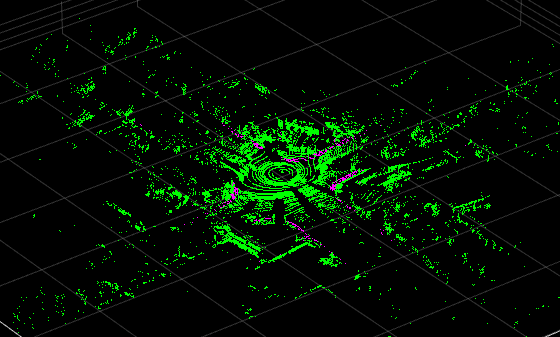
Register Point Clouds and Segregate Road Boundaries
Register the point clouds and detected road boundary points by using the helperRegisterPointClouds helper function.
[registeredPtCloud,roadBoundaryLabels,egoWaypoints] = helperRegisterPointClouds(detectedRoadBoundaries);
roadBoundaries = registeredPtCloud.select(roadBoundaryLabels);
Save the registered point cloud as a PCD file to enable you to import it into RoadRunner.
pcwrite(registeredPtCloud,"RegisteredPointCloud.pcd",Encoding="compressed")
To create a RoadRunner HD Map, you must specify individual lane boundaries. Therefore, separate the detected road boundary points into leftBoundaries and rightBoundaries using the helperSegregrateRoadBoundaries helper function.
[leftBoundaries,rightBoundaries] = helperSegregrateRoadBoundaries(roadBoundaries,egoWaypoints);
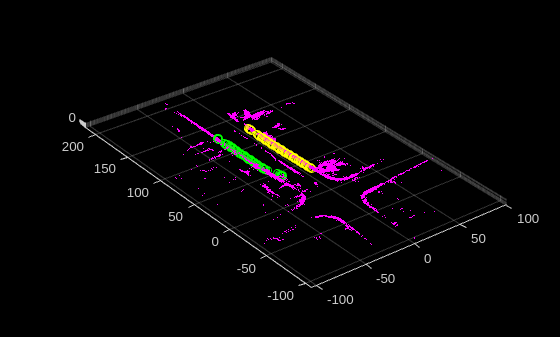
Plot the road boundaries, and overlay the left and right lane boundaries on the road to highlight the boundary detections.
figure
pcshow(roadBoundaries)
hold on
plot3(rightBoundaries(:,1),rightBoundaries(:,2),rightBoundaries(:,3), "yo")
plot3(leftBoundaries(:,1),leftBoundaries(:,2),leftBoundaries(:,3), "go")
hold off
Create a lane boundary segment containing the leftBoundaries and rightBoundaries using laneBoundarySegment object.
boundaryPoints = {leftBoundaries,rightBoundaries};
boundaryIDs = ["leftBndry","rightBndry"];

% Create a lane boundary segment.
lbSeg = laneBoundarySegment(boundaryIDs,boundaryPoints)
lbSeg =
laneBoundarySegment with properties:
BoundaryIDs: [2×1 string]
BoundaryPoints: {2×1 cell}
BoundaryInfo: []
NumBoundaries: 2
NumPoints: 54
GeoReference: []
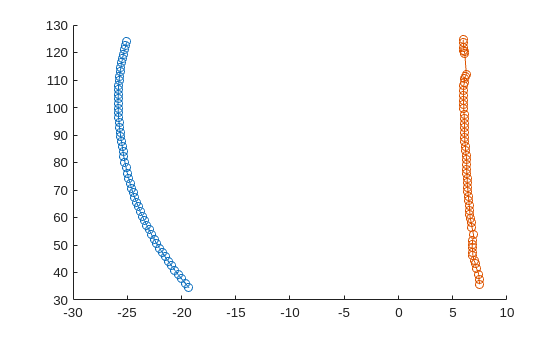
Plot and view the lane boundary segment object lbSeg.
plot(lbSeg)
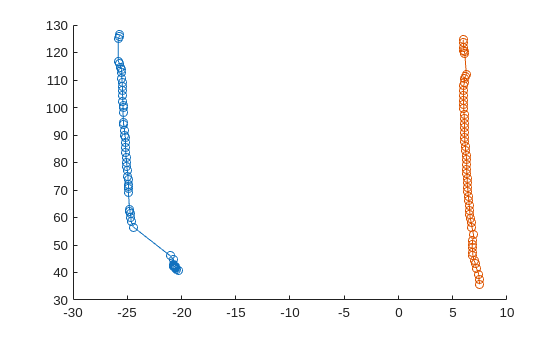
Notice the left boundary is not smooth. Smooth the left lane boundary in the lane boundary segment object, by using the smoothBoundaries object function.
lbSeg = smoothBoundaries(lbSeg,BoundaryIDs="leftBndry",SmoothingFactor=0.9,Degree=2);Plot the smoothed lane boundary points.
plot(lbSeg)
Create RoadRunner HD Map
Create a RoadRunner HD Map from the lane boundary segment object by using the getLanesInRoadRunnerHDMap function.
rrMap = getLanesInRoadRunnerHDMap(lbSeg);
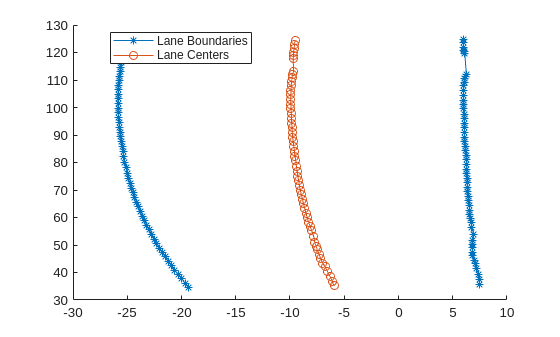
Visualize the HD Map roads.
plot(rrMap)
Write the RoadRunner HD Map to a binary file, which you can import into RoadRunner.
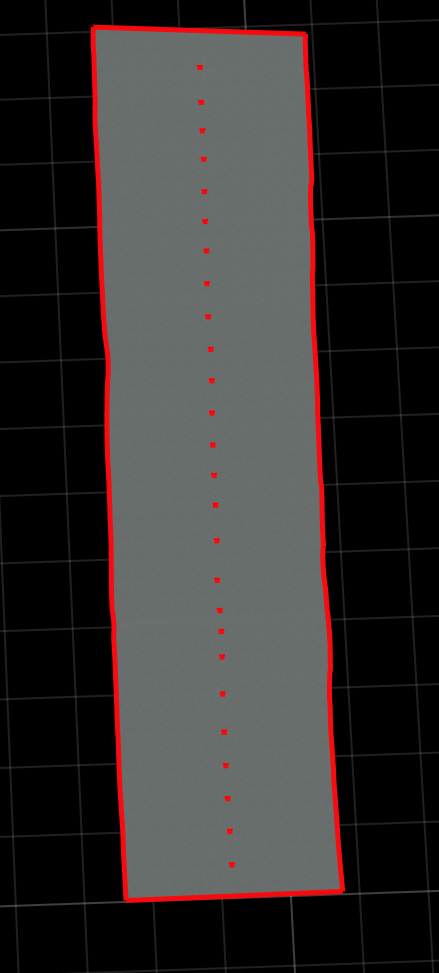
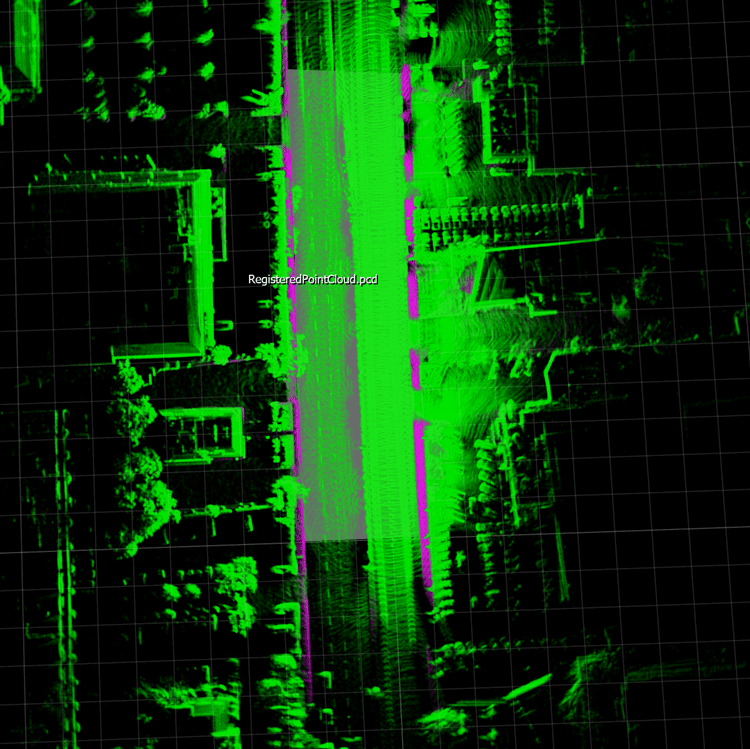
write(rrMap,"RoadRunnerHDMapRoadsFromLidar.rrhd")You can import the RoadRunnerHDMapRoadsFromLidar.rrhd data to RoadRunner and build the scene by using the Scene Builder Tool. For detailed instructions on importing a RoadRunner HD Map file with the .rrhd extension into RoadRunner, previewing the map, and building the scene, see Build Scene (RoadRunner). You can import the registered point cloud PCD file into RoadRunner for visual validation of generated roads with respect to the imported point clouds by using the Point Cloud Tool (RoadRunner).
This figure shows a scene built using RoadRunner Scene Builder and road scene with overlaid point clouds.
Note: Use of the Scene Builder Tool requires a RoadRunner Scene Builder license.
References
[1] Hesai and Scale. PandaSet. Accessed September 18, 2025. https://pandaset.org/. The PandaSet data set is provided under the CC-BY-4.0 license.
See Also
Functions
Topics
- Overview of Scenario Generation from Recorded Sensor Data
- Smooth GPS Waypoints for Ego Localization
- Ego Vehicle Localization Using GPS and IMU Fusion for Scenario Generation
- Extract Vehicle Track List from Recorded Lidar Data for Scenario Generation
- Extract Lane Information from Recorded Camera Data for Scene Generation
- Generate High Definition Scene from Lane Detections and OpenStreetMap
- Generate Scenario from Actor Track Data and GPS Data
- Generate RoadRunner Scenario from Recorded Sensor Data

