Specify Toolbox Settings for Linear Analysis Plots
R2026bYou can configure linear analysis plot settings that persist between MATLAB® sessions.
To open the setting dialog box, at the MATLAB command line, enter the following command.
identpref

Units Settings
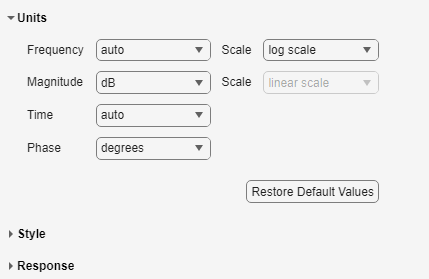
In the Units section configure settings for the following:
Frequency
The default
autooption usesrad/TimeUnitas the frequency units relative to the system time units, whereTimeUnitis the system time units specified in theTimeUnitproperty of the system on frequency-domain plots. For multiple systems with different time units, the units of the first system is used.For the frequency axis, you can select logarithmic or linear scales.
You can also manually select the following frequency units:
Hzrad/srpmkHzMHzGHzrad/nanosecondrad/microsecondrad/millisecondrad/minuterad/hourrad/dayrad/weekrad/monthrad/yearcycles/nanosecondcycles/microsecondcycles/millisecondcycles/hourcycles/daycycles/weekcycles/monthcycles/year
Magnitude
dB— Decibelsabsolute value— Absolute value, which you can plot on a linear or logarithmic scale
Phase — Degrees or radians
Time
The default
autooption uses the time units specified in theTimeUnitproperty of the system on the time- and frequency-domain plots. For multiple systems with different time units, the units of the first system are used.You can also manually select the following time units:
nanosecondsmicrosecondsmillisecondssecondsminuteshoursdaysweeksmonthsyears
Style Settings
In the Style section, you can toggle grid visibility and configure font settings and axes foreground colors for all plots you create.
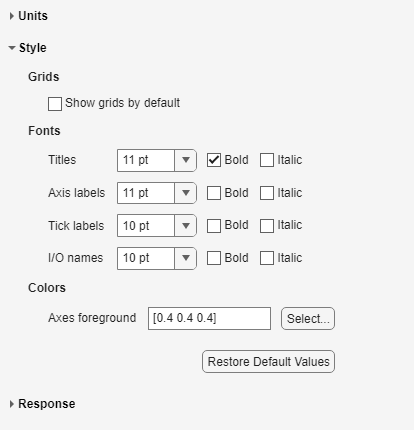
You have the following choices:
Grids — Activate grids by default in new plots.
Fonts — Set the font size, weight (bold), and angle (italic). Select font sizes from the menus or type any font-size values in the fields.
Colors — Specify the color vector to use for the axes foreground, which includes the X-Y axes, grid lines, and tick labels. Use a three-element vector to represent red, green, and blue (RGB) values. Vector element values can range from 0 to 1.
If you do not want to specify RGB values numerically, click Select to open the Color dialog box.
Response Settings
The Response section has selections for time responses and frequency responses.
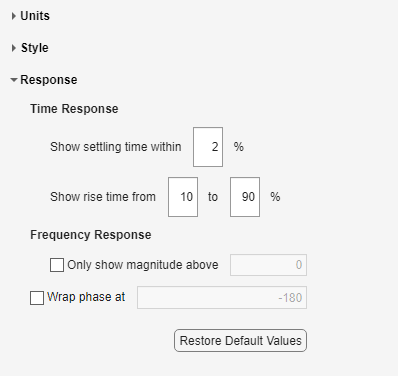
For time response plots, the following options are available:
Show settling time within xx% — Set the threshold of the settling time calculation to any percentage from 0 to 100%. The default is 2%.
Specify rise time from xx% to yy% — The standard definition of rise time is the time it takes the signal to go from 10% to 90% of the final value. Specify any percentages you like (from 0% to 100%), provided that the first value is smaller than the second.
For frequency response plots, the following options are available:
Only show magnitude above — Specify a lower limit for magnitude values in response plots so that you can focus on a region of interest.
Wrap phase at — Wrap the phase into the interval [–180º,180º). To wrap accumulated phase across a different interval, enter the lower limit of the interval in the text box. For example, entering 0 causes the plot to wrap the phase into the interval [0º,360º).

