Segment Hyperspectral Image Using Segment Anything Model in Spectral Image Labeler
R2026bThis example shows how to write a custom automation algorithm for segmenting hyperspectral images and use it in the Spectral Image Labeler app.
In this example, you perform these steps.
Load hyperspectral image data into the Spectral Image Labeler.
Write a custom automation algorithm to perform automatic segmentation of the hyperspectral image using the Segment Anything Model (SAM).
Import the custom automation algorithm into the Spectral Image Labeler.
Segment the hyperspectral image using the custom automation algorithm.
This example requires the Hyperspectral Imaging Library for Image Processing Toolbox™ and Image Processing Toolbox Model for Segment Anything Model support packages. You can install the support packages from the Add-On Explorer. For more information about installing add-ons, see Get and Manage Add-Ons. The Hyperspectral Imaging Library for Image Processing Toolbox requires desktop MATLAB®, as MATLAB® Online™ and MATLAB® Mobile™ do not support the library.
Import Hyperspectral Image into Spectral Image Labeler
Import a hyperspectral image into the workspace as a hypercube object.
filename = "paviaU.dat";
hcube = imhypercube(filename);
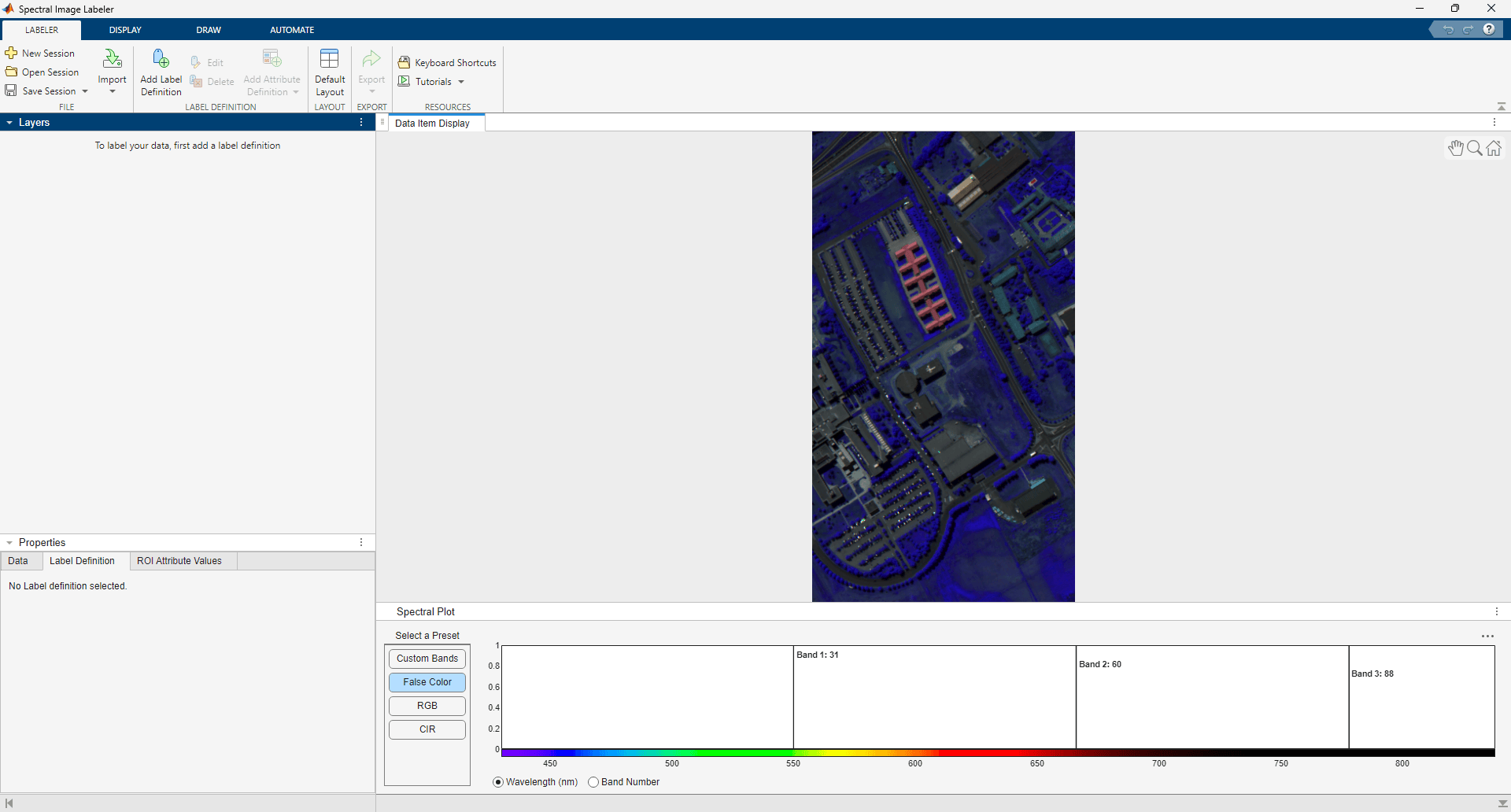
Open the Spectral Image Labeler app and import the hypercube object by performing these steps.
Select the Apps tab on the MATLAB Toolstrip. Then, in the Image Processing and Computer Vision section, select Spectral Image Labeler.
On the Labeler tab of the app toolstrip, select Import, and then under From Workspace, select Spectral Image.
In the dialog box that opens, select the spectral image
hcube.
Alternatively, you can open the Spectral Image Labeler app programmatically, with the spectral image object hcube as the input image.
spectralImageLabeler(hcube)
Define Automation Algorithm
Automation algorithms implement an API that enables the Spectral Image Labeler app to call user-defined algorithms for labeling. This example uses the automation algorithm class AutoSegSAMAlgorithm for labeling regions of interest (ROIs) in the hyperspectral image. The AutoSegSAMAlgorithm automation algorithm class defines the AI-based AutoSegSAM algorithm that performs automatic segmentation of the hyperspectral image using the Segment Anything Model (SAM). The automation algorithm class AutoSegSAMAlgorithm is attached to this example as a supporting file.
Create a +hyperspectral/+labeler/ folder within the current working folder. Copy the automation algorithm class file AutoSegSAMAlgorithm.m to the folder +hyperspectral/+labeler.
exampleFolder = pwd;
automationFolder = fullfile("+hyperspectral","+labeler");
if ~exist(automationFolder,"dir")
    mkdir(exampleFolder,automationFolder)
end
copyfile("AutoSegSAMAlgorithm.m",automationFolder)
To define and use your own custom automation algorithm in the Spectral Image Labeler app, perform these steps.
On the Automate tab of the app toolstrip, select Add Algorithm, then select Create New Algorithm.
In the automation algorithm class template that opens, define your custom automation algorithm.
Save the automation algorithm class file in a
+hyperspectral/+labeler/folder on the MATLAB path.
These are the key components of the automation algorithm class.
Properties — Define constant and user-defined properties.
The constructor method — Initialize your custom automation algorithm.
The
settingsDialogmethod — Define a custom dialog box that enables you to configure algorithm parameters.The
runmethod — Execute your custom automation algorithm.
Properties
Define these constant properties.
Name— Name of the automation algorithm, specified as a character vector. The algorithm is listed by this name in the Algorithms section of the Automate tab.Description— Description of the automation algorithm, specified as a character vector. You can see this description when you pause on the algorithm in the Algorithms section.SupportsHypercube— Whether the algorithm supportshypercubeobjects as input, specified as a logical scalar.SupportsMulticube— Whether the algorithm supportsmulticubeobjects as input, specified as a logical scalar.Instruction— Algorithm instructions, specified as a cell array of character vectors. When you select the automation algorithm, you can see the instructions by selecting Algorithm Instruction on the Automate tab.
properties (Constant)

    % Algorithm name
    Name = 'AI: AutoSegSAM';

    % Algorithm Description
    Description = 'Performs automatic segmentation on the hyperspectral image using the Segment Anything Model.'

    % Does this algorithm support hypercube input
    SupportsHypercube = true;

    % Does this algorithm support multicube input
    SupportsMulticube = false;

    % Algorithm Instruction
    Instruction = [{'The AI: AutoSegSAM algorithm performs automatic segmentation on the hyperspectral image using the Segment Anything Model.'}, ...
                   {'Configure Parameters: Select Algorithm Parameters in the toolstrip to choose the color view to used as the input and adjust the parameters of the SAM Model.'}, ...
                   {'Run Segmentation: Select Run in the toolstrip, to segment the image and generate labels.'}, ...
                   {'Edit & Undo: In the Label Tree, edit or rename the generated labels and ROIs. To revert the changes, select Undo Run in the toolstrip.'}];
end
You can also define custom properties required for the custom automation algorithm.
properties

    % Visualization-related properties
    ColorView
    CustomBands

    % Parameter-related properties
    PointGridSize1D
    NumCropLevels
    PointBatchSize
    PointGridDownscaleFactor
    ScoreThreshold
    SelectStrongestThreshold
    MinObjectAreaFraction
    MaxObjectAreaFraction

end
The Constructor Method
The constructor method runs only once, when you select the automation algorithm from the Algorithms section of the Automate tab. You can add initialization steps to this function. Rename the constructor method AutomationAlgorithm in the template to match the name of your custom class. The automation algorithm in this example does not need any initialization.
The settingsDialog Method
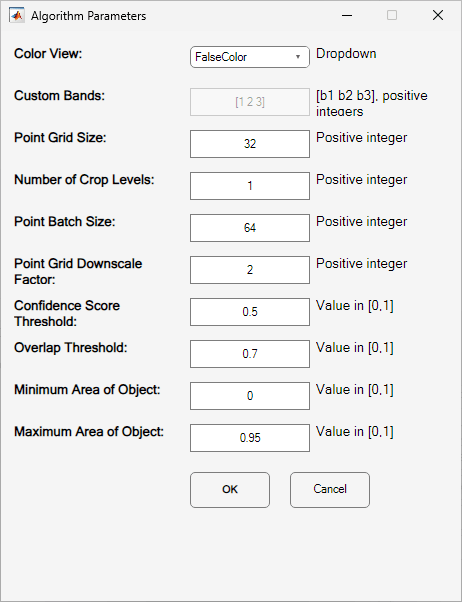
The settingsDialog method launches a custom dialog box that enables you to configure algorithm parameters. In this example, The settingsDialog method uses the AutoSegSAMSettings class to create the custom dialog box design. The AutoSegSAMSettings class is attached to this example as a supporting file. Ensure this file remains in the current working folder while running this example. Use the dialog box to configure these algorithm parameters.
Color View — The Segment Anything Model works on grayscale or RGB images. This example uses the
imsegsamfunction that segments an image using SAM. Choose the three-channel color view of the hyperspectral image for the model to use as the input. You can select one of these color views.FalseColor— Uses the three most informative bands of the hyperspectral image.RGB— Uses the RGB color view.CIR— Uses the CIR color view.CustomBands— Uses user-defined custom bands.
Custom Bands — Set Color View to
CustomBandsto this input. Specify custom bands as a 1-by-3 vector of band numbers.Point Grid Size — Because this example uses the same number of grid points in the horizontal and vertical directions, you can specify the number of grid points along just one direction. Increase the value for a more precise segmentation at the cost of additional processing time.
Number of Crop Levels — To improve the quality of smaller masks, increase the number of crop levels.
Point Batch Size — Increase the batch size to improve processing speed at the expense of higher memory usage.
Point Grid Downscale Factor — For a crop level, n, the
imsegsamfunction scales down the point grid size value by a factor of DF raised to the power (n – 1), where DF is the downscale factor specified by this parameter. If you specify Number of Crop Levels as a value greater than 1, you can specify a higher point grid downscale factor value to decrease computation time.Confidence Score Threshold — Increase this value to reduce the number of false positives, at the possible expense of missing some true positives.
Overlap Threshold — When the overlap proportion between two object segmentations is above this value, the function removes the overlapping segmentation with the lower confidence score. Decrease the threshold to reduce the number of overlapping segmentations. However, decreasing the threshold too much can eliminate segmentations with only minor overlap in the image.
Minimum Area of Object — Specify the minimum object area to segment as a fraction of the total image area.
Maximum Area of Object — Specify the maximum object area to segment as a fraction of the total image area.
function settingsDialog(algObj)

    dlg = AutoSegSAMSettings;
    waitfor(dlg.UIFigure);

    algObj.ColorView = dlg.ColorView;
    algObj.CustomBands = dlg.CustomBands;
    algObj.PointGridSize1D = dlg.PointGridSize1D;
    algObj.NumCropLevels = dlg.NumCropLevels;
    algObj.PointBatchSize = dlg.PointBatchSize;
    algObj.PointGridDownscaleFactor = dlg.PointGridDownscaleFactor;
    algObj.ScoreThreshold = dlg.ScoreThreshold;
    algObj.SelectStrongestThreshold = dlg.SelectStrongestThreshold;
    algObj.MinObjectAreaFraction = dlg.MinObjectAreaFraction;
    algObj.MaxObjectAreaFraction = dlg.MaxObjectAreaFraction;

end
The run Method
The run method of the automation algorithm loads the spectral image, runs the automation algorithm, and returns a label matrix. In this example, the run method creates a three-channel image from the hyperspectral image based on the configured color view, and then segments the three-channel image by using the imsegsam function with the chosen algorithm parameters.
function labels = run(algObj,spcube)

    switch algObj.ColorView
        case 'FalseColor'
            img = colorize(spcube,Method="falsecolored",ContrastStretching=true);
        case 'RGB'
            img = colorize(spcube,Method="rgb",ContrastStretching=true);
        case 'CIR'
            img = colorize(spcube,Method="cir",ContrastStretching=true);
        case 'CustomBands'
            newspcube = selectBands(spcube,BandNumber=algObj.CustomBands);
            img = gather(newspcube);
    end

    img = rescale(img);
    img = im2uint8(img);
    [masks,scores] = imsegsam(img, ...
                       ModelName="sam-base", ...
                       PointGridSize=[algObj.PointGridSize1D algObj.PointGridSize1D], ...
                       NumCropLevels=algObj.NumCropLevels, ...
                       PointBatchSize=algObj.PointBatchSize, ...
                       PointGridDownscaleFactor=algObj.PointGridDownscaleFactor, ...
                       ScoreThreshold=algObj.ScoreThreshold, ...
                       SelectStrongestThreshold=algObj.SelectStrongestThreshold, ...
                       MinObjectArea=algObj.MinObjectAreaFraction*size(img,1)*size(img,2), ...
                       MaxObjectArea=algObj.MaxObjectAreaFraction*size(img,1)*size(img,2));
    labels = labelmatrix(masks);

end
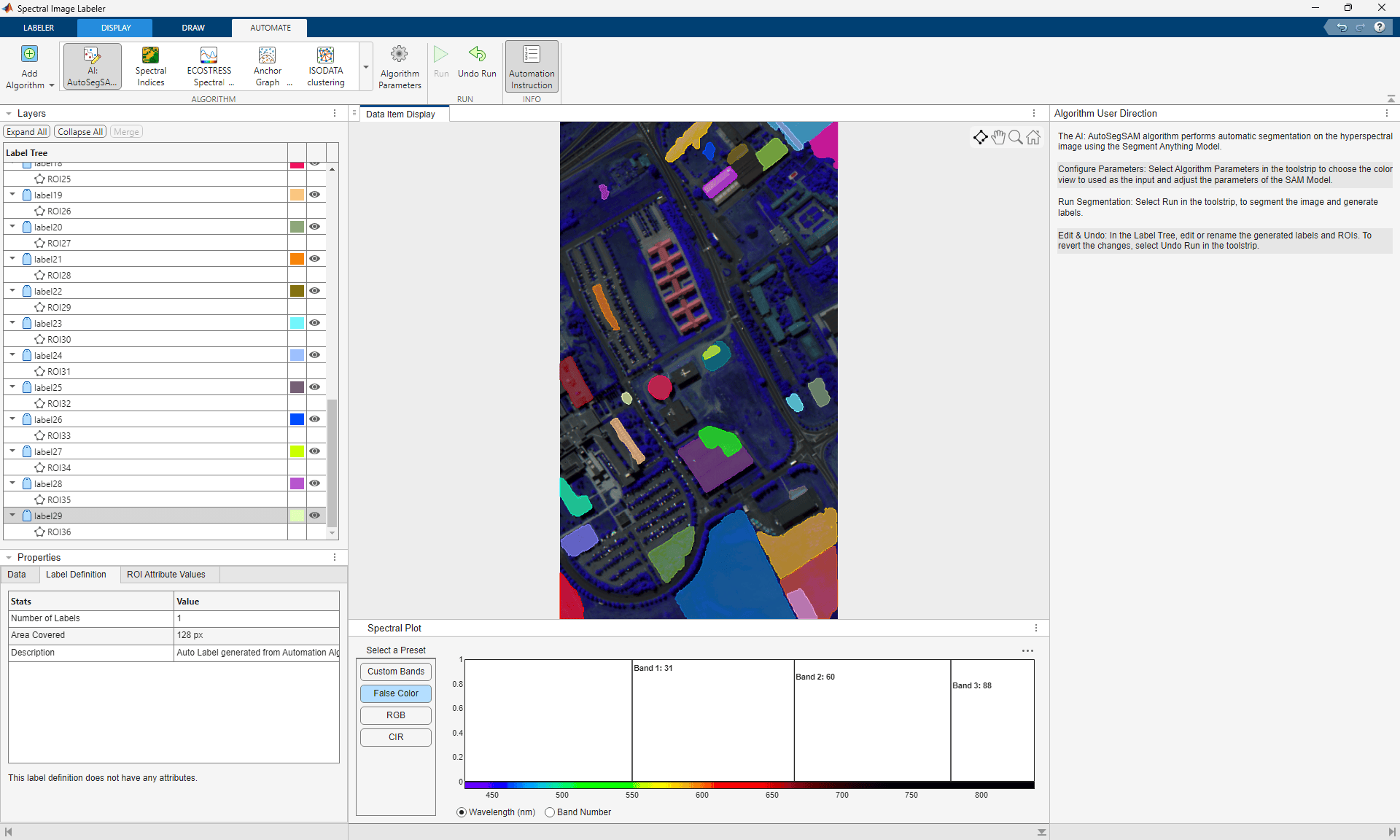
Import, Configure, and Run Automation Algorithm
Import the automation algorithm into the Spectral Image Labeler app using one of these options.
If the
+hyperspectral/+labelerfolder containing the automation algorithm class file is already on the MATLAB path, select Add Algorithm on the Automate tab of the app toolstrip, then select Refresh List. The app adds the custom automation algorithm to the Algorithms section of the toolstrip.If the
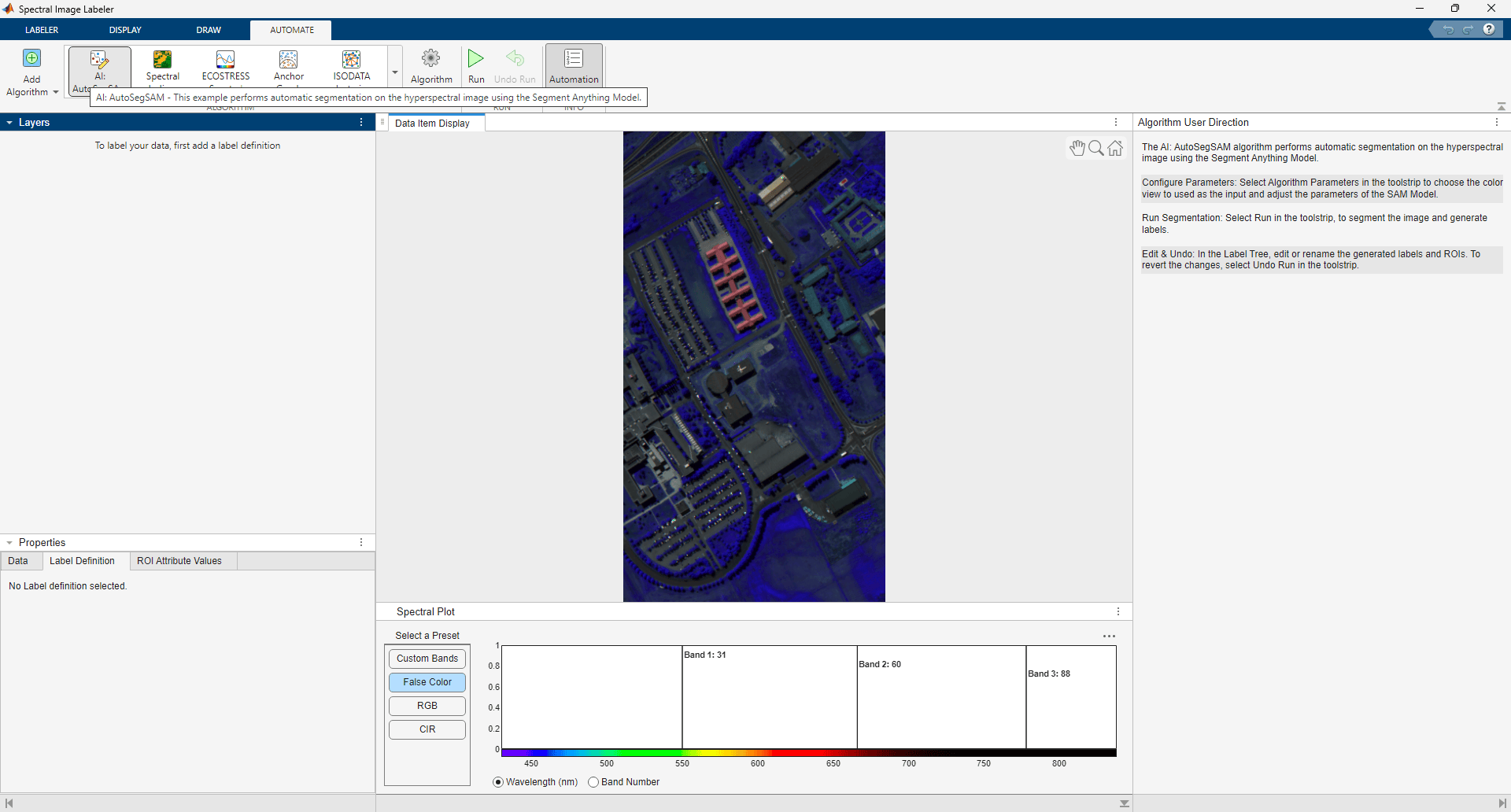
+hyperspectral/+labelerfolder containing the automation algorithm class file is not on the MATLAB path, select Add Algorithm, then select Import Algorithm. Navigate to the+hyperspectral/+labelerfolder in the current working folder and chooseAutoSegSAMAlgorithm.mfrom the file selection dialog box. The app adds the custom automation algorithm to the Algorithms section of the toolstrip.
Configure the automation algorithm by performing these steps.
In the Algorithms section, of the Automate tab, select the custom algorithm AI: AutoSegSAM.
On the Automate tab, select Algorithm Parameters. This opens the settings dialog box created using the
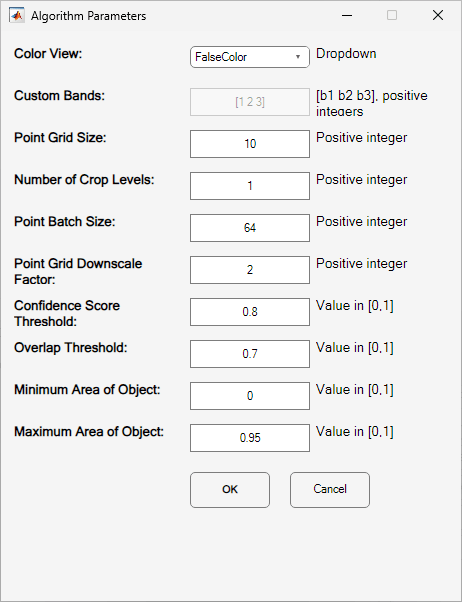
settingsDialogmethod in the automation algorithm. Use the settings dialog box to configure the algorithm. In this example, you can use the settings dialog box to choose the three-channel color view for the Segment Anything Model to use as its input and specify other parameters of the Segment Anything Model.
Run the configured automation algorithm by performing these steps.
On the Automate tab, select Run.
Review the automation results.
In the Label Tree, edit or rename the generated labels and ROIs.
To revert the changes, select Undo Run on the Automate tab.
Export Ground Truth Labels
Export the label data for the hyperspectral image to the workspace by performing these steps.
On the Labeler tab, select Export, and then, under Labels, select To Workspace.
In the dialog box that opens, specify the name of the variable to which you want to save the ground truth data as a
groundTruthSpectralImageobject.
You can use the exported ground truth in downstream tasks, such as for pixel classification and semantic segmentation applications or for verifying the results of hyperspectral image processing algorithms.

