Code Quality Dashboard
R2026bDescription
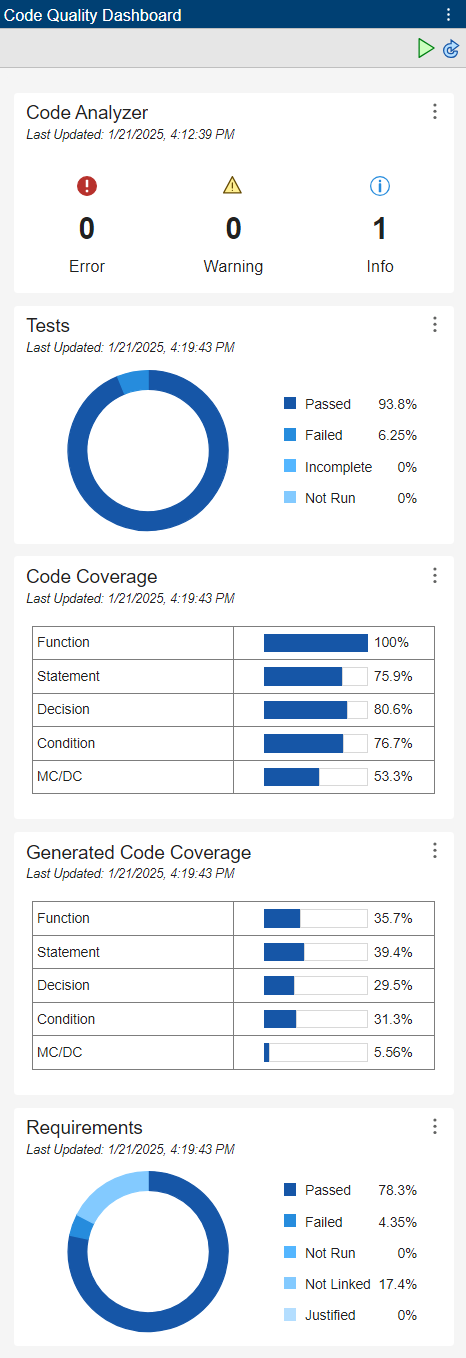
Use the Code Quality Dashboard to view project quality metrics, including code issues, test and code coverage results, and the requirements verification status.
The Code Quality Dashboard contains these sections:
The Code Issues section displays a summary of MATLAB® Code Analyzer report.
The Tests section displays a summary of test results.
The MATLAB Code Coverage section displays code coverage for the MATLAB source code.
The Generated Code Coverage section displays code coverage for generated C/C++ code when you run SIL and PIL equivalence tests. (since R2024b)
The Requirements section displays the verification status of requirements.
To update the metrics, click the Run button  . If you run tests from the MATLAB Test Manager or
change files in the project, the metrics in the Code Quality Dashboard become out of date. To
update the dashboard, click Refresh Metrics in the banner.
. If you run tests from the MATLAB Test Manager or
change files in the project, the metrics in the Code Quality Dashboard become out of date. To
update the dashboard, click Refresh Metrics in the banner.
Open the Code Quality Dashboard App
Open a project, then use one of these approaches to open the app:
MATLAB Toolstrip: In the Project tab, in the Tools menu, under Apps, click Code Quality Dashboard.
MATLAB command prompt: Enter
codeQualityDashboard.Test Browser: Click the Code Quality Dashboard icon
 in the toolbar. (since R2026b)
Examples
Since R2023a
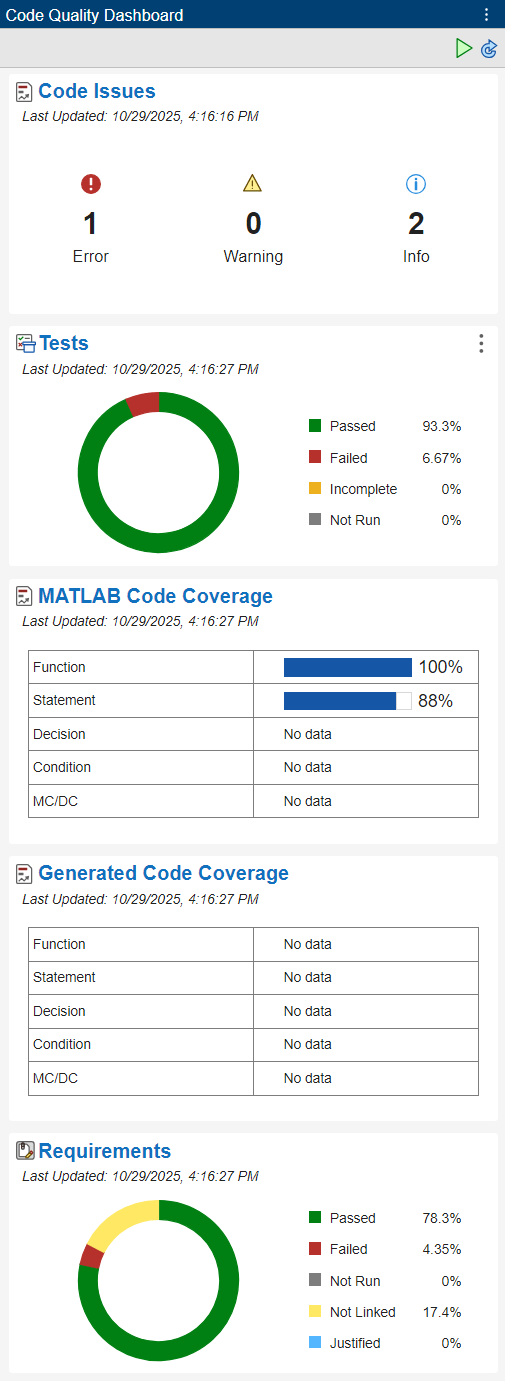
This example shows how to collect test and requirements metric results and reflect the results in the Code Quality Dashboard.
Open the MATLABShortestPath project.
openProject("MATLABShortestPath");Open the Code Quality Dashboard.
codeQualityDashboard
Run the tests in the project by clicking the Run button  .
.
Since R2023a
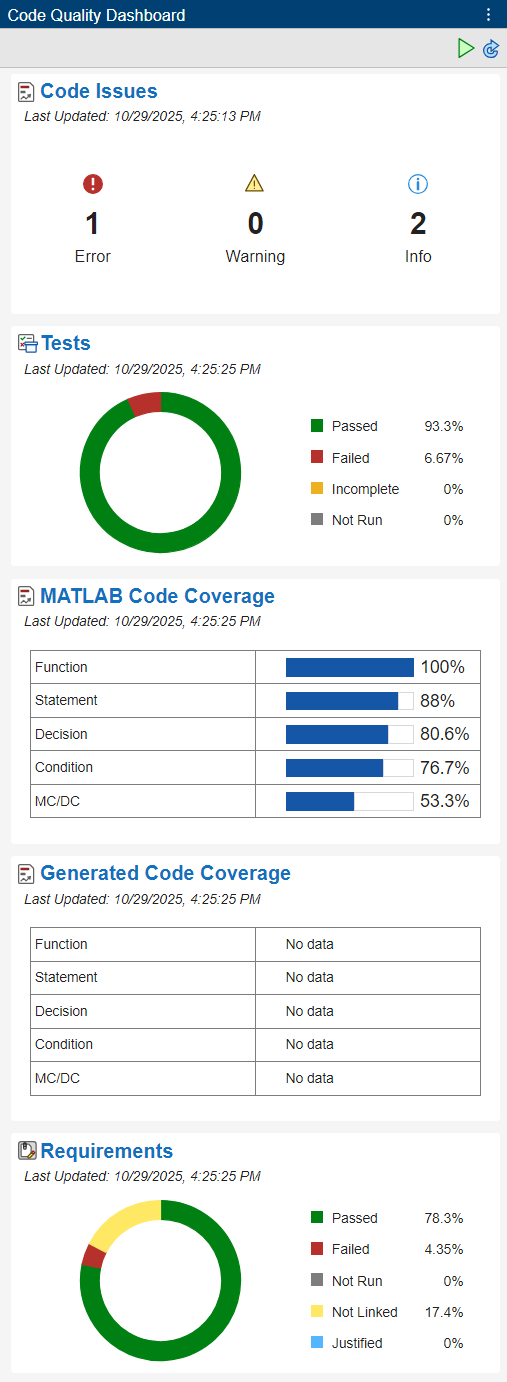
This example shows how to collect MATLAB coverage metric results and display the results in the Code Quality Dashboard.
Open the MATLABShortestPath project.
openProject("MATLABShortestPath");Open the MATLAB Test Manager.
matlabTestManager
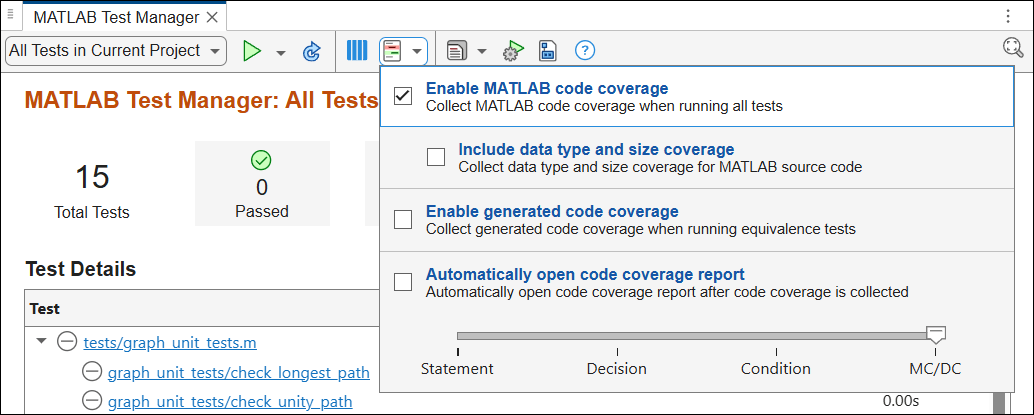
In the toolstrip, click the Coverage Settings button  , and select Enable MATLAB code coverage. By default, the metrics slider is set to
 MC/DC, which includes all structural coverage metrics.
Open the Code Quality Dashboard.
codeQualityDashboard
Run tests and collect coverage by clicking the Run button  .
.
Since R2024a
This example shows how to update, get, and export metrics from the Code Quality Dashboard.
Open the ShortestPath project.
openProject("MATLABShortestPath");Open the Code Quality Dashboard.
codeQualityDashboard
Run the tests in the project, collect coverage for the tests, verify the requirements, and update the metrics in the dashboard.
matlabtest.codequalitydashboard.runTestsAndRefreshData
pathLength =
3
Get the metrics from the Code Quality Dashboard.
metrics = matlabtest.codequalitydashboard.getMetrics
metrics = struct with fields:
    ProjectPath: "C:/Users/user/OneDrive - MathWorks/Documents/MATLAB/ExampleManager/user.examples/matlabtest-ex46234077/MATLABShortestPath"
        Metrics: [1×1 struct]
Export the metrics to a JSON file.
filePath = matlabtest.codequalitydashboard.exportMetrics
filePath =
"C:\Users\user\OneDrive - MathWorks\Documents\MATLAB\ExampleManager\user.examples\matlabtest-ex46234077\MATLABShortestPath\CodeQualityMetrics.json"
Since R2024b
If you have Requirements Toolbox™, you can open the requirement sets in the current project in the Requirements Editor (Requirements Toolbox).
To open the requirement sets, open the Code Quality Dashboard and click the Requirements section title.
If you have loaded requirement sets that are not in the current project, a dialog box prompts you to save and close them.
The Requirements Editor (Requirements Toolbox) opens and displays the loaded requirement sets.
Since R2024b
If you have Requirements Toolbox, you can generate a traceability matrix that contains the requirement sets and MATLAB tests in the current project.
To generate the traceability matrix, open the Code Quality Dashboard.
Then, in the Requirements section, click the three-dot icon
 and select Generate Traceability
Matrix.
and select Generate Traceability
Matrix.
If you have loaded requirement sets that are not in the current project, a dialog box prompts you to save and close them.
The Traceability Matrix window opens and displays the loaded requirement sets on the top and the tests on the left.
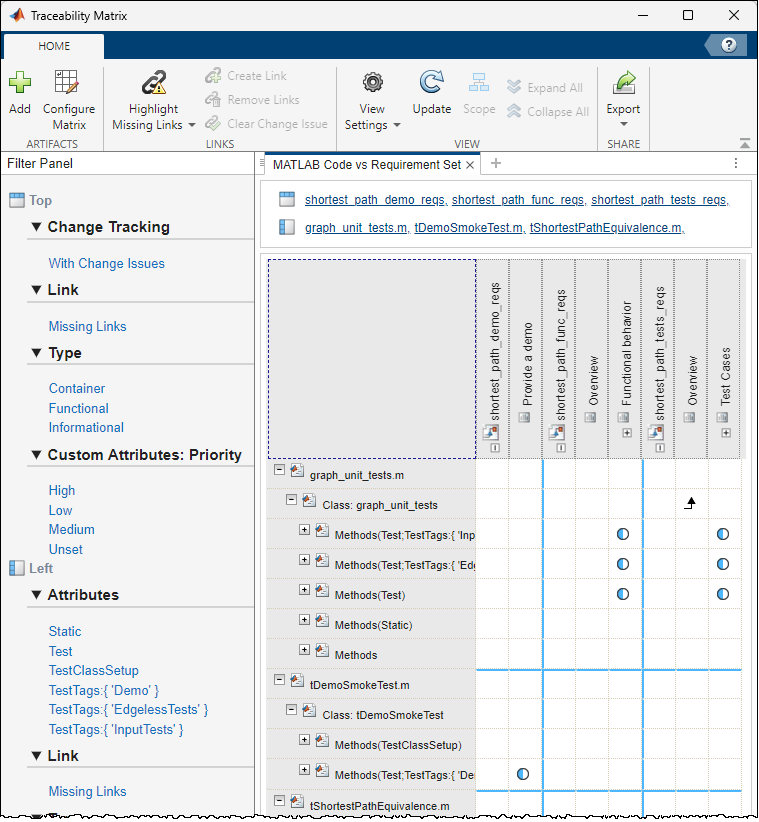
For more information about traceability matrices, see Track Requirement Links with a Traceability Matrix (Requirements Toolbox).
Version History
Introduced in R2023aYou can open the Code Quality Dashboard from the Test Browser by
clicking the Code Quality Dashboard icon in the toolbar. You must have an open project.
If you have Requirements Toolbox, you can generate a traceability matrix that contains the requirement sets and
MATLAB tests in the current project. In the dashboard, in the
Requirements section, click the three-dot icon
and select Generate Traceability
Matrix.
Run tests by using the Run button . Stop the tests from running to completion by clicking the
Stop button  .
.

