Qualify Changes by Comparing Previous Runs in the MATLAB Test Manager
R2026bQualifying changes can help you avoid introducing regressions into your code base. You can qualify changes to code in MATLAB® by using the MATLAB Test Manager. Use the MATLAB Test Manager to capture the current state of your tests and coverage and compare them to the results in prior test runs.
Generate Test Results
To capture the current state of test and coverage results:
Select the tests that you want to run by clicking the drop-down menu to the left of the Run button
 and selecting
All Tests in Current
                            Project
or a custom test suite. For more information about test suites, see Create, Manage, and Run Test Suites.Enable coverage and select the desired code coverage metrics to collect. For more information, see Collect Code Coverage.
Customize the test run with your desired settings for strict checks, output detail, and logging level. For more information, see Customize Test Run.
Run the tests by clicking the Run button
.
Running the tests in the MATLAB Test Manager overwrites the current results. To rerun tests without overwriting the current results, run the tests by using the Test Browser. Alternatively, save the current test results by exporting them to a JSON file, and then import the results. For more information, see Import and Export Test Runs from MATLAB Test Manager.
View Previous Test Runs
Next, open the test results from a previous run. To view a previous run in the
MATLAB Test Manager, click the drop-down menu to the left of the Run
button and, under Previous Runs, select
the run. The MATLAB Test Manager stores the five most recent test
runs.
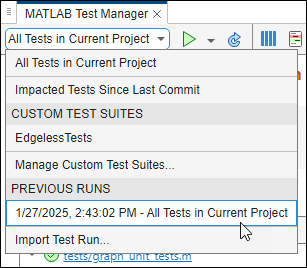
When you select a previous run, the MATLAB Test Manager displays the test suite, the results, and the date and time when the suite ran.

You can also rerun tests from previous runs (since R2026a). To
rerun tests from a previous run, open the run in the MATLAB Test Manager and
click the Run button . When you rerun a test, the test uses latest test
code in your test files. After rerunning the tests, the current results update.
Compare Results by Generating Reports
To compare the results between test runs, generate reports for each test run and
manually compare the results. To generate reports, open the run from the drop-down and
click the Report button  . You can generate these reports:
Test Result Reports — The test details of the run, such as the number of tests that passed and the tests that passed or failed.
MATLAB Code Coverage Reports — The MATLAB code coverage of the test run. This option is available only if you ran the tests with coverage enabled. Alternatively, you can view a summary of the coverage results for the previous run by pointing to the Statement button. Clicking the Statement button also generates the coverage report.
Generated Code Coverage Reports — The generated code coverage for the equivalence tests that generated C/C++ code as a static library and executed in SIL or PIL mode
Tip
To establish consistency in the test and coverage results between runs, run the tests in the same test suite with the same coverage metrics and customizations as your prior runs.

