Format Output
R2026bMATLAB® displays output in both the Command Window and the Live Editor. You can format the output display using several provided options.
Format Line Spacing in Command Window Output
By default, MATLAB displays blank lines in Command Window output.
You can select one of two line spacing options in MATLAB.
loose— Keeps the display of blank lines (default).>> x = [4/3 1.2345e-6] x = 1.3333 0.0000compact— Suppresses the display of blank lines.>> x = [4/3 1.2345e-6] x = 1.3333 0.0000
To change the line spacing option, do one of the following:
On the Home tab, in the Environment section, click Settings. Select MATLAB > Command Window, and then choose a Line spacing option.
Use the
formatfunction at the command line, for example:format loose format compact
Format Floating-Point Numbers
You can change the way numbers display in both the Command Window and the Live Editor. By default, MATLAB uses the short format (5-digit scaled, fixed-point values).
For example, suppose that you enter x = [4/3 1.2345e-6] in the
Command Window. The MATLAB output display depends on the format you selected. This table shows
some of the available numeric display formats and their corresponding output.
| Numeric Display Format | Example Output |
|---|---|
|
|
|
|
|
|
|
|
Note
The text display format affects only how numbers are shown, not how MATLAB computes or saves them.
To format the way numbers display, do one of the following:
Wrap Lines of Code to Fit Command Window Width
A line of code or its output can exceed the width of the Command Window, requiring you to use the horizontal scroll bar to view the entire line. To break a single line of input or output into multiple lines to fit within the current width of the Command Window:
On the Home tab, in the Environment section, click Settings. Select MATLAB > Command Window.
Select Wrap Lines.
Click OK.
Suppress Output
To suppress code output, add a semicolon (;) to the end of a command. This is useful when code generates large matrices.
Running the following code creates A but does not show the
resulting matrix in the Command Window or the Live
Editor:
A = magic(100);
Show Enhanced Output in Command Window
Since R2026b
By default, MATLAB displays enhanced output in the Command Window. Enhanced output includes truncated large two-dimensional numeric matrices and rendered Markdown text.
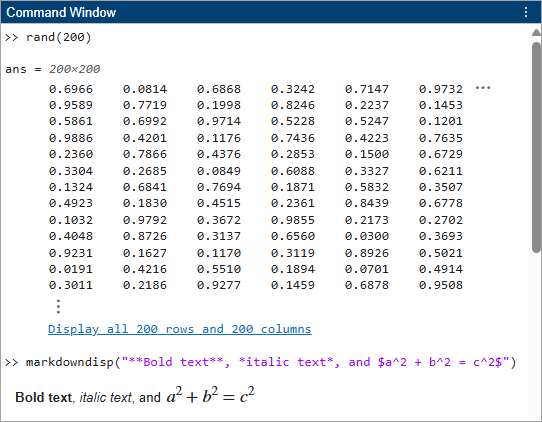
To disable enhanced output, on the Home tab, in the Environment section, click Settings. Select MATLAB > Command Window, and then clear the Show enhanced output (truncate matrix, render Markdown) option.
When you disable enhanced output, all values in large two-dimensional numeric
matrices are displayed and Markdown syntax is shown as plain text. Enhanced output
in the Command Window is automatically disabled when you enable logging with the
diary function.
View Output by Page in Command Window
Output in the Command Window might exceed the visible portion of the window. You can view the output, one screen at a time:
In the Command Window, type
more onto enable paged output.Type the command that generates large output.
View the output:
Advance to the next line by pressing Enter.
Advance to the next page by pressing Space Bar.
Stop displaying the output by pressing q.
To disable paged output, type more off.
Clear the Command Window
If the Command Window seems cluttered, you can clear all the text (without clearing the workspace) by doing one of the following:
On the Home tab, in the Code section, select Clear Commands > Command Window to clear the Command Window scroll buffer.
Use the
clcfunction to clear the Command Window scroll buffer.Use the
homefunction to clear your current view of the Command Window, without clearing the scroll buffer.

