Insert Test Code Using Editor
R2026bMATLAB® lets you create and run test classes interactively. You can create a test class from a template and then use the code insertion options on the MATLAB Toolstrip to add tests to the test class. You can also add setup code for individual tests or for the entire test class.
This example shows how to use the MATLAB Editor to create and run parameterized tests for a function. To set up
the example, define the cleanData function in a file named
cleanData.m in your current folder. The function accepts a
numeric array and returns a cleaned and sorted version of the array. It vectorizes
the array, removes the NaN, 0, and
Inf entries, and finally sorts the
vector.
function y = cleanData(X)
y = X(:);         % Vectorize the array
y = rmmissing(y); % Remove NaN entries
% Remove 0 and Inf entries
idx = (y == 0 | y == Inf);
y = y(~idx);
% If the vector is empty, set it to eps
if isempty(y)
    y = eps;
end
y = sort(y);      % Sort the vector
end
Create Test Class
To test the cleanData function, create a test class from a
template. On the Editor tab, select New > Test Class. This code shows the generated code in the Editor.
classdef untitled < matlab.unittest.TestCase

    methods (Test)
        % Test methods

        function unimplementedTest(testCase)
            testCase.verifyFail("Unimplemented test");
        end
    end

end
Because this example is based on parameterized tests, delete the included
Test method in the test class. Then, name the test class
CleanDataTest, and save it in a file named
CleanDataTest.m in your current folder.
classdef CleanDataTest < matlab.unittest.TestCase

    methods (Test)

    end

end
Add Tests To Test Class
With a test class definition file open, you can use the Test section on the Editor tab to add code to the test class. The added code serves as a starting point for your own implementation.
To add a basic (nonparameterized) test, click Insert Test . To add parameterized tests, select Insert Test > Parameterized Test. For more information about parameterized tests, see Use Parameters in Class-Based Tests.
To add setup code for your tests, click Insert Setup and select from the available options. The options let you add setup code for individual tests or for the entire test class. For more information about setup and teardown code, see Write Setup and Teardown Code Using Classes.
When you insert code, the code is added to a methods or
properties block with the appropriate attribute. For example,
if you choose to insert code to run before each test, MATLAB adds a method to a methods block with the
TestMethodSetup attribute. If the block does not exist,
MATLAB creates it.
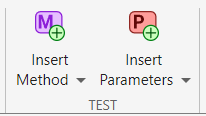
Before R2026b: Insert test code by clicking Insert Method and Insert Parameters.
Test for Sorted Data
To test if the cleanData function correctly sorts data in
different scenarios, include parameterized tests in the
CleanDataTest class. With the test class code visible in the
Editor, go to the Editor tab and in the
Test section, select Insert Test > Parameterized Test. MATLAB adds a property in a properties block with the
TestParameter attribute as well as a parameterized
method, tied to the added property, in the methods block with
the Test attribute.
classdef CleanDataTest < matlab.unittest.TestCase

    properties (TestParameter)
        testParameter1 = struct("scalar",1,"vector",[1 1]);
    end

    methods (Test)

        function test1(testCase,testParameter1)

        end

    end

end
The added property and method serve as a starting point for writing your own code. To test for sorted data, follow these steps:
Rename the property as
dataand initialize it using a structure with four fields. The testing framework generates parameter names and values from the property value.Rename the method as
sortTestand update its second input to match the new property name.Add code to the method to verify that the
cleanDatafunction correctly sorts the array passed to it.
classdef CleanDataTest < matlab.unittest.TestCase

    properties (TestParameter)
        data = struct("empty",[],"scalar",0, ...
            "vector",[13 NaN 0],"matrix",[NaN 2 0; 1 Inf 3])
    end

    methods (Test)

        function sortTest(testCase,data)
            actual = cleanData(data);
            testCase.verifyTrue(issorted(actual))
        end
    end

end
Test for Nonempty Values
To test if the cleanData function returns a nonempty
value in different scenarios, include another set of parameterized tests in the
test class by selecting Insert Test > Parameterized Test. Then, follow these steps:
Delete the newly added parameterization property, which is not needed.
Rename the newly added method as
nonemptyTestand update its second input to match the existing property name.Add code to the
nonemptyTestmethod to verify that thecleanDatafunction returns a nonempty value.
Save the file. This code provides the complete contents of the
CleanDataTest class.
classdef CleanDataTest < matlab.unittest.TestCase

    properties (TestParameter)
        data = struct("empty",[],"scalar",0, ...
            "vector",[13 NaN 0],"matrix",[NaN 2 0; 1 Inf 3])
    end

    methods (Test)

        function sortTest(testCase,data)
            actual = cleanData(data);
            testCase.verifyTrue(issorted(actual))
        end

        function nonemptyTest(testCase,data)
            actual = cleanData(data);
            testCase.verifyNotEmpty(actual)
        end
    end

end
Run Tests in Test Class
You can run the tests in the CleanDataTest class interactively in
the Editor or in the Test
Browser app. For example, with the test class code visible in the Editor,
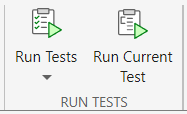
go to the Editor tab and in the Run Tests
section, click Run Tests
. In this example, all the tests pass.
For more information on how to run tests and customize your test run interactively, see Run Tests in Editor and Run Tests Using Test Browser.

