Live Code File Formats
R2026bMATLAB® saves live scripts using the plain text live code file format
(.m) by default. This format supports all live script features
while enabling editing in external tools and integration with source control. You also
can save live scripts using the binary live code file format (.mlx),
which stores content in a binary structure designed for use in MATLAB.
Plain Text Live Code File Format (.m)
Since R2025a
The plain text live code file format is based on the standard MATLAB code file format (.m) and supports all live script
features, including output, formatted text, interactive controls, and tasks.
Saving live scripts using the default plain text file format has several advantages:
Open files in external editors — Open live scripts in any external text or code editor that supports plain text.
Review file contents directly — File contents are readable as text, except for images and plots, which are saved as Base64 (ASCII-binary) strings in the plain text file.
Use source control tools — Compare and merge live scripts using external source control tools.
Work with Plain Text Live Code Files
When you open a live script saved using the plain text file format,
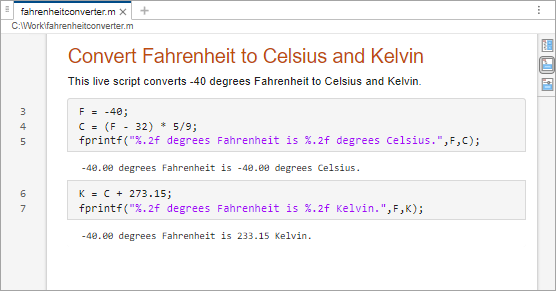
MATLAB displays the formatted content. For example, when you open the
plain text live script fahrenheitconverter.m, MATLAB displays the title, formatted text, equations, interactive
control, code, and output. Notice that in
fahrenheitconverter.m, the line number for the first code
line is 5. The reason is that in live scripts saved using the plain text file
format, each line of text accounts for one or more code lines in the saved
file.
To open the live script as a text file, right-click the file in the Files panel and select Open as Text. Editing a live script as a text file can prevent it from opening correctly if the markup structure becomes invalid.
Structure of Plain Text Live Code Files
The plain text live code file format uses custom markup to store code, text, images, and other live script content as plain text.
The markup appears in two places in the live script file, inline with the code and at the end of the file in an appendix:
Inline markup — The plain text live code file format uses inline markup to store text items, such as formatted text, tables, equations, and hyperlinks. The format saves text lines as code comments, and each line of text can correspond to one or more code lines in the file. As a result, you cannot insert text between code statements that span multiple lines.
Appendix — The plain text live code file format uses a single appendix at the end of the file to store content that does not fit inline, including:
Large amounts of data that cannot be stored inline
File information that is not associated with a specific line
For features that cannot be represented entirely with inline markup, the plain text live code file format uses reference IDs to link inline markup to corresponding data in the appendix. When merging live scripts, ensure that these reference IDs remain consistent between the inline content and the appendix.
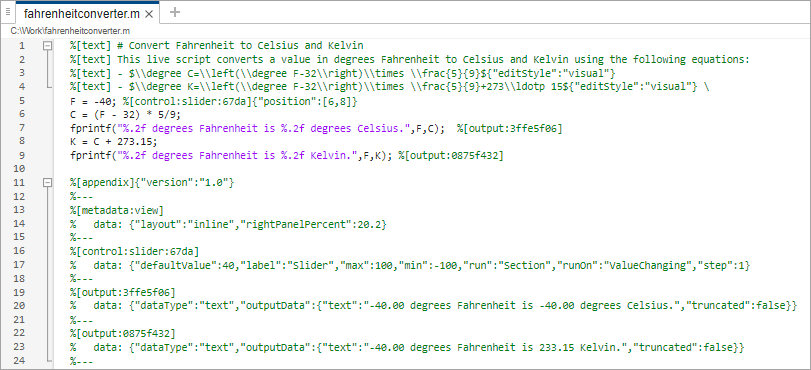
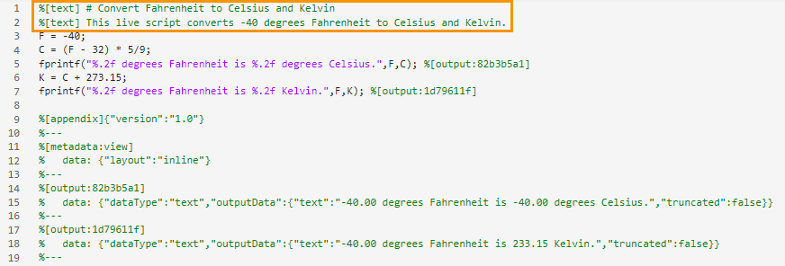
For example, in the file fahrenheitconverter.m, lines 1
through 4 contain markup for a title and text line, and lines 11 through 24
contain the appendix. The appendix stores the current view of the live script
and the data for the two outputs that the script generates. Line 7 contains
inline markup for an output with the reference ID 3ffe5f06.
The corresponding output data appears in the appendix on lines 19 through 21,
where it uses the same reference ID.
Markup Details
In live scripts saved using the plain text live code file format, the Live
Editor stores custom markup as comments. It uses a syntax based on Markdown for
text content, such as formatted text, tables, images, and hyperlinks, and LaTeX
commands for equations. Any line that does not begin with markup, including
blank lines, is treated as code. Because blank lines are interpreted as empty
code statements, do not insert them between markup lines. The only exception is
a single blank line immediately before the %[appendix]
marker, which separates code from the appendix.
This table provides more information about the custom markup used in the plain
text live code file format (.m).
| Markup Type | Markup Syntax |
|---|---|
Section break | A line containing only %% %[text] ## Data Processing data = load('measurements.mat'); |
Formatted text | Text is saved inline using the
Enter each paragraph on a single
%[text] This is basic text %[text] # This is a title %[text] ## This is a header %[text] This is **bold**, *italic*, `monospace`, and <u>underlined</u> %[text]{"align":"center"} This block of text is center aligned |
| List | Lists are saved inline using the
%[text] - This is the first item in a bulleted list %[text] - This is the last item in a bulleted list \ %[text] 1. This is the first item in a numbered list %[text] 2. This is the last item in a numbered list \ |
Table of contents | A table of contents is saved inline using the
%[text:tableOfContents]{"heading": "Table of Contents"} |
| Code example | Code examples are saved inline using the
Plain code example (unhighlighted, monospaced text): %[text] ``` %[text] x = 1; %[text] y = "hello"; %[text] ``` MATLAB code example (syntax-highlighted, monospaced text): %[text] ```matlabCodeExample %[text] x = 1; %[text] y = "hello"; %[text] ``` |
| Table | Tables are saved inline using the
%[text:table] %[text] | abc | def | %[text] | --- | --- | %[text] | 123 | 456 | %[text:table] |
| Image | Images are saved both inline and in the appendix. Syntax inline: %[text] this image: Syntax in appendix: %[text:image:<imageid>] % data: { ... } %--- |
| Hyperlink | Hyperlinks are saved inline using the
%[text] web page: [MathWorks Website](https://mathworks.com) %[text] file: [Duck Duck Go](/path/to/file.txt) |
| Internal link and anchor | Internal links allow navigation in a document. Create a named anchor at any text line, then link to it from elsewhere in the document. Anchor IDs must use only letters, digits, and underscores. Hyphens are not supported in IDs. %[text] %[text:anchor:my_section] ## Section Title %[text] See [Section Title](internal:my_section) for details. |
| Equation | Equations are saved as LaTeX commands inline using
the
For a centered or display-style
equation, use the %[text] here is how to square four: $x = 4^2${"altText": "four squared"} %[text] and below is a large equation: %[text]{"align":"center"} $ X(k) = \\sum\_{n=0}^{N-1} x(n) e^{-j2\\pi kn/N} $ |
| Output | Output is saved using the
Syntax inline: %[output:<outputid>]Syntax in appendix: %[output:<outputid>] % data: { ... } %--- |
| Control | Controls are saved using the
Syntax inline: %[control:<controltype>:<controlid>]{"position":[<start>,<end>]}%[control:slider:67da]{"position":[6,8]}Syntax in appendix: %[control:<controltype>:<controlid>] % data: { ... } %--- %[control:slider:67da] % data: {"defaultValue":40,"label":"Slider","max":100,"min":-100,"run":"Section","runOn":"ValueChanging","step":1} %--- Supported control
types include |
| Live Editor task | Live Editor tasks are saved using the
Syntax inline: %[task:<taskid>]Syntax in appendix: %[task:<taskid>] % data: { ... } %--- |
| Live script view | The current view of the live script is saved using
the %[metadata:view] % data: {"layout":"inline","rightPanelPercent":40} %--- |
Source Control
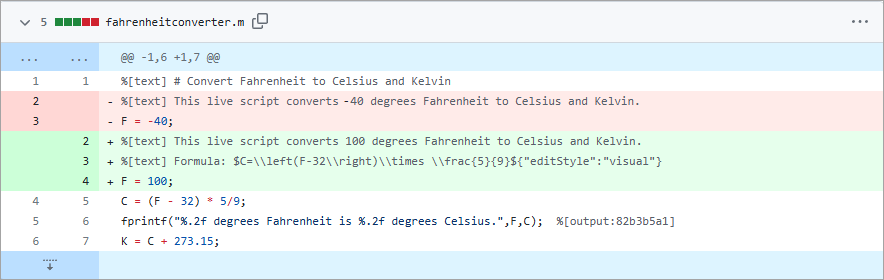
Live scripts saved using the plain text file format can be compared and merged using external source control tools. For example, in GitHub®, when you add a plain text live script to a repository, you can see the differences between revisions of the file.
Some external source control tools have file-size limitations that can prevent comparing live scripts saved using the plain text file format:
GitLab® and GitHub throw an error and do not display the differences in a file if the file size is too big.
Perforce® tries to display the differences but might become unresponsive if the file size is too big. To avoid Perforce becoming unresponsive, try disabling the Show Inline Differences option.
For the best results, try using GitHub Desktop or Visual Studio Code. You also can reduce file size by disabling the saving of output to your files. To disable saving output, go to the Home tab, and in the Environment section, click Settings. Select MATLAB > Editor/Debugger > Saving and in the Output Save Options section, clear Save output to file. Alternatively, clear all output before submitting your files to source control.
For more information, see the documentation for your source control tool.
Example: Plain Text Live Code File
This code shows the markup for a plain text live code file that includes headings, formatted text, equations, a table of contents, section breaks, a slider control, and output. To open a plain text live code file as plain text in the Editor, right-click the file in the Files panel and select Open as Text.
%[text] # Convert Fahrenheit to Celsius and Kelvin
%[text] This live script converts a value in degrees Fahrenheit to Celsius and Kelvin using the following equations:
%[text] - $\\degree C=\\left(\\degree F-32\\right)\\times \\frac{5}{9}${"editStyle":"visual"}
%[text] - $\\degree K=\\left(\\degree F-32\\right)\\times \\frac{5}{9}+273\\ldotp 15${"editStyle":"visual"} \
F = -40; %[control:slider:67da]{"position":[5,8]}
%%
%[text] ## Convert Temperature
C = (F - 32) * 5/9;
K = C + 273.15;
%%
%[text] ## Display Results

fprintf("%.2f degrees Fahrenheit is %.2f degrees Celsius.",F,C); %[output:3ffe5f06]
fprintf("%.2f degrees Fahrenheit is %.2f Kelvin.",F,K); %[output:0875f432]

%[appendix]{"version":"1.0"}
%---
%[metadata:view]
%   data: {"layout":"inline","rightPanelPercent":20.2}
%---
%[control:slider:67da]
%   data: {"defaultValue":40,"label":"Slider","max":100,"min":-100,"run":"Section","runOn":"ValueChanging","step":1}
%---
%[output:3ffe5f06]
%   data: {"dataType":"text","outputData":{"text":"-40.00 degrees Fahrenheit is -40.00 degrees Celsius.","truncated":false}}
%---
%[output:0875f432]
%   data: {"dataType":"text","outputData":{"text":"-40.00 degrees Fahrenheit is 233.15 Kelvin.","truncated":false}}
%---
Binary Live Code File Format (.mlx)
The binary live code file format (.mlx) stores content using
Open Packaging Conventions (OPC) technology, an extension of the ZIP file format.
Code and formatted content are stored in an XML document, and output is stored
separately using the Office Open XML (ECMA-376) format. For more information, see
the Microsoft®
Open Packaging Conventions Fundamentals page and the ECMA Office Open XML File Formats (ECMA-376) page.
Source Control
Live scripts saved using the binary file format (.mlx) do
not support standard text comparison. To compare these files, use the MATLAB Comparison Tool. When using source control, register
the .mlx extension as a binary file. For more information,
see Register Binary Files with SVN or
Register Binary Files with Git.
Save Live Scripts Using Binary Format
By default, MATLAB saves live scripts using the plain text live code file format
(.m). (since R2026b) To save a live script using the binary
live code file format:
On the Live Editor tab, in the File section, select Save > Save As.
Select
MATLAB Live Code File (*.mlx)as the file type.Enter a filename. To avoid shadowing issues, use a different name if you are converting an existing file.
Click Save.
Convert Existing Code to Plain Text Live Scripts
You can convert an existing binary live script (.mlx) to a
plain text live script (.m). You also can convert an existing
MATLAB code file to a plain text live script. The conversion creates a copy
of the file and leaves the original file untouched. The new file uses the plain text
live code file format and supports all live script features. When converting a
script, MATLAB converts any publishing markup to formatted content in the new live
script.
Open the existing binary live script or MATLAB code file.
On the Editor or Live Editor tab, in the File section, select Save > Save As.
Select
MATLAB Live Code File (*.m)as the file type.Enter a filename. To avoid shadowing issues, use a different filename.
Click Save.
Alternatively, you can convert an existing script to a plain text live script by
right-clicking the file's document tab in the Editor and selecting Open
scriptName as Live Script.
When you convert an existing binary live script to a plain text live script, some text formatting might not look exactly the same. For example, formatting next to certain special characters or other formatted text might appear as markup, and leading white space is removed.
Change Default File Format
By default, MATLAB saves live scripts using the plain text live code file format
(.m). (since R2026b)
To change the default live script file format, follow these steps:
On the Home tab, in the Environment section, click Settings.
Select MATLAB > Editor/Debugger.
In the Live script format section, set the Default live script file format setting to one of the available options.

