Configure Read and Write for GPIO Pins Using Arduino Explorer App
R2026bAfter you set up your Arduino board to work with MATLAB as described in Set Up and Connect to Arduino and Arduino-compatible Boards Using Arduino Explorer, the next step is to configure the on-board GPIO pins for reading and writing data. If Arduino Explorer is not already open, open the app. For more information, see Open the Arduino Explorer App.
Use the Pin Explorer pane and Pin Configuration panel in the Arduino Explorer app to configure each pin to read and write data.
In the Pin Explorer pane, click the row corresponding to the pin that you want to configure. The Pin Configuration panel displays the options you can use to configure the selected pin.
In the Pin Configuration panel, select a communication mode for the pin. If required to uniquely identify the pin, specify a label.

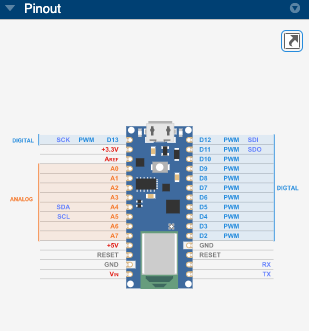
The Arduino Explorer app displays the pinout diagram of the selected board in a panel at the bottom right corner of the app window. For more information, see Visualize Pin Diagram Using Arduino Explorer App.
Selecting a read mode automatically updates the table columns with data from the pin. For example, if you set Mode to Analog Input (read), the app starts reading data from the corresponding pin and displays it in the Read Value column.
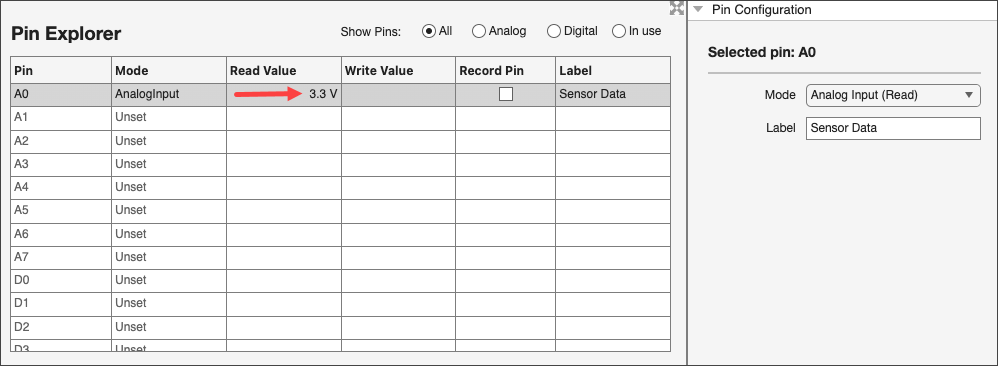

If you select a mode that allows you to write data to the pin, specify a value in the Write Value column. The app writes the specified data to the pin.
After you configure all the pins you plan to use, you can use the app to visualize and record data. For more information, see Visualize and Record Data from Arduino Pins Using Arduino Explorer App.
Note
Clicking New Session in the app resets all Arduino pin configurations and sets them to the Unset mode.
See Also
Topics
- Set Up and Connect to Arduino and Arduino-compatible Boards Using Arduino Explorer
- Visualize Pin Diagram Using Arduino Explorer App
- Connect to SPI Device Using Arduino Explorer App
- Connect to I2C Device Using Arduino Explorer App
- Connect to Serial Device Using Arduino Explorer App
- Visualize and Record Data from Arduino Pins Using Arduino Explorer App
- Generate MATLAB Script
- Customizable Views in the App

