Modularize Project by Using External Configurations, Test References, and External Stub Files
R2026bIn a Polyspace® Platform project, you can choose to save certain components, such as configurations, stubs, and graphical tests as part of the .psprjx project file or as separate files that you link to the project by reference. Modularizing your project by saving these components in separate files makes it easier to collaborate on large projects and work with version control systems. This topic shows how to create a modular project and manage the configuration,
graphical test, and stub files that it references.
File Storage Considerations
By default, all new configurations and graphical tests you create in the Polyspace Platform user interface are part of the .psprjx project file. When you create a stub for an undefined function or variable, you can choose whether to create a project-specific stub or write your stub implementation in a C/C++ stub file. Before you write external C/C++ stub files or convert your configurations and graphical tests to separate files, consider the folder structure and file naming conventions you want to use to organize these
files.
One possibility is to create new subfolders such as configs, test_refs, and stubs inside your project folder. Depending on the size of your project, you can save all three types of external configuration files in one subfolder, or create individual subfolders for each type of configuration, such as build, static, and test. Similarly, for test references, you can
save all .pstestd files in one subfolder, or create additional suite or component-based subfolders to organize the files. For example, if you modularize the Polyspace
Test™
demo project and organize the test references in subfolders by suite, the folder structure could look like this:
Getting_Started_Example/
├── Demo_C_PS_Test.psprjx
├── configs/
│   ├── Demo_C_PS_Test-Build_Configuration.toml.pscfg
│   ├── Demo_C_PS_Test-Analysis_Configuration.toml.pscfg
│   ├── Demo_C_PS_Test-Test_Configuration.toml.pscfg
├── includes/
│   ├── types.h
├── sources/
│   ├── utils.c
├── test_refs/
│   ├── checkStateTests/
│       ├── checkAccelerations_test.pstestd
│       ├── checkAgainstSpeedLimit_test.pstestd
│   ├── integrationTests/
│       ├── update_test_1.pstestd
│       ├── update_test_2.pstestd
│   ├── updateStateTests/
│       ├── addLatestReading_test_1.pstestd
│       ├── addLatestReading_test_1_fail.pstestd
│       ├── addLatestReading_test_2.pstestd
│       ├── initOrReset_test.pstestd
├── tests/
│   ├── Requirements.html
│   ├── test.c
│   ├── testdata.h
To create a portable project that can be used on different machines by multiple users, use relative paths when adding files to the project. For more information, see Add Resources Using Relative Paths or Variables. To learn which Polyspace files to submit to version control, see Submit Polyspace Files to Version Control.
Modularize Project by Converting Configurations to External Configurations in Polyspace Platform User Interface
To improve version control workflows, modularize your Polyspace Platform project by converting your configuration variants to external configurations. An external configuration is a build, static analysis, or testing and profiling configuration that you save in a file and link to the project by reference. You can choose between two external file formats:
Native JSON-based format (
.pscfg) — Best choice when you want to use external configuration files and still continue making edits in the Polyspace Platform user interface or Polyspace Python® API.Human-readable TOML format (
.toml.pscfg) — Designed for version control workflows. Best choice when you want to annotate configurations with comments, produce readable diffs, and edit configurations in an external text editor. TOML configurations cannot be edited in the user interface or from the Polyspace Python API.
For a comparison of the different configuration file formats, see Choose How to Store Configuration Variants.
In a continuous integration workflow, you can submit the
.psprjx project file to a version control system, along with
all external configuration files it references. If you need to modify an external
configuration, you can check out and edit only the specific configuration file that
needs updating. Before submission, compare and merge your version of a configuration
variant with the version in the repository. For TOML configurations, use any
text-based diff or merge tool. For native-format external configuration files, use
polyspace-project -diff, polyspace-project -merge
Convert Configuration to External Configuration
To convert a build configuration variant to an external configuration:
Open your project configuration, navigate to the Build tab and select the configuration you want to convert. On the Polyspace Platform toolstrip, click Convert.
Note that build configurations created from a build command (using
polyspace-configure) and build or static analysis configurations created from Polyspace for AUTOSAR workspaces cannot be converted to external configurations. If you need to save a copy of one of these configurations, export a copy to a.pscfgor.toml.pscfgfile. For more information, see Import and Export Copies of Configuration Variants.Choose a filename and location for the external configuration file. In the Save as type drop-down, select the format:
Polyspace Native Configuration (*.pscfg) — Native format. Editable in the user interface.
Polyspace TOML Full Configuration (*.toml.pscfg) — Human-readable TOML format that includes all configuration settings, including those set to their default values. Best for understanding and modifying the configuration in a text editor. Recommended for initial adoption. Not editable in the user interface.
Polyspace TOML Concise Configuration (*.toml.pscfg) — Human-readable TOML format that includes only configuration options set to non-default values. Best for mature workflows where you want to reduce noise in file diffs. Not editable in the user interface.
Click Save.
In the Configuration pane, a new blue External badge appears to let you know that this is an external configuration file referenced by the project. Below the configuration name, you see the name of the configuration file, as well as buttons to copy the file path and show the file in Explorer.

To make the converted configuration the active configuration, click Make Active in the toolstrip. Save the project to save the reference to the external configuration file.
Edit Native External Configuration
To edit a native (.pscfg) external configuration, on the Configuration tab of the toolstrip, in the Config Reference section, click Edit. Make any necessary changes to the configuration. When you are done, click Save on the Configuration tab of the toolstrip to save your changes in the referenced .pscfg file. You can then leave editing mode by clicking Edit again. Alternatively, to save the project and all referenced configuration and graphical test files, on the Project tab of the toolstrip, select Save All.
If you are referencing the external configuration from multiple projects, changes are reflected the next time you open the configuration in those projects.
Edit TOML Configuration Files
TOML configuration files (.toml.pscfg) are read-only in the
Polyspace Platform user interface — you cannot edit or save them from the user
interface. Instead, edit TOML configuration files in a text editor and then refresh the
configuration in the Polyspace Platform user interface to load your changes. TOML (Tom's Obvious Minimal
Language) is a configuration file format designed to be easy to read and write. For the
full specification, see toml.io.
To edit a TOML configuration file that you are viewing in the user interface:
Locate the file on disk. In the Configuration pane, click Copy Path or Show in Explorer.
Open the
.toml.pscfgfile in a text editor and make your changes. TOML key names match the Polyspace Python API property names for the corresponding configuration class. Enumeration values are uppercase strings with underscores replacing spaces or dashes.Save the file in your text editor.
Return to the Polyspace Platform user interface. On the Configuration tab of the toolstrip, click Refresh to reload the updated configuration file.
If errors are reported, fix them in your text editor and click Refresh again in the Polyspace Platform user interface.
Because TOML is a human-readable text format, you can compare and merge
.toml.pscfg files using any text-based diff or merge tool (such as
those built into your source control system or IDE). The polyspace-project
-diff and polyspace-project -merge commands do not support
.toml.pscfg files.
When you edit a TOML configuration file:
Use the key names exactly as they appear in the file. Key names match the Polyspace Python API property names for the corresponding configuration class.
Enumeration values are uppercase strings with underscores replacing spaces or dashes. For example,
"X86_64"or"VISUAL_12_0".The
Typekey at the top of the file is mandatory and must be one of:"BUILD_CONFIG","STATIC_ANALYSIS_CONFIG", or"TEST_CONFIG".If a key is not listed in the TOML file, Polyspace uses the default value for that key.
The ordering of keys and tables is not significant. You can reorganize the file without affecting functionality. However, preserving the default order simplifies future file comparisons.
Any comments that you add in the TOML configuration file do not appear in the user interface.
For annotated templates showing all available keys, along with default and possible values, see Create TOML Configuration Files from Templates.
Import External Configuration
Once you have a configuration saved in an external configuration file (.pscfg or .toml.pscfg), you can reference it from other projects. For example, to import an external build configuration by reference:
Open the project from which you want to reference an external configuration file. Then, open the configuration for that project.
On the Configuration tab of the Polyspace Platform toolstrip, click Import > Import as External Configuration.
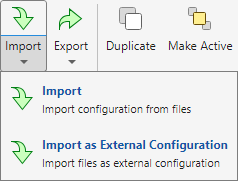
Use the file browser to find and select the configuration files (
.pscfgor.toml.pscfg) you want to import by reference and click Open.In your project configuration, navigate to the Build tab. The external build configuration you imported appears in the drop-down list. To make that external configuration active, select it from the list and click Make Active in the Configuration tab of the toolstrip.
Save the project to save the new reference to the external configuration file.
Modularize Project by Converting Graphical Tests to Test References in Polyspace Platform User Interface
You can also modularize your project by using test references. A test reference is a graphical test case that you save in a .pstestd file that is linked to the project by reference.
Convert Graphical Tests to Test References
To convert a graphical test case saved in the project to a test case file that is linked to the project by reference, open the test case in the Polyspace Platform user interface. On the Test Case tab of the toolstrip, in the Test Reference section, click Convert.
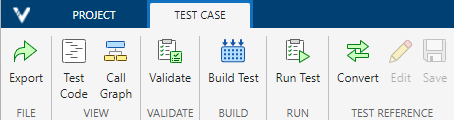
Choose a filename and location for the new .pstestd file and click Save. Polyspace saves the converted test in the specified .pstestd file and links to it by reference. Because the conversion process extracts the graphical test from the project and replaces it with a reference to the new .pstestd file, you need to save the project to save that change.
After you convert a graphical test to a test reference, Polyspace updates the icon in the Projects pane from a
graphical test icon to a test reference icon  . When you open the converted test in the
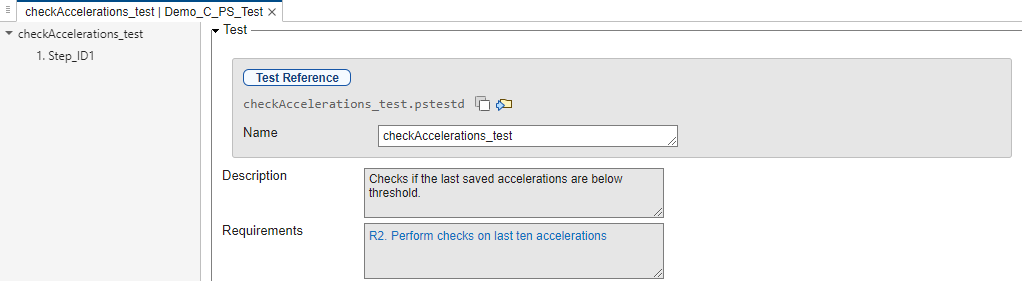
Polyspace Platform user interface, you see a new gray box at the top of the
Test pane that contains:
. When you open the converted test in the
Polyspace Platform user interface, you see a new gray box at the top of the
Test pane that contains:
A Test Reference badge.
The name of the
.pstestdfile, followed by a button to copy the file path to the clipboard and a button to show the file in Explorer.A Name field, containing the name of the graphical test. This name is saved in the project file. If you change it, you need to save the project.
Edit Test Reference
When a project references a .pstestd file, the path to that
file and the Name of the graphical test case are saved in the
project file. You can edit the name of the test reference at any time. To save
those changes, you save the project file. To edit any other part of the test
reference, click Edit in the Test
Reference section of the Test Case tab of
the toolstrip. After making your changes, save them to the
.pstestd file by clicking Save.
Alternatively, save the project file and all referenced configurations and
graphical tests by selecting Save All on the
Project tab of the toolstrip. After saving, you can
leave editing mode by clicking Edit again.
Import Test Reference
If you have a graphical test case already saved in a .pstestd file, you can import a local copy of that test case to be saved in the project file, or import a reference to the test case.
To import a local copy of a graphical test case into your project from a
.pstestdfile, on the Project tab of the toolstrip, in the Test section, select Import Tests > Import Copy of Graphical Test Case.To import a graphical test case by referencing the
.pstestdfile from the project, select Import Tests > Import Graphical Test Case by Reference. This adds a reference from your project to the.pstestdfile you specify.
See Import and Export Graphical Tests for more information.
Modularize Project Using External C/C++ Stub Files
To improve sharing and reuse as well as version control workflows, you can author C/C++ stub files to work around undefined functions and variables when testing your code in a Polyspace Platform project. You can submit these stub source files to version control and use the stub source files in any project where the function and variable definitions are needed. For more information on working with external stub files, see Stub Undefined Callees Using External Files and polyspace.project.Stubs.
Modularize Project Using Python API Scripts
Whether you create your project in the Polyspace Platform user interface or the Polyspace Python API, you can use the Polyspace Python API to convert your configurations and graphical tests to files that the project can reference. If you have many configurations and tests to convert, writing a script using the Polyspace Python API may be easier than converting each element individually in the Polyspace Platform user interface. For an example, see Modularize Existing Project by Using Polyspace Python API.
See Also
polyspace.project.Project | polyspace.project.BuildConfigurationRef | polyspace.project.StaticAnalysisConfigurationRef | polyspace.project.TestConfigurationRef | polyspace.project.TestCaseRef | polyspace.project.Stubs

