Customize Wi-Fi Setup Application for Raspberry Pi
R2026bUse manual deployment to deploy the Wi-Fi® application to Raspberry Pi® in a step-by-step process. This method generates the application code, inspects and modifies files, and applies customization or security logic before deploying the application to Raspberry Pi.
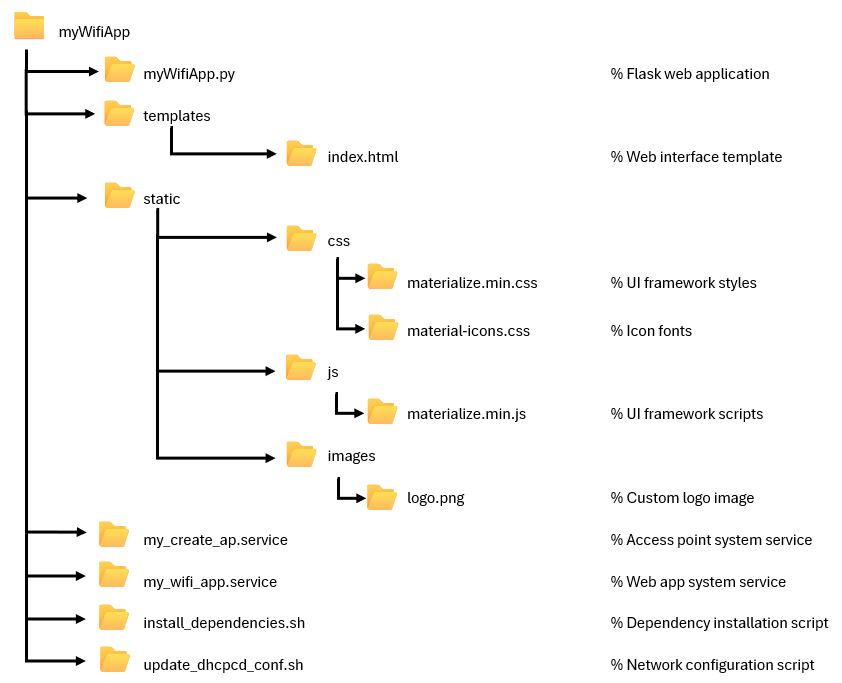
Wi-Fi Setup Application Files
The generator.generate function generate a complete set of files
and directories that Raspberry Pi uses to host a hotspot and a browser-based configuration portal for
Wi-Fi setup. The generator creates a web app, user interface assets, persistent
services, and helper scripts in s a structured folder to deploy the package.
Use the generated file and folder structure to manually edit application parameters before deployment.
Transfer Application Files to Raspberry Pi
Package the application directory, transfer it to Raspberry Pi, and extract the files on the hardware.
% Compress the application
tar('myWifiApp.tar','myWifiApp');
gzip('myWifiApp.tar');

% Transfer to Raspberry Pi
putFile(mypi,'myWifiApp.tar.gz','myWifiApp.tar.gz');

% Extract on Raspberry Pi
system(mypi,'tar -xvzf myWifiApp.tar.gz');
Install Application Files and Dependencies
Create the target installation directory and move the application files.
% Create application directory
system(mypi,'sudo mkdir -p /opt/WifiProvisionApp');

% Move application files
system(mypi,'sudo mv myWifiApp /opt/WifiProvisionApp/');
Run the installation script to install system dependencies.
system(mypi,'sudo bash /opt/WifiProvisionApp/myWifiApp/install_dependencies.sh');Configure OS-Specific Network Settings
Configure DHCP behavior and network interface for Raspberry Pi operating system Bullseye or earlier.
system(mypi,'sudo bash /opt/WifiProvisionApp/myWifiApp/update_dhcpcd_conf.sh');Enable and Start System Services
Enable and start persistent services that manage the hotspot and web application.
% Enable access point service
system(mypi,'sudo systemctl enable /opt/WifiProvisionApp/myWifiApp/
my_create_ap.service');
system(mypi,'sudo systemctl start my_create_ap.service');

% Enable web application service
system(mypi,'sudo systemctl enable /opt/WifiProvisionApp/myWifiApp/
my_wifi_app.service');
system(mypi,'sudo systemctl start my_wifi_app.service');
Application Structure and Customization
Manual deployment lets you inspect, customize, and control the full application structure before deployment the application to Raspberry Pi.
Web Application (myWifiApp.py)
The Flask-based Python® web application manages the end-to-end Wi-Fi setup process. The application scans for available networks, accepts SSID and password input, initiates and monitors the connection to the selected network, and automatically shuts down the access point after successful connection to the target Wi-Fi network.
The application runs on port 80 and serves the configuration
interface at http://192.168.12.1. It uses nmcli
to discover nearby Wi-Fi networks and manage wireless connections on Raspberry Pi. The application validates user‑provided credentials, securely
processes the input, and provides real‑time feedback in the browser during each stage
of the connection attempt.
Web Interface (templates/index.html)
Configure Wi-Fi through a browser using the materialize.css file.
This table lists the key user interface elements you can customize to configure
network selection, specify credentials, and connection feedback.
| UI Element | Description |
|---|---|
| Header | Displays the application name and logo |
| Network Selector | Shows a dropdown list of detected Wi-Fi networks |
| Password Input | Accepts the Wi-Fi password securely |
| Submit | Button to initiate the Wi-Fi connection |
| Status Messages | The output displays progress messages and confirms when the process completes successfully. |
Application Branding and Access
This table lists the configuration parameters you can adjust to control application identity, brand, and hotspot behavior before you deploy.
| Parameter | Purpose |
|---|---|
Name | Application name and directory |
Logo | Branding image displayed in the UI |
AccessPointName | Hotspot SSID |
AccessPointPassword | Hotspot password |
% Custom branding
generator = matlab.raspi.wifiSetup(...
                                   Name="SmartHome", ...
                                   Logo="company_logo.png", ...
                                   AccessPointName="SmartHome-Setup", ...
                                   AccessPointPassword="SecurePass123");
Service Files
By default, the hotspot and web application start when the hardware reboots. To inspect, modify, or extend startup behavior when needed, modify these service files.
my_create_ap.service— Manage Wi-Fi access pointCreates the virtual interface
ap0Configures the hotspot SSID and password
Restarts automatically on failure
Runs at system boot
my_wifi_app.service— Manage web applicationStarts the Flask application on boot
Restarts automatically on failure
Runs with required root privileges for network configuration
Installation Scripts
The generated files includes scripts that install required packages and configure
networking for access point operation for the application:
install_dependencies.sh and
update_dhcpcd_conf.sh respectively. You can modify these
scripts as needed.
install_dependencies.shInstalled Component Description hostapdAccess point daemon dnsmasqDNS/DHCP server iptablesFirewall and NAT configuration havegedEntropy generation linux-wifi-hotspotcreate_aputility
update_dhcpcd_conf.shDHCP client daemon for
ap0interfaceDisables
wpa_supplicant hookfor access point -specific networking and suppresses conflicting network services
After you deploy the Wi-Fi app to the Raspberry Pi hardware, activate the services by rebooting the hardware. You can then continue the setup workflow as described in Reboot Raspberry Pi to Activate Services.

