Create Dynamic Mask Dialog Box
R2026bThis example shows how to create dynamic mask dialog box. In a masked subsystem block, you can create dynamic mask dialog box that changes based on user input. Features of masked dialog boxes that can change in this way include:
Visibility of parameter controls: A change in one parameter can cause the control for another parameter to appear or disappear. The dialog box expands when a new control appears and shrinks when a control disappears.
Enabled or disabled state of parameter controls: Changing a parameter can enable or disable the input control for another parameter. Disabled controls appear grayed out.
Parameter values: Changing one parameter can set related dialog box parameters to appropriate values.
Note: You cannot add, delete, or modify mask parameters from mask callback.
You can also change the structure of the subsystem blocks using self-modifiable masks. For more information, see Use Variant Blocks and Self-Modifiable Masks to Modify Linked Library Blocks.
The steps to create a dynamic mask dialog box include:
1. Use the Mask Editor to define parameters of the dialog box, both static and dynamic.
2. Author a callback function in the Code tab of the Mask Editor for each of the dynamic parameter. The callback defines how the dialog box responds to changes to that parameter. The callback function can in turn use the Organize Mask Initialization and Callbacks in a MATLAB File command to set mask parameters, that affect the appearance and settings of other controls on the dialog box.
3. Save the model or library containing the masked subsystem to complete the creation of the dynamic masked dialog box.
Explore the Model
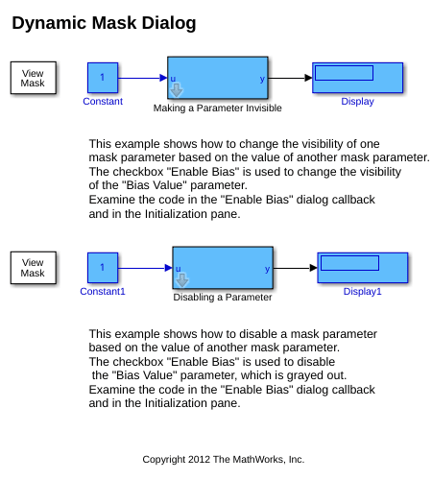
This example has two subsystem blocks Making a Parameter Invisible and Disabling a Parameter to change the visibility of the mask parameter and disable the mask parameter.
open_system("slexMaskDDGExample.slx");
Change the Visibility of a Mask Parameter
Consider the subsystem block Making a Parameter Invisible. This example shows how to change the visibility of one mask parameter based on the value of another mask parameter. The value of Enable Bias is set by selecting or clearing the Enable Bias check box. It is used to change the visibility of the parameter Bias.
To change the visibility of the mask parameter:
1. Create two edit parameters Gain Value and Bias. Create a check box parameter Enable Bias.
2. Use this code in the Initialization section of the Code pane.
function initialization()
%In the Initialization command, the variable 'enableBias' corresponding to
%the checkbox returns the following values:
unchecked = 0
checked = 1
% If the box is unchecked, we set the bias value to zero
if ~enableBias
  biasValue = 0;
end
% Othewise, the value from the mask parameter is used
end
3. Use this code in the parameter callback section for enableBias.
function enableBias_callback()
% Control parameter visibility. Get the value of the Enable Bias checkbox
% unchecked = 'off'
% checked = 'on'
enab = get_param(gcb,'enableBias');
% Set the 'MaskVisibilities' property for each parameters
if strcmp(enab,'on')
  set_param(gcb,'MaskVisibilities',{'on','on','on'});
else
  set_param(gcb,'MaskVisibilities',{'on','on','off'});
end
% Note that the value of the bias is not handled here.
% See the Initialization tab
end
4. Double-click the subsystem block Making a Parameter Invisible. Clear the Enable Bias parameter and notice that the Bias parameter is invisible.
Disable a Mask Parameter
Consider the subsystem block Disabling a Parameter. This example shows how to disable a mask parameter based on the value of another mask parameter. The checkbox Enable Bias is used to disable the Bias Value parameter, which is grayed out.
To disable a mask parameter:
1. Create two edit parameters Gain Value and Bias. Create a check box parameter Enable Bias.
2. Use this code in the Initialization section of the Code pane.
function initialization()
% In the Initialization command, the variable 'enableBias' corresponding to
% the checkbox returns the following values:
% unchecked = 0
% checked = 1
If the box is unchecked, we set the bias value to zero
 if ~enableBias
     biasValue = 0;
end
% Otherwise, the value from the mask parameter is used
 end
3. Use this code in the parameter callback section for enableBias.
function enableBias_callback()
% Enable and disable parameters
% Get the value of the Enable Bias checkbox
% unchecked = 'off'
% checked = 'on'
 enab = get_param(gcb,'enableBias');
Set the 'MaskEnables' property for each parameters
if strcmp(enab,'on')
    set_param(gcb,'MaskEnables',{'on','on','on'});
else
    set_param(gcb,'MaskEnables',{'on','on','off'});
end
% Note that the value of the bias is not handled here.
% See the Initialization tab
end
4. Double-click the subsystem block Disabling a Parameter. Clear the Enable Bias parameter and notice that the Bias parameter is grayed.
See Also
Use Variant Blocks and Self-Modifiable Masks to Modify Linked Library Blocks|

