Create Custom Constraint for Mask Parameters
R2026bConstraints help you to create validations on a mask parameter without having to write your own validation code. Constraints ensure that input value for the mask parameter satisfies the rules associated with the constraints. For example, on a masked Subsystem block, you can set a constraint where the input value must be an even number. If you provide an input that is not an even number, the software displays an error.
Explore Model
The example model slexMaskConstraints.slx contains a subsystem block named CustomConstraintBlock. This block contains a constraint named evenNumberConstraint that validates whether the associated parameter is an even number. The block mask parameters evenNoParam1 and evenNoParam2 are associated with the constraint. The constraint is authored using a MATLAB® expression, as the rule is not present as one of the attributes.

Create and Associate Custom Constraint to Mask Parameter
To create and associate a custom constraint:
1. Create a mask on the Subsystem block. Create two mask parameters named Speed and Mass.
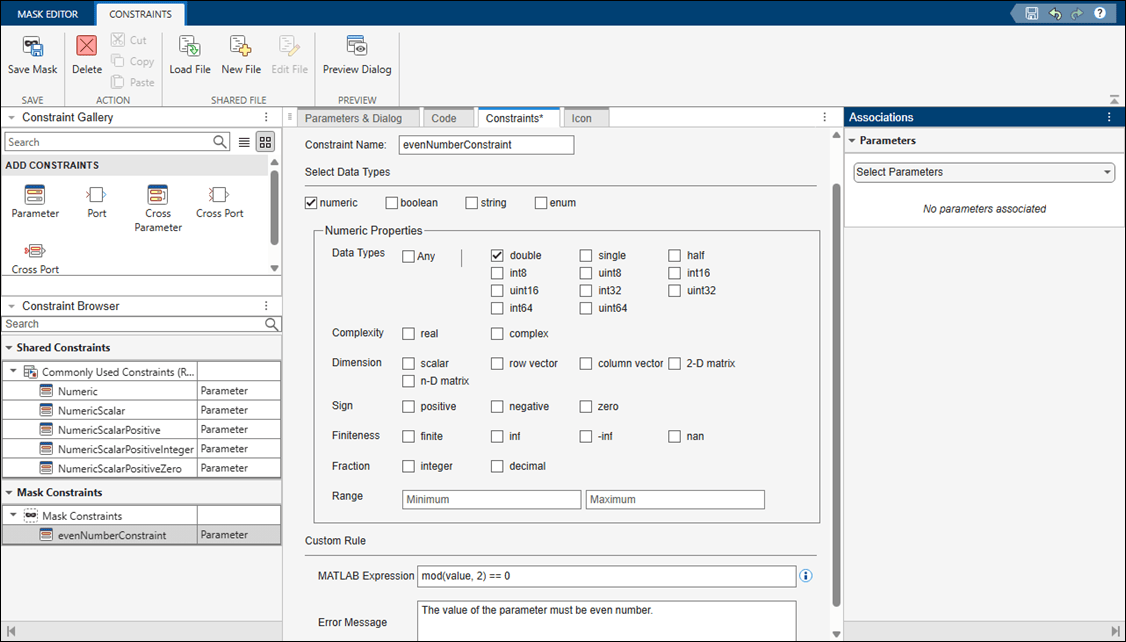
2. In the Mask Editor, select the Constraints tab. In the Constraint Gallery pane, click Parameter.
3. Specify the name of the constraint as evenNumberConstraint.
4. Enter the MATLAB Expression as mod(value,2)==0.
Note: You can use the value token to parameterize the expression, which helps in assigning a constraint to multiple parameters. During validation, the evaluated value of the parameter replaces the value token. For example, if the MATLAB expression for a constraint is value > 100 and is associated with the edit type mask parameter, Parameter1, then the MATLAB expression evaluates as Parameter1 > 100.
5. In the Error Message box, enter The value of the parameter must be even number. Save the mask.
After you create a constraint, you associate it with mask parameters to make the constraint take effect. You can associate the same constraint with multiple mask parameters.
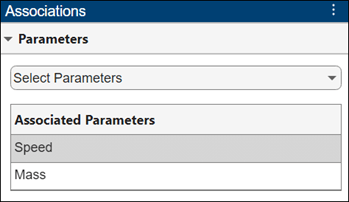
6. In the Associations pane, under Parameters, select the mask parameters Speed and Mass. The associated parameters appear in the Associated Parameters section.
Note: You can associate the same constraints with multiple mask parameters. The Constraints Browser helps you to manage constraints. To create a constraint that involves multiple parameters, use cross-parameter constraints instead of custom constraints.
Validate Constraint
To check whether a parameter adheres to the associated constraint:
1. Open the mask dialog box.
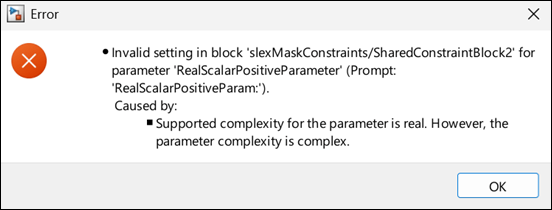
2. Specify an odd number for the mask parameter values. The software displays an error.
Define and Associate Constraint to Mask Literal Edit Parameter
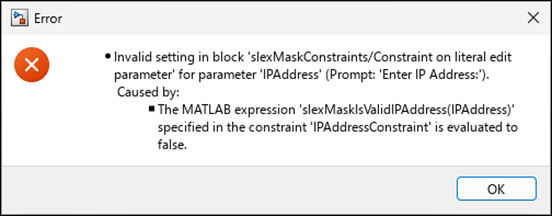
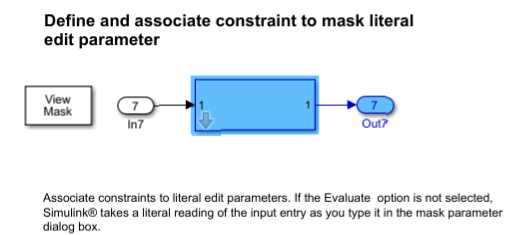
You can associate constraints to literal edit parameters. If the Evaluate option is not selected, the Simulink® software takes a literal reading of the input entry as you enter it in the mask parameter dialog box. For example, you can store an IP address in a literal edit parameter and validate it against a custom rule.
In the example model, refer to the subsystem block Constraint on literal edit parameter.
To create a custom constraint:
1. Create a mask on the Subsystem block.
2. Create an edit parameter named IPAddress. To store the literal value of the parameter IPAddress, in the Behavior section, clear the Evaluate option.
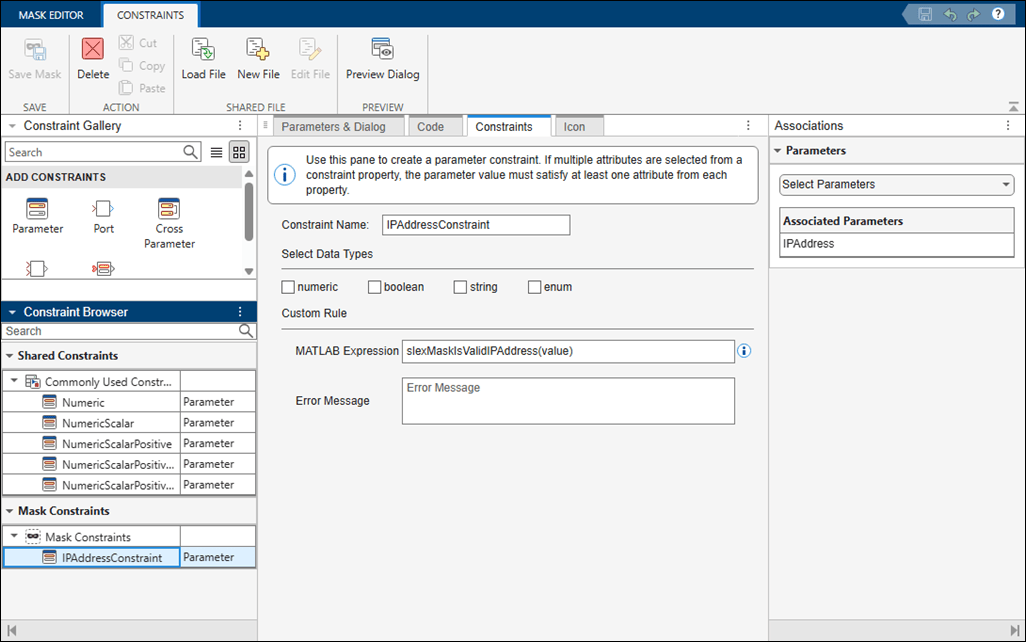
3. In the Mask Editor, select the Constraints tab and then click Parameter in the Constraint Gallery panel.
4. Enter the name of the constraint as IPAddressConstraint.
5. Specify MATLAB Expression as slexMaskIsValidIPAddress(value).
The function slexMaskIsValidIPAddress stored in the slexMaskIsValidIPAddress.m file checks whether IPAddress is a valid IP address. The function returns true if IPAddress is a valid IP address or returns false otherwise.
function out = slexMaskIsValidIPAddress(addr)
out = true;
    if ~isempty(regexp(strtrim(addr), '^\d{1,3}(\.\d{1,3}){3}$', 'once'))
        ipVec = sscanf(addr, ['%u' '.' '%u' '.' '%u' '.' '%u']);
         if ~all(ipVec <= 255)
             out = false;
        end
    else
         out = false;
    end
 end
6. In the Associations pane, under Parameters, select the mask parameter IPAddress. The associated parameters appear in the Associated Parameters section.
Validate Constraint
To check whether the parameter adheres to the constraint:
1. Open the mask dialog box of the Subsystem block Constraint on literal edit parameter.
2. Enter an invalid IP address and click OK.
3. The software displays an error message.