Specify Estimation Data
R2026bThis topic shows how to specify estimation data for parameter estimation.
Engine Idle Speed Model
Open the nonlinear idle speed model of an automotive engine.
open_system('engine_idle_speed.slx')Create Experiment
Before you specify estimation data, create an experiment. In the Simulink® model window, open the Parameter Estimator by selecting Apps > Parameter Estimator.

In the Parameter Estimator, on the Parameter Estimation tab, click New Experiment.

This action creates an experiment called Exp in the
Experiments section of the data browser and opens the
experiment editor.
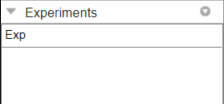
To change the name of the experiment, click and type the new name.
Edit Experiment Data
To edit an experiment, open the experiment editor by right-clicking on the experiment name and selecting Edit from the list.
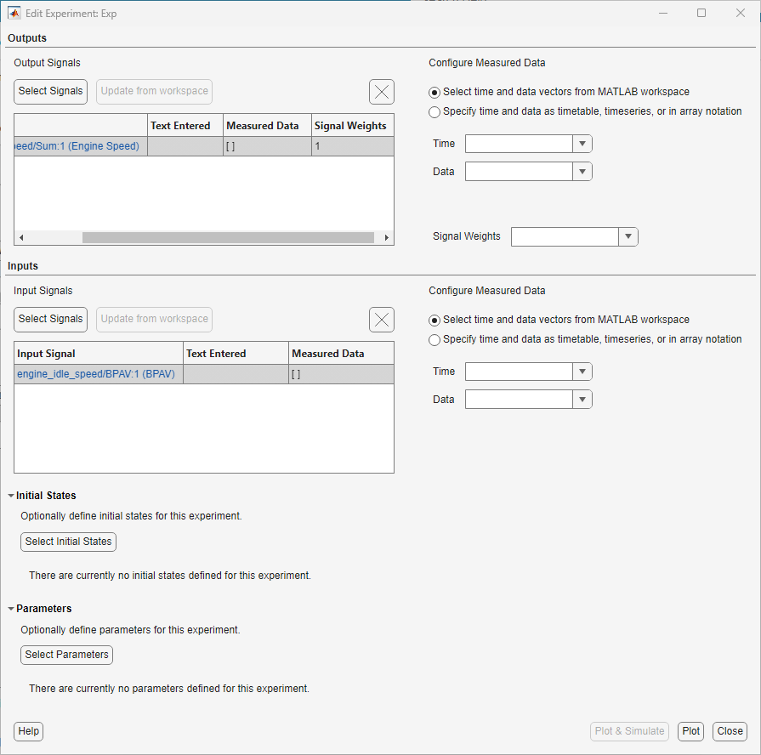
The experiment editor has four panels. You select output signals and import output data in the Outputs panel. You select input signals and import input data in the Inputs panel. You can specify model initial states in the Initial States section. You can specify parameters to estimate in the Parameters section.
The rows in the Inputs section of the editor correspond to
Inport block BPAV in the engine_idle_speed
model. See Import Data for Parameter Estimation.
The rows in the Outputs section correspond to Outport block
Engine Speed. You can import signal data from files or the
MATLAB® workspace.
The idle-speed model of an automotive engine contains the measured data stored in
the iodata array in the workspace. The array contains two
columns: the first for input data, and the second for output data. The time data is
in the time array in the workspace.
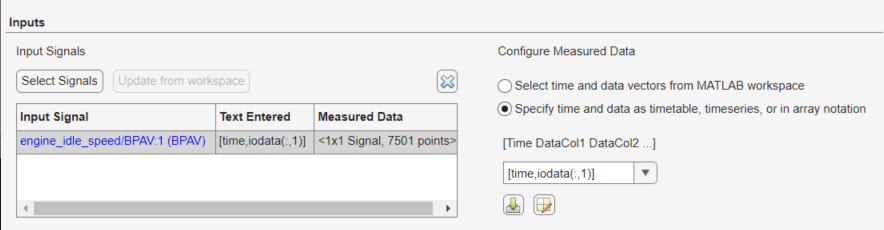
To import the input data, in the Inputs section, select
Specify time and data as timetable, timeseries, or in
array notation. Then type [time,iodata(:,1)] in
the text box.
Similarly, to import the output data, in the Outputs section,
select Specify time and data as timetable, timeseries, or in
array notation. Then type [time,iodata(:,2)] in
the text box.
Note
You can have more than one input or output signal, but you can have only one data set for a signal. If you have multiple data sets, create multiple experiments.

You can also specify the relative importance of each data point in an output data signal with respect to other data points in the same output data signal. Enable the Signal Weights menu by clicking the output signal for which you want to specify weights. In the Signal Weights menu, you can choose a variable defined in the base workspace as the signal weights. Alternatively, you can manually enter the signal weights as:
a scalar — The same weight is applied to each data point of the corresponding measured data of the defined output signal.
a vector — The number of elements in the vector must be equal to the number of data points in the corresponding measured data of the defined output signal. Each vector element denotes the weight of the corresponding data point.
empty — The default weight of 1 is applied to the corresponding measured data of the defined output signal.
If you have multiple output data signals, then you can also specify the relative importance of the different output data signals using the Signal Weights menu.
By default, all output signals have a signal weight of 1.
During optimization, when calculating the objective to minimize, the software uses
the specified weights as multiplicative factors. That is, Error Objective =
Residual Error * Signal Weights * Experiment Weight. For information
on experiment weights, see Estimate Parameters and States.

