Target Computer Status Monitor
R2026bThe status monitor application on the Speedgoat® target computer displays the status of the real-time application, disk usage, and other target computer status information.
The target computer display supports multiple sessions. You can choose to display the status monitor (default, session 1) or display the target computer command-line interface (session 2). From the target computer console/keyboard, switch to the command line session by pressing:
Ctrl+Alt+F1 to display session 1 (status monitor)
Ctrl+Alt+F2 to display session 2 (command line)
Display Status Monitor
Start the target computer.
The target computer displays session 1 (default) and the target computer status monitor.
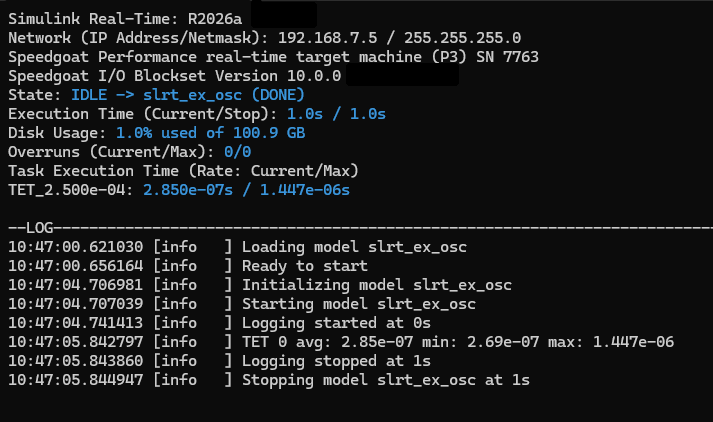
Display Status Monitor by Using PuTTY
To view the status monitor from the development computer, use PuTTY to open an SSH
client and start the status monitor application statusmonitor on
the target computer. Keyboard commands for the status monitor in an SSH client
include:
q (lowercase q) — to quit and return to command line
↑ (up arrow) — to scroll up in the log
↓ (down arrow) — to scroll down in the log
For more information about PuTTY, see Execute Target Computer Command-Line Commands Via Console or SSH.

