Generate Test Specification Reports
R2026bIn this example, you generate a test specification report. Test specification reports
contain the test settings and parameters used for test cases, test suites, or test
files. You can use these reports to capture information for test procedure design
reviews and to archive test information. You can create the report before or after
running a test. You can create test specification reports programmatically or by using
the Test Manager. See the sltest.testmanager.TestSpecReport reference page for examples.
For a test specification report, all of the items you select must be of the same type, either test files, test suites, or test cases. If you select a mixture of test files, test suites, and test cases, the Test Spec Report button and the context menu Create Report option are dimmed. If you select a test file, the report includes all of its test suites and test cases. If you select a test suite, the report includes all of its test cases.
In this example, you use the Test Manager to create a test specification report. You load the example files. Then, you select the test case, and generate a test specification report by selecting which sections to include in the report and specifying output options.
Open the example files.
openExample('RollAutopilotMdlRef')Load the
AutopilotTestFile.mldatxtest file and open the Test Manager.sltest.testmanager.load("AutopilotTestFile.mldatx"); sltest.testmanager.viewHighlight the
Requirement 1.3 Testtest case and click Test Spec Report.
In the Create a Test Specification Report dialog box, specify the Title as
RollAutopilot Model Test
                        Specification Report
and the Author asJohn Smith.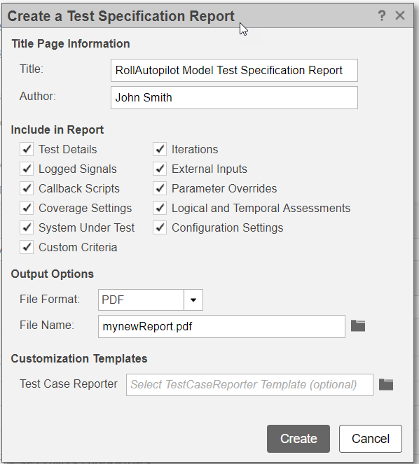
Leave all the report sections selected by default in the Include in Report section.
Leave
PDFas the default output format.Specify the filename for the saved report as
mynewReport.pdfin a writable folder. If your current working folder is not writable, use a full pathname to a writable folder.Leave the Test Case Reporter field blank because this report uses the default test case template.
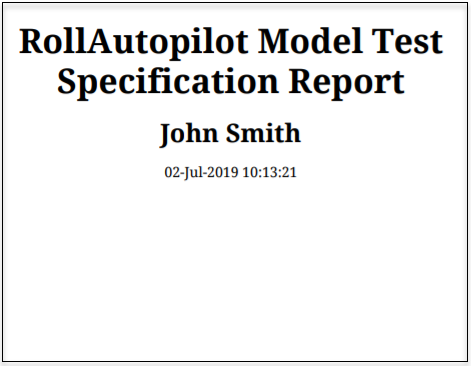
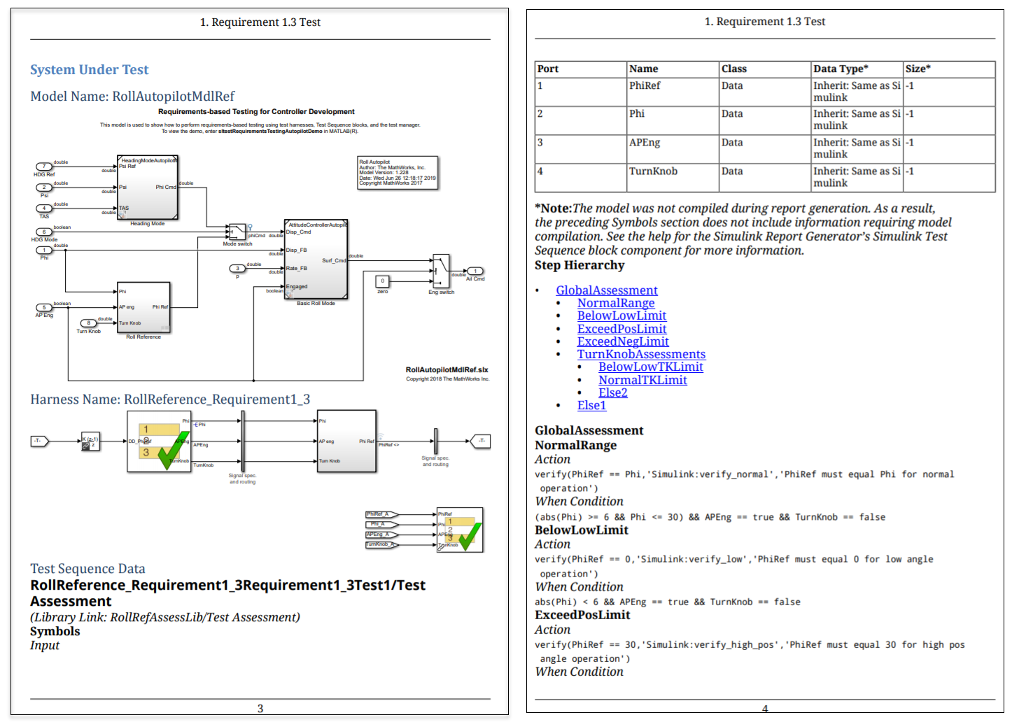
Click Create to generate the report and open it automatically. These images from the report show the title page, images of the model and harness, and test inputs and assessment information.
See Also
sltest.testmanager.TestSpecReport

