Log Simulation Output for States and Data
R2026bThis example shows how to log data to monitor in a Stateflow® chart. The sf_yoyo model simulates a tethered satellite control system that uses a reel to stabilize the satellite. Logging data helps you troubleshoot chart design issues, examine simulation data, and postprocess data without rerunning simulations. For more information about the reel and satellite model, see Yo-Yo Control of Satellites.
Open the sf_yoyo model.
open_system("sf_yoyo")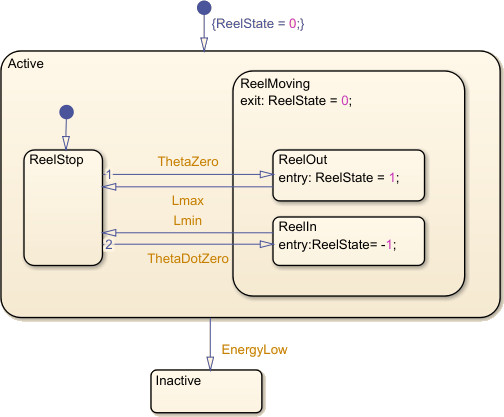
In this model, the control system stabilizes the pendulum by managing the tether length in two ways. When the satellite reaches the middle of its arc, it extends the tether to maximum length, which reduces angular acceleration. When the angular velocity of the satellite reaches zero, it retracts the tether. For more information about the model, see Yo-Yo Control of Satellites.
Configure States and Data for Logging
To enable debugging and analysis, configure logging for your model components. You can monitor individual states, multiple states, or the values of the signals at the Stateflow chart output ports:
Monitor individual states to track specific component behavior.
Track multiple states simultaneously to analyze component interactions.
Use output ports to capture and analyze data flow.
Log Individual States
When debugging specific state transitions or analyzing chart behaviors, focus on individual states. Logging individual state activity helps isolate issues and understand specific state behaviors without overwhelming your analysis with unnecessary data.
You can configure logging properties for one state or data object at a time by using the Property Inspector for the state or data object. For more information, see Logging Properties.
In the sf_yoyo model, enable logging on the ReelMoving state.
Open the chart, and select the
ReelMovingstate.In the Property Inspector, under Logging, click Log self activity.
By default, the logging name for this state is
Active.ReelMoving. To assign a shorter name, set Logging Name toCustomand enterReelMoving.
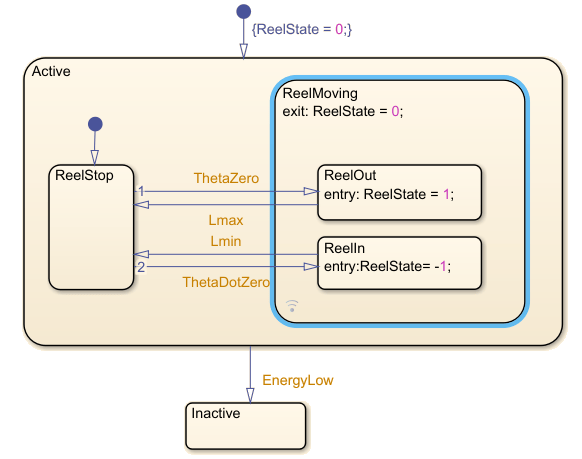
In the bottom left corner of ReelMoving, a signal logging badge  appears. This icon indicates that you configured the state activity for logging.
Access Signal Data
During simulation, by default, Simulink saves logged data in a Simulink.SimulationData.Dataset signal logging object.
After running a simulation, you can view the logged data in the Simulation Data Inspector or in the MATLAB® workspace. Use the Simulation Data Inspector to view and compare data across multiple simulations.
View Logged Data with the Simulation Data Inspector
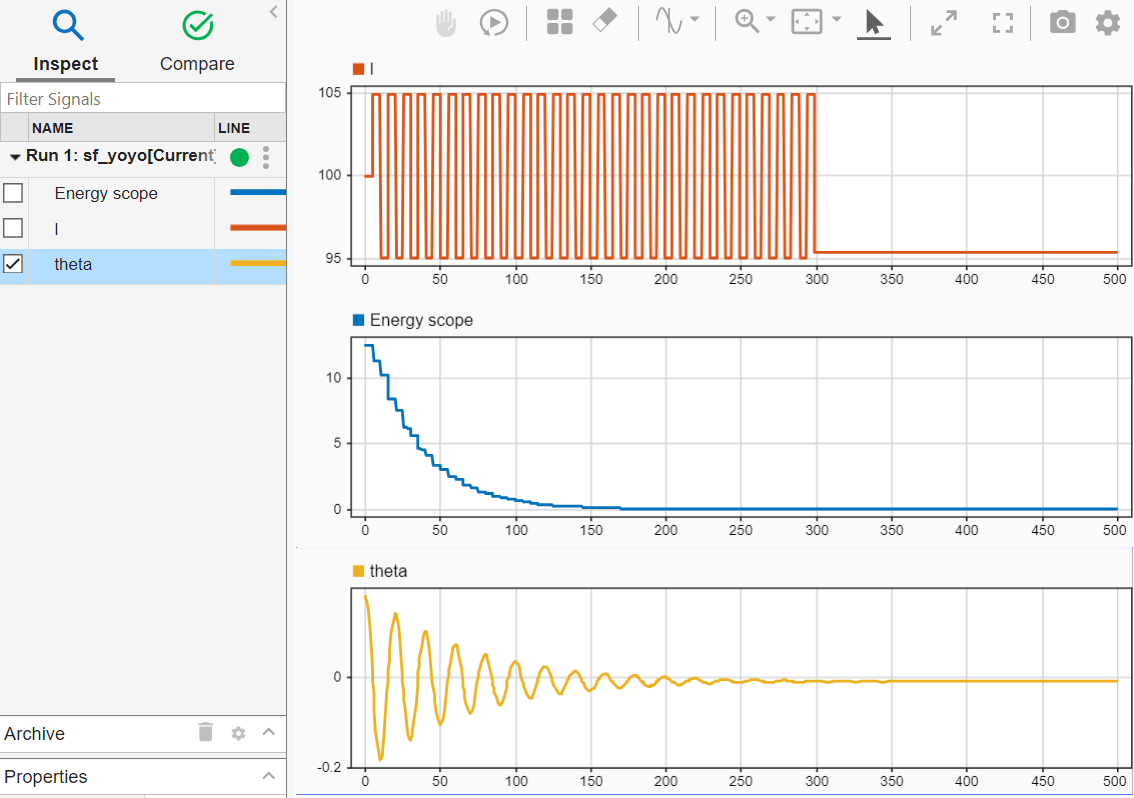
Simulate the model. To open the Simulation Data Inspector, in the Simulation tab, click Data Inspector. When you simulate the model, the Simulation Data Inspector icon changes color to indicate new simulation data. For more information, see View State Activity by Using the Simulation Data Inspector.
The image shows the results for the simulation.
See Also
Objects
Simulink.SimulationData.Dataset(Simulink) |Stateflow.SimulationData.Data|Stateflow.SimulationData.State
Functions
Tools
- Simulation Data Inspector (Simulink) | Signal Properties (Simulink)

