Random Number Generation Tool
R2026bInteractive random number generation
Description
The Random Number Generation tool generates a random sample from a specified probability distribution and displays the sample as a histogram. Use the tool to explore the effects of changing the parameters and sample size of the distribution.
Note: The Random Number Generation tool does not provide printing, code generation, or data import functionality in MATLAB® Online™.
Required Products
MATLAB
Statistics and Machine Learning Toolbox™
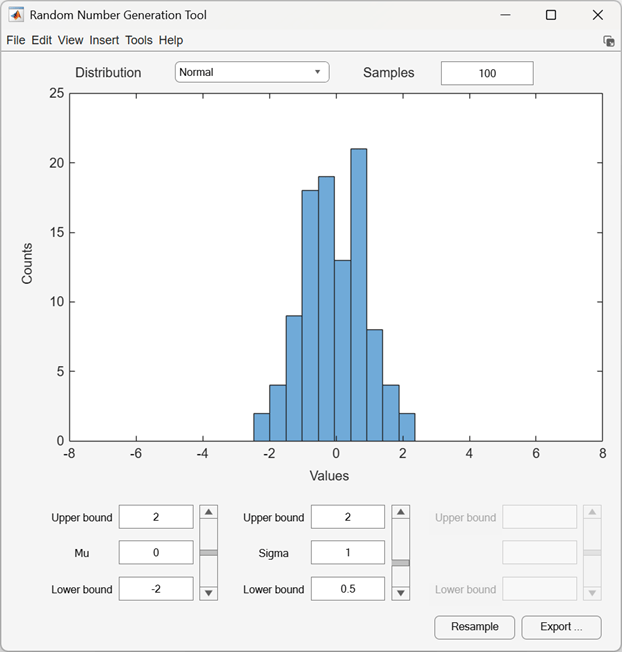
Open the Random Number Generation Tool
MATLAB command prompt: Enter
randtool.
Examples
This example shows how to use the Random Number Generation tool to generate random numbers from a probabiity distribution.
Open the Random Number Generation tool.
randtool
The tool displays a histogram plot of 100 random samples from the
Normal distribution. The initial parameter settings are
Mu = 0 and Sigma =
1.
Change the value of the mean parameter Mu by entering
1.
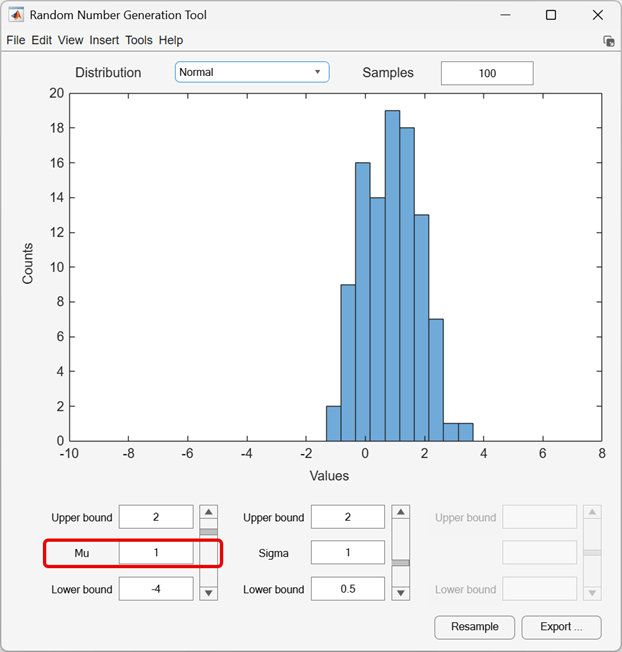
When you change a parameter value, the tool draws a new sample from the probability distribution, and generates a new histogram plot.
Use the Distribution list to change the distribution type from
Normal to Weibull.
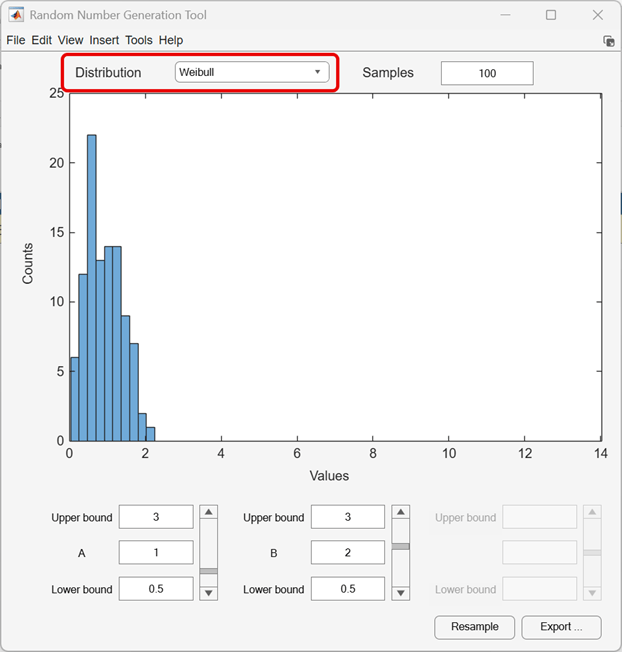
The tool changes the histogram plot and the names and values of the parameters.
Parameters
Tips
Start by selecting a distribution, and then enter the sample size. You can also:
Use the controls at the bottom of the window to set parameter values for the distribution and to change their upper and lower bounds.
Click the Resample button to generate another sample from the same distribution, with the same size and parameters.
Click the Export button to export the current sample to the workspace. Adjust the name of the workspace variable in the Export to Workspace dialog box, if necessary.
Version History
Introduced before R2006a

