Develop Visual SLAM Algorithm Using Unreal Engine Simulation
R2026bThis example shows how to develop a visual Simultaneous Localization and Mapping (SLAM) algorithm using image data obtained from the Unreal Engine® simulation environment.
Visual SLAM is the process of calculating the position and orientation of a camera with respect to its surroundings while simultaneously mapping the environment. Developing a visual SLAM algorithm and evaluating its performance in varying conditions is a challenging task. One of the biggest challenges is generating the ground truth of the camera sensor, especially in outdoor environments. The use of simulation enables testing under a variety of scenarios and camera configurations while providing precise ground truth.
This example demonstrates the use of Unreal Engine simulation to develop a visual SLAM algorithm for either a monocular or a stereo camera in a parking scenario.
Set Up Scenario in Simulation Environment
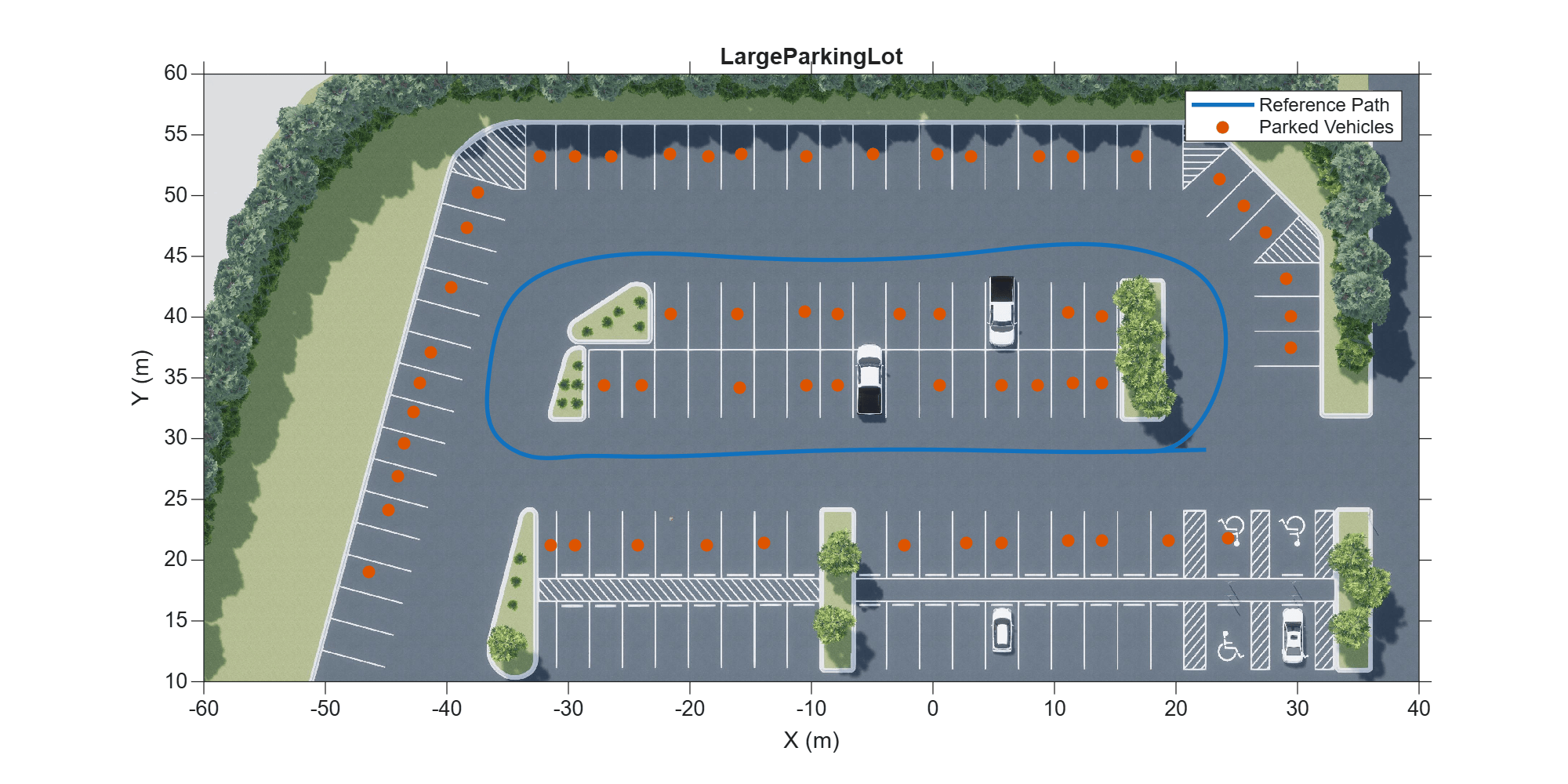
Use the Simulation 3D Scene Configuration block to set up the simulation environment. Select the built-in Large Parking Lot scene, which contains several parked vehicles. The visual SLAM algorithm matches features across consecutive images. To increase the number of potential feature matches, you can use the Parked Vehicles subsystem to add more parked vehicles to the scene. To specify the parking poses of the vehicles, use the helperAddParkedVehicle function. If you select a more natural scene, the presence of additional vehicles is not necessary. Natural scenes usually have enough texture and feature variety suitable for feature matching.
You can follow the Select Waypoints for Unreal Engine Simulation (Automated Driving Toolbox) example to interactively select a sequence of parking locations. You can use the same approach to select a sequence of waypoints and generate a reference trajectory for the ego vehicle. This example uses a recorded reference trajectory and parked vehicle locations.
% Load reference path
data = load("parkingLotReferenceData.mat");

% Set reference trajectory of the ego vehicle
refPosesX = data.refPosesX;
refPosesY = data.refPosesY;
refPosesT = data.refPosesT;

% Set poses of the parked vehicles
parkedPoses = data.parkedPoses;

% Display the reference path and the parked vehicle locations
sceneName = "LargeParkingLot";
hScene = figure;
helperShowSceneImage(sceneName);
hold on
plot(refPosesX(:,2), refPosesY(:,2), LineWidth=2, DisplayName='Reference Path');
scatter(parkedPoses(:,1), parkedPoses(:,2), [], 'filled', DisplayName='Parked Vehicles');
xlim([-60 40])
ylim([10 60])
hScene.Position = [100, 100, 1000, 500]; % Resize figure
legend
hold off
Open the model and add parked vehicles
modelName = 'GenerateImageDataOfParkingLot';
open_system(modelName);

helperAddParkedVehicles(modelName, parkedPoses);
Set Up Ego Vehicle and Camera Sensor
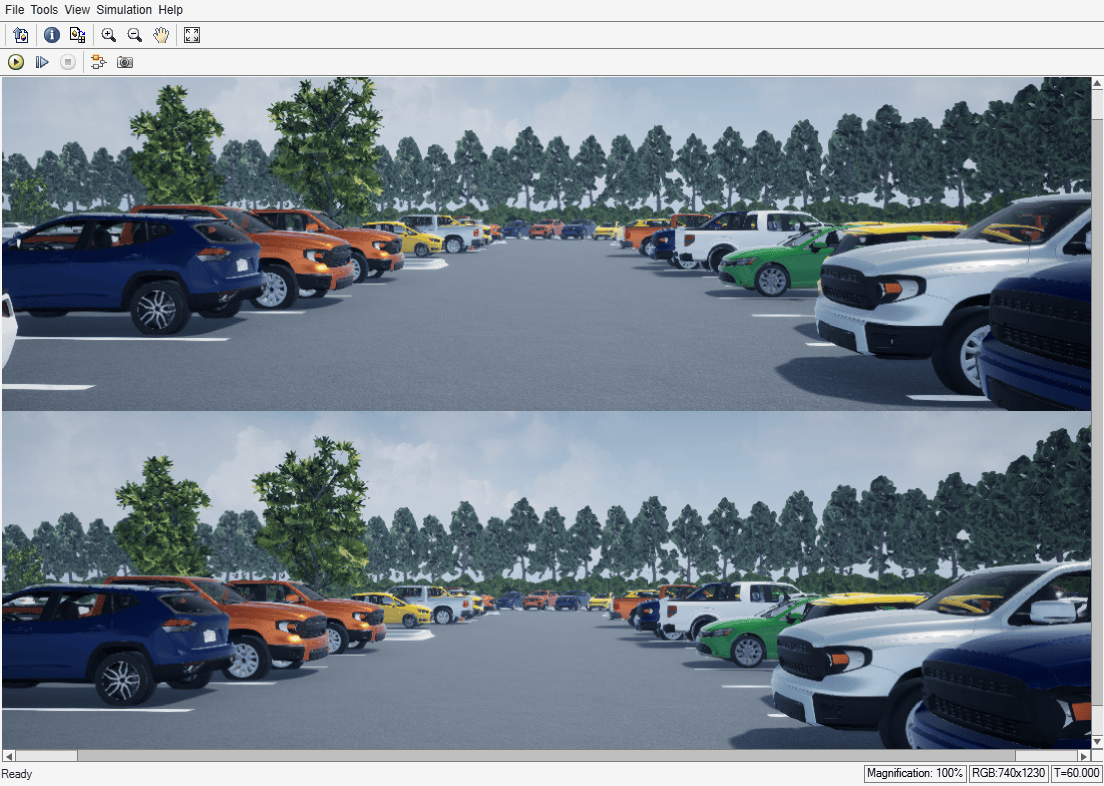
Set up the ego vehicle moving along the specified reference path by using the Simulation 3D Vehicle with Ground Following block. A stereo camera is mounted on the vehicle roof. You can use the Camera Calibrator or Stereo Camera Calibrator app to estimate intrinsics of the actual camera that you want to simulate.
% Camera intrinsics
focalLength    = [700, 700];  % specified in units of pixels
principalPoint = [600, 180];  % in pixels [x, y]
imageSize      = [370, 1230]; % in pixels [mrows, ncols]
intrinsics     = cameraIntrinsics(focalLength, principalPoint, imageSize);
baseline       = 0.5; % stereo camera baselineIn meters
Visualize and Record Sensor Data
Run the simulation to visualize and record sensor data. Use the Video Viewer block to visualize the image output from the camera sensor. Use the To Workspace block to record the ground truth location and orientation of the camera sensor.
close(hScene)

if ismac
    error(['3D Simulation is supported only on Microsoft' char(174) ' Windows' char(174) ' and Linux' char(174) '.']);
end

% Run simulation
simOut = sim(modelName);
snapnow;
Develop Monocular Visual SLAM Algorithm Using Recorded Data
Use the monovslam class to easily invoke the entire monocular visual SLAM pipeline in just a few lines of code. It processes the images from the left camera and estimates the camera poses and simultaneously create a 3-D point cloud of the scene.
% Create a monovslam object with camera intrinsics
vslam = monovslam(intrinsics,MaxNumPoints=1.5e3,SkipMaxFrames=15,...
    TrackFeatureRange=[30,120],LoopClosureThreshold=100);

% Process each image frame
numFrames = numel(simOut.imagesLeft.Time);
for i = 1:numFrames
    I = squeeze(simOut.imagesLeft.Data(:,:,:,i));
    addFrame(vslam,I);

    if hasNewKeyFrame(vslam)
    % Display 3-D map points and camera trajectory
        ax = plot(vslam,CameraSize=0.01);
        ax.XLim=[-4, 4];
        ax.YLim=[-0.2, 1];
        ax.ZLim=[-1, 10];
    end
end

% Plot intermediate results and Wait until all images are processed
while ~isDone(vslam)
    if hasNewKeyFrame(vslam)
        plot(vslam,CameraSize=0.01);
    end
end
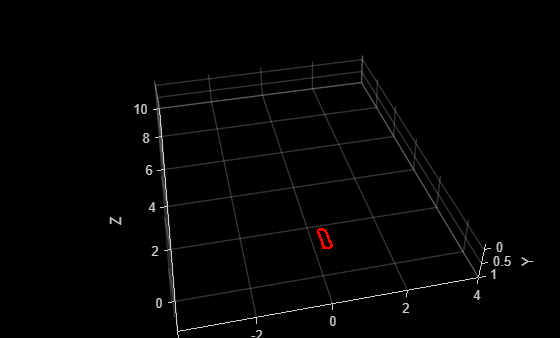
You can evaluate the estimated camera trajectory against the ground truth obtained from the simulation. Since the images are generated from a monocular camera, the trajectory of the camera can only be recovered up to an unknown scale factor. Follow the tips in How to Improve Accuracy in Visual SLAM to improve the accuracy of camera trajectory estimation.
% Get final camera poses
[camPoses,viewIds] = poses(vslam);

% Extract ground truth as an array of rigidtform3d objects
gTruth = helperGetSensorGroundTruth(simOut);

% Compare against the ground truth
metrics=compareTrajectories(camPoses, gTruth(viewIds), AlignmentType="similarity")
metrics =
  trajectoryErrorMetrics with properties:

    AbsoluteError: [103×2 double]
    RelativeError: [103×2 double]
     AbsoluteRMSE: [0.5679 1.1345]
     RelativeRMSE: [0.1918 0.2671]
figure
plot(metrics,"absolute-translation");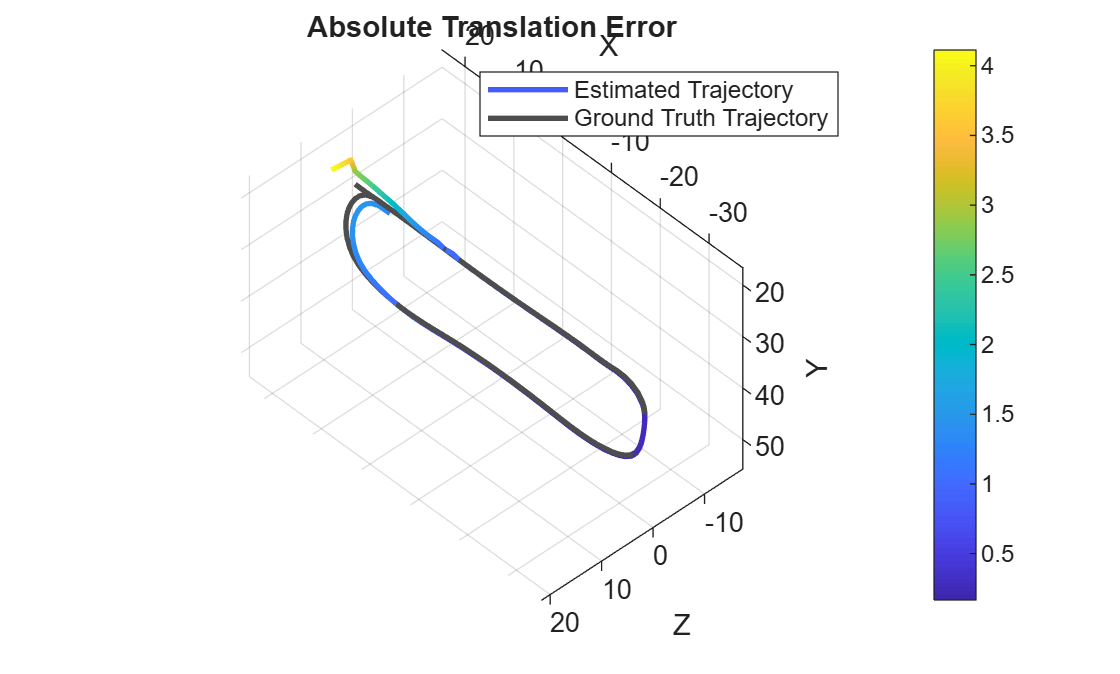
Stereo Visual SLAM Algorithm
In a monocular visual SLAM algorithm, depth cannot be accurately determined using a single camera. The scale of the map and of the estimated trajectory is unknown and drifts over time. Additionally, because map points often cannot be triangulated from the first frame, bootstrapping the system requires multiple views to produce an initial map. Using stereo images solves these problems and provides a more reliable visual SLAM solution. The class stereovslam implements the stereo visual SLAM pipeline.
% Create a stereovslam object with camera intrinsics and baseline
vslam = stereovslam(intrinsics,baseline,MaxNumPoints=1e3,SkipMaxFrames=20,...
    DisparityRange=[8, 56],LoopClosureThreshold=100);

numFrames = numel(simOut.imagesLeft.Time);
for i = 1:numFrames
    ILeft  = squeeze(simOut.imagesLeft.Data(:,:,:,i));
    IRight = squeeze(simOut.imagesRight.Data(:,:,:,i));
    addFrame(vslam,ILeft,IRight);

    if hasNewKeyFrame(vslam)
    % Display 3-D map points and camera trajectory
        ax = plot(vslam, CameraSize=2);
        ax.XLim=[-40, 40];
        ax.YLim=[-2, 10];
        ax.ZLim=[-10, 100];
    end
end
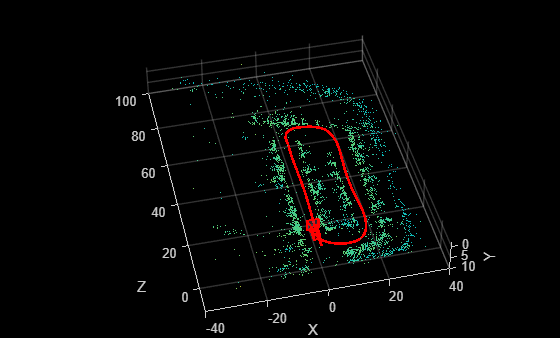
% Plot intermediate results and Wait until all images are processed
while ~isDone(vslam)
    if hasNewKeyFrame(vslam)
        plot(vslam, CameraSize=2);
    end
end
Evaluate the estimated camera trajectory against the ground truth obtained from the simulation.
% Get final camera poses
[camPoses,viewIds] = poses(vslam);

% Compare against the ground truth
metrics=compareTrajectories(camPoses, gTruth(viewIds), AlignmentType="rigid")
metrics =
  trajectoryErrorMetrics with properties:

    AbsoluteError: [78×2 double]
    RelativeError: [78×2 double]
     AbsoluteRMSE: [0.2062 0.9929]
     RelativeRMSE: [0.0442 0.0726]
figure
plot(metrics,"absolute-translation");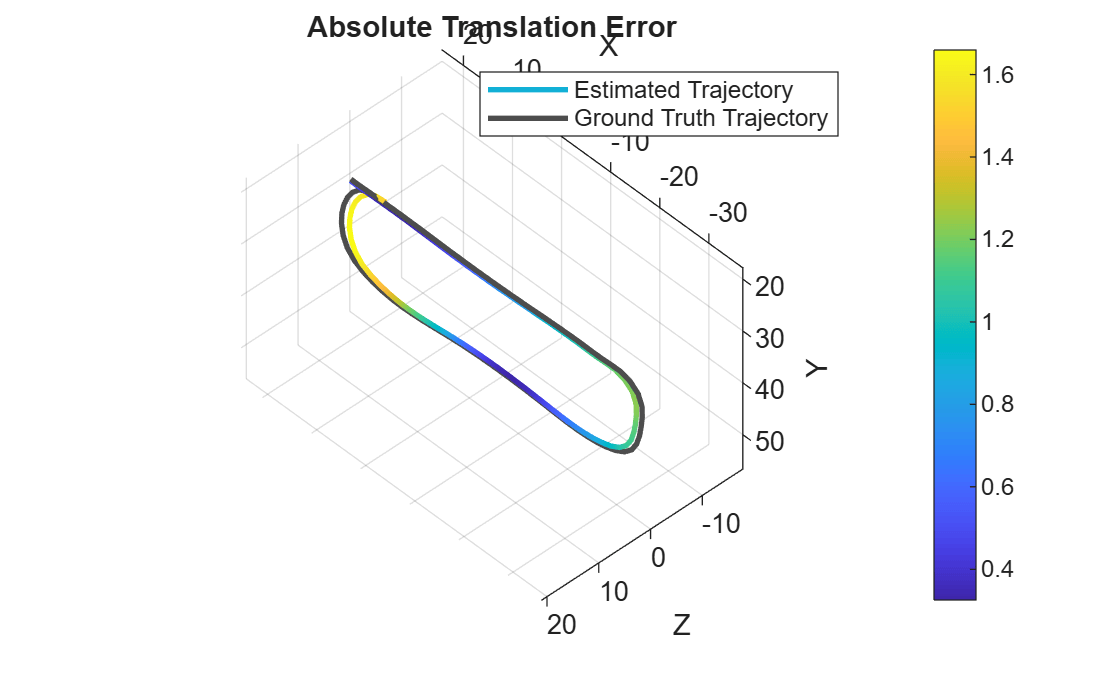
Close model and figures.
close_system(modelName, 0);
close all
Supporting Functions
helperGetSensorGroundTruth Save the sensor ground truth
function gTruth = helperGetSensorGroundTruth(simOut)
numFrames = numel(simOut.location.Time);
gTruth = repmat(rigidtform3d, numFrames, 1);
for i = 1:numFrames
    gTruth(i)=rigidtform3d([-90, 0, rad2deg(double(simOut.orientation.Data(:, 3, i)))-90], ...
        squeeze(simOut.location.Data(:, :, i)));
end
end

