Label Objects Using Polygons for Instance Segmentation
The Image Labeler, Video Labeler, and Ground Truth Labeler (Automated Driving Toolbox) apps enable you to create ground truth data polygon labels for training instance segmentation networks using a variety of interactive and automatic tools.
About Polygon Labels
You can label objects in your image or video frame automatically using the Segment Anything Model (SAM) tool, Segment Anything, or label objects manually. You can associate polygon labels with one another, enabling you to label distinct objects as instances of the same class. Exported polygon labels preserve the stack order of the polygons across label definitions and are compatible with the ground truth format required by:
Instance segmentation networks using an H-by-W-by-NumObjects mask stack.
Semantic segmentation networks using an H-by-W label matrix. Using polygons maintains the order in which the labels are created or reordered (using the
Send to BackandBring to Frontoptions). Semantic segmentation requires a pixel map of the image with labels. To do this, you must flatten the labels, (losing the layered order of the labels). Imagine turning the opacity of all the polygon labels to maximum and preserving all of the filled areas as a label matrix.Raw polygons in a NumObjects-by-1 cell array, where each cell contains M-by-2 points.
In this example, you load an image, create polygon ROI labels, modify preferences related to creating polygons, and postprocess the exported ground truth object data to use for instance segmentation training networks.
Load Unlabeled Data
You can load images stored in a datastore, from a folder, or load a previous labeler
session. The images must be readable by imread. In this example, you are loading data that contains a number of
vehicles, including boats, a tanker, and a plane.
Load Data Programmatically
Use this process to programmatically load images from a datastore:
Create a datastore from a folder of images. For example, if you have a folder named
"stopSignImages"that contains images, you can create a image datastore in this way.imageFolder = fullfile(toolboxdir("vision"),"visiondata","stopSignImages"); imds = imageDatastore(imageFolder);
Load the datastore into the Image Labeler:
imageLabeler(imds);
Alternatively, you can load the folder of images directly into Image Labeler:
imageFolder = fullfile(toolboxdir("vision"),"visiondata","stopSignImages");
imageLabeler(imageFolder);
Load Data Directly from the App
Click Import to load images or click Open Session to open a saved session.
Create Polygon Labels
To follow these steps that use an image of sailboats, a tanker, and an airplane, open
the Image Labeler app and then import the "boats.png"
image from the vision/visiondata folder.
In the Label Definition pane on the left, click Add Label to create the polygon ROI label definition.

Select the
Polygonlabel type in the drop down manu and name itSailboat.Optionally, you can change the label color by clicking the preview color.
Click OK.
The Sailboat label appears in the ROI Label Definitions pane.
Repeat steps 1 through 4 to create a Tanker label and a Airplane label. You can move a label in the list by left-clicking and dragging the label up or down.
Create Polygon ROI Labels
You can create polygon ROI labels in two ways: automatically generate a polygon ROI using the Segment Anything tool, or manually draw a polygon ROI.
Generate Polygon ROIs using Segment Anything
Select the Sailboat label, and click the Segment Anything.

Click Mark Object, and mark points on the object to add to ROI. The Image Labeler app automatically generates a polygon ROI label for the object, shading the labeled sections of the object in the color associated with the label.
To add the shaded green region to the label, press Enter, or click Accept.
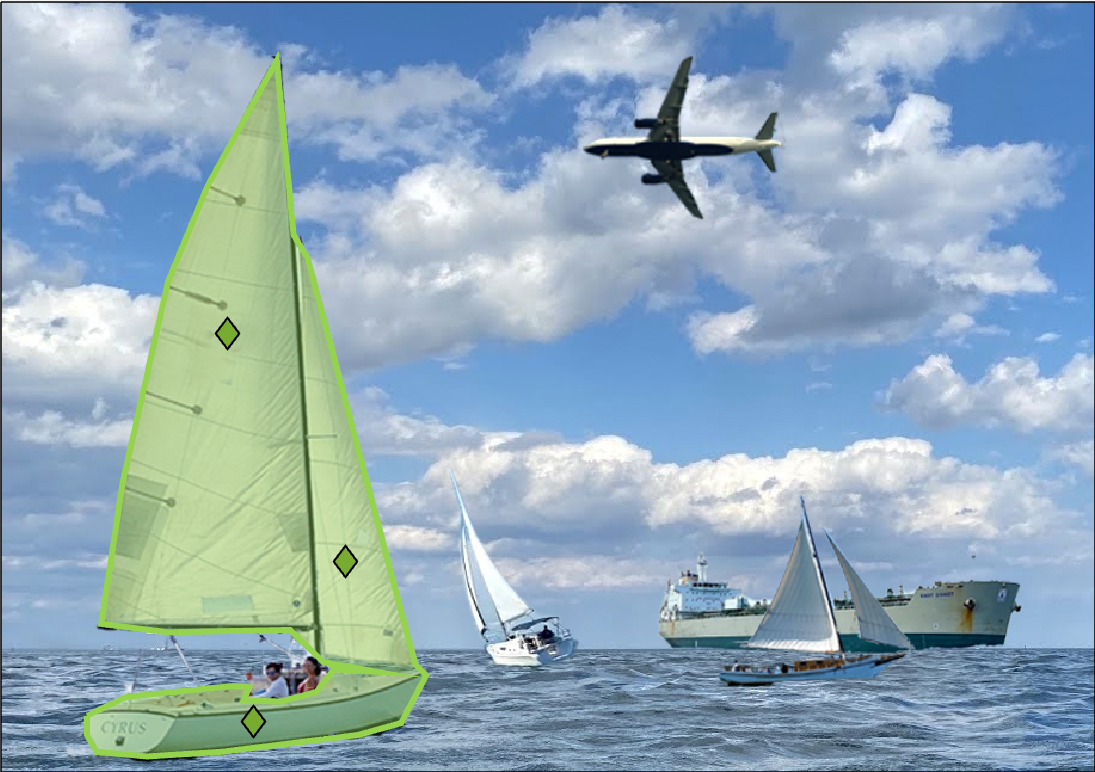
Continue to label other sailboats in the scene by marking new object points. Label sailboats object-by-object, and press Enter, or click Accept after you are done drawing each label.
You can also create a polygon label for an object by drawing a rectangular ROI around it. Click Bound Object on the Segment Anything toolstrip, and draw a rectangular ROI around the object that you want to label. To draw an ROI, position the cursor over the image and click, then drag until the rectangle covers your desired image region. When you are done drawing the ROI, the Image Labeler app automatically creates a polygon ROI enclosing the object.
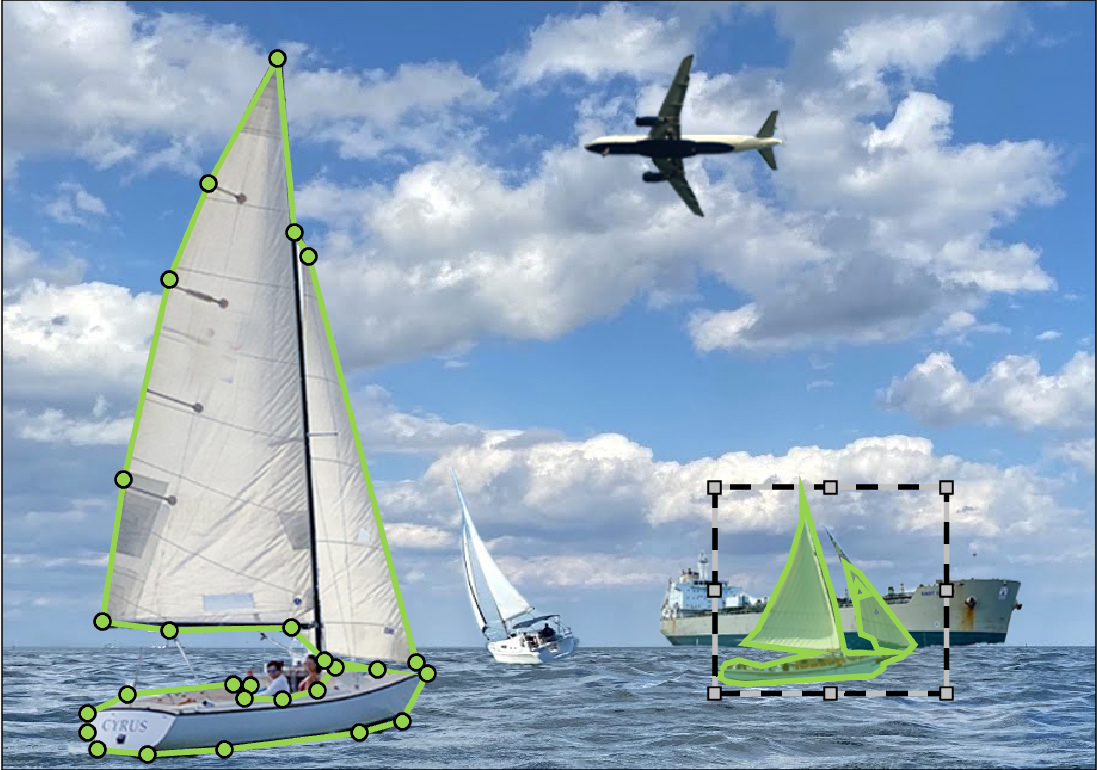
Select the Airplane label. Click Bound Object on the Segment Anything toolstrip, and draw a rectangular ROI around the airplane. Press Enter, or click Accept to add the ROI label.
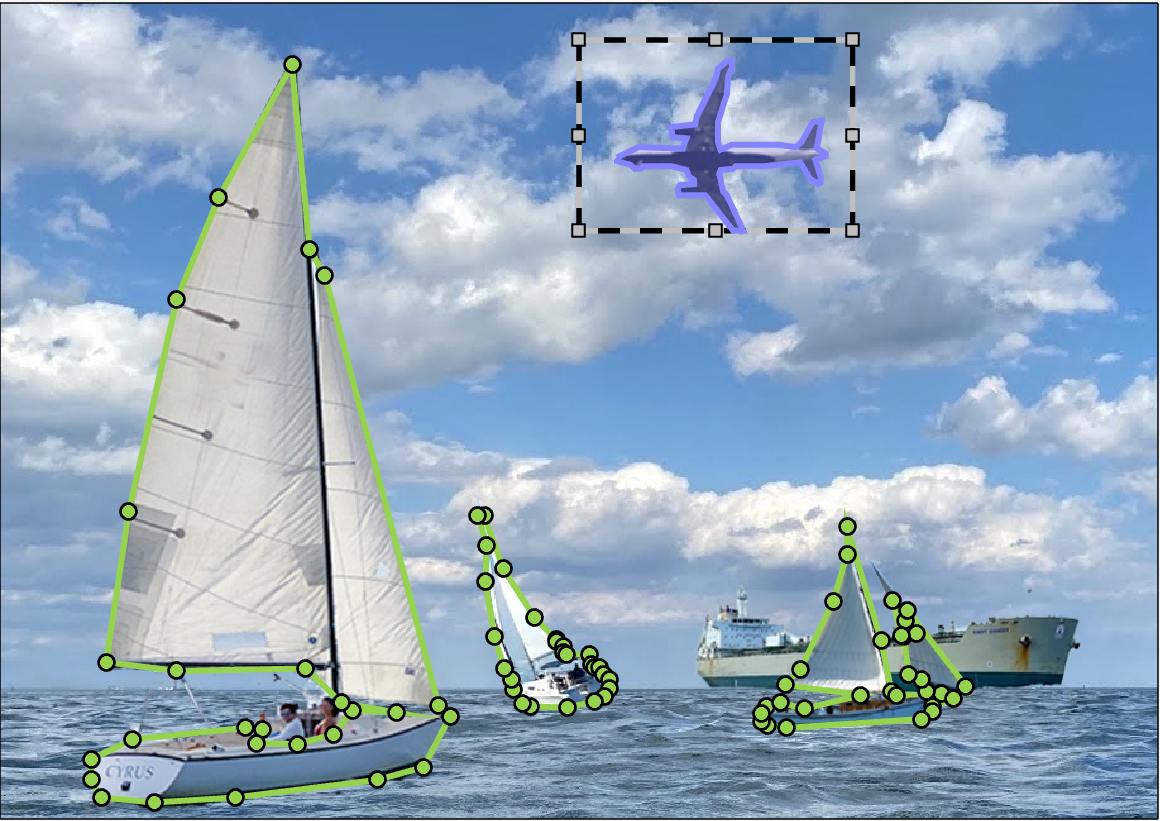
Select the Tanker label. Click Bound Object on the Segment Anything toolstrip, and draw a rectangular ROI around the tanker. Press Enter, or click Accept to add the ROI label.

Manually Draw Polygon ROIs
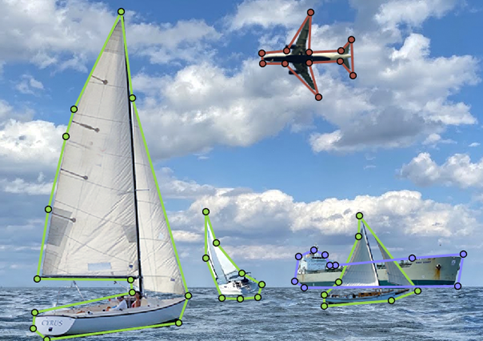
Alternatively, you can manually draw the polygon ROI labels. Select the Sailboat label, and then using the mouse, draw a polygon ROI around each of the sailboats. Select the Tanker label and draw a polygon ROI around the tanker ship. Select the Airplane label and draw a polygon ROI around the airplane.
Modify Polygon Preferences and Stacking Order
There are a number of ways to modify the appearance of the ROI labels. You can also set the stacking order for the exported ground truth file. The stacking order indicates whether an object is in front of or behind another object, and is required in order to resolve overlapping areas to build a semantic label map.
In the next steps, you modify the color of a label, set the appearance of label names while labeling, modify the opacity of labels, view instances of a class of labels, and set the stacking order.
To modify the color of the airplane ROI label, right-click the
Airplanelabel in the ROI Label Definitions pane and select Edit ROI Label in the Edit menu. Click the color preview and select a color.
To show ROI label names while labeling, select Always from the Show ROI Labels menu in the Visualization section tab.
To increase the label opacity, use the Polygon slider in the Label Opacity section. Increasing the opacity helps to recognize which labels are in front of or behind other labels in the scene.
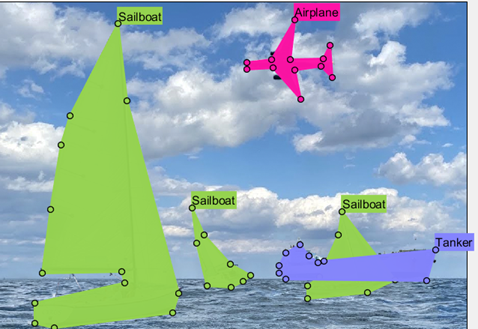
The tanker label is in front of the sailboat label, but it should be behind it. The position affects the stacking order in the exported ground truth. To modify the stacking order, right-click on the tanker ROI label in the scene and select Send To Back.

To view instances of ROI labels, select
By
                            Instance
from the ROI Color drop-down menu in the Visualization section tab.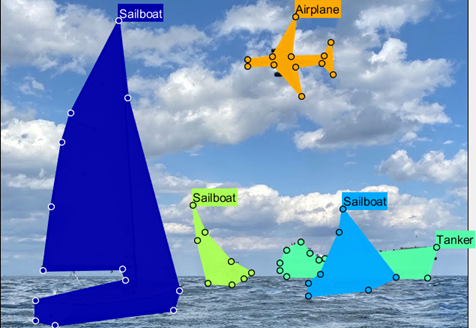
Export the labeled ground truth data by clicking Export and selecting To Workspace. Name the ground truth data MAT file
gTruth.
Postprocess Exported Labels for Training
To use the labeled ground truth for training an instance segmentation network, you must postprocess it into the format required by the network training functions. To postprocess the ground truth polygon labels, see Postprocess Exported Labels for Instance Segmentation Training.
See Also
Apps
- Image Labeler | Video Labeler | Ground Truth Labeler (Automated Driving Toolbox)
Functions
Objects
groundTruth|groundTruthMultisignal(Automated Driving Toolbox)