Cluster Data Using the Neural Net Clustering App
This example shows how to train a shallow neural network to cluster data using the Neural Net Clustering app.
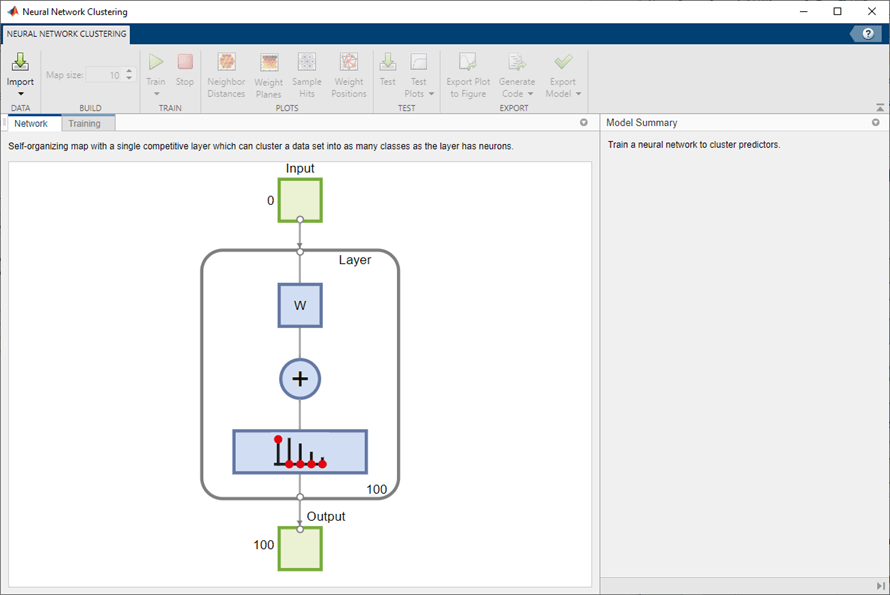
Open the Neural Net Clustering app using nctool.
nctool
Select Data
The Neural Net Clustering app has example data to help you get started training a neural network.
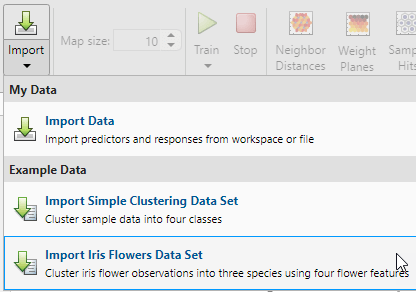
To import the example iris flower clustering data, select Import > Import Iris Flowers Data Set. If you import your own data from file or the workspace, you must specify the predictors and whether the observations are in rows or columns.
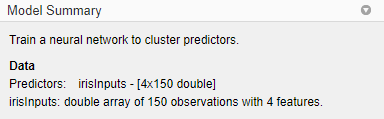
Information about the imported data appears in the Model Summary. This data set contains 150 observations, each with four features.
Create Network
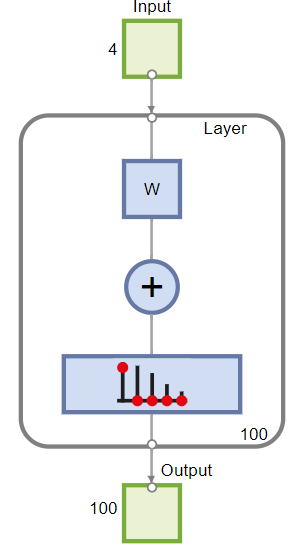
For clustering problems, the self-organizing feature map (SOM) is the most commonly used network. This network has one layer, with neurons organized in a grid. Self-organizing maps learn to cluster data based on similarity. For more information on the SOM, see Cluster with Self-Organizing Map Neural Network.
To create the network, specify the map size, this corresponds to the number of rows and columns in the grid. For this example, set the Map size value to 10, this corresponds to a grid with 10 rows and 10 columns. The total number of neurons is equal to the number of points in the grid, in this example, the map has 100 neurons. You can see the network architecture in the Network pane.
Train Network
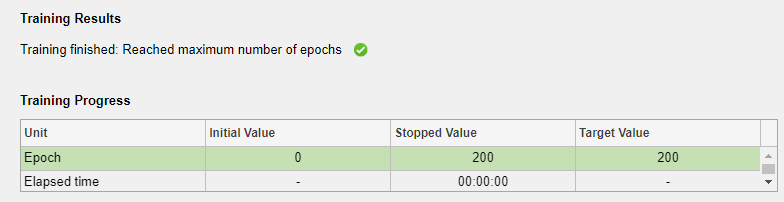
To train the network, click Train. In the Training pane, you can see the training progress. Training continues until one of the stopping criteria is met. In this example, training continues until the maximum number of epochs is reached.
Analyze Results
To analyze the training results, generate plots. For SOM training, the weight vector associated with each neuron moves to become the center of a cluster of input vectors. In addition, neurons that are adjacent to each other in the topology should also move close to each other in the input space, therefore it is possible to visualize a high-dimensional inputs space in the two dimensions of the network topology. The default topology of the SOM is hexagonal.
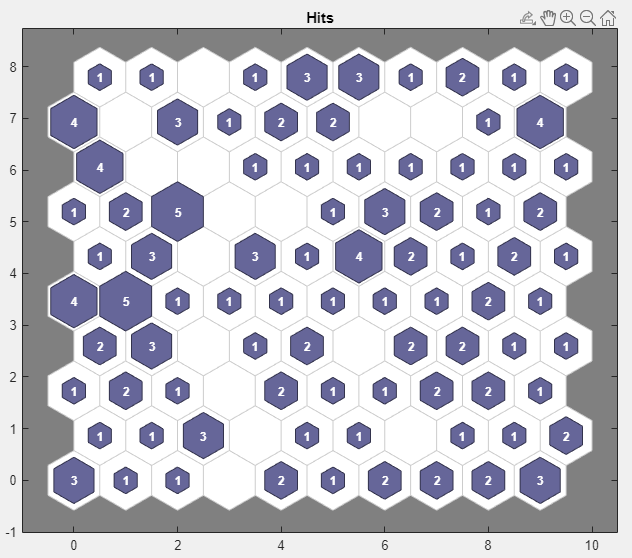
To plot the SOM Sample Hits, in the Plots section, click Sample Hits. This figure shows the neuron locations in the topology, and indicates how many of the observations are associated with each of the neurons (cluster centers). The topology is a 10-by-10 grid, so there are 100 neurons. The maximum number of hits associated with any neuron is 5. Thus, there are 5 input vectors in that cluster.
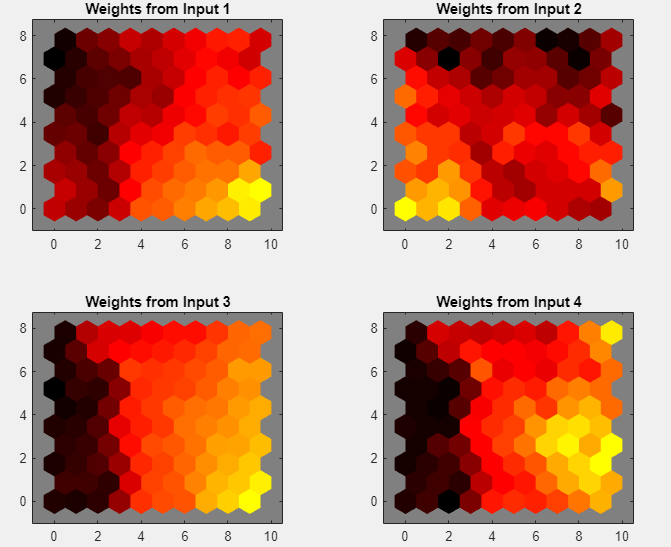
Plot the weight planes (also referred to as component planes). In the Plots section, click Weight Planes. This figure shows a weight plane for each element of the input features (four, in this example). The plot shows the weights that connect each input to each of the neurons, with darker colors representing larger weights. If the connection patterns of two features are very similar, you can assume that the features are highly correlated.
If you are unhappy with the network performance, you can do one of the following:
Train the network again. Each training will have different initial weights and biases of the network, and can produce an improved network after retraining.
Increase the number of neurons by increasing the map size.
Use a larger training data set.
You can also evaluate the network performance on an additional test set. To load additional test data to evaluate the network with, in the Test section, click Test. Generate plots to analyze the additional test results.
Generate Code
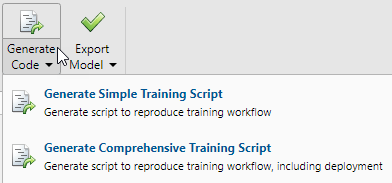
Select Generate Code > Generate Simple Training Script to create MATLAB code to reproduce the previous steps from the command line. Creating MATLAB code can be helpful if you want to learn how to use the command-line functionality of the toolbox to customize the training process. In Cluster Data Using Command-Line Functions, you will investigate the generated scripts in more detail.
Export Network
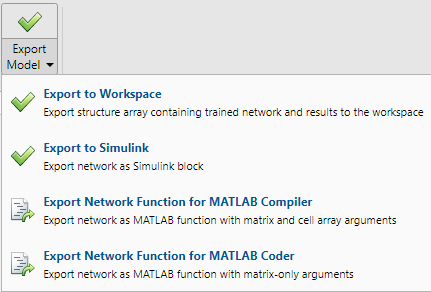
You can export your trained network to the workspace or Simulink®. You can also deploy the network with MATLAB Compiler™ tools and other MATLAB code generation tools. To export your trained network and results, select Export Model > Export to Workspace.
See Also
Neural Net Fitting | Neural Net Time Series | Neural Net Pattern Recognition | Neural Net Clustering | train

