Model Reference PIL Simulation
R2026bEmbedded Coder® Support Package for Infineon® AURIX™ TC3x Microcontrollers enables you to run processor-in-the-loop (PIL) simulation on selected parts of monolithic or SoC-based multicore models. A PIL simulation cross-compiles source code on your development computer and runs the generated object code on a target processor or an equivalent instruction set simulator. With model reference PIL simulation, the selected reference model runs on the Infineon AURIX hardware while the rest of the application model runs on the development host computer. This workflow allows incremental testing and improves simulation quality by validating execution behavior without simulating the entire application model or system.
Convert Part of Application Model to Model Reference
Open an Infineon AURIX example model and select a part of the model for PIL simulation.
For example, open the Field-Oriented Control of BLDC with Encoder Using Infineon AURIX TC3xx Microcontrollers example and launch the Simulink® model
tc3x_mcb_pmsm_foc_encoder.slx.To perform PIL simulation for the
Speed Controlalgorithm, select theSpeed Controlsubsystem block.In the Simulink Toolstrip, on the Subsystem Block tab, click Convert > Referenced Model. Simulink opens the Model Reference Conversion Advisor, where you can select the conversion options and fix any conversion issues. For more information, see Convert Subsystem to Referenced Model.

To replace the
Speed Controlsubsystem with a Model block that references the new model, check that Replace the content of a subsystem with a Model block is selected in the Model Reference Conversion Advisor. Click Convert.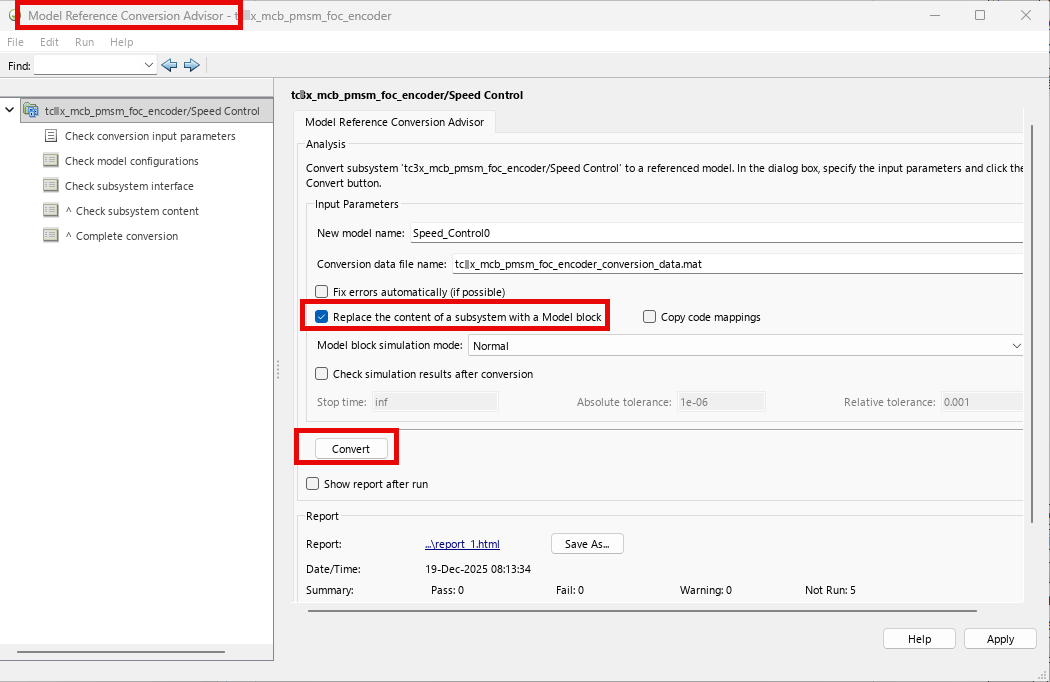
Simulink opens the converted reference model after the conversion is complete.
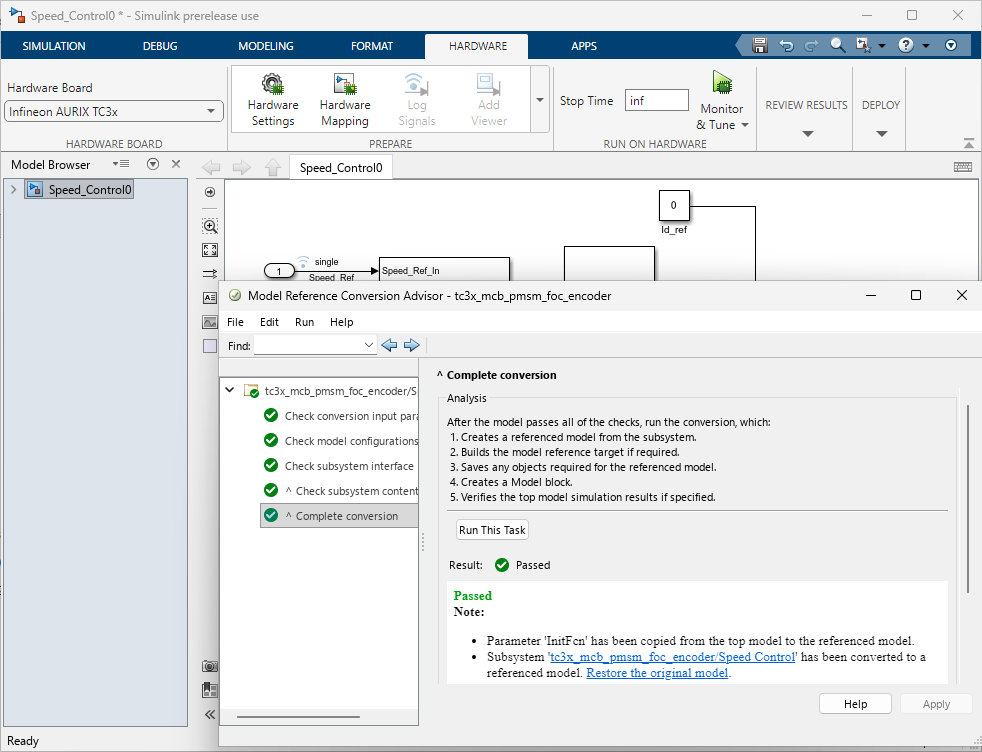
Open the Configuration Parameters dialog box of the reference model and configure it for Infineon AURIX hardware boards. Specify the Hardware board, Device Series, and Processing Unit for your hardware board.
PIL Simulation
In the Simulink Toolstrip, on the Model Block tab, set Simulation Mode to
Processor-in-the-loop
                  (PIL)
.
Simulink displays the simulation mode as a block label.

To launch the SIL/PIL Manager app, in the Simulink Toolstrip, on the Apps tab, select SIL/PIL Manager.
On the SIL/PIL tab, set Mode to
SIL/PIL Onlyand System Under Test toModel blocks in SIL/PIL mode.
You can also configure the Code coverage, Code execution profiling, and Creation of code generation report and static code metrics.
Click Run SIL/PIL. At the end of the simulation, in the Results section, click Data Inspector to view the simulation results.
Restore the model to its initial state and continue performing PIL simulation on other parts of your application model. To restore the model, click Restore the original model in the Model Reference Conversion Advisor.

Known Limitations
Top-level PIL simulation is not supported.
Infineon AURIX driver blocks are not supported in the Model block for the model reference PIL simulations.
See Also
SIL and PIL Simulations | PIL Simulation Sequence | Hardware Board Settings (C2000 Microcontroller Blockset) | Configure and Run PIL Simulation | Convert Subsystems to Referenced Models | SoC-Based Multicore Modeling for Infineon AURIX Microcontrollers | Monolithic Modeling for Infineon AURIX Microcontrollers

