Target Device Configuration for Real-Time Linux
R2026bTo use the support package with your Linux target device, configure the Debian® 11 or Debian 13 physical or virtual machine as a Linux target device by using these steps.
Make sure that the virtual machine has internet access and has the sudo package installed. Install sudo by using this command from the virtual machine command line:
apt install sudoA non-root user is needed for the connection between Simulink® Real-Time™ and the Linux target device. Add the non-root user by running:
sudo adduser
The username and password for the virtual machine login need to have passwordless sudo access. While logged in as root user, configure the passwordless access by using this command from the virtual machine command line:
echo '{Your UserName} ALL=(ALL) NOPASSWD:ALL' | sudo EDITOR='tee -a' visudoNow, the virtual machine is ready to be accessed by the support package software.
To set up Simulink Real-Time access to the Linux target device, see Set Up Target Device by Using Simulink Real-Time Explorer or Set Up Target Device by Using slrtlinux.setupTarget Function.
Set Up Target Device by Using Simulink Real-Time Explorer
After completing Target Device Configuration for Real-Time Linux, you can set up Linux® target devices by using Simulink Real-Time Explorer. If you prefer to use a function for this setup, see Set Up Target Device by Using slrtlinux.setupTarget Function. Before setting up the Linux target device for Simulink Real-Time Explorer, you need to have a Linux device that is accessible from your development computer through an Ethernet connection:
Start Simulink Real-Time Explorer by either:
In the MATLAB Command Window, type
slrtExplorer.From a Simulink Real-Time model, in the Simulink Editor, on the Real-Time tab, click the SLRT Explorer button.
Click the Setup device button on the Linux Devices tab.
Use the Common and Advanced tabs in the Set up Linux device for Simulink Real-Time dialog box to configure Linux device information for Simulink Real-Time Explorer. Note that this dialog box does not configure the Linux devices. Use the non-root user for the connection. For more information, see Target Device Configuration for Real-Time Linux.
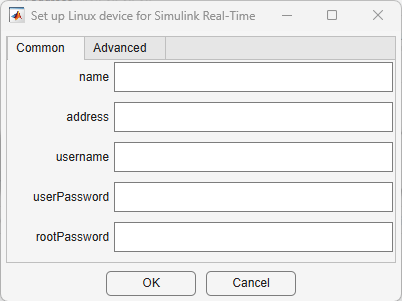
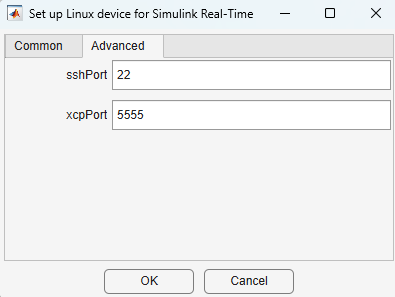
After the Linux target device setup for Simulink Real-Time Explorer is completed, you can connect to the Linux device from the explorer.
To verify that the support package installation and the Linux target device configuration, see Build and Deploy Real-Time Application to Linux Target Device.
Set Up Target Device by Using slrtlinux.setupTarget
Function
After completing Target Device Configuration for Real-Time Linux, you can set up Linux target devices by using the slrtlinux.setupTarget function. If you prefer to use a user interface for
this setup, see Set Up Target Device by Using Simulink Real-Time Explorer. Before setting up
the Linux target device for Simulink
Real-Time Explorer, you need to have a Linux device that is accessible from your
development computer through an Ethernet connection:
Create a
TargetSettings(Simulink Real-Time) object and configure the object with the IP address and other settings for the Linux target device. For more information, seeTargetSettings(Simulink Real-Time).Create a
ProgressDialogobject to display configuration progress for the Linux target device.Configure the Linux target device by using the
slrtlinux.setupTargetfunction. For example:myTgLinuxDevice = slrtlinux.setupTarget(myTgSettings,"172.21.58.68",myDlgOptions);After the Linux target device setup for Simulink Real-Time Explorer is completed, you can connect to the Linux device from the explorer. Use the non-root user for the connection. For more information, see Target Device Configuration for Real-Time Linux.
See Also
slrtlinux.setupTarget | slrtlinux.wsl.setupTarget | CAN Receive | CAN Transmit

