Configure MCAL SPI in DaVinci Configurator
R2026bThis topic explains how to configure the AUTOSAR MCAL SPI module in Vector DaVinci Configurator. The SPI configuration follows a hierarchical structure consisting of Channels, Jobs, Sequences, and External Devices. Configure these containers in the order described in this topic.
SPI Configuration Workflow
Configure the SPI module using the following sequence:
Configure global SPI settings in
SpiGeneral.Create one or more
SpiChannelcontainers.Configure an
SpiExternalDevicefor each SPI slave device.Create
SpiJobcontainers and assign channels to each Job.Create
SpiSequencecontainers and assign Jobs.Generate the MCAL configuration code.
The relationship between the configuration containers is shown below:
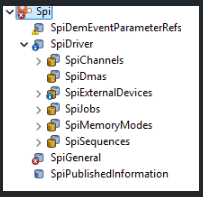
Configure Global SPI Settings
Open the SpiGeneral container and specify module-wide settings
such as:
Driver functionality level
Development Error Tracer (DET) configuration
Diagnostic Event Manager (DEM) configuration
The SpiGeneral container is configured once for the entire SPI
module.
Configure SPI Channels
Create a SpiChannel container for each data stream that must be
transferred. For each channel:
Specify the channel type:
IB (Internal Buffer) — For driver-managed buffers.
Set the data width.
Specify the default transmit value.
Configure the buffer size:
SpiIbNBuffersfor IB channels.
Use IB channels when buffer sizes are fixed and managed by the driver.
Configure External Devices
Create a SpiExternalDevice container for each SPI slave device
connected to the SPI bus. Configure:
Clock polarity (CPOL)
Clock phase (CPHA)
Baud rate
Chip-select behavior
Device timing requirements
Configure separate External Devices when connected peripherals require different SPI timing settings.
Configure SPI Jobs
Create a SpiJob container for each SPI transaction. For each
Job:
Add one or more SPI channels.
Arrange channels in the required transmission order.
Select the associated
SpiExternalDevice.Configure the Job priority.
A Job keeps chip-select asserted for the complete transaction and guarantees that all included channels execute as a single SPI operation.
Configure Chip Select Handling
Set SpiCsSelection to one of the following values:
| Option | Description |
|---|---|
CS_VIA_PERIPHERAL_ENGINE | Hardware automatically controls the chip-select signal. |
CS_VIA_GPIO | The SPI driver controls a GPIO pin as chip-select. |
Use CS_VIA_PERIPHERAL_ENGINE when the SPI hardware supports the
required chip-select line. Use CS_VIA_GPIO when a dedicated GPIO must
be used for chip-select control.
Configure SPI Sequences
Create a SpiSequence container to define the transactions
triggered by the application. For each Sequence:
Add one or more Jobs.
Arrange Jobs in the required execution order.
Applications start a Sequence by calling Spi_SyncTransmit(). Jobs
within the Sequence execute in the configured order.
Verify the Configuration
Before generating code, verify that:
Every Job references at least one Channel.
Every Job references a valid External Device.
All Sequences contain at least one Job.
Buffer sizes and data widths meet application requirements.
Chip-select settings match the target hardware.
Generate MCAL Configuration
After completing the SPI configuration:
Validate the project in DaVinci Configurator.
Resolve any reported configuration errors.
Export the CDF file with the SPI module.

