The timescope object
includes the following enhancements in R2026b.
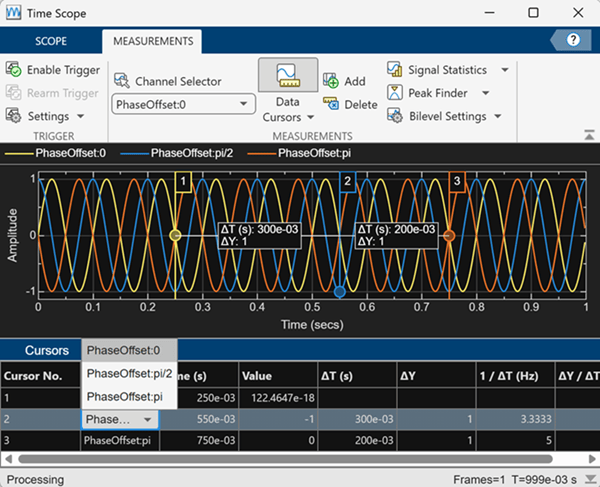
Display measurements using engineering notation
The timescope
object now displays the cursor measurements, peaks, statistics, and bilevel measurements
using engineering notation.

Interactive cursors panel
In the timescope object display, you can now change the cursor channel and the cursor location directly from the Cursors panel.
New YLimitsMode property
You can control how the timescope
object determines the Y-axis limits using the new
YLimitsMode property.
"auto"— Automatically adjusts the Y-axis limits to fit the currently displayed data."manual"— Uses fixed Y-axis limits.
The YLimitsMode property is recommended over the
AxesScaling property for controlling the Y-axis
limits.
New fitToView object function
You can now use the new fitToView object function to
automatically adjust the Y-axis limits of a timescope
object to fit the currently displayed data. This function performs a one‑time autoscaling
operation without changing the YLimitsMode property and is useful for
resetting the view or updating Y-axis limits on demand.
New Restore View (Home) button in Axes Toolbar
The Restore View (Home) button in the time scope axes toolbar
resets the X-axis to show only the most recent time span of data after
zooming, panning, or fit-to-view operations. This button also resets the
Y-axis limits based on value of the YLimitsMode
property of the timescope
object.
Support for automatic buffer length
The timescope
object now uses an automatic buffer length by default with the
BufferLength property set to "auto", ensuring
that the scope retains sufficient data to display the full time span. In this mode, the buffer:
Always holds at least one full time span of data.
Typically holds approximately 100× the time span, with a minimum of
1e5samples per channel and an upper limit of1e7samples per channel. If the time span exceeds1e7samples per channel, the buffer grows as needed to store at least one full time span of data.
The poseplot function has these changes:
Batch Input Support
You can now visualize multiple poses in a single function call by passing arrays
of orientations and positions to the poseplot function. This approach makes your code more concise and
delivers performance improvements for workflows involving trajectories or
time-series pose estimates. For example, this code plots 1000 poses in R2026a, using
a loop, and in R2026b, using an array. The R2026b code using an array is about 5x
faster:
R2026a:
function timingTest
    numPoses = 1000;
    orientations = quaternion(randn(numPoses,4));
    positions = cumsum(randn(numPoses,3),1);

    for i = 1:numPoses
        poseplot(orientations(i),positions(i,:),"ENU",MeshFileName="multirotor.stl");
    end
end
R2026b:
function timingTest
    numPoses = 1000;
    orientations = quaternion(randn(numPoses,4));
    positions = cumsum(randn(numPoses,3), 1);

    poseplot(orientations, positions, 'ENU', MeshFileName = 'multirotor.stl');
end
The approximate execution times are:
R2026a: 45.34 s
R2026b: 9.87 s
The code was timed on a Windows® 11, AMD Epyc® 74F3 24-Core Processor CPU @ 3.19 GHz test system using the
timeit function:
timeit(@timingTest)
Multi-Pose Visualization Improvements
You can now control the visibility of the orientation axis labels and the origin
box using the new PoseAxisLabels and OriginBox
properties, respectively, of the PosePatch object. You can use
these properties to improve plot visibility when displaying many poses
simultaneously.
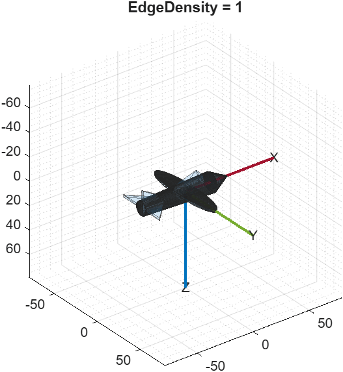
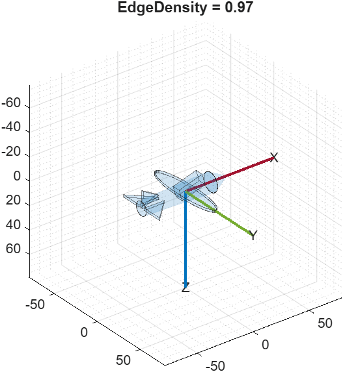
Mesh Visualization Enhancements
You can now tune the rendering of an STL mesh by adjusting the display of mesh
edges using the new EdgeDensity property of the
PosePatch object. You can now also control the color,
transparency, and width of edges using the new EdgeColor,
EdgeAlpha, and EdgeLineWidth properties,
respectively, of the PosePatch object.
These figures compare the display of an STL mesh with the maximum
EdgeDensity value of 1, which renders all
mesh edges, on the left, and a lower EdgeDensity value of
0.97, which renders fewer mesh edges, on the right.
|
|
|
PatchFaceColor and
PatchFaceAlpha properties renamed
The PatchFaceColor and PatchFaceAlpha
properties of the PosePatch object are now called
FaceColor and FaceAlpha, respectively. The
behavior of both properties remains the same. There are no plans to remove support
for existing references to PatchFaceColor and
PatchFaceAlpha.