Configure Installation from Artifactory Repository
Artifactory®, published by JFrog®, is an artifact repository manager with support for version management, access
control, and CI/CD integration. The command-line tool MATLAB® Package Manager (mpm) enables users to download and install
MathWorks® products and support packages from your organization's Artifactory repository. This topic shows how to configure installation from your
organization's Artifactory repository for MathWorks products and support packages.
Limitations
In offline environments, mpm is unable to
install support packages containing third-party packages from Artifactory. During installation,
mpm attempts to download the third-party packages from vendor sites
instead of retrieving them from Artifactory. If the vendor sites are unreachable,
mpm issues an error. To install support packages containing third-party
packages outside of Artifactory, see Install Support Packages on Offline Computer.
Installation Configuration Workflow
To configure the installation of MathWorks products and support packages from your organization's Artifactory repository:
Set up the repository folder structure in Artifactory (one-time step).
Create the JSON configuration file required for installing products and support packages from the repository (one-time step).
Download products and support packages from MathWorks using
mpm download.Upload the products to your organization's Artifactory repository.

Repeat steps 3 and 4 above for every new release, or update release, of MathWorks products and support packages.
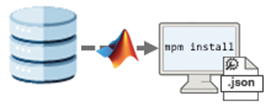
Users can then install products from the repository by using mpm
install and the configuration file.
Set Up Repository Folder Structure (One-Time Step)
Set up the Artifactory repository used to store MathWorks products and support packages.
In Artifactory, either create a new repository or reuse an existing repository. In both cases, the repository type must be set to Generic. Sample repository URL:
https://artifactory.example.com/artifactory/my-repoIn the top-level folder of your Artifactory repository, create a subfolder named
MathWorksfor storing MathWorks releases.MathWorks/In later steps, when you download product and support package releases from MathWorks, you will upload these releases to the
MathWorkssubfolder. Each release and update will be stored in a separate subfolder under theMathWorksfolder (for example,R20XXaU0,R20XXaU1, and so on). This folder structure shows a repository with multiple uploaded releases and updates:MathWorks/ R20XXaU0/ R20XXaU1/ R20XXaU2/ ... R20XXbU0/ R20XXbU1/ R20XXbU2/ ...
Create Repository Configuration File (One-Time Step)
Create the JSON configuration file that enables users to install the products and support packages. This file contains information about the repository that is required for installation.
Create a JSON file. For example:
my_repo_config.json.Copy the following contents into the JSON file:
{
  "repository_configuration": [
    {
      "name": "my-repo",
      "url": "https://my-artifactory-instance/my-repo",
      "type": "artifactory",
      "repository_layout": {
        "mathworks_products": "MathWorks"
      },
      "auth": {
        "type": "token",
        "access_token": "${ARTIFACTORY_ACCESS_TOKEN}"
      }
    }
  ]
}
Modify the JSON file fields for your repository.
"name"— Name of your Artifactory repository."url"— URL of your Artifactory repository."type"— Type of repository. Currently,"artifactory"is the only supported repository type."repository_layout"— Folder layout of your Artifactory repository. Each subfield inrepository_layoutdefines a subfolder that stores installable MathWorks software. Supported subfields:"mathworks_products"— Name of subfolder containing MathWorks product and support package releases. For example, suppose your configuration file contains these field values:If you install products and support packages for... "url": "https://my-artifactory-instance/my-repo", ... "repository_layout": { "mathworks_products": "MathWorks" }, ...R2026aU0, thenmpmretrieves the products and support packages from this URL:https://my-artifactory-instance/my-repo/MathWorks/R2026aU0
"auth"— Authentication details for accessing the repository. Supported subfields:"type"— Authentication type. Currently, the only supported type is"token"."access_token"— Token used to authenticate users accessing the repository. After you obtain an access token from your IT administrator, set the token in theARTIFACTORY_ACCESS_TOKENenvironment variable. Follow your organization's procedure for setting environment variables. Sample syntax:ARTIFACTORY_ACCESS_TOKEN=abc123xyz456Then in the JSON file, specify the environment variable name in the
access_tokenfield using this syntax:"access_token": "${ARTIFACTORY_ACCESS_TOKEN}"Alternatively, you can specify the access token directly in the JSON file. For example:
"access_token": "abc123xyz456"Security Considerations: Specifying the access token directly in the JSON file exposes sensitive credentials in plain text. To reduce the risk of exposing credentials in configuration files, specify the access token as an environment variable.
Save the JSON file in a location that users can access, such as a shared drive. If users can download files from your Artifactory repository, consider uploading the file to your Artifactory repository.
Download Products from MathWorks
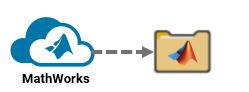
Use mpm to download the products and support packages for a
specific release that you want to upload to Artifactory. You cannot upload MathWorks software downloaded from other sources, such as an ISO or DMG
image.
Get the latest version of
mpmby following the instructions in Get MATLAB Package Manager.Download the products using
mpm download. For example, download the initial (update 0) R2026a release of Simulink® and Deep Learning Toolbox™ Model for ResNet-50 Network for use on Linux® (glnxa64), Windows® (win64), and Mac (maca64) platforms. Replace<USER>with your computer username.mpmalso downloads the required products: MATLAB and Deep Learning Toolbox.Linux or Mac:
./mpm download --release=R2026aU0 --destination=/home/<USER>/Downloads/R2026aU0 --platforms=glnxa64 win64 maca64 --products=Simulink Deep_Learning_Toolbox_Model_for_ResNet-50_NetworkWindows:
.\mpm.exe download --release=R2026aU0 --destination=C:\Users\<USER>\Downloads\R2026aU0 --platforms=glnxa64 win64 maca64 --products=Simulink Deep_Learning_Toolbox_Model_for_ResNet-50_NetworkTo download a large number of products and support packages, use the
--inputfileoption to specify the products in an input file. For details, see the example Download Products Using Input File on thempm downloadreference page.
The R2026aU0 folder has this structure:
R2026aU0/
  archives/
  mpm/
  ProductFilesInfo.xml
The R2026aU0 folder contains the following files and subfolders:
archives— Subfolder containing the downloaded products and support packages.mpm— Subfolder containing downloaded versions ofmpm, one for each platform you specified in the--platformsoption ofmpm. Your users can install products and support packages using these versions ofmpm, as shown in this sample structure:mpm/ glnxa64/ mpm maca64/ mpm win64/ mpm.exeProductFilesInfo.xml— Metadata file containing information about the products and support packages.
Upload Products to Artifactory

Upload the products and support packages you downloaded in the previous section to Artifactory. Because Artifactory does not support folder uploads, you must first compress the downloaded folder into a ZIP file. Do not modify the structure or contents of this folder before compressing and uploading it.
Using your preferred tool, compress the release folder you downloaded into a ZIP file. For example, navigate to the downloaded folder and use
zip(Linux or Mac) ortar(Windows) to compress the contents into a ZIP file in the parent folder,Downloads.Linux or Mac:
cd /home/<USER>/Downloads/R2026aU0
zip -r ../R2026aU0.zip ./*
cd ..
Windows (command prompt):
cd C:\Users\<USER>\Downloads\R2026aU0
tar -a -c -f ..\R2026aU0.zip *
cd ..
Depending on the number of products and support packages downloaded, this process can take several minutes. The compressed ZIP file should contain the subfolders and file shown in this example:
R2026aU0.zip
  archives/
  mpm/
  ProductFilesInfo.xml
In the
MathWorksfolder of your Artifactory repository, create a subfolder in which to upload the ZIP file. To create this subfolder, use JFrog CLI or your preferred tool. The example below shows how to create the folder using the command-line toolcurlto make HTTPS web requests.Linux or Mac:
curl --user <USER>:<PASSWORD> \
     --request PUT \
     "https://my-artifactory-instance/my-repo/MathWorks/R2026aU0/"
Windows (command prompt):
curl --user <USER>:<PASSWORD> ^
     --request PUT ^
     "https://my-artifactory-instance/my-repo/MathWorks/R2026aU0/"
The
curlcommand includes these options:--user <USER>:<PASSWORD>— Specify your username and Artifactory password. Alternatively, if you are using an access token, replace--user <USER>:<PASSWORD>with the following additional header:--header "Authorization: Bearer <TOKEN>"--request PUT— Use aPUTrequest because the upload modifies the repository.https://my-artifactory-instance/my-repo/MathWorks/R2026aU0/— Specify the URL endpoint of the folder as it will appear in Artifactory. Include a trailing slash in the URL. Use the following URL format:https://my-artifactory-instance/my-repo/MathWorks/R20XXyUn/https://my-artifactory-instance/my-repo/is the URL of your Artifactory repository, as determined by the"url"field of your repository configuration file.MathWorks/is the subfolder that stores MathWorks product and support package releases, as determined by the"mathworks_products"subfield within the"repository_layout"field of your repository configuration file.R20XXyUn/is a release folder, whereR20XXyis the release name (for example,R2026a) andUnis the update release number (for example,U0,U1, and so on).
Upload the ZIP file to the product release folder you just created in your Artifactory repository. Use JFrog CLI or your preferred tool. The example below shows how to upload the ZIP file using
curl.Linux or Mac:
curl --user <USER>:<PASSWORD> \
     --header "X-Explode-Archive:true" \
     --request PUT \
     --upload-file /home/<USER>/Downloads/R2026aU0.zip \
     "https://my-artifactory-instance/my-repo/MathWorks/R2026aU0/"
Windows (command prompt):
curl --user <USER>:<PASSWORD> ^
     --header "X-Explode-Archive:true" ^
     --request PUT ^
     --upload-file "C:\Users\<USER>\Downloads\R2026aU0.zip" ^
     "https://my-artifactory-instance/my-repo/MathWorks/R2026aU0/"
The
curlcommand includes these options:--user <USER>:<PASSWORD>— Specify your username and Artifactory password. Alternatively, if you are using an access token, replace--user <USER>:<PASSWORD>with the following additional header:--header "Authorization: Bearer <TOKEN>"--header "X-Explode-Archive:true"— SpecifyX-Explode-Archive:truein the request header to unzip the folder after you upload it.--request PUT— Use aPUTrequest because the upload modifies the repository.--upload-file ...— Specify the path to the ZIP file.https://my-artifactory-instance/my-repo/MathWorks/R2026aU0/— Specify the URL endpoint of the folder you created in the previous step.
Install Products and Support Packages from Artifactory
To enable your users to install products and support packages from your Artifactory repository, provide them with the following:
A copy of the repository configuration file (for example,
my_repo_config.json).A version of
mpmthat is compatible with their platform. Users can either download the copy ofmpmthat was uploaded to the repository, or downloadmpmfrom MathWorks web servers by following the instructions in Get MATLAB Package Manager.
This sample mpm install command installs the products from the
Artifactory repository by using a configuration file stored in a shared
location.
Linux or Mac:
./mpm install --repo-config=/usr/share/my_repo_config.json --release=R2026aU0 --destination=/home/<USER>/matlab --products=Simulink Deep_Learning_Toolbox_Model_for_ResNet-50_NetworkWindows (run as administrator):
.\mpm.exe install --repo-config="Z:\share\my_repo_config.json" --release=R2026aU0 --destination="C:\Users\<USER>\matlab" --products=Simulink Deep_Learning_Toolbox_Model_for_ResNet-50_NetworkTo install a large number of products and support packages, use the
--inputfile option to specify them in an input file. For details,
see the example Install Products and Support Packages from Artifactory Repository Using Input File on the mpm
install reference page.
Users can also use mpm in a Dockerfile to integrate MATLAB into CI/CD pipelines. For an example, see Create MATLAB Container Image on
GitHub®.

