Temporal Automation Algorithms
R2026bThe labeling apps in Computer Vision Toolbox™ and Point Cloud Toolbox™ enable you to create and import a custom automation algorithm to automatically label your data. Automation algorithms can be time-independent or time-dependent.
Time-independent (non-temporal) algorithms can operate independently on each timestamp (or image). For example, a detection algorithm, such as the built-in people detector, is a time-independent algorithm.
Time-dependent (temporal) algorithms have a dependence on the timestamp of execution. For example, a tracking algorithm, such as the temporal built-in Point Tracker, uses tracking from a previous time stamp to track objects in the current time stamp.
The Image Labeler (Computer Vision Toolbox) app supports only non-temporal algorithms. The Video Labeler (Computer Vision Toolbox) and Multi-Sensor Labeler apps support non-temporal and temporal algorithms.
Create Temporal Automation Algorithm
To create a temporal automation algorithm to use with a labeling app, on the app
toolstrip, select Select Algorithm > Add Algorithm > Create New Algorithm. A class template opens, enabling you to define your algorithm. By
default, the class inherits from the vision.labeler.AutomationAlgorithm
and vision.labeler.mixin.Temporal classes, as shown by the class
definition of the template:
classdef MyCustomAlgorithm < vision.labeler.AutomationAlgorithm && vision.labeler.mixin.TemporalTime-based algorithms must inherit from both of these classes. Inheriting from the
temporal mixin class enables you to access properties such as
StartTime, CurrentTime and
EndTime to design time-based algorithms. For more details on
enabling temporal properties, see the vision.labeler.mixin.Temporal (Computer Vision Toolbox) class reference page. For more details on
defining custom automation algorithms in general, see the vision.labeler.AutomationAlgorithm (Computer Vision Toolbox) class reference page.
After creating your algorithm, follow the instructions in the class template on where to save the algorithm.
Run Temporal Automation Algorithm
To run your temporal algorithm from the labeling, first refresh the algorithm list. On the app toolstrip, select Select Algorithm > Refresh list. Then, reopen the Select Algorithm list, select your algorithm, and run it on your data as you would any of the built-in automation algorithms.
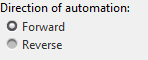
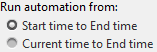
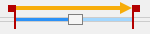
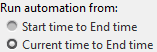
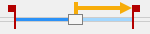
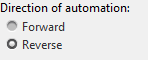
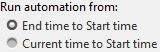
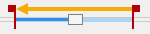
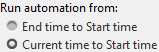
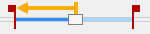
For temporal algorithms, you can additionally configure the direction of automation. Click Configure Automation. By default, automation algorithms apply labels from the start of the time interval to the end. To change the direction and start time of the algorithm, choose one of the options shown in this table.
| Direction of automation | Run automation from | Example |
|---|---|---|
|
|
|
|
|
|
| |
|
|
|
|
|
|
|
See Also
Apps
Functions
vision.labeler.AutomationAlgorithm(Computer Vision Toolbox) |vision.labeler.mixin.Temporal(Computer Vision Toolbox)
Topics
- Get Started with Multi-Sensor Labeler
- Automate Multi-Sensor Ground Truth Labeling Using Moondream Vision-Language Model
- Automate Vehicle Labels and Distance Attributes Using YOLOv2 in Multi-Sensor Labeler
- Automate Ground Truth Labeling of Lane Boundaries
- Automate Ground Truth Labeling for Point Cloud Using Pretrained Deep Learning Model
- Automate Point Cloud Labeling Using SNAP Model

