Increase Clarity of Plots for Accessibility
R2026bYou can increase the clarity of plots in MATLAB and make them more accessible by changing the size, color, and style of lines and text within the plots. You can also use data sonification to explore and interpret data by sound.
Increase Line Width
To make lines within a plot more visible, you can specify the width of those lines using the LineWidth name-value argument.
For example, create a plot of three lines with increasing thickness.
plot((0:10)+1,LineWidth=2)
hold on
plot((0:10)+2,LineWidth=5)
plot((0:10)+3,LineWidth=8)
hold off
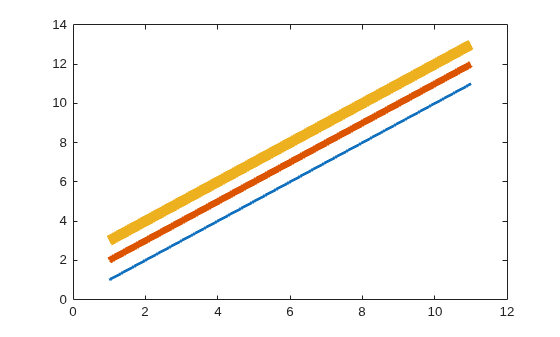
For more information, see Line Properties.
Specify Different Line Styles
To further enhance the distinction between lines within a plot, you can specify different markers or line styles for each line by using the linestyleorder function.
For example, create a plot with four lines. Specify a different marker for each line using the linestyleorder function with the "mixedmarkers" line style.
plot((0:10)+1)
hold on
plot((0:10)+2)
plot((0:10)+3)
plot((0:10)+4)
hold off

linestyleorder("mixedmarkers")
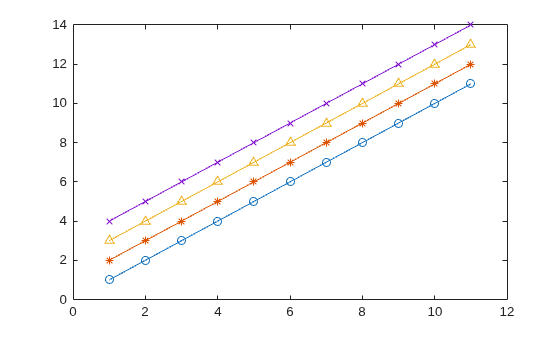
Specify a different style for each line using the linestyleorder function with the "mixedstyles" line style.
linestyleorder("mixedstyles")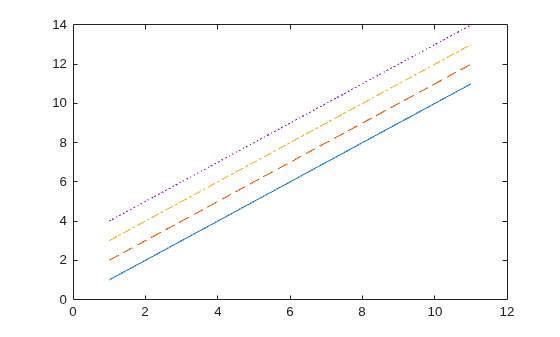
Change Font Size of Plot Text
To change the font size for text in a plot, you can use the fontsize function.
For example, create a plot with three lines. Add a title and legend to the plot.
figure
plot((0:10)+1)
hold on
plot((0:10)+2)
plot((0:10)+3)
hold off

title("Three Lines")
legend("Line 1","Line 2","Line 3")
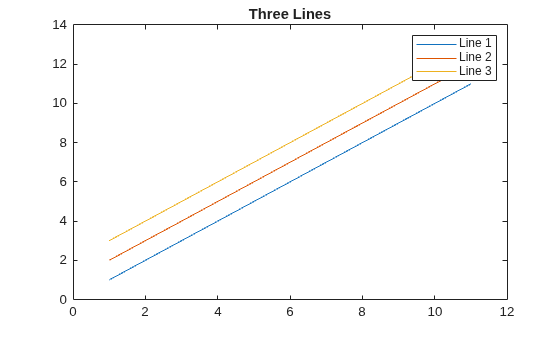
Increase the font size of all text within the plot (including the title, legend, and axes labels) by specifying a font size in points.
fontsize(gcf,20,"points")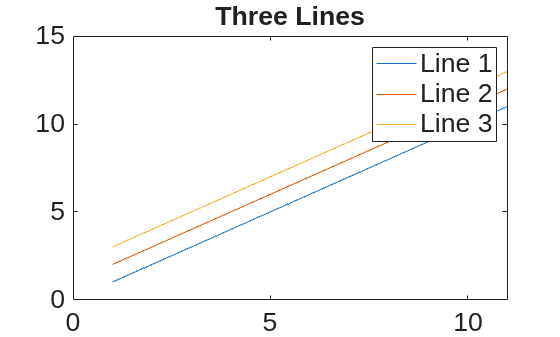
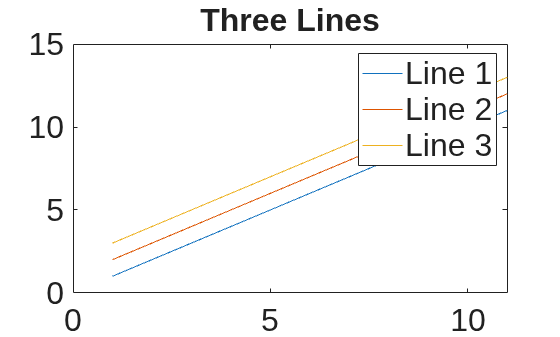
Increase the font size for all text within the plot by specifying a scale factor.
fontsize(gcf,scale=1.2)
Improve Color Contrast
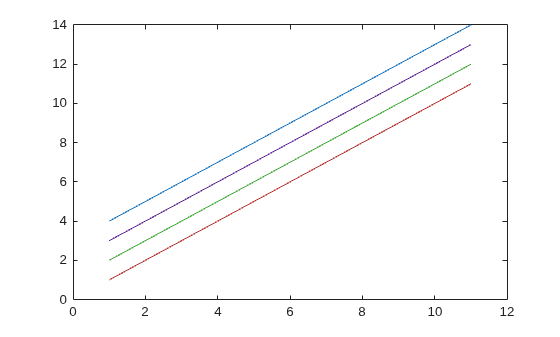
To improve the color contrast of lines within a plot, you can use the colororder function and specify the "dye" color palette. The colors of the "dye" palette meet international contrast ratio standards for enhanced accessibility against a white background.
For example, create a plot with four lines. Specify the "dye" color palette for the plot.
plot((0:10)+1)
hold on
plot((0:10)+2)
plot((0:10)+3)
plot((0:10)+4)
hold off

colororder("dye")
If you change the colors of lines using the colororder function, MATLAB does not automatically adjust the colors if the figure theme changes. For more information, see Design Graphics and Apps for Different Themes.
Combine Enhancements for Improved Plot Clarity
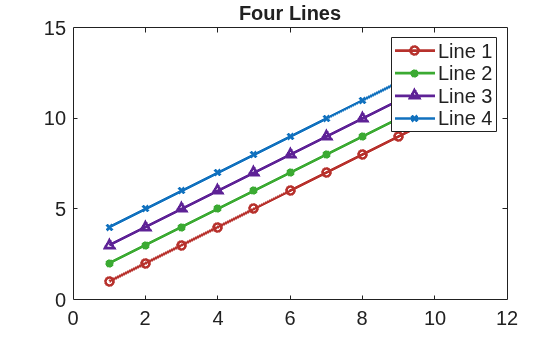
If you use the previously described enhancements together, you can create a plot that is accessible to more users.
For example, create a plot with four lines, a title, and a legend. Improve the plot clarity by:
Specifying the line width
Specifying a different line marker for each line
Increasing the color contrast between the lines
Increasing the font size of the text in the plot
plot((0:10)+1,LineWidth=2)
hold on
plot((0:10)+2,LineWidth=2)
plot((0:10)+3,LineWidth=2)
plot((0:10)+4,LineWidth=2)
title("Four Lines")
legend("Line 1","Line 2","Line 3","Line 4")
hold off

linestyleorder("mixedmarkers")
colororder("dye")
fontsize(gcf,15,"points")
Convert Data to Sound Using Sonification
You can convert data to sound using the sonify function. For example, convert a vector of sine values to sound and return the sonified data s and sample rate Fs.
y = sin(1:10);
[s,Fs] = sonify(y);
You can use the sonified data with the audioplayer function to play, pause, resume, and stop the sound. You also can write the sonified data to a WAV file using the audiowrite function.
Copyright 2025 The MathWorks, Inc.

