Create and Validate Mask Parameters Using Constraints
R2026bA mask contains parameters that take user input from the mask dialog box. You can use parameter constraints to validate these inputs without writing custom code. Constraints verify that the parameter values meet the required conditions.
Validate Mask Parameters Using Constraints
This example shows how to define mask parameter constraints in the Mask Editor and use them to validate user inputs. Parameter constraints are available only for Edit and Combo Box parameters.
Explore Model
The model slexMaskConstraints contains the Subsystem block ConstraintToEditAndComboBoxBlock, whose parameters int8Param1 and int8Param2 must be valid int8 values.
open_system("slexMaskConstraints.slx");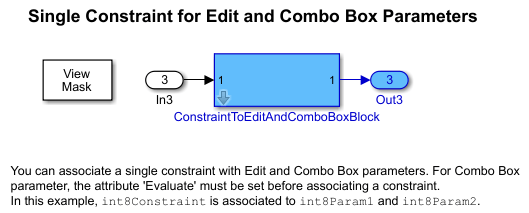
Create and Associate a Parameter Constraint
To create a parameter constraint for the ConstraintToEditAndComboBoxBlock Subsystem block:
1. Create a mask on the ConstraintToEditAndComboBoxBlock block.
2. In the Mask Editor, on the Parameters & Dialog tab, create an Edit parameter named int8Param1 and a Combo Box parameter named int8Param2. For the Combo Box parameter, you must select the Evaluate attribute before associating a constraint.
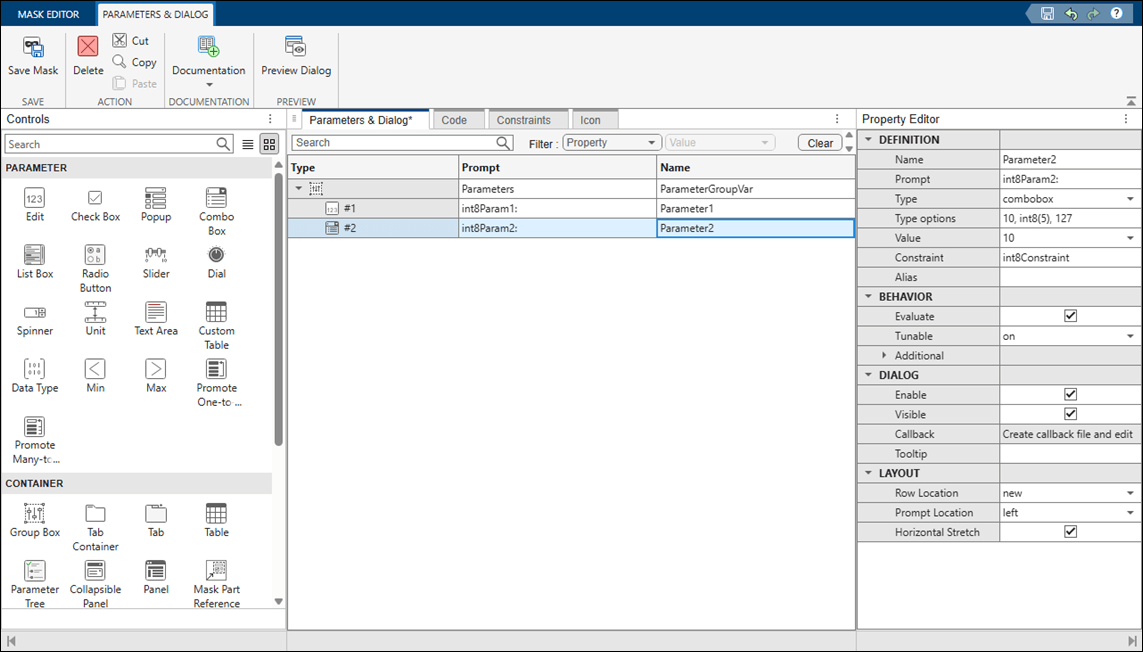
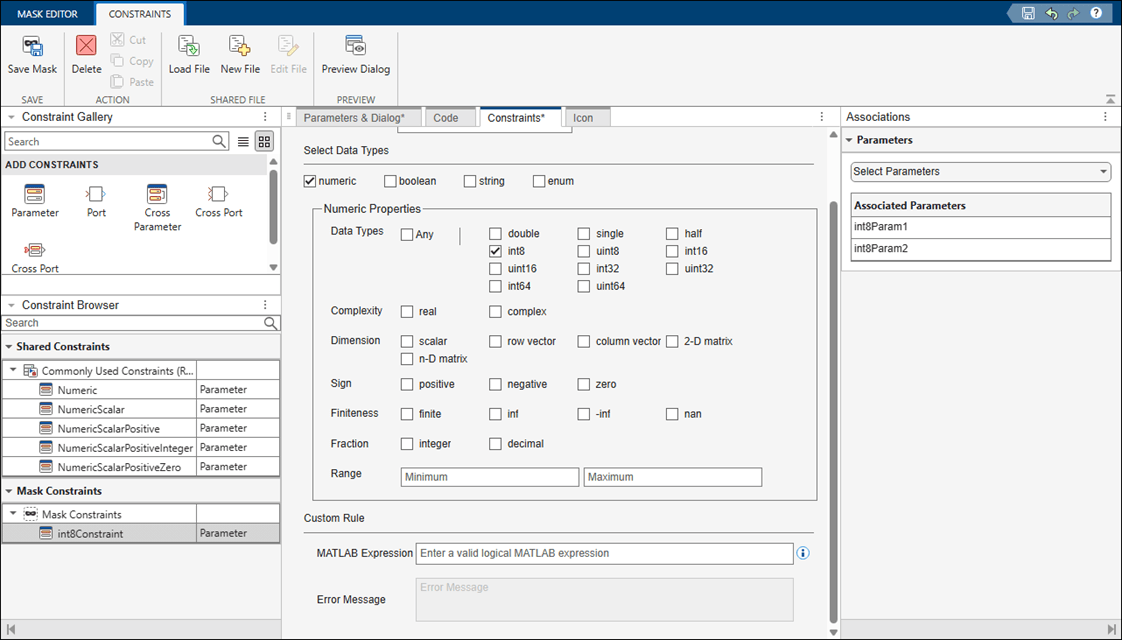
3. To create a parameter constraint, click the Constraints tab. In the Add Constraints section of Constraint Gallery, double-click Parameter. Specify the Constraint Name as int8Constraint.
4. To specify the properties for the constraint, in the Select Data Types section, select numeric (default). In the Numeric Properties section, clear Any, and select int8.
5. To associate the constraint with the parameter, in the Parameters section of Associations pane, select the parameters int8Param1 and int8Param2. You can also associate a parameter to a constraint on the Parameters & Dialog tab by selecting the constraint in the Constraints list.
Note: The parameter callback code executes after validating the parameter value against the associated constraint. If the validation fails, the callback code does not execute.
Validate the Constraint
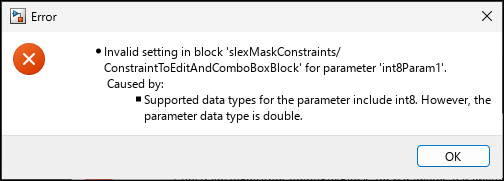
Open the mask dialog box, and specify a value outside the int8 range. The software displays an error.
Parameter Constraint Options
The Mask Editor supports four parameter data types — numeric,
boolean, enum, and string. The
Numeric and enum types include additional properties that you can use to define and validate
constraints.
| Data Type | Property Name | Property Values | Description |
|---|---|---|---|
| numeric | Data Types | Any, double, single,
half, int8, uint8,
int16, uint16, int32,
uint32, int64,
uint64 | Specify the acceptable data type of the mask parameter value. You can choose multiple data types. |
| Complexity | real, complex | Specify whether the mask parameter value is a real or complex number. | |
| Dimension | scalar, row vector, column vector, 2-D matrix, n-D
matrix | Specify the acceptable dimensions for the mask parameter. | |
| Sign | positive, negative, zero | Specify if the input value must be positive, negative, or zero. | |
| Finiteness | finite, inf, -inf, NaN | Specify the acceptable finiteness of the mask parameter value. | |
| Fraction | integer, decimal | Specify if the input value must be an integer or decimal. | |
| Range | Minimum, Maximum | Specify the acceptable range of mask parameter value. | |
| enum | Class Name | Valid Simulink enum name | Specify the |
Note
To validate the parameter value against a specific range, use the
Minimum and Maximum properties, because the
Data Types property does not validate the parameter value against
the range. For example, to validate the parameter value against the data type
numeric and range 0 to 127, set Data Types to
numeric, Minimum to 0 and
Maximum to 127.
The Custom Rule section, which contains MATLAB Expression and Error Message options, is available for all data types and lets you define additional validation logic for any parameter.
| Property Name | Property Value | Description |
|---|---|---|
| MATLAB Expression | Valid MATLAB expression | Specify a custom constraint for the mask parameter using a valid MATLAB expression that returns a Boolean value. You can use the value token to parameterize the expression. During validation, the evaluated value of the parameter replaces the value token. |
| Error Message | Character vector | Specify a custom error message for the custom constraint. You can specify the error message as character vector or as a message catalog ID. |

