Validate Port Signals and Parameter Values Using Cross-Port Parameter Constraints
R2026bA mask constraint is a set of rules or conditions applied to the parameters, port signals, or both parameters and port signals of a masked block. These constraints are designed to ensure that parameters and signals adhere to specific requirements, which helps to maintain model consistency and prevent errors. Use cross-port parameter constraints to create constraints among ports and parameters within the same masked block. For example, you can constrain an input port signal, an output port signal, and a mask edit parameter so that they all have the same data type. The available rules for cross-port parameter constraint are Same Data Type, Same Dimension, and Same Complexity. Additionally, you can set parameter conditions to validate the cross-port parameter constraints.
Explore Model
In the model slexMaskConstraints.slx, the block CalculateTorque implements the equation Torque = force * radius * sin(angle). The model contains two Constant blocks, force and radius, with values 9 and 7, respectively. The force and radius blocks are the inputs to the input port signals of the masked Subsystem block CalculateTorque. The Subsystem block contains the mask edit parameter Angle to calculate sin(angle). It also contains the cross-port parameter constraint checkDataType to validate that the input port signals force and radius, and the mask parameter Angle are all of same data type.

Create Cross-Port Parameter Constraint
To create a cross-port parameter constraint:
1. Create a mask on the Subsystem block CalculateTorque.
2. In the Mask Editor, in the Parameters & Dialog tab, create an edit parameter named Angle.
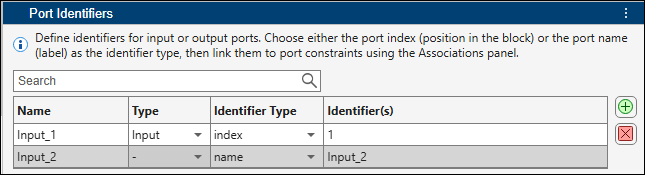
3. Select the Constraints tab. In the Associations pane, under Ports, click Define Ports. To create port identifiers for the input and output ports, in the Port Identifiers pane, click Add.
4. To create a cross-port parameter constraint, in the Constraint Gallery pane, click Cross Port Parameter.
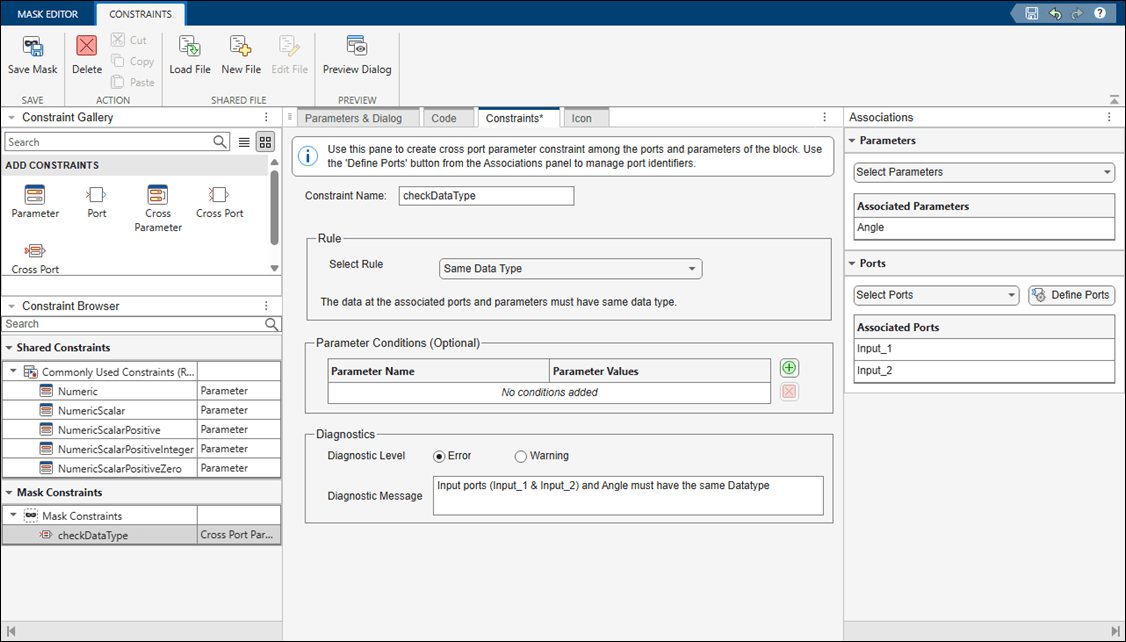
5. Specify Constraint Name as checkDataType. From the Rule list, select Same Data Type.
6. In the Association pane, under Parameters, add Angle. Under Port Identifiers, add the ports Input_1 and Input_2.
7. From the Diagnostic Level options, select error. In the Error Message box, enter a message for the software to display if the cross-port parameter constraint validation fails.
Validate Cross-Port Parameter Constraint
To validate the associated cross-port parameter constraint among the input ports and mask parameter:
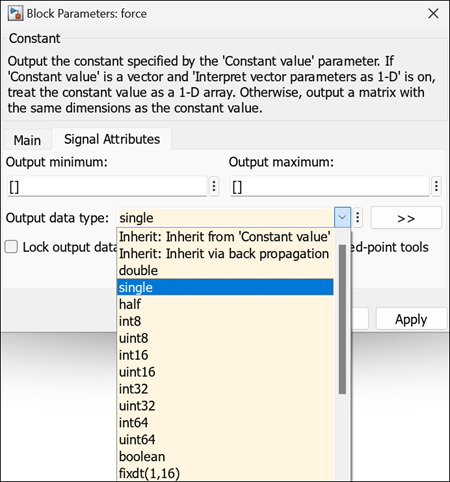
1. Double-click the Constant block force, then in the Signal Attributes tab, change the value of the Output data type parameter of the Constant block to single.
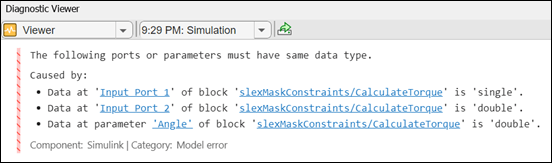
2. Simulate the model. The Diagnostic Viewer displays this message.
See Also
See Also
Topics
- Create Custom Constraint for Mask Parameters
- Share Port Constraints Across Multiple Masked Blocks
- Validate Port Signals Among Ports of the Same Masked Block

