Compare Dropout Probabilities and Filter Configurations for Image Regression Using Experiment
R2026bDeveloping deep learning models often involves comparing multiple model architectures, tuning hyperparameters, and evaluating model performance. The Experiment Manager app is an interactive tool for creating, monitoring, and analyzing experiments for developing these models.
When creating regression models, the Experiment Manager app can help you:
Compare different network architectures or training options
Track and visualize performance metrics
Identify the best model configuration for your regression problem
This example uses Experiment Manager to train a deep learning regression model that predicts the angles of rotation of handwritten digits and compares the accuracy of the models.
Create Built-in Training Experiment
Experiment Manager supports different types of experiments for different purposes. For training neural networks using the trainnet function, use the built-in training experiment type, which automates the process of training and evaluating deep learning models.
You can create a regression experiment in two ways:
Start with a blank experiment. Open a blank built-in training experiment and configure it for your regression task.
Use a template. For a quicker setup, you can use a regression experiment template, such as Image Regression by Sweeping Hyperparameters. This template creates a built-in training experiment that provides a sample initialization function, a default hyperparameter, and a setup function specifically designed for image regression.
To create a regression experiment, open the Experiment Manager app. Experiments and their artifacts are organized in projects, so create a new project or choose an existing project for your new experiment. Then, choose an experiment to get started. For this example, select the Image Regression by Sweeping Hyperparameters template. The experiment editor displays the experiment configuration details, which you can review and edit.
Author Experiment Description
Use the Description section of the experiment editor to document the purpose and details of your experiment. For regression experiments, consider including a summary of the regression problem, the data set you are using and any preprocessing steps, the model architecture details, which hyperparameters you are optimizing, and which metrics you will use to evaluate the result.
For example, for an experiment that predicts the angles of rotation of handwritten digits, enter this description:
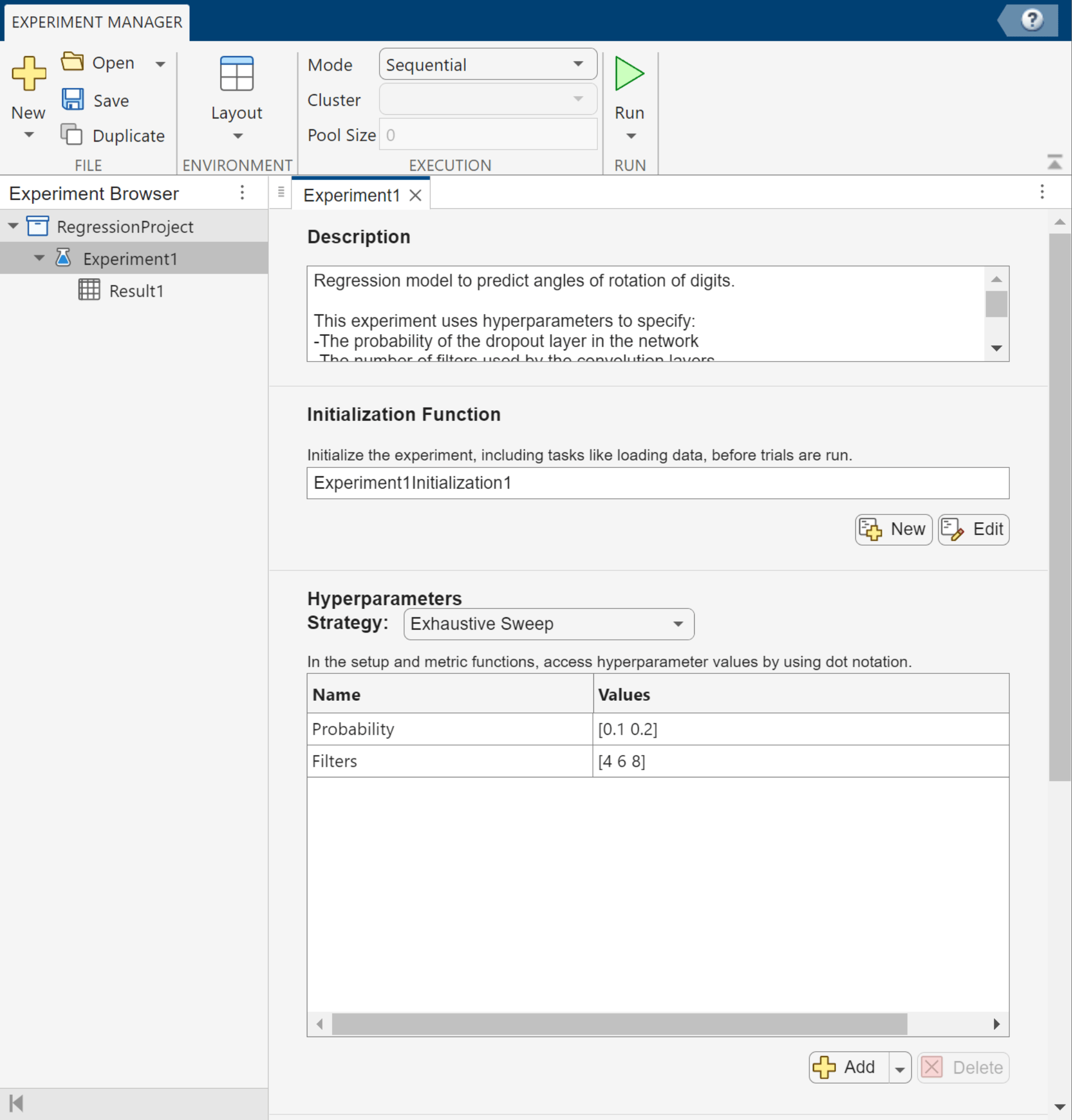
Regression model to predict angles of rotation of digits.

This experiment uses hyperparameters to specify:
-The probability of the dropout layer in the network
-The number of filters used by the convolution layers

The model is trained using the trainnet function, and its performance is measured as the degrees error from the true rotation angle.
Configure Initialization Function
The Initialization Function section of the experiment editor specifies a function that runs once before the experiment trials begin. This function is optional, but is useful when you need to perform setup tasks that are shared across all trials in your experiment, rather than running redundant code for each trial. For a regression experiment, an initialization function can load, preprocess, partition, or format your training and validation data.
You can create an initialization function by clicking New in the Initialization Function section of the experiment editor, or if one already exists for your experiment template, click Edit. The initialization function does not accept any input arguments. The function returns a scalar structure containing the variables you want to share with the rest of the experiment.
For example, to define an initialization function for the digit angles of rotation, edit the initialization function included with the experiment template. In the function, define the training and validation data for the experiment, and return the experiment data as a scalar structure output, which you can access in the setup function.
function output = Experiment1Initialization1
[output.imagesTrain,~,output.targetsTrain] = digitTrain4DArrayData;
[output.imagesValidation,~,output.targetsValidation] = digitTrain4DArrayData;
end
Specify Hyperparameters
In the Hyperparameters section, you can define which model or training parameters you want to optimize or explore during your experiment. In the table, you can list the hyperparameters you want to experiment with and specify their possible values.
When you run the experiment, if the Exhaustive Sweep strategy is selected, Experiment Manager trains the model using every combination of the specified hyperparameter values. Alternatively, if you have Statistics and Machine Learning Toolbox™, you can access additional strategies for optimizing hyperparameters. For more information, see Choose Strategy for Exploring Experiment Parameters.
For each experiment trial, the hyperparameter values are stored as fields in a structure called params, which you will access in the setup function. The experiment template may include some default hyperparameters to help you get started. For some templates, you can also access suggested hyperparameters.
For this example, remove the default hyperparameter. Then, add a new hyperparameter named Probability, and specify the value as a vector of possible probabilities for the dropout layer in the network. Then, add a new hyperparameter named Filters, and specify the value as a vector of the possible number of filters used by the first convolution layer in the network.
Name | Values |
|---|---|
|
|
|
|
You can edit the table of hyperparameters for future experiment runs. You may want to start with a coarse set of values to explore the parameter space, and then refine the range or granularity based on the results to improve your model.
Configure Setup Function
The Setup Function section defines the configuration for each individual experiment trial. This function is called once per trial, and it prepares everything that is needed to train and evaluate your model using the trainnet function.
In the setup function, you should:
Construct your neural network architecture for the current trial.
Specify training options and hyperparameters.
Prepare the data for training and validation.
Return all required inputs for the
trainnetfunction.
The setup function does not actually run the training function trainnet, instead it returns outputs that are automatically passed as inputs to the trainnet function when the trial is executed using the syntax netTrained = trainnet(imagesTrain,targetsTrain,net,lossFcn,options). The setup function is the connection between your experiment configuration, including the hyperparameters and data, and the training process.
For a regression experiment, your setup function may:
Access the hyperparameter values for the current trial using the
paramsstructureRetrieve any data prepared by the initialization function using the
InitializationFunctionOutputfield of theparamsstructureDefine the network architecture
Specify mean squared error as the loss function
Define training options
Specify the training and validation data
For this regression experiment, in the Setup Function section, click Edit. Then, customize the setup function template.
function [imagesTrain,targetsTrain,net,lossFcn,options] = Experiment1_setup1(params)
imagesTrain = params.InitializationFunctionOutput.imagesTrain;
targetsTrain = params.InitializationFunctionOutput.targetsTrain;
imagesValidation = params.InitializationFunctionOutput.imagesValidation;
targetsValidation = params.InitializationFunctionOutput.targetsValidation;
inputSize = [28 28 1];
numFilters = params.Filters;

net = [
    imageInputLayer(inputSize)

    convolution2dLayer(3,numFilters,Padding="same")
    batchNormalizationLayer
    reluLayer

    averagePooling2dLayer(2,Stride=2)

    convolution2dLayer(3,2*numFilters,Padding="same")
    batchNormalizationLayer
    reluLayer

    averagePooling2dLayer(2,Stride=2)

    convolution2dLayer(3,4*numFilters,Padding="same")
    batchNormalizationLayer
    reluLayer

    convolution2dLayer(3,4*numFilters,Padding="same")
    batchNormalizationLayer
    reluLayer

    dropoutLayer(params.Probability)
    fullyConnectedLayer(1)];

lossFcn = "mse";

miniBatchSize = 128;
validationFrequency = floor(numel(targetsTrain)/miniBatchSize);

options = trainingOptions("sgdm", ...
    MiniBatchSize=miniBatchSize, ...
    MaxEpochs=30, ...
    InitialLearnRate=1e-3, ...
    LearnRateSchedule="piecewise", ...
    LearnRateDropFactor=0.1, ...
    LearnRateDropPeriod=20, ...
    Shuffle="every-epoch", ...
    ValidationData={imagesValidation,targetsValidation}, ...
    ValidationFrequency=validationFrequency, ...
    Verbose=false, ...
    Metrics="rmse");
end
Define Post-Training Metrics Function
In the Post-Training Custom Metrics section, you can optionally define functions that evaluate your trained models after each trial using criteria that matter for your specific task. The results of these metrics functions are automatically displayed as columns in the results table so you can compare models across trials.
You should use a custom metric function when you want to evaluate your models using a specific criterion beyond the loss function used for training.
The input is a structure containing information about the completed trial, and the output is a scalar number, logical value, or string.
For this regression experiment, in the Post-Training Custom Metrics section, click Add and specify the function name FinalValidationAccuracy. Then, customize the metric template to calculate the percentage of predictions within a 10-degree error margin of the true angles.
function metricOutput = FinalValidationAccuracy(trialInfo)
[imagesValidation,~,targetsValidation] = digitTest4DArrayData;
targetsPredicted = predict(trialInfo.trainedNetwork,imagesValidation);
predictionError = targetsValidation - targetsPredicted;
thr = 10;
numCorrect = sum(abs(predictionError) < thr);
numValidationImages = numel(targetsValidation);
metricOutput = 100*numCorrect/numValidationImages;
end
Run Experiment
Once you have configured a experiment, you can run the experiment. For each trial, Experiment Manager:
Runs the initialization function once (if defined).
Runs the setup function to configure the network, data, loss, and training options for the current hyperparameter combination.
Trains the network using the
trainnetfunction and generates a training plot.Evaluates any custom post-training metrics (if specified).
To monitor the status of training, select a trial in the table of results, and on the Review Results section of the toolstrip, click Training Plot. The table also displays the accuracy of the trial, as determined by the custom metric function Accuracy. You can show or hide columns by clicking the  button above the table.
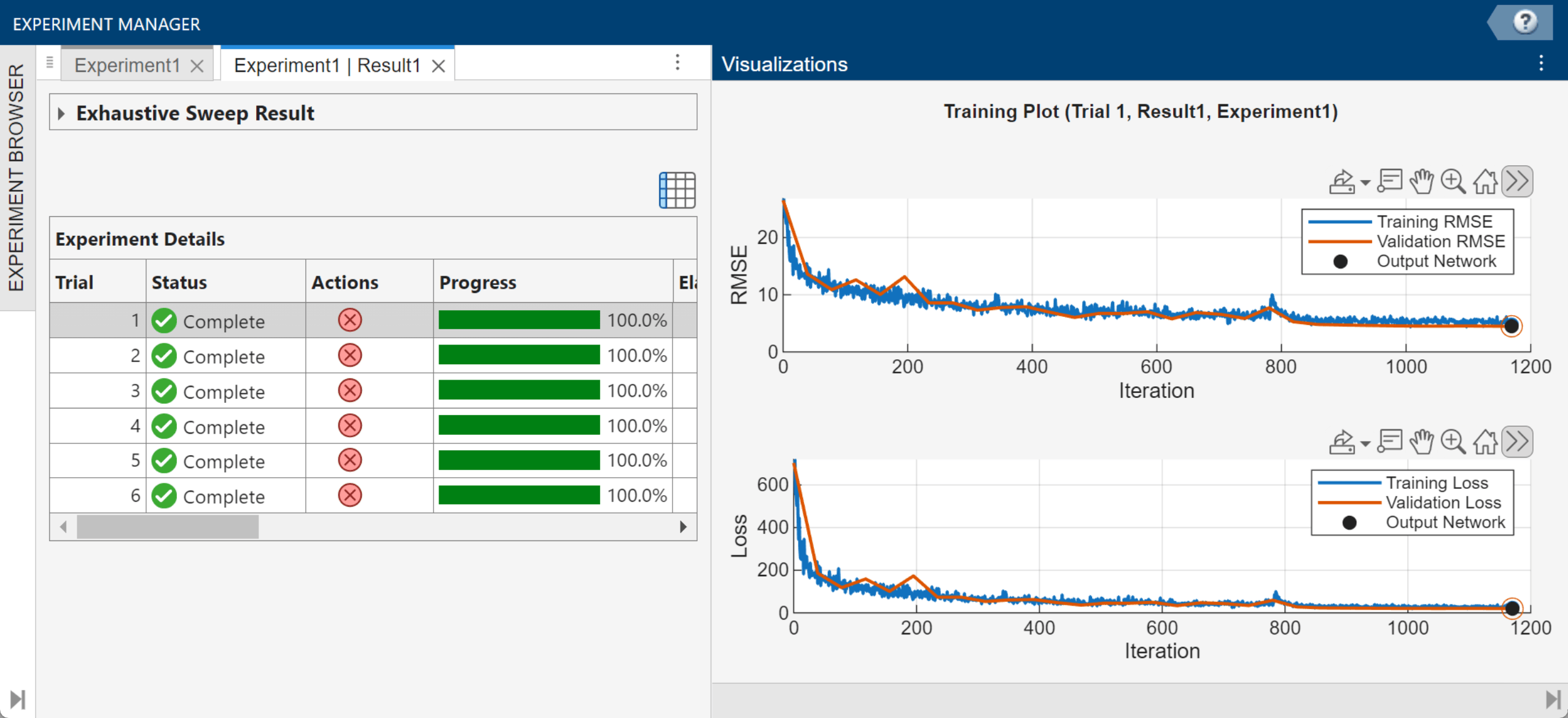
By default, Experiment Manager runs one trial at a time. For information about running multiple trials at the same time or offloading your experiment as a batch job in a cluster, see Run Experiments in Parallel and Offload Experiments as Batch Jobs to a Cluster.
Evaluate Results
After running your experiment, you can use the table of results to identify and analyze the best-performing models. For example, you can:
Find the trial with the highest value for your custom metric. Sort the results table by hovering over the header and click the sort icon.
Visualize your results. In the toolstrip, select a plot from the Review Results gallery.
Annotate your findings. Select and right-click a cell in the results table, and select Add Annotation.
Export a network to analyze in the MATLAB workspace. Select a trial in the results table and on the toolstrip and click Export > Trained Network.
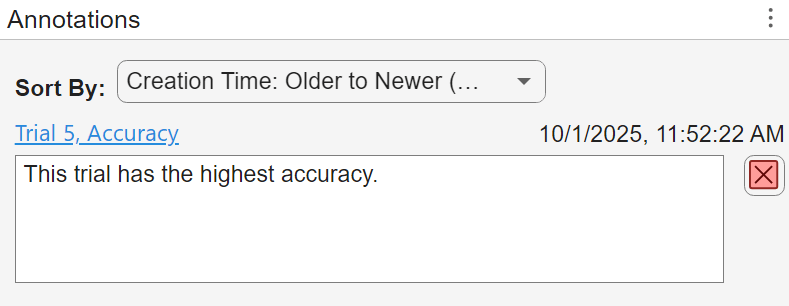
For example, find the best result for the regression experiment by sorting the results table by Accuracy, and then annotate the trial with the highest accuracy.
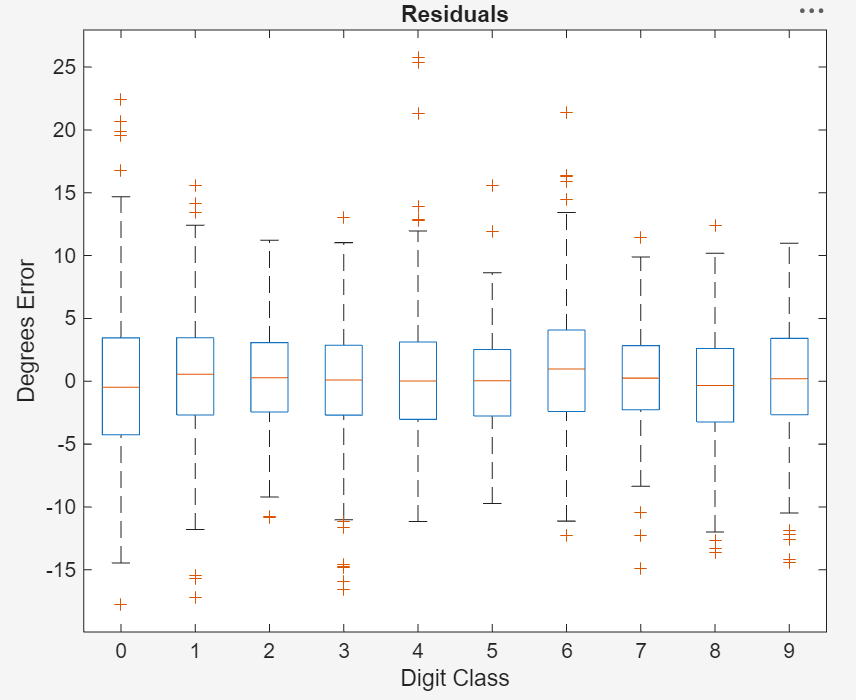
Then, test the performance of the selected trial by exporting the trained network and displaying a box plot of the residuals for each digit class.
function plotResiduals(net)
[XValidation,~,YValidation] = digitTest4DArrayData;
YPredicted = predict(net,XValidation);
predictionError = YValidation - YPredicted;
residualMatrix = reshape(predictionError,500,10);
figure
boxplot(residualMatrix,...
    "Labels",["0","1","2","3","4","5","6","7","8","9"])
xlabel("Digit Class")
ylabel("Degrees Error")
title("Residuals")
end
In the Command Window, use the exported network as the input to the plotResiduals function.
plotResiduals(trainedNetwork)