Get Users Started with Academic Teaching Licenses
R2026bAn Academic Teaching License or Community and Technical College License provides an individual faculty member and their students with access to MATLAB® and Simulink® products. To get users started with your Academic Teaching License or Community and Technical College License, follow these steps:
Transition existing MATLAB installations to the new license.
Add users to the new license.
Install products on shared computers, such as in computer labs or classrooms, or have users install the products themselves on their personal computers.
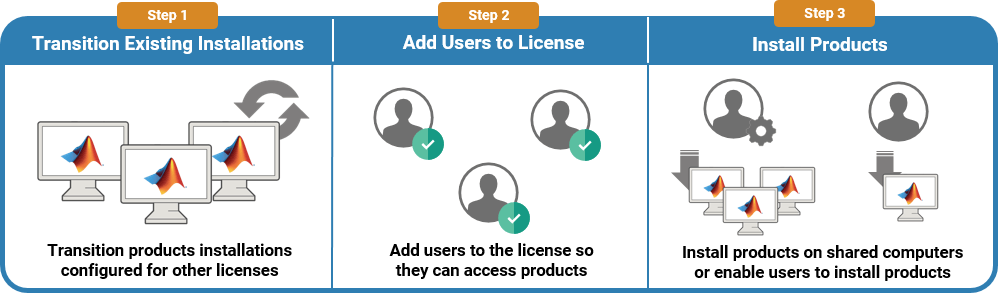
Transition Existing Installations
If you have existing MATLAB installations that are configured for other licenses, transition those installations to the new license. See Transition Existing Installations to Academic Teaching Licenses.
Add Users to License
Add users to the license to enable them to access and use MathWorks® products. Follow these steps:
From the License Center, in the license list, click the license to which you want to add users. To view these licenses, you must be signed in to your MathWorks Account using your organization email address.
On the Manage Users tab of the license, click Add/Remove Users to either add a single user, or use a comma-separated values (CSV) file to add a list of users. The License Center provides a template CSV file that you can use to enter user information.
Optionally, select the option to notify users that they have been added to the license. If you do not select this option, users are not notified.
Click Done.
The added users are now linked to the license through their MathWorks Accounts. If a user does not have an account, then one is automatically created for them. The user receives an email that prompts them to complete their account by verifying their academic email address and creating an account password.
The Manage Users tab displays the list of users added to the license, the maximum number of users that you can add, and the number of seats remaining. If you reach the limit of your license count, then you must reassign licenses by first removing an existing user for each new user you plan to add.
Install MATLAB in Computer Labs or Classroom Computers
To install MATLAB products on multiple machines that have the same configuration:
Follow the instructions in Install Products Noninteractively to first download an ISO containing all products, and then install the products from the command line.
(Optional) Install support packages on each computer by using MATLAB Package Manager. See Install Support Packages Noninteractively.
If you do not know which support packages your users need, they can install the support packages themselves using the Add-Ons panel in MATLAB.
Enable Users to Install Products
Users that you add to the license can install MATLAB on their personal computers.
To enable users to install MATLAB, add toolboxes or other products to MATLAB, get updates of existing MATLAB installations, or install new MATLAB releases, provide them with the relevant instructions in Standard Installation.
To allow users to access other products and services that are available through the Academic Teaching License or Community and Technical College License, provide them with these resources:
Access MATLAB Online™ — MATLAB Online provides access to the latest release of MATLAB from a standard web browser using computing resources and storage hosted by MathWorks. To open MATLAB Online, go to
matlab.mathworks.comand click Open MATLAB Online.Access Online Training — To access self-paced interactive courses, see the Online Training section of
matlab.mathworks.com.
Manage Existing MATLAB Installations
To install the latest updates for existing installations of MATLAB, deploy the offline update package to each installation. See Update MATLAB on Offline Computer.
To uninstall any previous releases of MATLAB on a computer, see Uninstall MATLAB.
To install the latest release of MATLAB so users can access new features or products added to the Academic Teaching License or Community and Technical College License, see Get New MATLAB Release.

