Main Content

axtoolbarbtn

Add buttons to axes toolbar

Description

btn = axtoolbarbtn(tb) adds a push button to the axes toolbar specified by tb and returns the ToolbarPushButton object.

btn = axtoolbarbtn(tb,style) adds either a push button or a state button to the toolbar specified by tb and returns the button object. For a push button, set the style to "push". For a state button with two states, set the style to "state".

example

btn = axtoolbarbtn(tb,style,Name=Value) specifies options using one or more name-value arguments in addition to any of the input argument combinations in previous syntaxes. For example, to add a push button whose image is contained in myfile.svg to the axes toolbar, set Icon to "myfile.svg".

Examples

collapse all

Create a custom state button for the axes toolbar that toggles the visibility of the axes grid lines.

First, create a program file named mycustomstatebutton.m. Within the program file:

  • Plot random data.

  • Create a toolbar for the axes with options to zoom and restore the view using the axtoolbar function.

  • Add an empty state button to the toolbar using the axtoolbarbtn function. Return the ToolbarStateButton object.

  • Specify the icon, tooltip, and callback function for the state button by setting the Icon, Tooltip, and ValueChangedFcn properties. This example uses the icon, which you must first save as an image file named mygridicon.svg on your path.

Run the program file, and click the icon to toggle the visibility of the grid lines.

function mycustomstatebutton

plot(rand(5))
ax = gca;
tb = axtoolbar(ax,{"zoom","restoreview"});

btn = axtoolbarbtn(tb,"state");
btn.Icon = "mygridicon.svg";
btn.Tooltip = "Grid Lines";
btn.ValueChangedFcn = @customcallback;

    function customcallback(src,event)
        switch src.Value
            case "off"
                event.Axes.XGrid = "off";
                event.Axes.YGrid = "off";
            case "on"
                event.Axes.XGrid = "on";
                event.Axes.YGrid = "on";
        end
    end

end
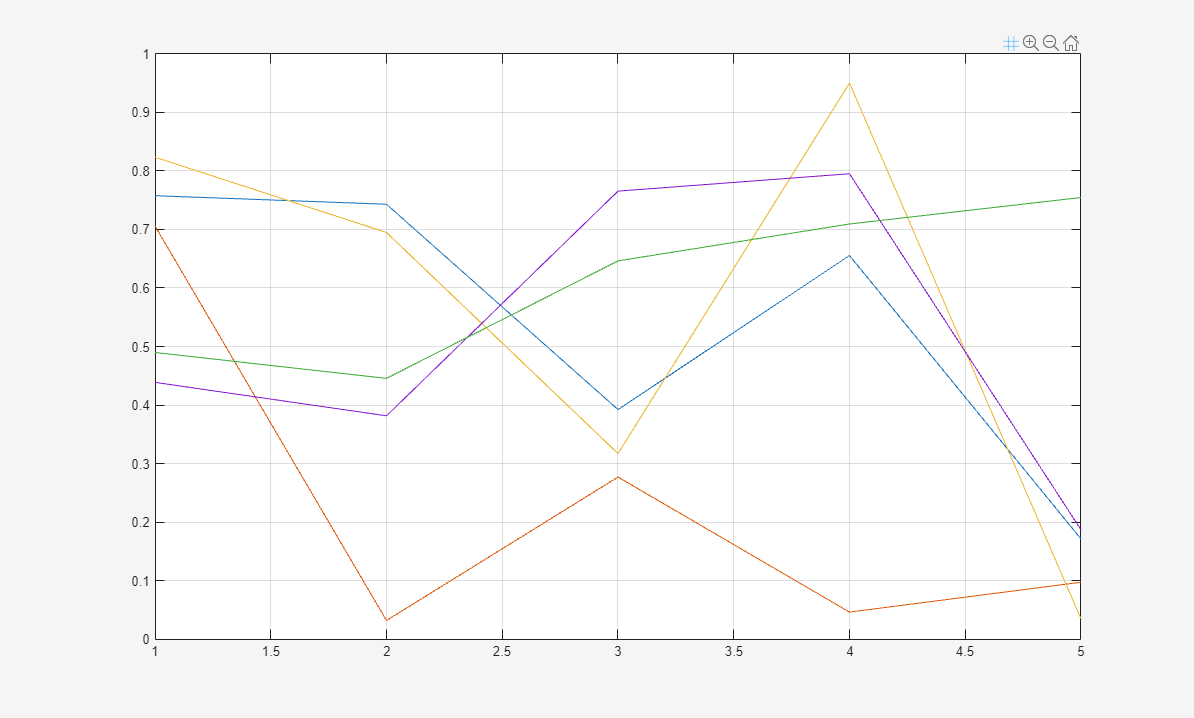
2-D plot with grid-state, zoom, and restore view buttons in the axes toolbar

Create a custom push button for the axes toolbar that snaps the view of the axes to a 2-D view.

First, create a program file named mycustompushbutton.m. Within the program file:

  • Plot a surface.

  • Create a toolbar for the axes with options to zoom, rotate, and restore the view using the axtoolbar function.

  • Add an empty push button to the toolbar using the axtoolbarbtn function. Return the ToolbarPushButton object.

  • Specify the icon, tooltip, and callback function for the push button by setting the Icon, Tooltip, and ButtonPushedFcn properties, respectively. This example uses the icon, which you must first save as an image file named my2dicon.svg on your path.

Run the program file, and click the icon to snap the view of the axes to a 2-D view.

function mycustompushbutton

surf(peaks(25))
ax = gca;
tb = axtoolbar(ax,{"zoom","rotate","restoreview"});

btn = axtoolbarbtn(tb,"push");
btn.Icon = "my2dicon.svg";
btn.Tooltip = "Snap to 2-D view";
btn.ButtonPushedFcn = @customcallback;

    function customcallback(src,event)
        view(event.Axes,2)
    end

end
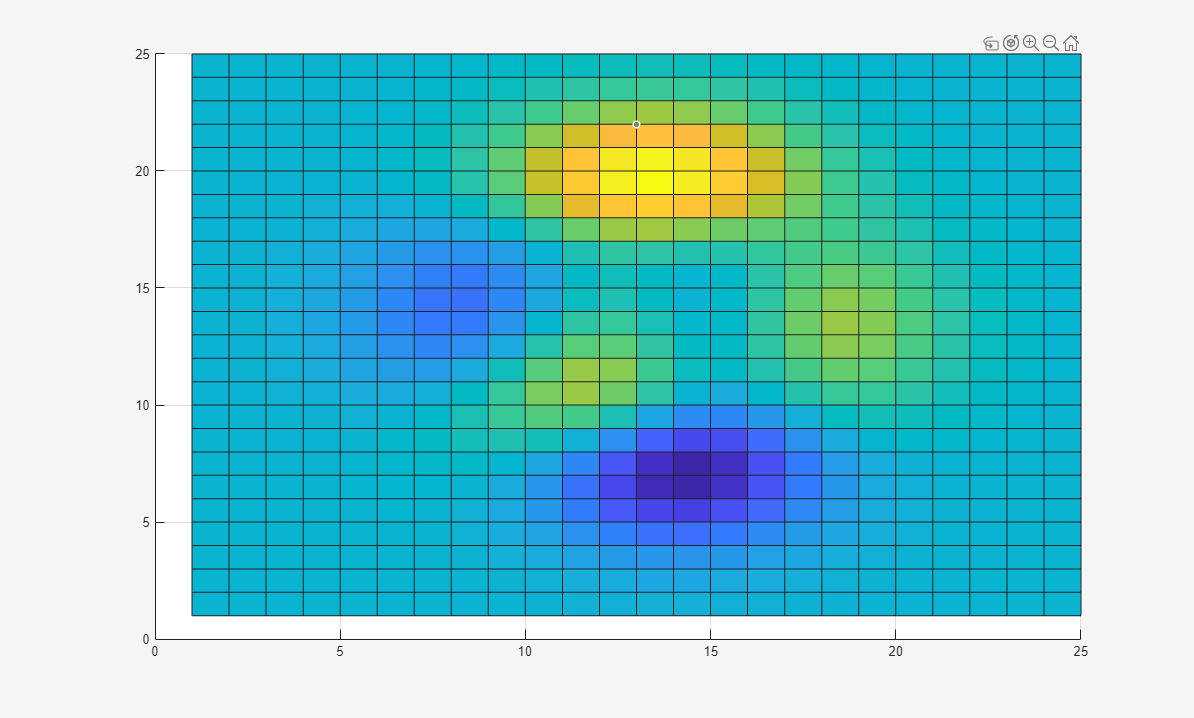
2-D plot with custom 2-D icon, rotate, zoom, and restore view buttons in the axes toolbar

Input Arguments

collapse all

Toolbar, specified as an AxesToolbar object. Create the toolbar using the axtoolbar function.

Button style, specified as one of these values:

  • "push" — Push button. When clicked once, the button is pressed and then released.

  • "state" — State button with two states. When clicked once, the button remains in the pressed or released state until it is clicked again.

Name-Value Arguments

collapse all

Specify optional pairs of arguments as Name1=Value1,...,NameN=ValueN, where Name is the argument name and Value is the corresponding value. Name-value arguments must appear after other arguments, but the order of the pairs does not matter.

Example: axtoolbarbtn(tb,Icon="myimage.svg",Tooltip="My Icon Tooltip")

Note

The properties listed here are only a subset. Push buttons and state buttons support different sets of properties. For a full list of properties and descriptions for each type, see the associated properties pages.

Button icon, specified as one of the following values. The axes toolbar displays icons as grayscale images. MATLAB® scales down the image to fit, if necessary.

  • Filename — Specify the filename as a string scalar or character vector. The filename can be preceded by a path. The file must be in SVG (since R2026a), PNG, JPEG, or GIF format.

  • m-by-n-by-3 array — Specify an m-by-n-by-3 array of RGB triplets that represent pixels in an image.

  • m-by-n matrix — Specify an m-by-n matrix of numeric values that represent pixels in an image.

    • If the values are of an integer type, then specify values between 0 and 63. A value of 0 is opaque and a value of 63 is transparent. A value of NaN is also transparent.

    • If the values are of type double, then specify values between 1 and 64. A value of 1 is opaque and a value of 64 is transparent. A value of NaN is also transparent.

  • Name of predefined icon — Specify one of the names in this table. The color of the predefined icons changes automatically based on the theme of the figure.

    Icon NameResult

    "export"

    "brush"

    "datacursor"

    "rotate"

    "pan"

    "zoom" (since R2026a)

    "restoreview"

    "zoomin"

    "zoomout"

    "none"

    No icon

Example: "icon.svg"

Example: "C:\Documents\icon.png"

Example: "rotate"

Button tooltip, specified as a string array, character vector, or cell array of character vectors. Use this property to display a message when you hover the pointer over the button. To display multiple lines of text, specify a string array or a cell array of character vectors. Each element in the array displays a separate line of text.

Example: "My Tooltip"

Version History

Introduced in R2018b

expand all