C Function
R2026bIntegrate and call external C/C++ code from a Simulink model
C Function block
To add a block to a model, double-click the canvas and start typing the block name. Then, select the block from the list.
Libraries:
Simulink /
User-Defined Functions
Description
The C Function block integrates and calls external C/C++ code from a Simulink® model. Use this block to define external code and customize the integration of your code by preprocessing or postprocessing the data. In addition, you can specify customized code for simulation and C code generation. You can conditionally call functions defined in your code, and you can also call multiple functions in one block. Using this block, you can initialize persistent data and pass it to an external function.
The C Function block supports initializing persistent data and calling external functions from the block editor. Persistent data can include an object of a C++ class defined in your custom code. See Interface with C++ Classes Using C Function Block. The block supports only initializing and terminating persistent data. The block does not support updating the data during simulation. To model a dynamic system with continuous states, use an S-Function block. To learn more about S-functions, see What Is an S-Function?
Note
C99 is the standard version of C language supported for custom C code integration into Simulink.
Specify Custom Code
Starting in R2024a, the block provides you with a range of options to specify custom C/C++ code for the block.
You can specify the custom code locally in the block, so you can integrate a code component that is fully contained in a single block. For example, if you want a C Function block to behave like a custom filter which is defined using external C/C++ code, specify the custom code locally using this option.
For versions R2026a and later:
When you debug a C Function block with locally specified custom code, the local custom code runs in a separate process outside of MATLAB®, known as out-of-process simulation, regardless of the simulation mode of the model containing the block. This mode is safer because the custom code is built into a separate executable. As a result, any problem with the custom code does not cause MATLAB to crash. For more information about debugging custom C/C++ code, see Debug Custom C/C++ Code.
When you simulate a model containing a C Function block with locally specified custom code:
In normal mode, the local custom code simulates in out-of-process simulation.
In accelerator mode, the local custom code is built into a dynamic library and simulates in the same process as MATLAB, known as in-process simulation. This mode is faster than the out-of-process simulation, but any problems with the custom code might cause MATLAB to crash.
Previously, both debugging and simulation of locally specified custom code occurred in out-of-process simulation, regardless of simulation mode of the model containing the C Function block.
You can share the custom code with other blocks in a model or across multiple models. To share the custom code across multiple models you must define the custom code in the Configuration Parameters dialog box of a Simulink library model. Then, use the code in a block within the library and fetch that block from that library in other models.
For more information, see Custom Code Location.
Report Run-time Errors and Warnings in Simulink
In custom C code that you specify in the C Function block , use the
slError and slWarning functions to report
run-time errors and warnings, respectively. An error terminates the simulation and must be
resolved before simulation continues. A warning indicates a potential issue with the code
but does not terminate the simulation.
Both slError and slWarning functions support
different data type format specifiers (for example, %d for integer,
%f for float) that are similar to C.
Examples :
slError("Error message");slError("Input %f should be non-negative", x);slWarning("Warning message");slWarning("Input %d should be non-zero", y);
The following code executes at the start of the simulation. It uses the
slError function to issue an error message if the data store fails to
initialize at the start of simulation.

Specify Row-Major and Column-Major Array Layouts in Custom Code
Use the slSetRowMajor and slSetColumnMajor
functions to specify row-major and column-major array layouts, respectively. Specify these
functions in the Simulation Target pane of the Configuration Parameters
dialog box using the Configuration Parameters
option of the Custom Code
Location parameter from block editor.
For a row-major layout, the row elements of a matrix are stored contiguously in memory. Similarly, for a column-major layout, the column elements of a matrix are stored contiguously in memory. For more information, see Row-Major and Column-Major Array Layouts (MATLAB Coder).
When you choose the Configuration Parameters
option of the Custom Code
Location parameter, the block can use both row-major and column-major
configurations for both simulation and code generation.
When you choose the Block Custom Code option of the
Custom Code
Location parameter, the block uses row-major for simulation and column-major
for code generation.
Function prototypes:
void slSetRowMajor(const char* functionName)void slSetColumnMajor(const char* functionName)
functionName must be a string literal and fully qualified.
For example, consider the following code:
namespace NS1 {
	class ACLASS{
		public:
			void foo_row();
	};
	namespace NS2{
		void foo_col(double*, double*);
	}
}
For a fully qualified function name.
If the function is inside a namespace, all the nested namespaces should be included in the function name string. Based on the above code, for the column-major function,
foo_col, useslSetColumnMajor("NS1::NS2::foo_col")in the configuration parameters custom code.For all class members, the class name along with any nested namespaces should be included in the function name string. Based on the above code, for the row-major function
foo_row, useslSetRowMajor("NS1::ACLASS::foo_row")in the configuration parameters custom code.
For a C Function block that uses classes, if the constructor takes majority, the majority must be specified in the Start code.
Examples
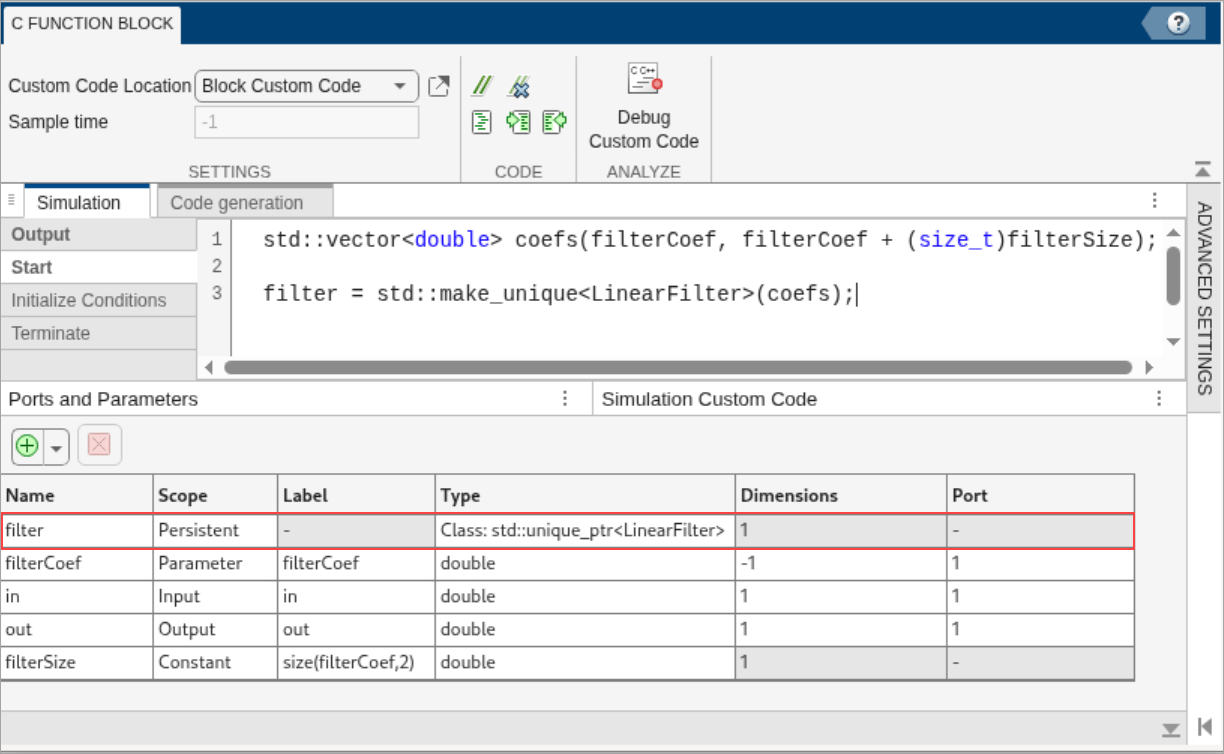
Integrate External C++ Code Using Class with Custom Constructor in Simulink
How to integrate external C++ code using class with custom constructor in Simulink.

Use Simulink Strings Inside C Function Block to Model Scrolling Display
How to use Simulink Strings for C Function block.
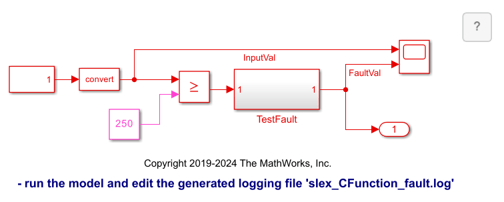
Start and Terminate Actions Within a C Function Block
Use the C Function block to integrate legacy C functions that have start and terminate actions.
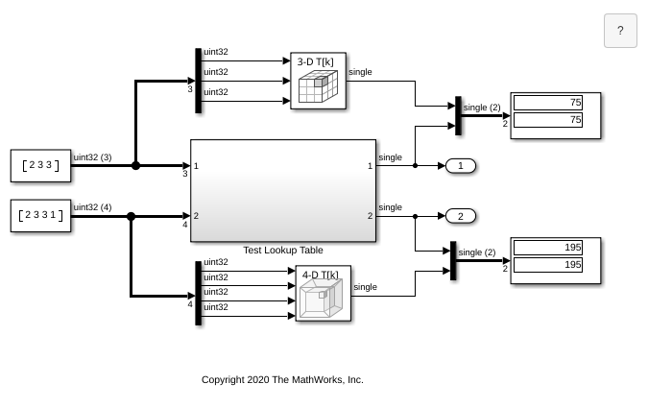
Call Legacy Lookup Table Functions Using C Function Block
Use the C Function block to call legacy C functions that implement N-dimensional table lookups.

Modify States of a C Function Block Using Persistent Symbols
Define an initial persistent value to cache in the block.
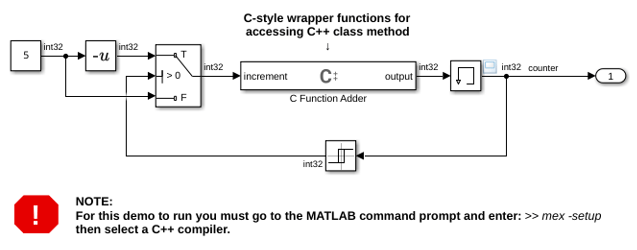
Call C++ Class Methods Using C-Style Wrapper Function from C Function Block
Use the C Function block to call C++ class methods using a C-style wrapper function.
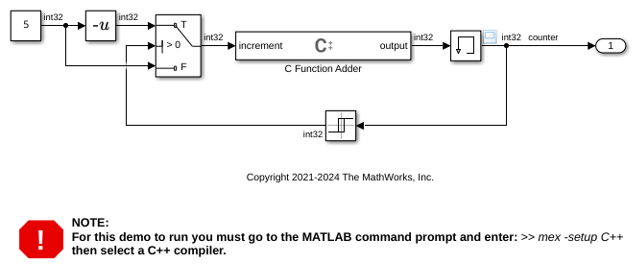
Call C++ Class Methods Directly from a C Function Block
Call C++ Class Methods Directly From a C Function Block.
Limitations
Limitations apply when using these Simulink features with the C Function block.
General Limitations
These are general limitations applicable to all Simulink versions.
Starting in R2025a, code coverage is supported.
For versions prior to R2025a, Simulink Coverage™ is not supported. Only execution coverage of the C Function block is measured.
Simulink Design Verifier™
Simulink Design Verifier does not generate test cases for coverage objectives inside the C Function block. The limitations that apply to C/C++ S-functions also apply to C/C++ code in a C Function block. In particular, calls to external or library functions are replaced by stubs for analysis. For more information on these limitations, see Simulink Design Verifier Limitations and Considerations for S-Functions and C/C++ Code (Simulink Design Verifier).
Simulink Code Inspector™
Simulink Code Inspector does not inspect the code generated from the C Function block.
C Function block that uses local custom code is not supported inside a Dataflow Subsystem (DSP System Toolbox).
C and C++ Language Limitations
These limitations apply to C and C++ code that you specify in a C Function block in versions R2025b and earlier. These limitations also apply to versions R2026a and later under these block settings:
The Custom Code Location parameter is set to
Configuration Parameters.The Custom Code Location parameter is set to
Block Custom Codeand Parse block code (enable for backward compatibility) parameter is selected.
Note
These limitations do not apply to the C and C++ code that you specify in a C
Function block for versions R2026a and later under its default settings. The
default settings apply when the Custom Code
Location parameter is set to Block Custom Code
and the Parse block code
(enable for backward compatibility) parameter is set
off.
When the C Function block meets the above mentioned limitation conditions, the block supports only these C Math Library functions.
abs | acos | asin | atan | atan2 | ceil |
cos | cosh | exp | fabs | floor | fmod |
labs | ldexp | log | log10 | pow | sin |
sinh | sqrt | tan | tanh |
When you call these functions, double precision applies unless all the input arguments
are explicitly single precision. When a type mismatch occurs, a cast of the input
arguments to the expected type replaces the original arguments. For example, if you call
the sin function with an integer argument, a cast of the input argument
to a floating-point number of type double replaces the original
argument.
You can call these string library functions inside the C function block when using versions R2025a and later.
strlen | strncpy | strncat | strcmp | strncmp | strstr |
For more information, see Use Simulink Strings Inside C Function Block to Model Scrolling Display.
To call other C library functions, create and call an external wrapper function that calls the C library function.
abs, fabs, and labs
FunctionsInterpretation of the abs, fabs, and
labs functions in C Function block goes beyond the
standard C version to include integer and floating-point arguments:
If
xis an integer, the standard C functionabsapplies tox, orabs(x).If
xis a double, the standard C functionfabsapplies tox, orfabs(x).If
xis a long integer, the standard C functionlabsapplies tox, orlabs(x).
The call to the function should call the correct CRL based on the type of data passed into the function. If no CRL is specified, the call to the function should call to type-specific library. The CRL for C99 generates a type-specific function. For example:
| Type passed in | Code generation call |
|---|---|
sin(doubleIn) | sin(doubleIn) |
sin(floatIn) | sinf(floatIn) |
You can call printf,
memcpy and memset functions in the C
Function block when using versions R2023a and later.
Local static variables using the
statickeyword are not supported. To cache values across time steps, define a symbol asPersistentin the Symbols table of the block editor.Taking the address of a
Constantsymbol is not supported.Directly calling C library functions other than the C Math library functions listed under the C Library Functions is not supported. To call other C library functions, create and call a wrapper function that calls the C library function.
Ports
Input
Output
Parameters
Parameters common to both Simulation and Code Generation tabs.
Use the Custom Code Location parameter to choose whether to specify the custom code in the block locally or in the Configuration Parameters dialog box.
Note
Before R2026b: To access these options, click the arrow
next to the  at the right hand top corner of the block editor.
Block Custom Code — Use this option to specify the custom code locally in the C Function block. This is the default settings. This option enables the Simulation Custom Code and the Code Generation Custom Code parameters in the Simulation section and the Code generation section, respectively.
Starting in R2025a, code coverage is supported for locally specified custom code. To use code coverage, you must have Simulink Coverage license.
Note
Before R2026b: This option is known as
Use Block Custom Code.Configuration Parameters — Use this option to specify the custom code in the Simulation Target pane of the model Configuration Parameters dialog box. For more information, see Model Configuration Parameters: Simulation Target.
Note
Before R2026b: This option is known as
Use Configuration Parameters Custom Code.UpdateBuildInfo — Starting in R2026b, use this option to specify the custom code dependencies programmatically using the
updateBuildInfofunction. The function uses two input arguments:buildInfo—RTW.BuildInfoclass object that is ready to be used. This object contains custom code dependencies that include header files, source files, libraries, directories, compiler flags, macro definitions, and linker flags for the compiler. For more information, seeRTW.BuildInfo(Simulink Coder).context—coder.BuildConfigclass object that is ready to be used. This object contains information about the code generation target, such asrtw. For more information, seecoder.BuildConfig(MATLAB Coder).
You can use these functions within the
updateBuildInfofunction to specify custom code dependencies.Function Functionality addIncludeFiles(Simulink Coder)Add headers to build information
findIncludeFiles(Simulink Coder)Find and add include (header) files to build information
getIncludeFiles(Simulink Coder)Get include files from build information
addIncludePaths(Simulink Coder)Add include paths to build information
getIncludePaths(Simulink Coder)Get include paths from build information
removeIncludePaths(Simulink Coder)Remove include paths from build information
addSourceFiles(Simulink Coder)Add source files to build information
getSourceFiles(Simulink Coder)Get source files from build information
removeSourceFiles(Simulink Coder)Remove source files from build information object
addSourcePaths(Simulink Coder)Add source paths to build information
getSourcePaths(Simulink Coder)Get source paths from build information
addDefines(Simulink Coder)Add preprocessor macro definitions to build information
getDefines(Simulink Coder)Get preprocessor macro definitions from build information
addCompileFlags(Simulink Coder)Add compiler options to build information
getCompileFlags(Simulink Coder)Get compiler options from build information
addLinkFlags(Simulink Coder)Add link options to build information
getLinkFlags(Simulink Coder)Get link options from build information
addLinkObjects(Simulink Coder)Add link objects to build information
When you select this option, the Simulation Custom Code and Code Generation Custom Code tabs are not available.
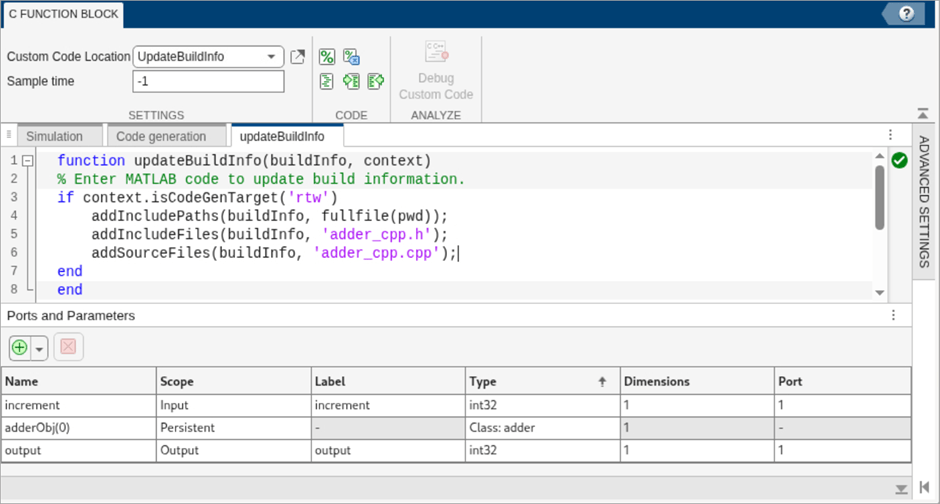
(since R2026b)
Programmatic Use
Block Parameter:
CustomCodeSettingLocation |
| Type: character vector |
Value:'BlockSettings' |
'ModelConfigurationParameters' |
'UpdateBuildInfo' |
Default:
'BlockSettings' |
Sample period, specified in seconds. See Types of Sample Time and Specify Sample Time. If the block defines persistent symbols, you cannot specify a continuous sample time.
Programmatic Use
Block Parameter:
SampleTime |
| Type: character vector | string scalar |
Default: "-1" |
Symbols and symbol properties used in the C code, specified as a table. You must enter the following attributes of each symbol in the table:
Name — Symbol name in the code.
If the symbol represents a C++ class object, the Name field serves as a call to the class constructor:
ObjectName(Argument1,Argument2,...)
Scope — Scope of the symbol. These scopes are available:
Input— Input to the block.Output— Output to the block.InputOutput— Both input and output to the block.Use the
InputOutputscope to map an input passed by a pointer in your C code. Ports created using anInputOutputscope have the same name for input and output ports.InputOutputscope enables buffer reuse for input and output ports. Buffer reuse may optimize memory use and improve code simulation and code generation efficiency, depending on the signal size and the block layout. Limitations include:An
InputOutputsymbol cannot be used in Start, Initialize Conditions, or Terminate.InputOutputsymbols do not support thevoid*data type.InputOutputsymbols do not supportsize()expressions.
Parameter— Block parameter that appears on the block parameter mask. The parameter name is defined by the Label of the symbol.Persistent— Persistent block data, which retains its value from one time step to the next during simulation.You can define a void pointer using the
Persistentscope. A void pointer is a pointer that can store any type of data that you create or allocate.You can instantiate an object of a C++ class defined in your custom code by defining a symbol with
Persistentscope and usingClass:ClassNameas the Type for the symbol. See Interface with C++ Classes Using C Function Block.Constant— Constant value, defined using value-size or numeric expressions.
Label — Label of the symbol. For a symbol with
Input,InputOutput, orOutputscope, the label appears as the port name on the block. For a symbol withParameterscope, the label appears on the block parameter mask. If the scope isConstant, the label is the constant expression. You cannot define a label forPersistentscope symbols.Type — Data type of the symbol. Select a data type from the drop-down list or specify a custom data type.
Note
Starting in R2025a, the block supports Simulink strings types for
Input,Output,InputOutputandPersistentscopes.C++ class types defined in your custom code are supported, as are
Simulink.Bus, Simulink Enum, andSimulink.AliasTypetypes. Enter the Type as shown in this table.Custom type Specification in Type field C++ class Class:C++ClassNameSimulink.BusBus:BusTypeNameSimulink.EnumEnum:EnumTypeNameSimulink.AliasTypeAliasTypeNameDimensions — Dimensions of the data. You can use a size expression to define the dimension of an output or use
-1to inherit size.Port — Port index of the symbol. For an
Input,InputOutput, orOutputsymbol, Port specifies the port index on the block of the port or ports corresponding to the symbol. For aParametersymbol, Port specifies the order that the symbol appears in the block parameter mask.
Programmatic Use
Block Parameter:
SymbolSpec |
Type:
SymbolSpec object |
Value:
SymbolSpec object |
Default: Empty array of Symbol
objects |
Advanced Settings
You can find these parameters in the Advanced Settings tab. These parameters allow you to customize the simulation and code generation behavior of the block as per your custom code.
Since R2026a
The block can generate C/C++ code containing type definitions that is required for simulation.
When this parameter is cleared, the block does not generate type definitions for the imported bus, enumerated and alias types required for simulation. The available header files already supply simulation-compatible type definitions for these imported types.
Select this parameter if you do not have a header file available with simulation-compatible type definitions for the imported enumerated, bus, or alias types. With this parameter selected, the block generates type definitions for these imported types during simulation.
Dependencies
To select this parameter, set the Custom Code
Location parameter to Block Custom Code or
UpdateBuildInfo.
Programmatic Use
Block Parameter:
SimGenImportedTypeDefs |
| Type: character vector | string scalar |
Default: 'off' |
Since R2026a
When this parameter is cleared, the block generates type definitions for exported bus, enumerated, and alias types to enable simulation.
Select this parameter if the included header files already contain type definitions for the bus, enumerated, and alias types to be exported.
Dependencies
To select this parameter, set the Custom Code
Location parameter to Block Custom Code or
UpdateBuildInfo.
Programmatic Use
Block Parameter:
SimDisableGenExportedTypeDefs |
| Type: character vector | string scalar |
Default: 'off' |
Select this option if the same custom code can be locally specified in multiple C Function blocks within a model without the blocks interfering with each other. For example, if you use a mathematical counter that contains internal states, multiple instances of the code can interfere with each other.
When you select this option, these modeling scenarios are supported:
Specify custom code locally in a C Function block and use the block within a For Each subsystem.
Specify custom code locally in a C Function block that uses continuous sample time.
Generate code for multiple instances of the same custom code, where each instance of the code is specified locally in a C Function block within a model.
Dependencies
To select this parameter, set the Custom Code
Location parameter to Block Custom Code or
UpdateBuildInfo.
Programmatic Use
Block Parameter:
CustomCodeIsMultiInstantiable |
| Type: character vector | string scalar |
Default: 'off' |
Since R2026a
For versions R2025b and earlier, the block would parse all custom code you specified. However, the parser provided limited support for the C++ language, which restricted the C++ code you could integrate. The limitations are listed in C and C++ Language Limitations and Limitations.
Starting in R2026a, by default, the block does not parse the C/C++ code you specify locally in the block. You can specify C++ code without limitations. However, if you specify the code in the Configuration Parameters dialog box, the block still parses the code, and the limitations apply.
Select this parameter only when necessary, for example, to maintain backward compatibility, when changing from versions R2025b and earlier to versions R2026a and later. When you select this parameter, Simulink parses the C/C++ code specified locally in the block to detect error conditions and provide diagnostics.
Dependencies
To select this parameter, set the Custom Code
Location parameter to Block Custom Code or
UpdateBuildInfo.
Programmatic Use
Block Parameter:
ParseBlockCode |
| Type: character vector | string scalar |
Default: 'off' |
Specify whether to allow parsing for code generation code. By default, this option is selected and the block embeds your code in the generated code without parsing. Clearing this option enables the block to analyze the code and report any errors.
When you use different code for simulation and code generation, this parameter uses its default settings.
Dependencies
For versions R2026a and later, you can view and disable this option when both these parameters are selected.
The Custom Code Location parameter is set to
Configuration Parameters.Use same code as simulation parameter is selected.
Before R2026a: You can view and disable this option when the Use same code as simulation parameter is selected regardless of the selection for the Custom Code Location parameter.
Programmatic Use
Block Parameter:
GenerateCodeAsIs |
| Type: character vector | string scalar |
Default: 'on' |
Simulation
Output code that the block executes at each time step during simulation, specified as a character vector or string scalar. For example, use this parameter to call a function from external C code, make modifications to the results, and perform operations to pass the results to other blocks.
Programmatic Use
Block Parameter:
OutputCode |
| Type: character vector or string scalar |
Value:
"" | C/C++ code |
Default:
"" |
Initialization code that the block executes one time at the start of simulation. For example, use this parameter to initialize persistent symbols.
Programmatic Use
Block Parameter:
StartCode |
| Type: character vector | string scalar |
Value:
"" | C/C++ code |
Default:
"" |
Reinitialization code for the block to execute when enabling a subsystem or model
in which the block is placed. The code executes one time at the start of simulation.
If the block is inside a subsystem or a model that contains an Enable block with the States when enabling parameter
set to reset, the code also executes each time the
subsystem or model switches from disabled to enabled. See Using Enabled Subsystems. You can use this code, for example, to set an initial output value or reset the
value of a persistent variable.
Programmatic Use
Block Parameter:
InitializeConditionsCode |
| Type: character vector | string scalar |
Value:
"" | C/C++ code |
Default:
"" |
Termination code that the block executes one time at the end of simulation. For example, use this code to free the memory cached on persistent symbols specified as void pointers.
Programmatic Use
Block Parameter:
TerminateCode |
| Type: character vector | string scalar |
Value:
"" | C/C++ code |
Default:
"" |
Locally specify header files for custom code. This parameter is in the Simulation Custom Code section.
Dependencies
To enable this parameter, check if the Custom Code
Location parameter is set to Block Custom
Code.
Programmatic Use
Block Parameter:
SimCustomHeaderFile |
| Type: character vector | string scalar |
| Value: header file names or #include statements |
Default:
"" |
Locally specify source files for the custom code. This parameter is in the Simulation Custom Code section.
Dependencies
To enable this parameter, check if the Custom Code
Location parameter is set to Block Custom
Code.
Programmatic Use
Block Parameter:
SimCustomSourceFile |
| Type: character vector | string scalar |
| Value: any file name |
Default:
"" |
Locally specify a list of static or shared libraries. This parameter is in the Simulation Custom Code section.
Dependencies
To enable this parameter, check if the Custom Code
Location parameter is set to Block Custom
Code.
Programmatic Use
Block Parameter:
SimCustomLibraries |
| Type: character vector | string scalar |
| Value: any library file name |
Default:
"" |
Locally specify directories containing header and source files for custom code. This parameter is available in the Simulation Custom Code section.
Dependencies
To enable this parameter, check if the Custom Code
Location parameter is set to Block Custom
Code.
Programmatic Use
Block
Parameter:SimCustomSearchDirectory |
| Type: character vector | string scalar |
| Value: any folder path |
Default:
"" |
Locally specify preprocessor macro definition to be added to the compiler command line. For versions R2026b and later, this parameter is available in the Simulation Custom Code section.
Before R2026b: This parameter is available in the Advanced tab of the Simulation Custom Code section.
Dependencies
To enable this parameter, check if the Custom Code
Location parameter is set to Block Custom
Code.
Programmatic Use
Block Parameter:
SimCustomDefines |
| Type: character vector |
| Value: preprocessor macro definition |
Default:
'' |
Locally specify additional flags to be added to the compiler command line. For versions R2026b and later, this parameter is available in the Simulation Custom Code section.
Before R2026b: This parameter is available in the Advanced tab of the Simulation Custom Code section.
Dependencies
To enable this parameter, check if the Custom Code
Location parameter is set to Block Custom
Code.
Programmatic Use
Block Parameter:
SimCustomCompilerFlags |
| Type: character vector |
| Value: compiler flags |
Default:
'' |
Locally specify additional flags to be added to the linker command line. For versions R2026b and later, this parameter is available in the Simulation Custom Code section.
Before R2026b: This parameter is available in the Advanced tab of the Simulation Custom Code section.
Dependencies
To enable this parameter, check if the Custom Code
Location parameter is set to Block Custom
Code.
Programmatic Use
Block Parameter:
SimCustomLinkerFlags |
| Type: character vector |
| Value: linker flags |
Default:
'' |
Note
If a model has custom code, after the model is updated or run, the
slprj folder may be locked due to the loaded custom code simulation
executable file. You cannot delete the folder when it is locked. To unload the executable
file and unlock the slprj folder, use the clear mex
command. See clear.
Code generation
Parameters on the Code generation tab require a Simulink Coder™ or Embedded Coder® license.
Specify whether to use same or different codes for simulation and code generation. By default, this option is selected and the block uses the same code for simulation and code generation. Clear this option to use different code for simulation and code generation.
Programmatic Use
Block Parameter:
CodegenUsesSimCustomCode |
| Type: character vector | string scalar |
Default: 'on' |
Output code that the block executes at each time step during code generation. For example, use this parameter to call a function from external C/C++ code, make modifications to the results, and perform operations to pass the results to other blocks.
Dependencies
To enable this section, clear the Use same code as simulation checkbox. (since R2026b)
Programmatic Use
Block Parameter:
CodegenOutputCode |
| Type: character vector or string scalar |
Value:
"" | C/C++ code |
Default:
"" |
Initialization code that the block executes one time at the start of code generation. For example, use this parameter to initialize persistent symbols.
Dependencies
To enable this section, clear the Use same code as simulation checkbox. (since R2026b)
Programmatic Use
Block Parameter:
CodegenStartCode |
| Type: character vector | string scalar |
Value:
"" | C/C++ code |
Default:
"" |
Reinitialization code for the block to execute when enabling a subsystem or model
in which the block is placed. The code executes one time at the start of code
generation. If the block is inside a subsystem or in a model that contains an Enable block with the States when enabling parameter
set to reset, the code also executes each time the
subsystem or model switches from disabled to enabled. See Using Enabled Subsystems. You can use this code, for example, to set an initial output value or reset the
value of a persistent variable.
Dependencies
To enable this section, clear the Use same code as simulation checkbox. (since R2026b)
Programmatic Use
Block Parameter:
CodegenInitializeConditionsCode |
| Type: character vector | string scalar |
Value:
"" | C/C++ code |
Default:
"" |
Termination code that the block executes one time at the end of code generation, specified as a character vector or string scalar. For example, use this code to free the memory cached on persistent symbols specified as void pointers.
Dependencies
To enable this section, clear the Use same code as simulation checkbox. (since R2026b)
Programmatic Use
Block Parameter:
CodegenTerminateCode |
| Type: character vector | string scalar |
Value:
"" | C/C++ code |
Default:
"" |
Locally specify header files for custom code. This parameter is in the Code Generation Custom Code section.
Dependencies
To enable this parameter, check if the
Custom Code
Location parameter is set to Block Custom
Code and clear the Use same code as
simulation checkbox. (since R2026b)
Before R2026b: To enable this parameter, check if the
Custom Code
Location parameter is set to Block Custom
Code.
Programmatic Use
Block Parameter:
CustomHeaderFile |
| Type: character vector | string scalar |
| Value: header file names or #include statements |
Default:
"" |
Locally specify source files for the custom code. This parameter is in the Code Generation Custom Code section.
Dependencies
To enable this parameter, check if the
Custom Code
Location parameter is set to Block Custom
Code and clear the Use same code as
simulation checkbox. (since R2026b)
Before R2026b: To enable this parameter, check if the
Custom Code
Location parameter is set to Block Custom
Code.
Programmatic Use
Block Parameter:
CustomSourceFile |
| Type: character vector | string scalar |
| Value: any file name |
Default:
"" |
Locally specify a list of static or shared libraries. This parameter is in the Code Generation Custom Code section.
Dependencies
To enable this parameter, check if the
Custom Code
Location parameter is set to Block Custom
Code and clear the Use same code as
simulation checkbox. (since R2026b)
Before R2026b: To enable this parameter, check if the
Custom Code
Location parameter is set to Block Custom
Code.
Programmatic Use
Block
Parameter:CustomLibraries |
| Type: character vector | string scalar |
| Value: any library file name |
Default:
"" |
Locally specify Directories that contain header and source files for custom code. This parameter is in the Code Generation Custom Code section.
Dependencies
To enable this parameter, check if the
Custom Code
Location parameter is set to Block Custom
Code and clear the Use same code as
simulation checkbox. (since R2026b)
Before R2026b: To enable this parameter, check if the
Custom Code
Location parameter is set to Block Custom
Code.
Programmatic Use
Block
Parameter:CustomSearchDirectory |
| Type: character vector | string scalar |
| Value: any folder path |
Default:
"" |
Locally specify preprocessor macro definition to be added to the compiler command line. For versions R2026b and later, this parameter is available in the Code Generation Custom Code section.
Dependencies
To enable this parameter, check if the
Custom Code
Location parameter is set to Block Custom
Code and clear the Use same code as
simulation checkbox. (since R2026b)
Before R2026b: This parameter is in the
Advanced tab of the Code Generation Custom
Code section. To enable this parameter, check if the Custom Code
Location parameter is set to Block Custom
Code.
Programmatic Use
Block Parameter:
CustomDefines |
| Type: character vector |
| Value: preprocessor macro definition |
Default:
'' |
Add additional flags to compiler command line. For versions R2026b and later, this parameter is available in the Code Generation Custom Code section.
Dependencies
To enable this parameter, check if the
Custom Code
Location parameter is set to Block Custom
Code and clear the Use same code as
simulation checkbox. (since R2026b)
Before R2026b: This parameter is in the
Advanced tab of the Code Generation Custom
Code section. To enable this parameter, check if the Custom Code
Location parameter is set to Block Custom
Code.
Programmatic Use
Block Parameter:
CustomCompilerFlags |
| Type: character vector |
| Value: compiler flags |
Default:
'' |
Add additional flags to linker command line. For versions R2026b and later, this parameter is available in the Code Generation Custom Code section.
Dependencies
To enable this parameter, check if the
Custom Code
Location parameter is set to Block Custom
Code and clear the Use same code as
simulation checkbox. (since R2026b)
Before R2026b: This parameter is in the
Advanced tab of the Code Generation Custom
Code section. To enable this parameter, check if the Custom Code
Location parameter is set to Block Custom
Code.
Programmatic Use
Block Parameter:
CustomLinkerFlags |
| Type: character vector |
| Value: linker flags |
Default:
'' |
Note
If a model has custom code, after the model is updated or run, the
slprj folder may be locked due to the loaded custom code simulation
executable file. You cannot delete the folder when it is locked. To unload the executable
file and unlock the slprj folder, use the clear mex
command. See clear.
Block Characteristics
Tips
If the imported types are defined under C++ namespaces, use any of these options:
Generate type alias header which contains type alias corresponding to the type signatures from the imported header file using the
SimulinkTypeAliasHeaderargument of theSimulink.importExternalCTypesfunction. Then, specify the generated header file in the Headers section of the Simulation Custom Code tab. For more information, seeSimulinkTypeAliasHeader. Reimport types with unique type names usingUseFullyQualifiedNameargument of theSimulink.importExternalCTypesfunction. For example, you can use this argument when you want to import the same type defined under different namespaces. For more information, seeUseFullyQualifiedName.Import types from the headers to Architectural Data section of a Simulink data dictionary using
DataDictionarySectionargument of theSimulink.importExternalCTypesfunction. When you import the types, their corresponding namespaces are automatically synchronized. However, you cannot import two types of the same name under one namespace. For more information, seeDataDictionarySection.
When using a
Simulink.NumericTypeobject with itsDataScopeproperty set toExportedin the Ports and Parameters table or anySimulink.NumericTypeobject in the Output, Start, Initialize Conditions, or Terminate sections of the block, you must set itsIsAliasproperty value totrue.
Extended Capabilities
Version History
Introduced in R2020aThese changes are made to block dialog box and parameters:
The block dialog box has two new tabs, Simulation and Code generation.
The Output code, Start code, Initialize conditions code, and Terminate code parameters are now called Output, Start, Initialize code, and Terminate, respectively.
The Configure custom code settings
button lists two drop-down options, Block Custom CodeandConfiguration Parameters. Use these options to specify whether to specify the custom code locally in the block parameters dialog box or use the configuration parameters dialog box to integrate your custom code into Simulink.The Symbols table is now the Ports and Parameters table.
The Size column in the Symbols table is now the Dimensions column in the Ports and Parameters table.

