Response Surface Demonstration Tool
R2026bInteractive response surface modeling demonstration
Description
The Response Surface Demonstration tool provides an interface for interactively investigating response surface methodology (RSM), nonlinear fitting, and the design of experiments.
The tool allows you to collect and model data from a simulated chemical reaction. The experimental predictors are the concentrations of three reactants (hydrogen, n-pentane, and isopentane) in pounds per square inch absolute units. The response variable (reaction rate) is simulated by a Hougen-Watson model (Bates and Watts, [1], pp. 271–272):
where rate is the reaction rate; X1, X2, and X3 are the concentrations of hydrogen, n-pentane, and isopentane, respectively; and β1, β2, ..., β5 are fixed parameters. The software perturbs the reaction rate for each combination of reactant concentrations using random errors. You can set reactant concentration combinations manually, or use a set of combinations created using a D-optimal experiment design. For examples, see Manually Adjust Reactant Concentrations and Set Reactant Concentrations Using Experiment Design.
Required Products
MATLAB®
Statistics and Machine Learning Toolbox™

Open the Response Surface Demonstration Tool
At the MATLAB command prompt, enter
rsmdemo.
Examples
Use the Response Surface Demonstration tool to collect and model data from a simulated chemical reaction by manually adjusting the concentrations of three reactants.
In the Reaction Simulator window, adjust the reactant concentrations by editing the text boxes or dragging the associated sliders.
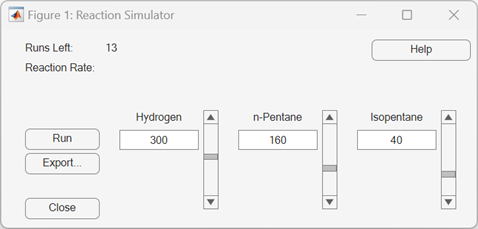
Click Run. The Trial and Error Data window displays the selected reactant concentrations and the simulated reaction rate for the first run..
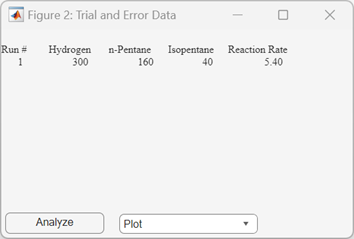
To simulate another experiment run, adjust the reactant concentrations again, and then click Run. You can simulate up to 13 independent experimental runs for data collection. The Reaction Simulator window indicates the number of runs left.
After collecting at least 6 experimental runs, generate a scatter plot of the hydrogen concentration versus the reaction rate, with a line showing the fitted model. In the Trial and Error Data window, click Plot and select Hydrogen vs. Rate.

The solid line shows a linear regression model fit to the reaction rate as a function of the hydrogen concentration.
Fit a response surface model to the data by clicking
Analyze in the Trial and Error Data
window. The software loads the experiment data into the Response Surface Tool. By default, the tool fits the experiment data with a
linear additive model. However, you can choose a different model using the menu at the
bottom left of the rstool window.

Use the Response Surface Demonstration tool to collect and model data from a simulated chemical reaction according to an experiment design that sets reactant concentrations.
In the Experimental Data window, click Do Experiment.
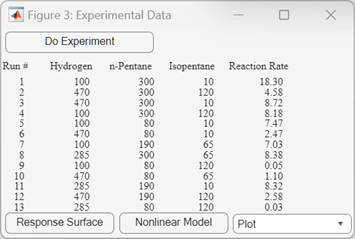
The software uses the cordexch function to generate a
D-optimal design that sets the reactant concentrations for 13 runs. The
Experimental Data window displays the concentrations and
simulated reaction rates.
Fit a response surface model to the experiment data by clicking
Response Surface in the Experimental
Data window. The software loads the data into the Response Surface Tool. By default, the tool fits the experiment data with a
full quadratic model. However, you can choose a different model using the menu at the
bottom left of the rstool window.
Fit a Hougen-Watson model to the experiment data by clicking Nonlinear
Model in the Experimental Data window. The software
loads the data into the Nonlinear Regression Fitting Tool and fits it
using hougen.

Parameters
Tips
Click Export to save information about the fit to MATLAB workspace variables with valid names.
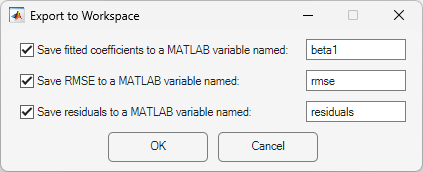
Click OK to close the window.
References
[1] Bates, D. M., and D. G. Watts. Nonlinear Regression Analysis and Its Applications. Hoboken, NJ: John Wiley & Sons, Inc., 1988.
Version History
Introduced before R2006a

