Design and Tune Quadcopter Position Controller for PX4 Autopilot
R2026bThis example shows you how to design a position tracking controller for an X-configuration quadcopter using the UAV Toolbox Support Package for PX4® Autopilots, and tune the controller using software-in-the-loop (SITL) simulation in Monitor & Tune mode.
Prerequisites
1. If you are new to Simulink, watch the Simulink Quick Start video.
2. If you have not done so already, install the UAV Toolbox Support Package for PX4 Autopilots. Select the installation topic appropriate for your operating system.
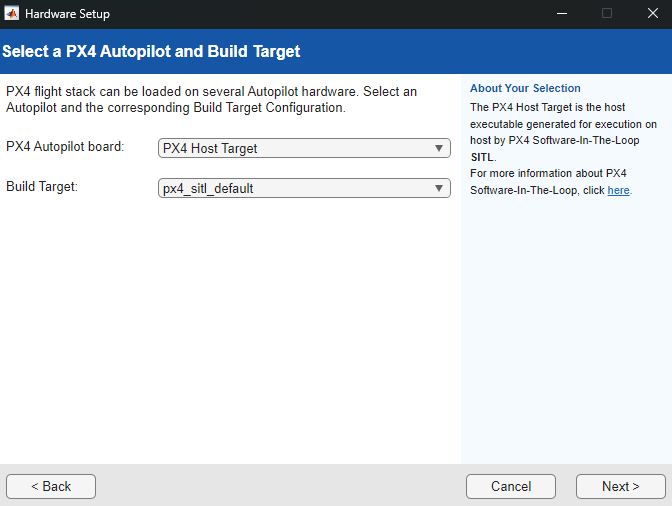
At the Select a PX4 Autopilot and Build Target step of installation, specify these options::
PX4 Autopilot board —
PX4 Host TargetBuild Target —
px4_sitl_default
Model Overview
Open the quadcopterPositionController.slx model.
open_system("quadcopterPositionController.slx");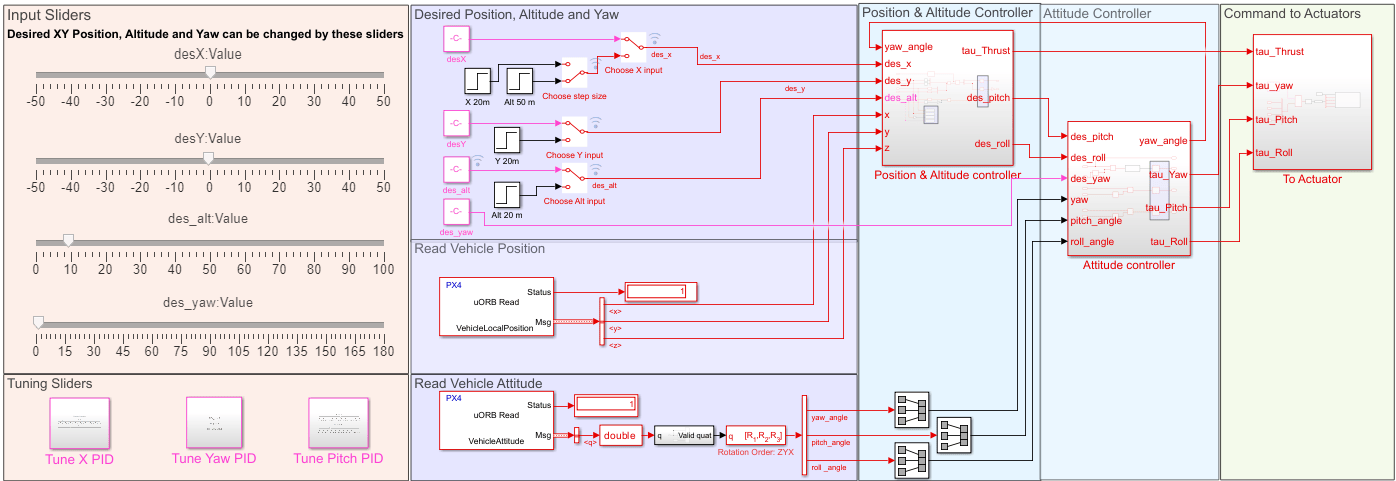
The quadcopterPositionController.slx model implements a proportional-integral-derivative (PID) controller to control the position and attitude of an X-configuration quadcopter. The model consists of these sections:
Desired Position, Altitude and YawRead Vehicle PositionRead Vehicle AttitudePosition & Altitude ControllerAttitude ControllerCommand to ActuatorsInput SlidersTuning Sliders
Desired Position, Altitude and Yaw Section
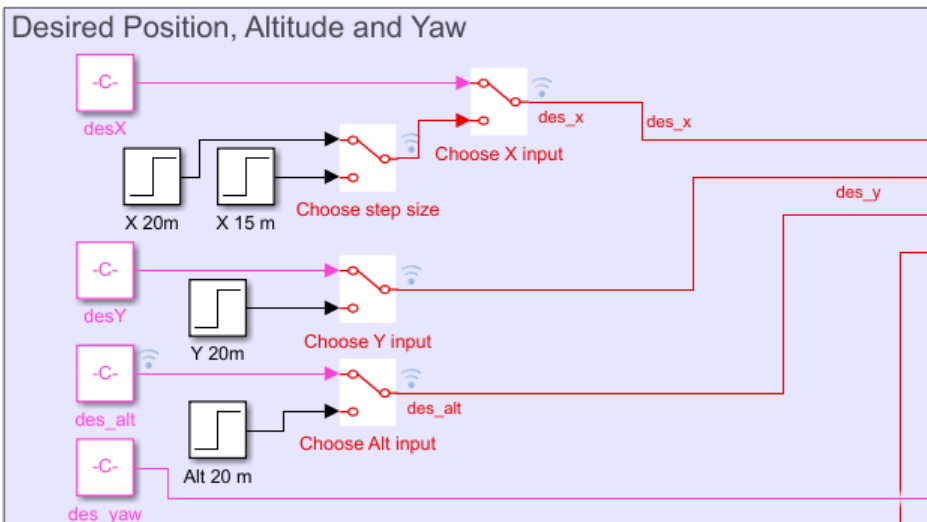
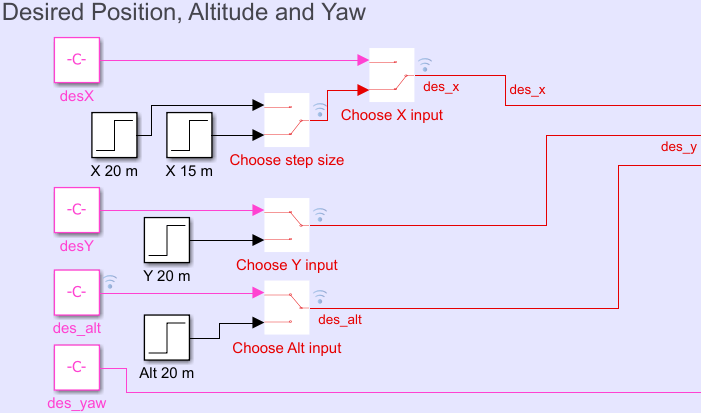
The Desired Position, Altitude and Yaw section outputs these signals as inputs for the Position & Altitude controller and Attitude controller subsystems:
des_x— Desired X-position for thePosition & Altitude controllersubsystem.des_y— Desired Y-position for thePosition & Altitude controllersubsystem.des_alt— Desired altitude for thePosition & Altitude controllersubsystem.des_yaw— Desired yaw angle for theAttitude controllersubsystem.
Read Vehicle Position and Read Vehicle Attitude Sections
The Read Vehicle Position section gets the X-, Y-, and Z-positions of the quadcopter at each simulation time step and passes them to the Position & Altitude Controller subsystem.
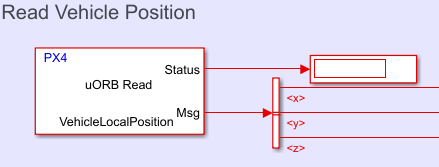
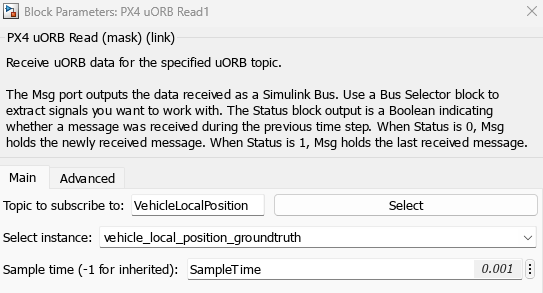
To obtain the position information, the section contains a PX4 uORB Read block subscribed to the VehicleLocalPosition topic.
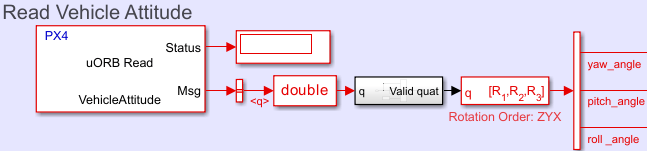
The Read Vehicle Attitude section gets the yaw, pitch, and roll angles of the quadcopter at the current simulation time step and passes them to the Attitude Controller subsystem.
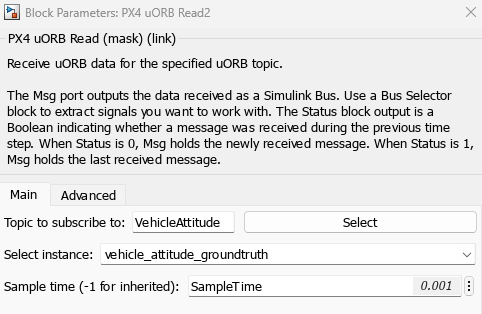
To obtain the angle information, the section contains a PX4 uORB Read block subscribed to the VehicleAttitude topic.
Position & Altitude Controller
Open the Position & Altitude controller subsystem.
blockpath = Simulink.BlockPath("quadcopterPositionController/Position & Altitude controller");
open(blockpath)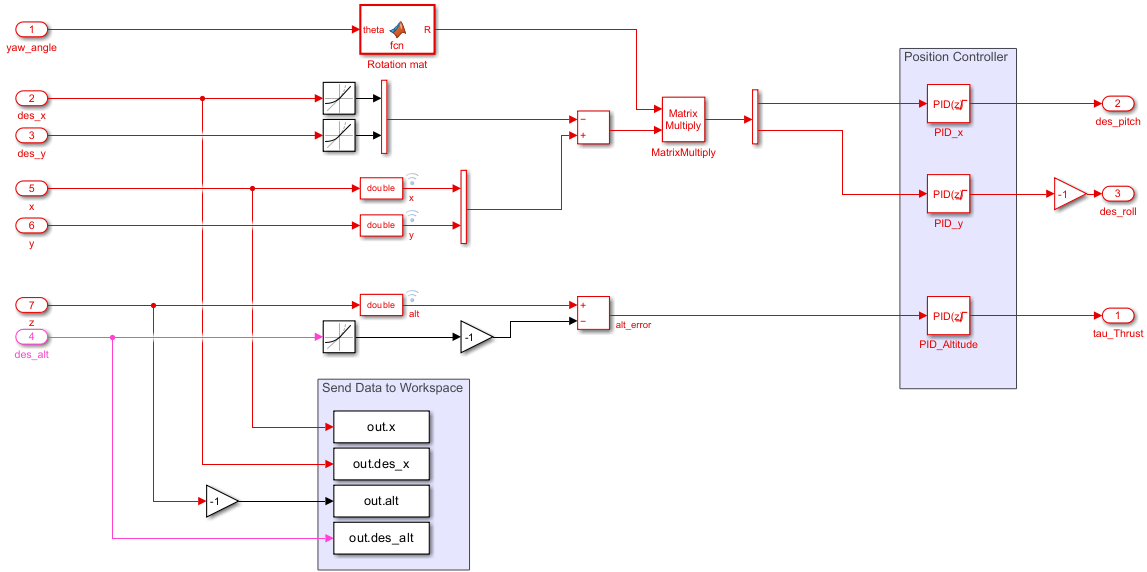
The Position & Altitude controller subsystem calculates the desired pitch and roll angles (des_pitch and des_roll) which it passes to the Attitude controller subsystem as input, and the thrust mixer input signal (tau_Thrust), which it passes to the To Actuator subsystem as input.
To calculate the desired pitch and roll, this subsystem first creates a signal by subtracting the desired X- and Y- positions from its current X- and Y- positions. The subsystem then rotates the signal in accordance with the current yaw angle by using matrix multiplication. The PID Controller (Simulink) blocks, PID_x and PID_y, accept the resulting signal and output the desired pitch and desired roll, respectively.
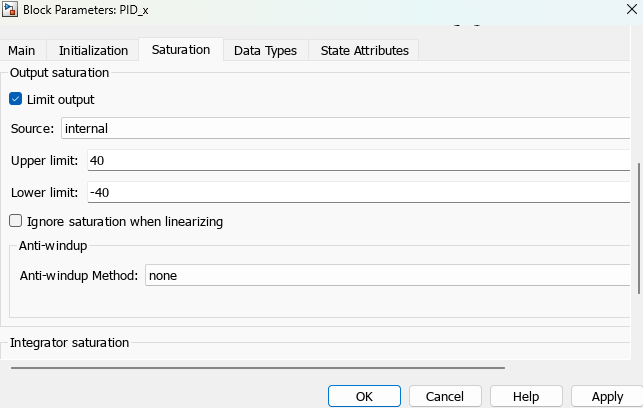
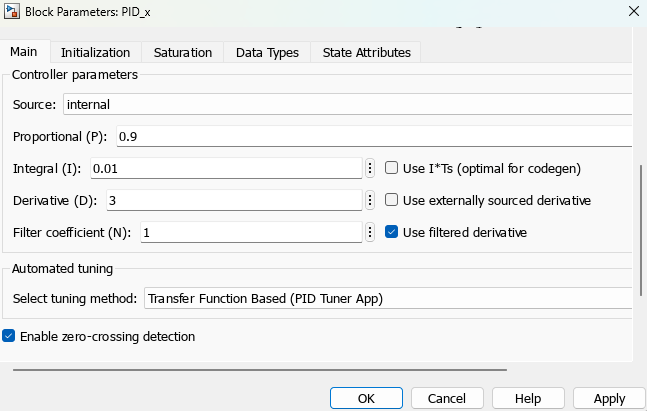
This example restricts the output of PID_x and PID_y to a range of –40 to 40 degrees by specifying the Lower limit and Upper limit parameters for each block. This restriction ensures that the desired pitch and roll angles the PID Controller blocks output are not too aggressive for the UAV. In addition, each PID Controller block uses filtered derivatives to eliminate the amplification of undesired noise signals, which is caused by signal differentiation.
Attitude Controller
Open the Attitude controller subsystem.
blockpath = Simulink.BlockPath("quadcopterPositionController/Attitude controller");
open(blockpath)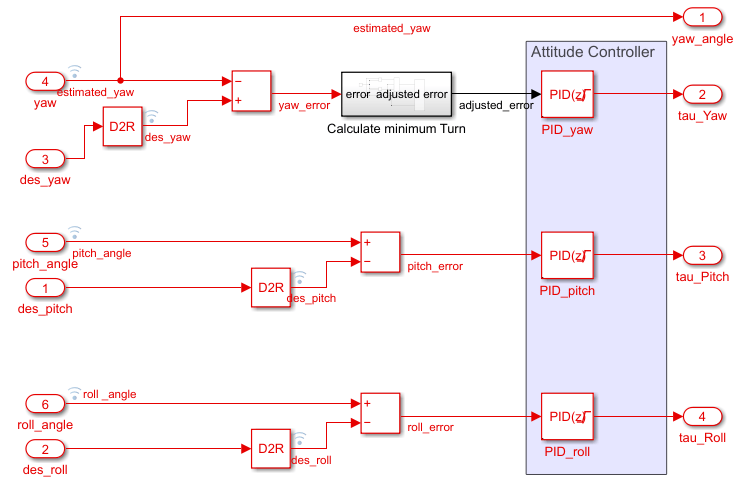
The Attitude controller subsystem calculates the yaw, pitch, and roll mixer input signals (tau_Yaw, tau_Pitch, and tau_Roll, respectively) which it passes to the To Actuator subsystem as input. The Attitude controller subsystem also outputs the estimated yaw angle that the Position & Altitude controller subsystem uses to rotate the position error.
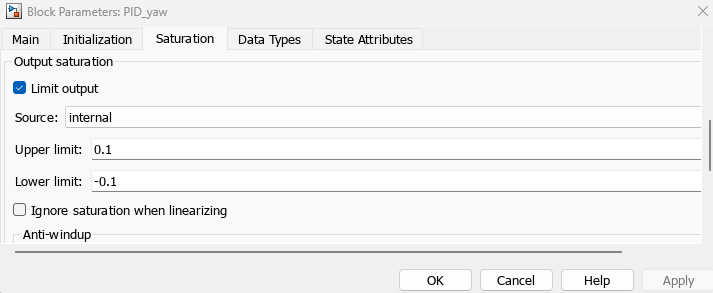
To get the yaw mixer input signal, the subsystem first calculates the yaw error by subtracting the current estimated yaw from the desired yaw. The Calculate minimum Turn block then finds the minimum turning angle by which the UAV can achieve the calculated yaw error, and outputs the yaw error value for that minimum turning angle. The PID Controller (Simulink) block PID_yaw takes the adjusted yaw error as input and outputs the yaw mixer input signal. This example restricts the output of PID_yaw to a range of -0.1 to 0.1 by specifying the Lower limit and Upper limit parameters. This restriction ensures that the yaw mixer input signal the PID Controller block outputs is not too aggressive for the UAV.
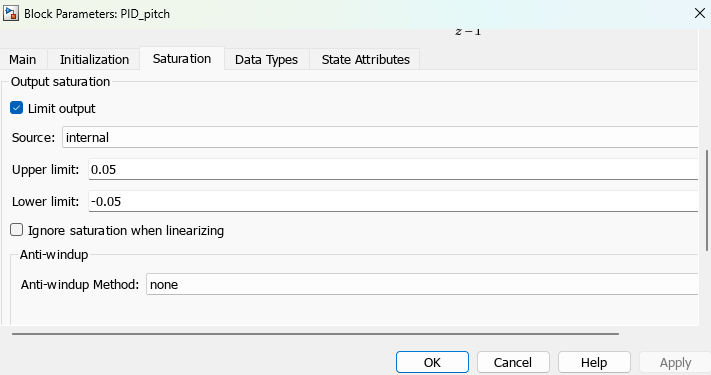
The Attitude controller subsystem also calculates the pitch and roll mixer input signals. First, it finds the pitch and roll errors by subtracting desired pitch and roll values, from the current pitch and roll, respectively, of the UAV. It then passes the pitch and roll error values as input to the PID_pitch and PID_roll blocks, respectively. The outputs of the PID_pitch and PID_roll blocks are limited to a range of –0.05 to 0.05.
Command to Actuators
The Command to Actuators section contains the To Actuator subsystem, which calculates the mixer matrix and writes motor actuator values to the simulated quadcopter.
Open the To Actuator subsystem.
blockpath = Simulink.BlockPath("quadcopterPositionController/To Actuator");
open(blockpath)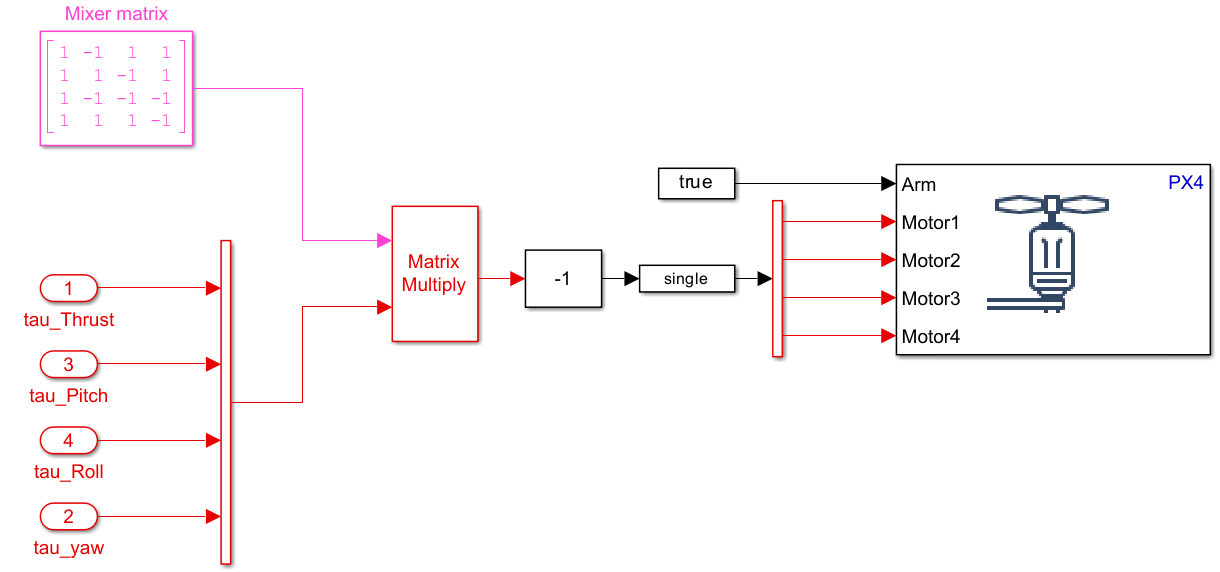
The To Actuator subsystem contains a mixer matrix configured for an X-configuration quadcopter. The subsystem also combines the mixer input signals tau_Thrust, tau_Pitch, tau_Roll, and tau_Yaw into a vector.
To write motor actuator values to the simulated quadcopter, the subsystem first multiplies the mixer matrix to the mixer input signal vector, then adds a bias of –1. Finally, the subsystem converts the matrix-multiplied values to single precision floating point values, and passes them to the PX4 Actuator Write block, which writes the motor actuator values to the simulated quadcopter.
Tune Controller Gains Using SITL Simulation in Monitor & Tune Mode
Configure Model and Launch Simulation
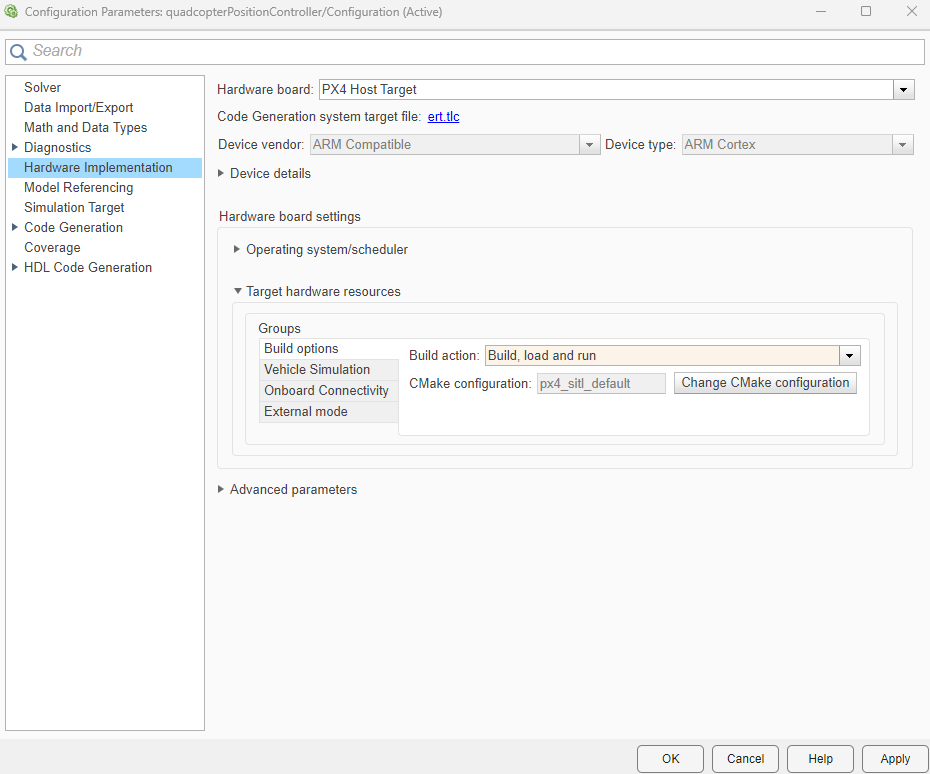
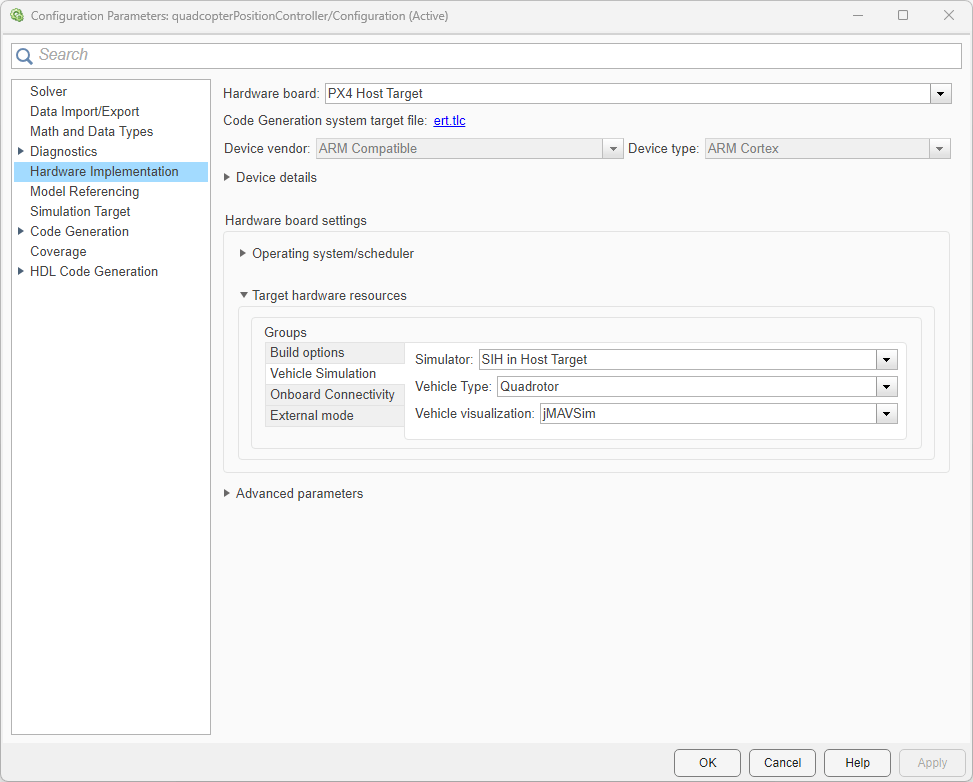
On the Simulink Toolstrip, on the Hardware tab, click Hardware Settings. In the left pane, select Hardware Implementations, and verify these options:
Hardware board specifies which PX4 autopilot to use to run the model. This example uses
PX4 Host Target.In the Hardware board settings section, under Target hardware resources, select the Build options tab of the Groups pane. Note that Build action is set to
Build, load and run.Select the Vehicle Simulation tab of the Groups pane. Note that Simulator is set to
SIH in Host Target, Vehicle Type is set toQuadrotor, and Vehicle visualization is setjMAVSim.
To run the quadcopterPositionController.slx model in Monitor & Tune mode:
From the Simulink Toolstrip, select the Hardware tab.
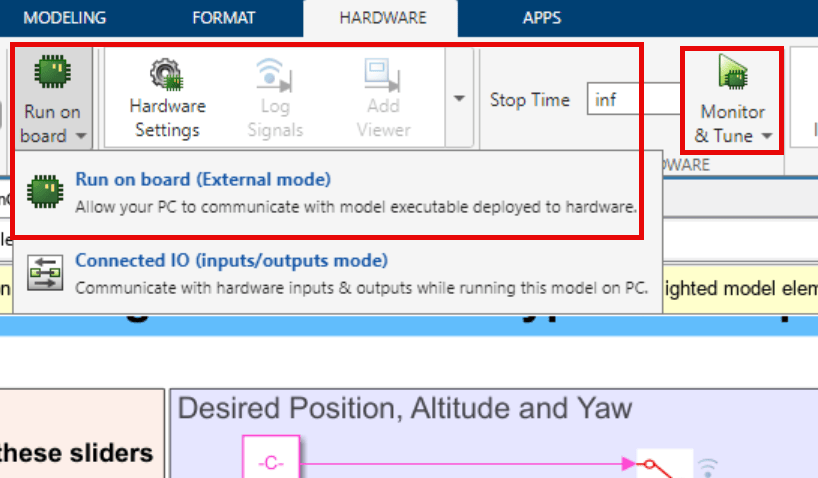
Verify that the Mode section contains a Run on board button. If it instead contains a Connected IO button, click Connected IO, then Run on board (External mode).
In the Run on Hardware section, click Monitor & Tune

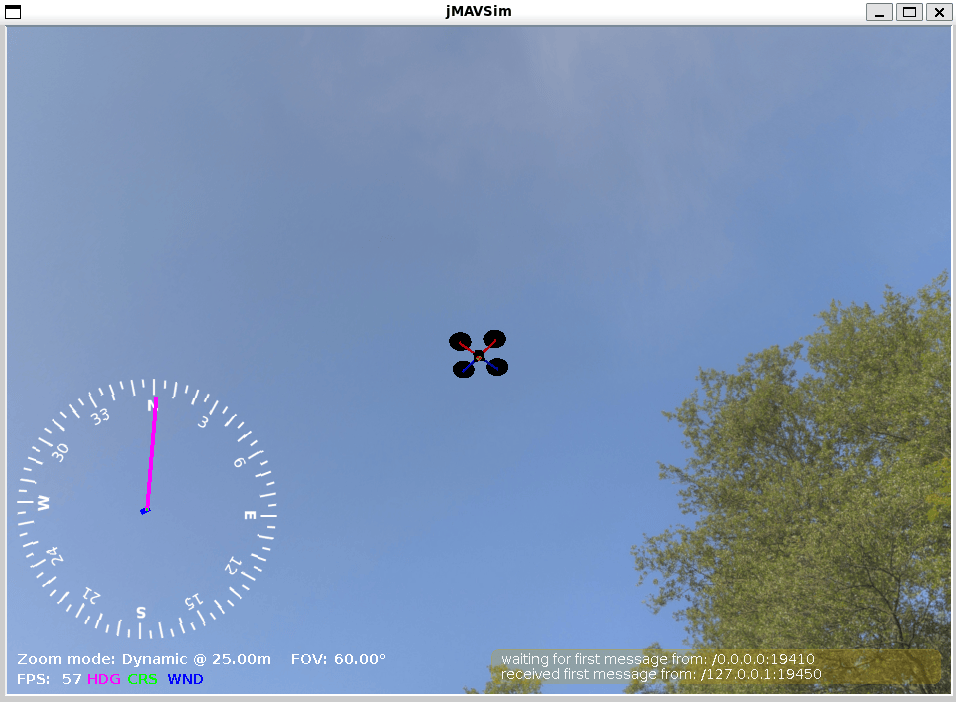
Running the quadcopterPositionController.slx model also launches the jMAVSim simulator, which enables you to visualize the quadcopter during the simulation.
Adjust Position Input, Yaw Input, and Controller Gains
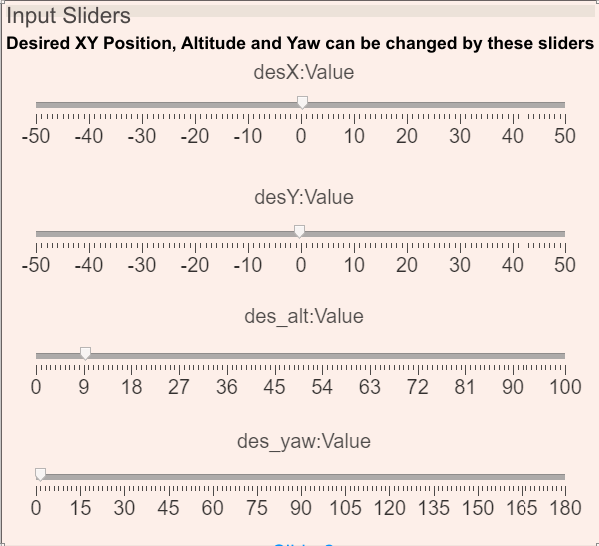
To adjust the position and yaw angle of the quadcopter during the simulation, use the sliders in Input Sliders section of the model.
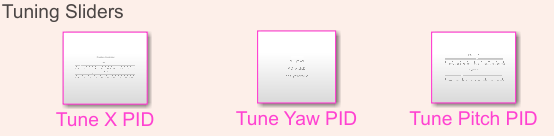
To adjust the controller gains during the simulation, use the sliders in Tuning Sliders section. Each subsystem in the Tuning Sliders section contains sliders for a different controller.
Tune X PID— Contains sliders to adjust the values of the proportional and derivative terms of thePID_xcontroller.Tune Yaw PID— Contains sliders to adjust the values of the proportional and derivative terms of thePID_yawcontroller anddes_yaw.Tune Pitch PID— Contains sliders to adjust the values of the proportional and derivative terms of thePID_pitchcontroller.
Evaluate Step Response
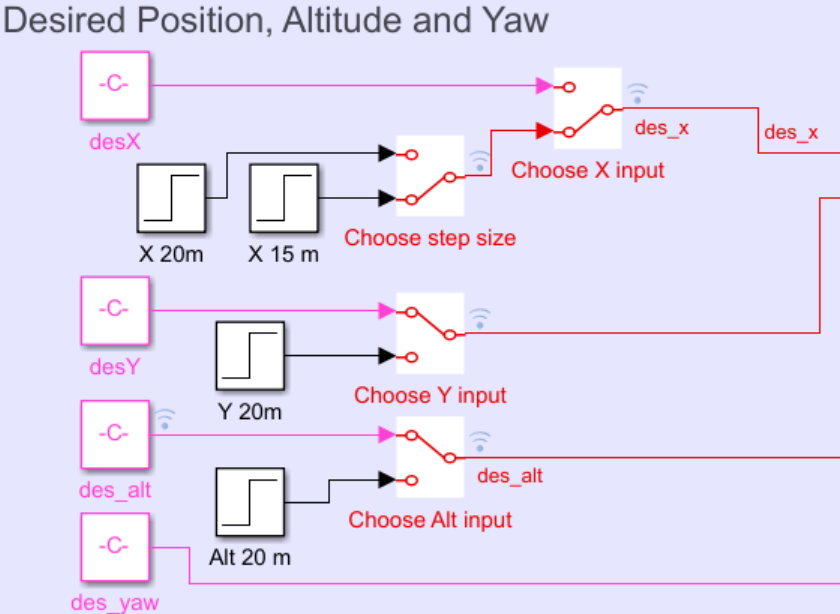
You can enable step input for the X position, Y position, and altitude by using the Choose X input, Choose Y input, and Choose Alt input Manual Switch (Simulink) blocks, respectively. The Position & Altitude controller subsystem contains the Send Data to Workspace section, which has To Workspace blocks that send the desired and actual X-position and altitude to the workspace. You can use these variables to plot and evaluate the quadcopter response using MATLAB®.
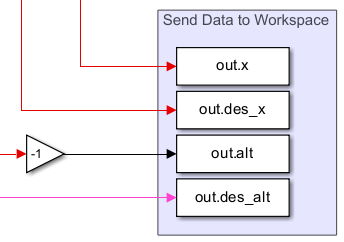
For instance, to simulate the quadcopter response for a step input in the X-direction:
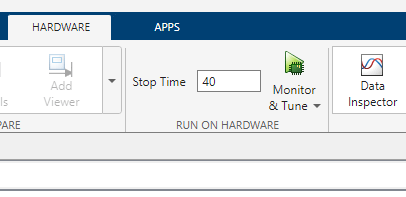
1. Specify a stop time of 40 seconds.
2. Set the Choose X input block to the Choose step size block, and set the Choose step size block to 20 meters. Set the Choose Y input and Choose Alt input blocks to the constant input that you set using the sliders.
3. Specify the controller gains that you want to simulate by using the tuning sliders.
4. Start the simulation by clicking Monitor & Tune  .
.
After the simulation has ended, you can plot the step response of the quadcopter in the MATLAB workspace.
plot(x.time,x.signals.values(:))
hold on
plot(des_x.time,des_x.signals.values(:))
grid on
legend("X Position Response","Desired X Position",Location="northwest")
xlabel("Time (s)")
ylabel("X Position (m)")
ylim([-5 25])
title("X Position Step Response")
You can use the quadcopter response to evaluate various performance metrics such as integral squared error (ISE), integral absolute error (IAE), integral time-weighted absolute error (ITAE), and maximum peak overshoot (Mp).
First, obtain the error and time vectors.
desXVector = des_x.signals.values(:);
xVector = x.signals.values(:);
errorVector = desXVector - xVector;
timeVector = x.time;
The ISE is the time integral of the squared error. A smaller ISE value indicates that the quadcopter has a faster initial response to input. Calculate ISE.
ISE = trapz(timeVector,errorVector.^2)
The IAE is the time integral of the absolute value of the error. A smaller IAE value indicates that the quadcopter has a less sustained oscillation around the steady-state condition. Calculate IAE.
IAE = trapz(timeVector,abs(errorVector))
The ITAE is the time integral of the product of time and the absolute value of error. A smaller ITAE value indicates that the quadcopter has a smaller steady-state error. Calculate ITAE.
ITAE = trapz(timeVector,timeVector.*abs(errorVector))
The Mp is the percentage of how much the quadcopter overshoots the desired position. Calculate Mp.
Mp = max(0,(max(xVector)-max(desXVector))*100/max(desXVector))
To find controller gain values that minimize the response time, overshoot, and oscillation of the quadcopter, you can run the simulation multiple times with various values for the PID_x controller Kp, PID_x controller Ki, and PID_x controller Kd.
For a Kp of 0.9, Ki of 0.01, and Kd of 3:
ISE — 1143.0
IAE — 110.95
ITAE — 2277.10
Mp — 0
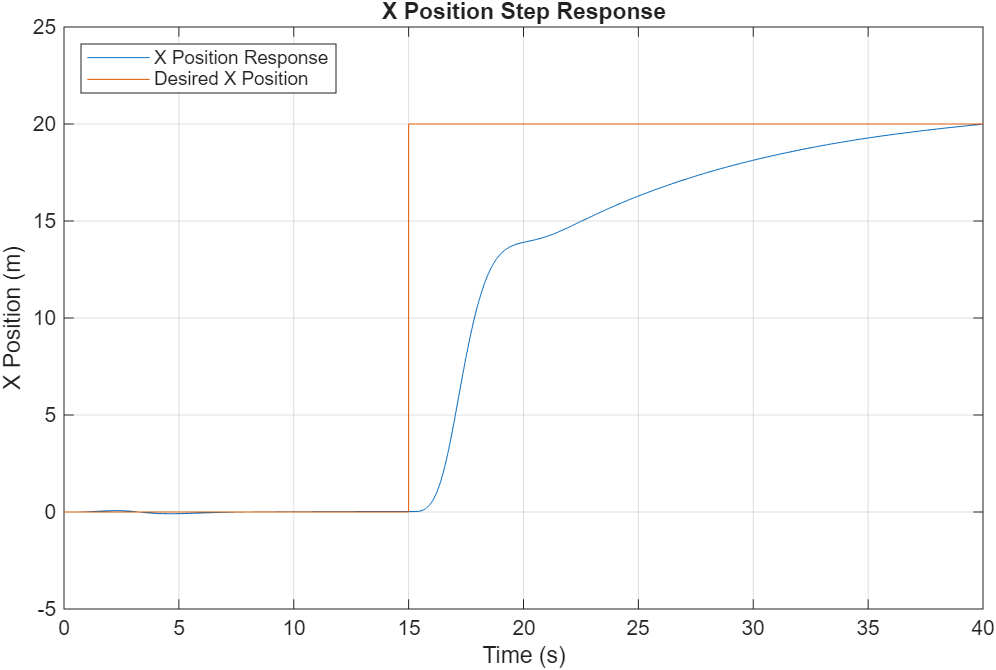
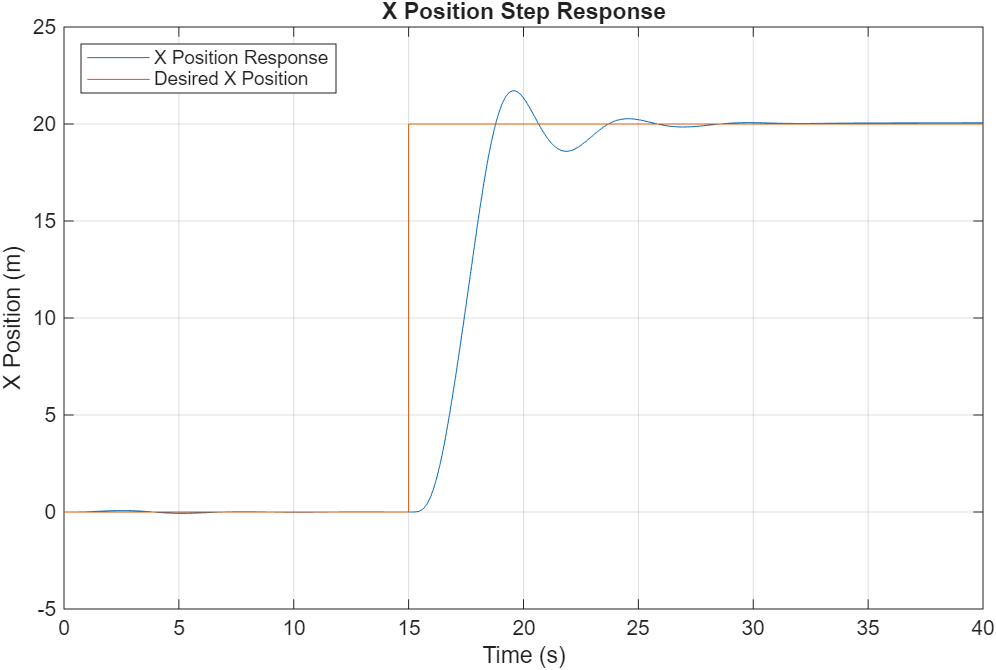
For a Kp of 5, Ki of 0.01, and Kd of 3:
ISE — 773.68
IAE — 53.59
ITAE — 908.92
Mp — 8.53
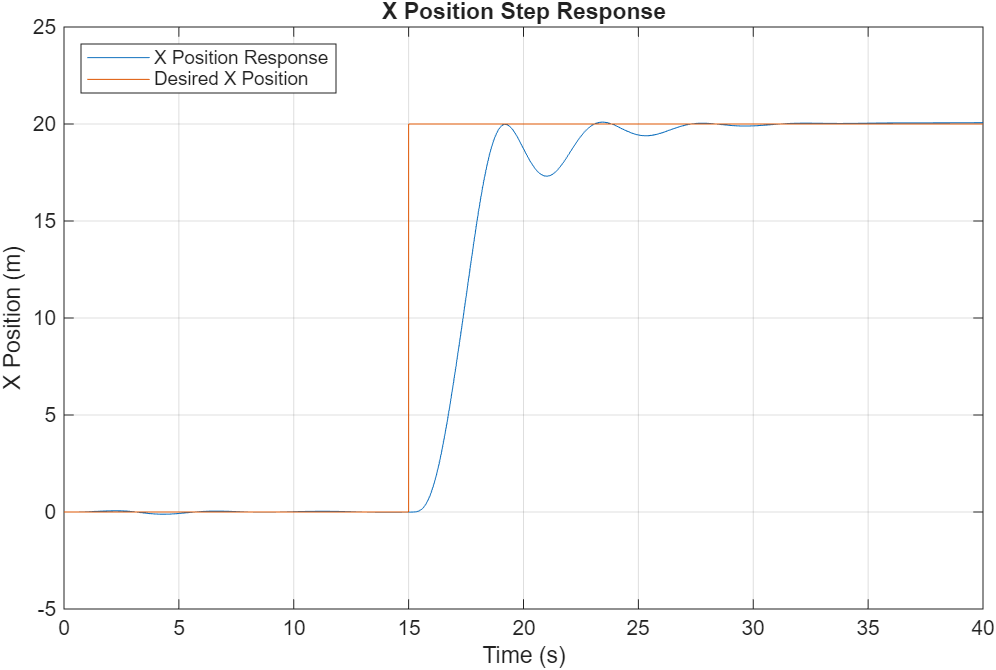
For a Kp of 5, Ki of 0.01, and Kd of 6:
ISE — 761.21
IAE — 54.58
ITAE — 935.78
Mp — 0.45
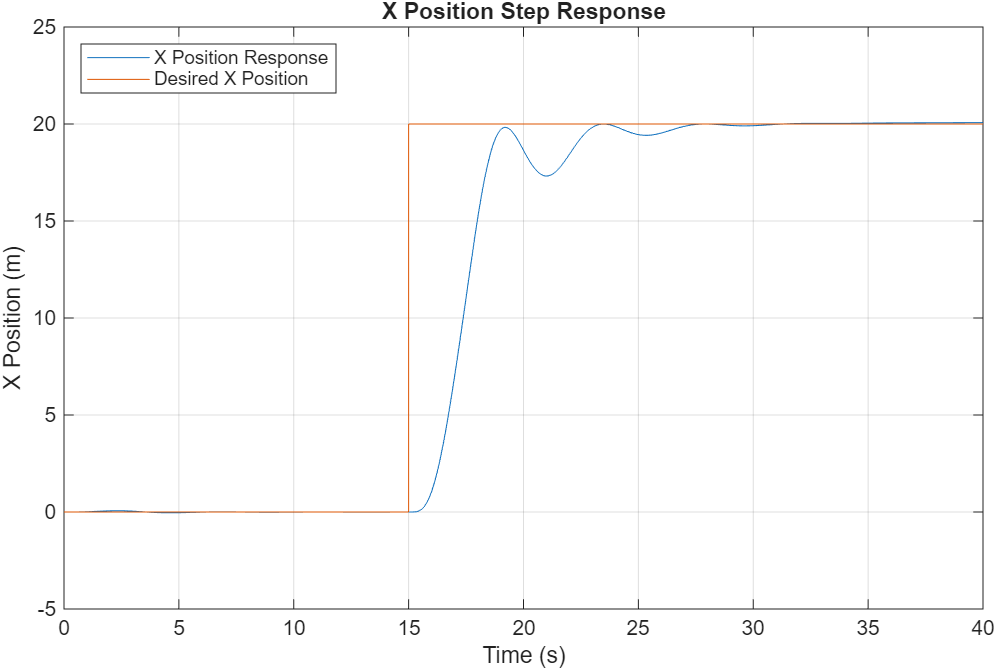
For a Kp of 4.8, Ki of 0.01, and Kd of 6:
ISE — 766.64
IAE — 55.19
ITAE — 949.16
Mp — 0.37
Limitations of Controller Design
To illustrate the limitations of the position controller, run the simulation with controller gains of Kp = 4.8, Ki = 0.1, and Kd = 6 with a different input step size. Set the Choose step size switch to 15 meters, and run the simulation.
Plot the simulation result.
plot(x.time,x.signals.values(:))
hold on
plot(des_x.time,des_x.signals.values(:))
grid on
legend("X Position Response","Desired X Position",Location="northwest")
xlabel("Time (s)")
ylabel("X Position (m)")
ylim([-5 20])
title("X Position Step Response")
This plot shows the step response of the quadcopter with a step input of 15 meters. The plot shows that the controller gains that resulted in a quadcopter response with a small overshoot at a step size of 20 meters create a response with larger overshoot at a step size of 15 meters.
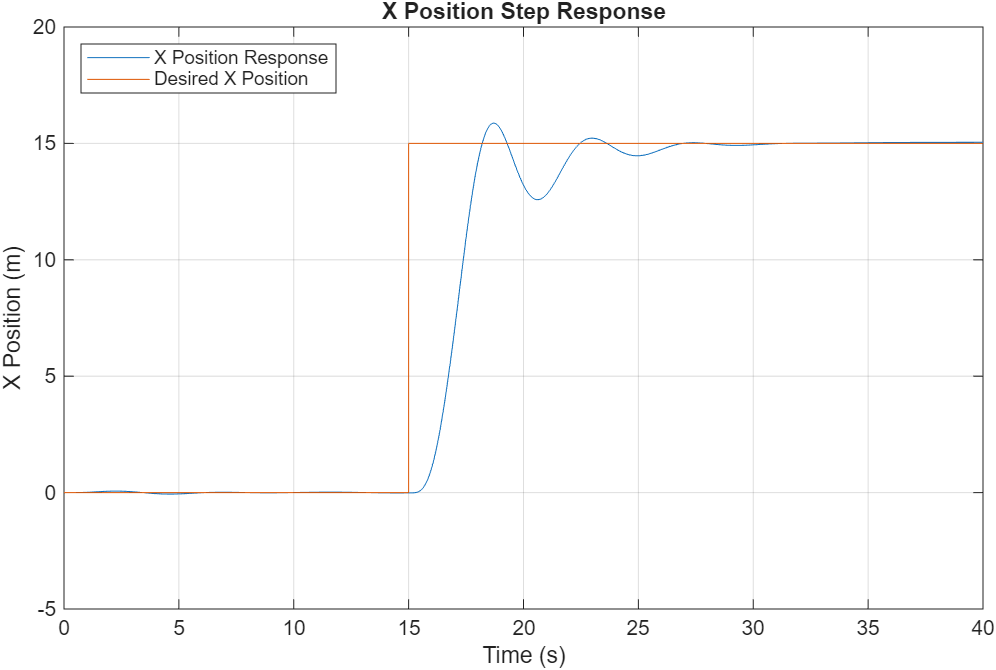
This illustrates the limitation that a particular set of controller gains might not provide a satisfactory response for a wide range of inputs. To learn more about how you can improve the position controller, see Position Tracking for X-Configuration Quadcopter Using Rate Controller.

